The Dashboard puts the autoresponder reports on a single page, so you can look over a campaign without moving between screens. It adds no new measurements. Every card is the same report that has its own page in the Autoresponders menu.
You need to be an admin, or to have been given access to the Reporting module, to open Reports. These pages are in the classic Reports area. The newer Analytics area is a separate set of reports.
Where to find it
- Click Reports in Echo’s main menu.
- In the left menu, open the Autoresponders group and click Dashboard.
- Pick a date range and, if you need to, a time zone at the top of the page. Open Sources to choose which of your sources to include.
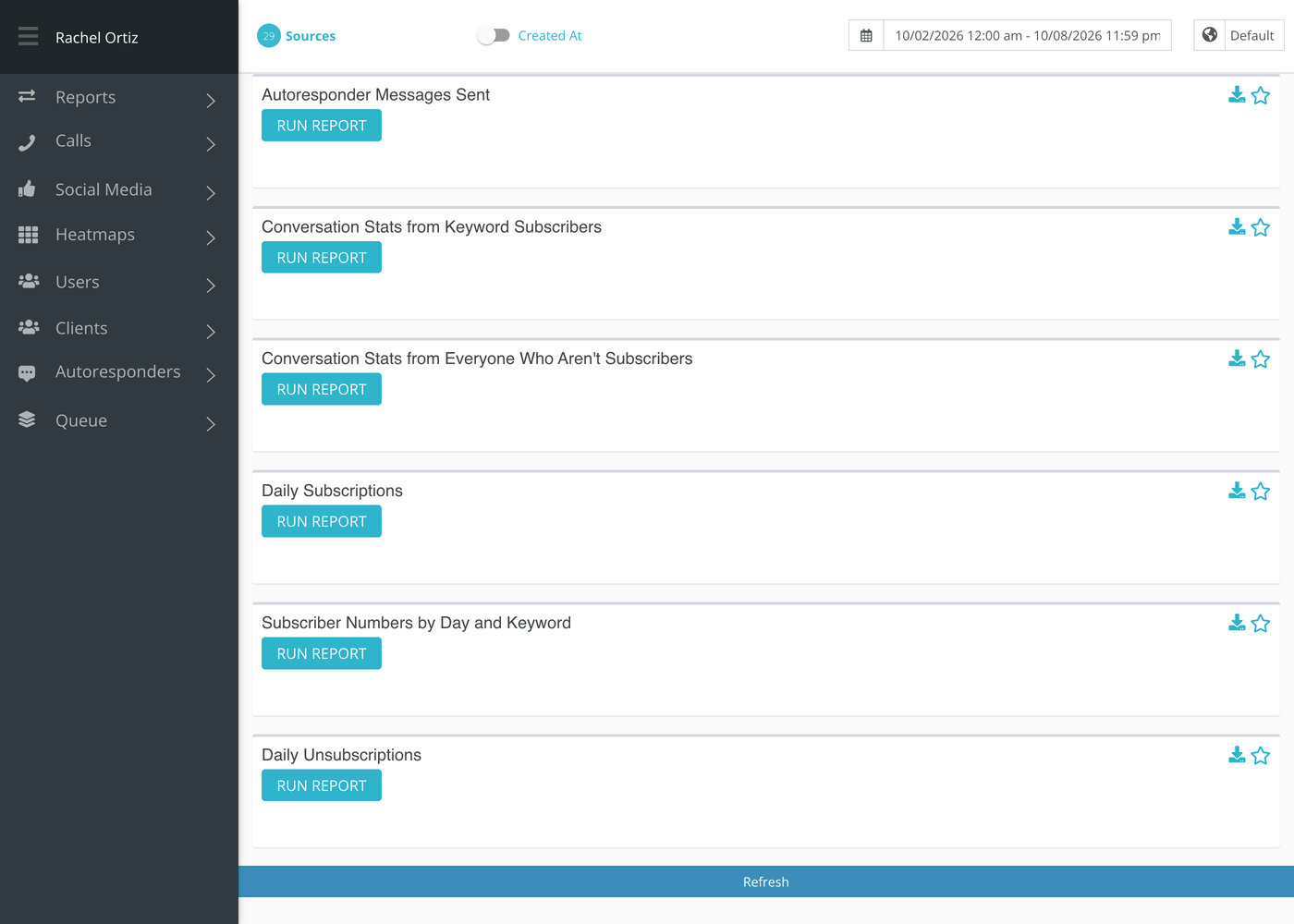
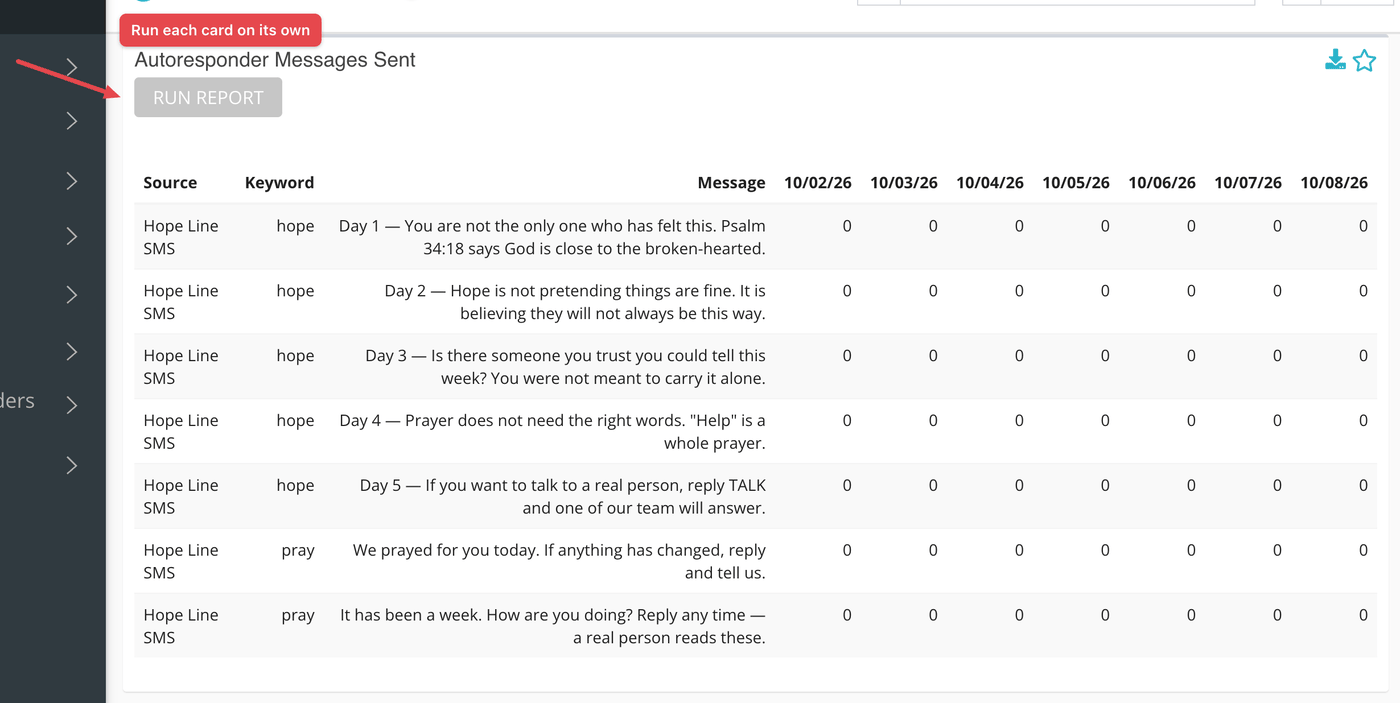
Nothing loads until you ask. Each card has its own Run Report button, so run the ones you need.
- Pick the date range, time zone and sources at the top.
- Click Run Report on a card.
- Repeat for each card you want. Each one reports for the same date range.
The six cards
| Card | What it shows | Full explanation |
|---|---|---|
| Autoresponder Messages Sent | How many times each campaign message went out, by day. | Sent Messages |
| Conversation Stats from Keyword Subscribers | Conversations from people who joined a keyword, by outcome and status. | Sub Convs |
| Conversation Stats from Everyone Who Aren’t Subscribers | The same breakdown for everyone else, by source. | Non-Sub Convs |
| Daily Subscriptions | People who joined each keyword, by day. | Daily Subs |
| Subscriber Numbers | The phone numbers, and join times, behind those daily counts. | Phone Numbers |
| Daily Unsubscriptions | Of the people who joined each day, how many have left. | Unsubscribes |
The Dashboard does not include the delivery statuses, the message log or the subscription list. For those, open Sent Messages and Subscriptions.
What the measurements mean
The cards use the terms defined in each linked article. The ones most worth knowing before you compare cards:
| Term | What it means |
|---|---|
| Keyword | The word a seeker texts to join a campaign. |
| Subscriber | A person with a subscription to a campaign’s keyword. |
| Active subscriber | A subscriber who has not left. Daily Subscriptions and Subscriber Numbers count only these. |
| Campaign in range | A campaign that started on or before the end of the range and was not ended or archived before it. Archived campaigns still show for earlier ranges. |
If something looks wrong
- The Refresh button at the bottom does nothing. Use the Run Report button on each card instead.
- Two cards seem to disagree. They count different things: people joined, texts sent, conversations started. Read the linked article for the card.