Texting a keyword to your number subscribes someone to an autoresponder campaign. Daily Subs shows how many people joined each keyword on each day, so you can see which keywords are growing and which days a promotion or a broadcast brought people in.
It counts joins. To see who the people are, use The Autoresponder Subscriptions report; to see the numbers they texted from, use Phone Numbers. To set up a campaign, see SMS Auto-Responder Campaign Creation.
You need to be an admin, or to have been given access to the Reporting module, to open Reports. These pages are in the classic Reports area. The newer Analytics area is a separate set of reports.
Where to find it
- Click Reports in Echo’s main menu.
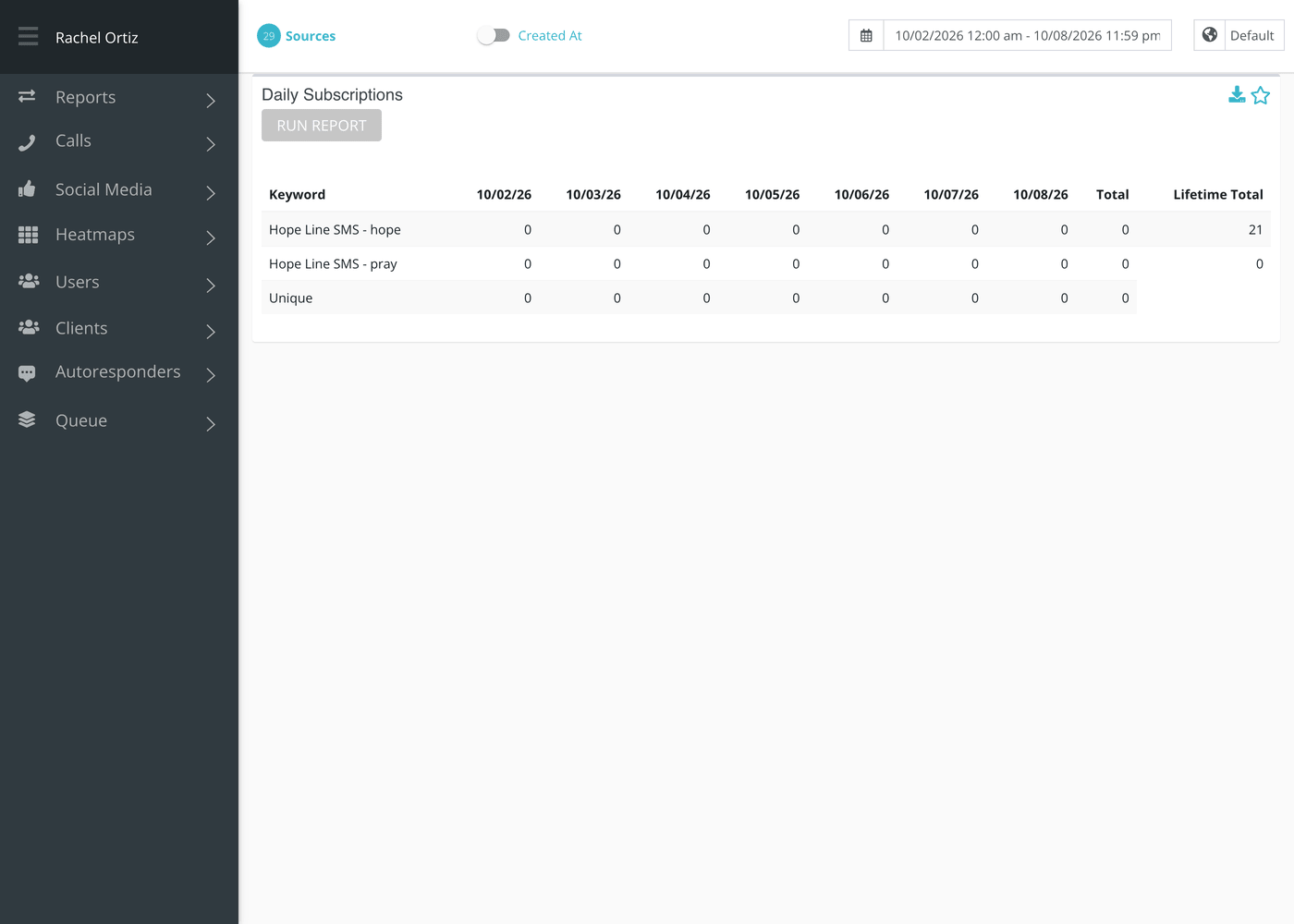
- In the left menu, open the Autoresponders group and click Daily Subs.
- Pick a date range and, if you need to, a time zone at the top of the page. Open Sources to choose which of your sources to include.
- Click Run Report on the card. The report runs in the background, so give it a moment on a long date range.
Reading the table
There is one row for each keyword, labeled with its source and the keyword, for example Main Line - HOPE. Across the top are the days of your range, then two totals.
| Column or row | What it means |
|---|---|
| Keyword | The source and the keyword for each campaign. A campaign you have archived shows <ARCHIVED> after its keyword. |
| Day columns | How many people subscribed on that day and are still subscribed now. |
| Total | The day columns added up for that keyword. |
| Lifetime Total | Everyone who is subscribed to that keyword today, from the beginning. It does not depend on your date range. |
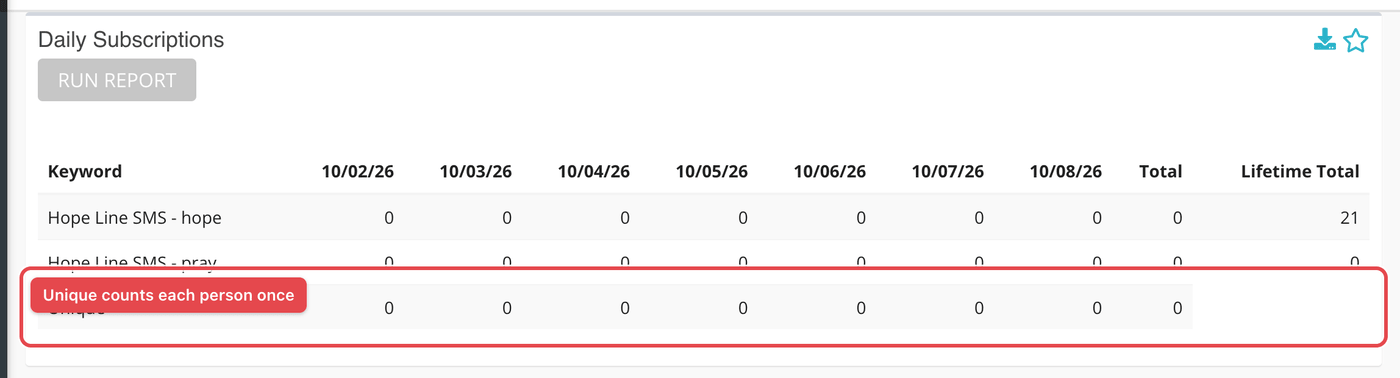
| Unique (last row) | Each person counted once per day across all keywords. Its Total is the number of different people who subscribed during the whole range. |
A campaign is included when it started on or before the end of your date range, has not ended before the end of the range, and was not archived before the end of the range. That is why a campaign you archived last week still shows in a report for the month before.
What the measurements mean
| Term | What it means |
|---|---|
| Keyword | The word a seeker texts to join a campaign. It also identifies the campaign. |
| Subscribed (active) | A person who has not unsubscribed from the keyword and has not opted out of texts from your ministry. Only active people are counted here. |
| Unique | A seeker who joined two keywords on the same day counts once in this row but once in each keyword’s own row. |
| Lifetime Total | Active subscribers to the keyword right now, whenever they joined. |
This report counts people who are still subscribed when you run it. If someone joins on Monday and replies STOP on Wednesday, Monday’s count drops by one the next time you run the report. A past day can therefore go down. To see unsubscribes, use the Subscriptions report, which lists the date each person left.
If something looks wrong
- The report is empty. Check that Sources includes the text source the campaign runs on. Only sources with campaigns appear.
- A keyword is missing. It may have ended or been archived before the end of your range. See the rule above.
- The counts are lower than you remember. People who have unsubscribed since are no longer counted.