
About
If you would like to send and receive messages from a WhatsApp Business account through Echo, you can create a WhatsApp Business API account in Echo.
Note: There is a monthly fee for using a WhatsApp Integration in Echo. See below for current pricing.
Using WhatsApp through a Third-Party App (Like Echo)
The WhatsApp Business API Platform (what Meta calls the account version that connects through third-party vendors, like Echo) is designed to help businesses scale responses when it becomes big enough to need more than one person managing the account messages. it was designed to be pretty straight forward and without a lot of extra features. You can send text, audio, video, images through WhatsApp.
Connecting into a tool like Echo can be really beneficial in that way, however, there are limitations that apply to using Meta's WhatsApp Business API through a third-party vendor, like Echo, that don't exist when you are using their personal or business versions on your individual phone. It's definitely important to understand these differences as Meta has set the rules and Echo as the third-party vendor is not able to do workarounds and must abide by those rules.
Below I have explained the main limitations and answered the questions you've asked.
Cost: There is a cost associated with an WhatsApp Business API account. The current cost is:
$150 a month per WhatsApp account, which will show up on your monthly invoice starting with the month you create your WhatsApp account into Echo.
$10 a month for a phone number from Echo - The phone number does not need to live in Echo if you have a phone number you already own and want to use (and you have access to receive calls or SMS from it). But if you do want to purchase a phone number through Echo that you'll use for your WhatsApp account, that phone number has a monthly fee, shown when you search for numbers in Echo. (This phone number can also be used for regular vooice calls and SMS through Echo if desired, but is not necessary).
Additionally, consumption charges may be applied by Meta in your Meta Business Portal. See pricing information here. They will likely require you to add your billing payment information into you account in Meta Business Suite.
Setup
You will be using your Facebook Business Manager account so make sure you have access to that account before starting the process.
You will also need to have access to the phone number you plan to use for your WhatsApp account. Make sure you have either purchased this number through Echo and it is ready for use, or have access to an existing phone number your ministry owns before you start the WhatsApp account integration process.
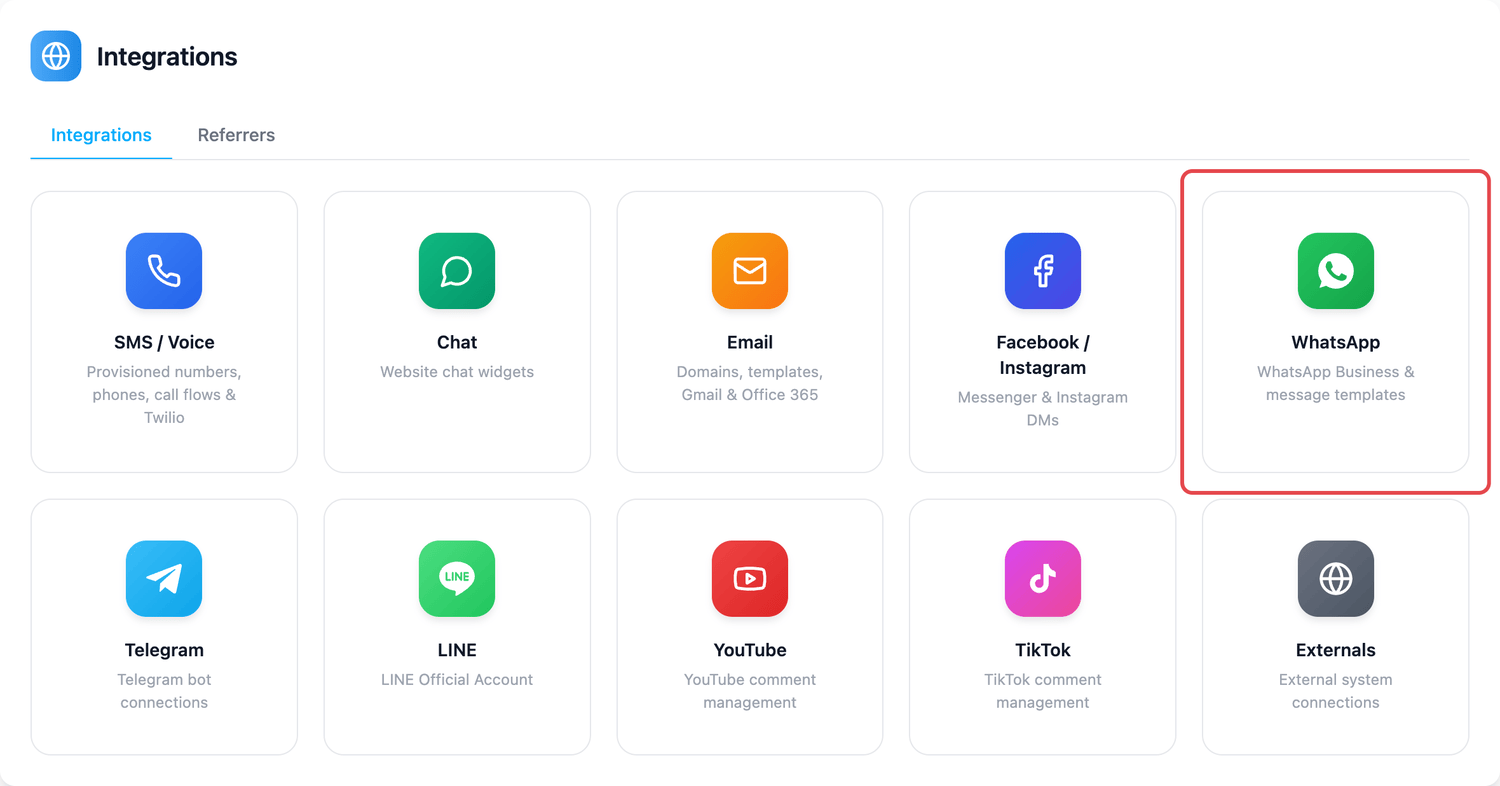
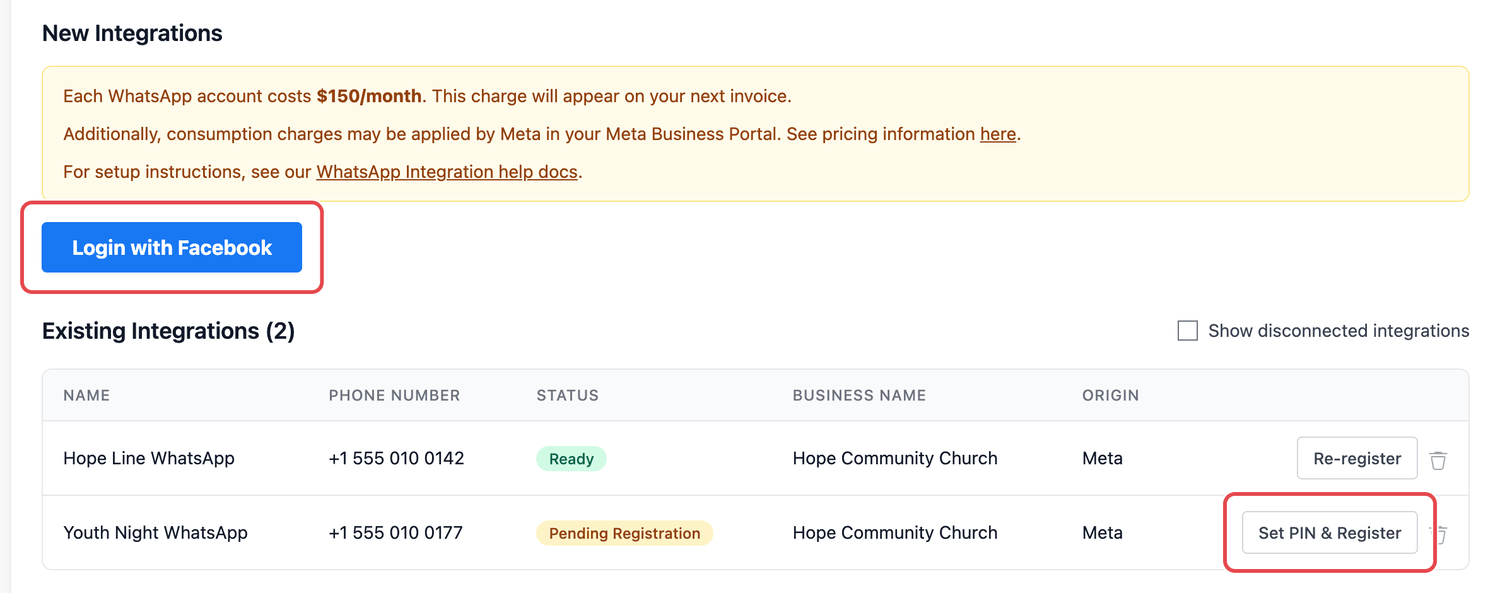
You'll start the process in Echo. From the WhatsApp Integration page Admin>Integrations>WhatsApp, you will click on Login with Facebook and follow the steps from there.
During this process, Meta's sign-up window may ask for information about your organization and your WhatsApp number. Be prepared to answer things like:
Brand Information:
Name of Brand:
Address:
City:
State:
Zip/Postal:
Country:
WhatsApp Info:
Facebook Business Manager ID (can be found here: https://business.facebook.com/settings/info):
Desired Phone Number for WhatsApp Business Account, with country code (This number cannot already be used for a different WhatsApp account)
Note: If you don't have a phone number, one can be purchased in Echo at Admin>Phone Numbers; the monthly fee is shown next to each number.
Tip: If you want to use a number that is currently connected to a WhatsApp account, it can be a tricky process. You would have to complete a migration process to delete the account associated with the phone number. This process can be found here.
Display Name associated to the number (cannot be modified after activation). Please read these Display Name rules before deciding on your Display Name -https://developers.facebook.com/docs/whatsapp/guides/display-name If your display name is rejected in the process, you will be asked to select a different one.
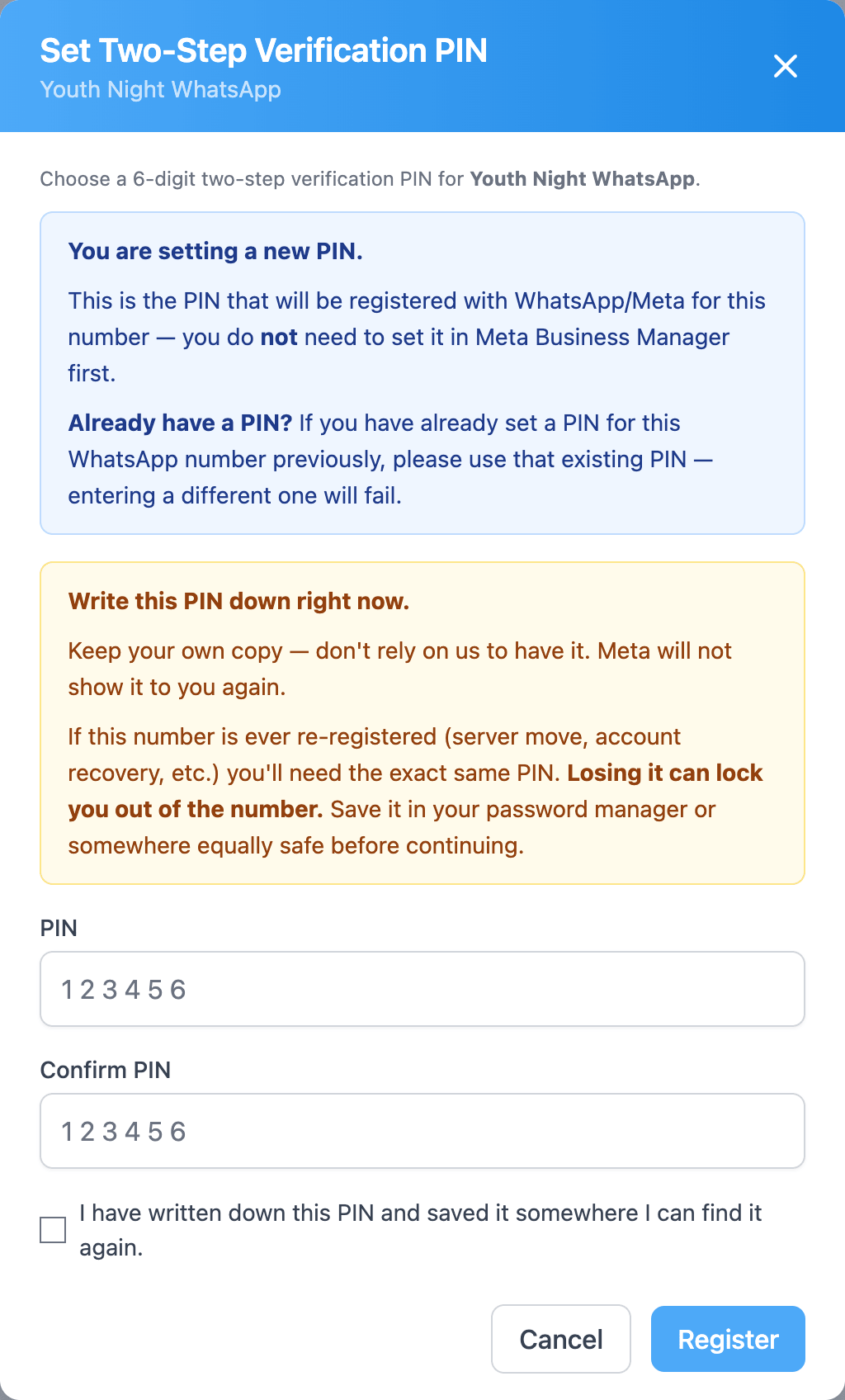
When you return to Echo, your number is listed under Existing Integrations with the status Pending Registration. Click Set PIN & Register, choose a 6-digit two-step verification PIN, type it again under Confirm PIN, and click Register. The status changes to Ready. If you already set a PIN for this number before, use that one. Write the PIN down and keep it somewhere safe: if the number is ever registered again, you will need the same PIN.
Limitations:
User-Initiated Conversations Only: Businesses can only send messages to users who first initiated conversation with them by sending the business a message through WhatsApp. Except in the case of pre-determined and approved by Meta message templates.
Message Templates: The thing about these pre-approved message templates is that Meta has designed the templates with businesses in mind that do order fulfillment, product purchase, Login Authorization, etc. Not with ministries in mind and how ministries communicate with people so it may be difficult to get approved message templates from Meta. You can write templates in Echo and submit them to Meta for approval. See WhatsApp Message Templates (Message templates not yet available in Echo).
Time Limits: Once a user sends in a message to your WhatsApp Business account, your business/ministry has 24 hours to send messages out to that user. After 24 hours, if the user hasn't sent you another message, you cannot send anything else out. The 24 hour window starts over each time the user sends in a message to your business.
Limited Metrics: You will have metrics in Echo related to your conversations (# conversations, # messages, conversation content, client name). But WhatsApp does not share with third-party vendors any other demographic information about the client.
Auto Responders: Echo does allow you to set up autoresponder campaigns with WhatsApp (just like you can do with SMS), which would allow you to send out an automated message to WhatsApp users who message in a keyword that you've set up. The caveat is that the 24 hour limit still applies, so the information you want to send needs to go out within 24 hours and if the user doesn't reply back, you won't be able to follow up after the 24 hours is up.
Content Creation: The content creation options that the WhatsApp Business phone app has are not available in the WhatsApp Business API account.