
A seeker writes in. Their conversation lands in the Inbox, where everybody who is allowed to see it can. Claiming is how you say “I have this one” — and it is the thing that stops two responders answering the same person at the same time.
What is waiting
Open the Inbox section in the menu. Each row is one conversation, and each names the channel it arrived on and the seeker it is from.
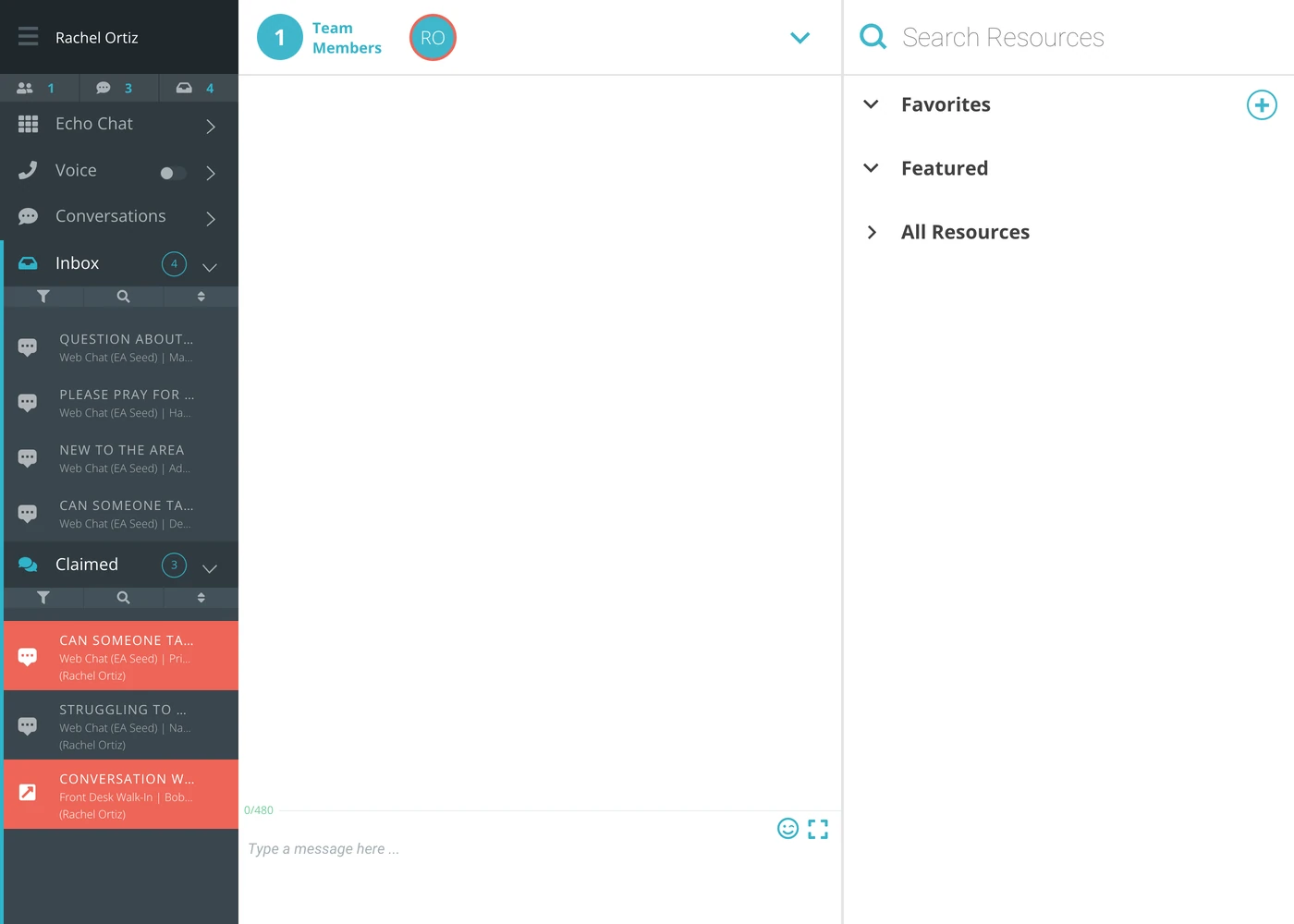
The counts beside Inbox and Claimed are the two numbers to read: how much is unanswered, and how much is being handled.
Claiming one
Click the row.
That is the whole action. There is no separate claim button and no confirmation — clicking a row in the Inbox claims it and opens it in the same moment.
Exception: Email and SMS requires a two-step claim. Click to review it and select claim to make it yours. Clicking Cancel will send it back to the Inbox for someone else to claim.
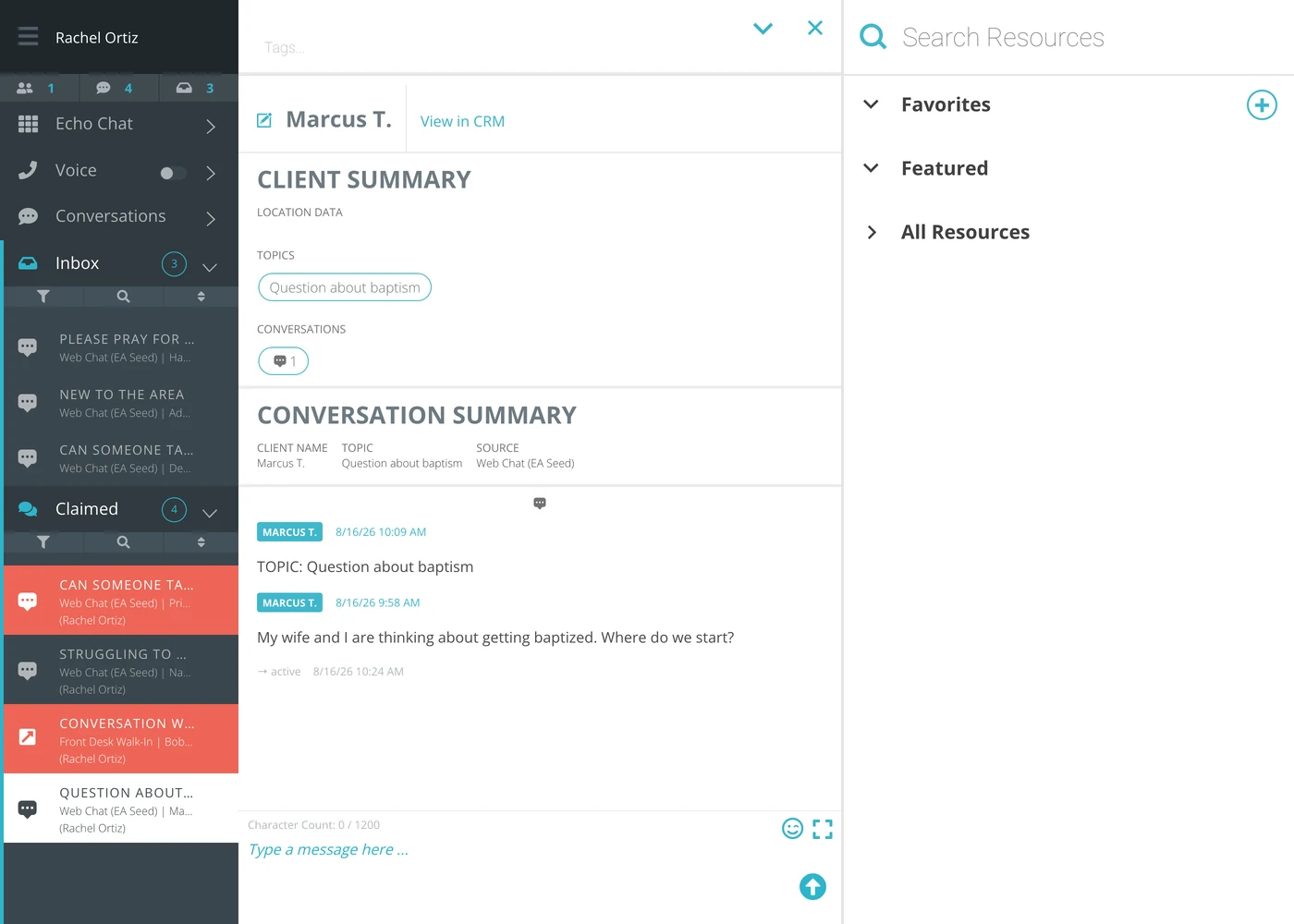
Three things happen at once:
The conversation leaves the Inbox, so nobody else can pick it up.
It moves to your Conversations list. If you can see the Claimed section, it appears there too, with your name against it.
It opens, ready for you to read and reply.
The thread itself records the change: a small → active line appears under the last message with the time. A conversation picked up, handed on and picked up again still reads as one story.
Claim it when you are ready to answer, not when you are curious what it says. A claimed conversation is invisible to everybody else, so claiming one and walking away is the one action on this screen that can leave a seeker waiting with nobody able to help.
Finding the right one
An open section has three controls across the top:
Control | What it does |
|---|---|
Funnel | Filters the list — by channel, and by the source it arrived on. |
Magnifier | Searches it. |
Arrows | Sorts it — newest first, oldest first, or by latest message. |
On a busy night, sort oldest first. The newest message is the loudest, but the person who has been waiting longest is the one most likely to give up.
When a conversation comes back
A claimed conversation is not yours forever. If your ministry has set a response time limit and you do not reply within it, Echo puts the conversation back in the Inbox so somebody else can take it.
That is deliberate, and it is not a comment on you. It exists so a conversation cannot be quietly held by somebody who has gone home.
What the terms mean
Term | What it means |
|---|---|
Inbox | Conversations nobody has claimed. Anyone permitted to see one can take it. |
Claim | To take a conversation. It leaves the Inbox and becomes yours. |
Claimed | The section holding what has been picked up — yours and your team's, with each row naming who has it. Shown only if your role or permissions let you see other responders' conversations. |
Active | The status a conversation takes when it is claimed and being worked on. |
Pending | The status of a conversation still waiting in the Inbox. |
Response time limit | How long a claimed conversation may go unanswered before it returns to the Inbox. Set per channel by an admin. |
If the Inbox is empty
It says you are not scheduled. Your ministry uses the scheduler and you are outside your shift. The screen shows how long until it starts.
It is empty and says nothing. Either there is genuinely nothing waiting, or your permission set does not include any sources. If it is empty every time you look, ask an admin — that is a settings problem, not a quiet week.