The new chat widget lets a seeker start a live conversation with your ministry from your website. When a responder answers, the conversation lands in Echo like any other. This article walks through building one, setting it up, putting it on your site, and what a seeker sees at each step.
You work on the whole widget from one settings page, with a live preview beside the controls, so you can see each change as you make it.
The new widget is rolling out to ministries in stages. If New Chat Widget takes you to the older setup form instead of the three-step builder described here, your account is not on the new widget yet. The older form is covered in Chat Website Integration.
How the new widget works
A widget has two parts. A small snippet of code on your website shows the launcher, the button seekers click, and opens the chat. The chat itself is a page hosted by Echo, so any change you save in Echo reaches your website without changing the snippet again.
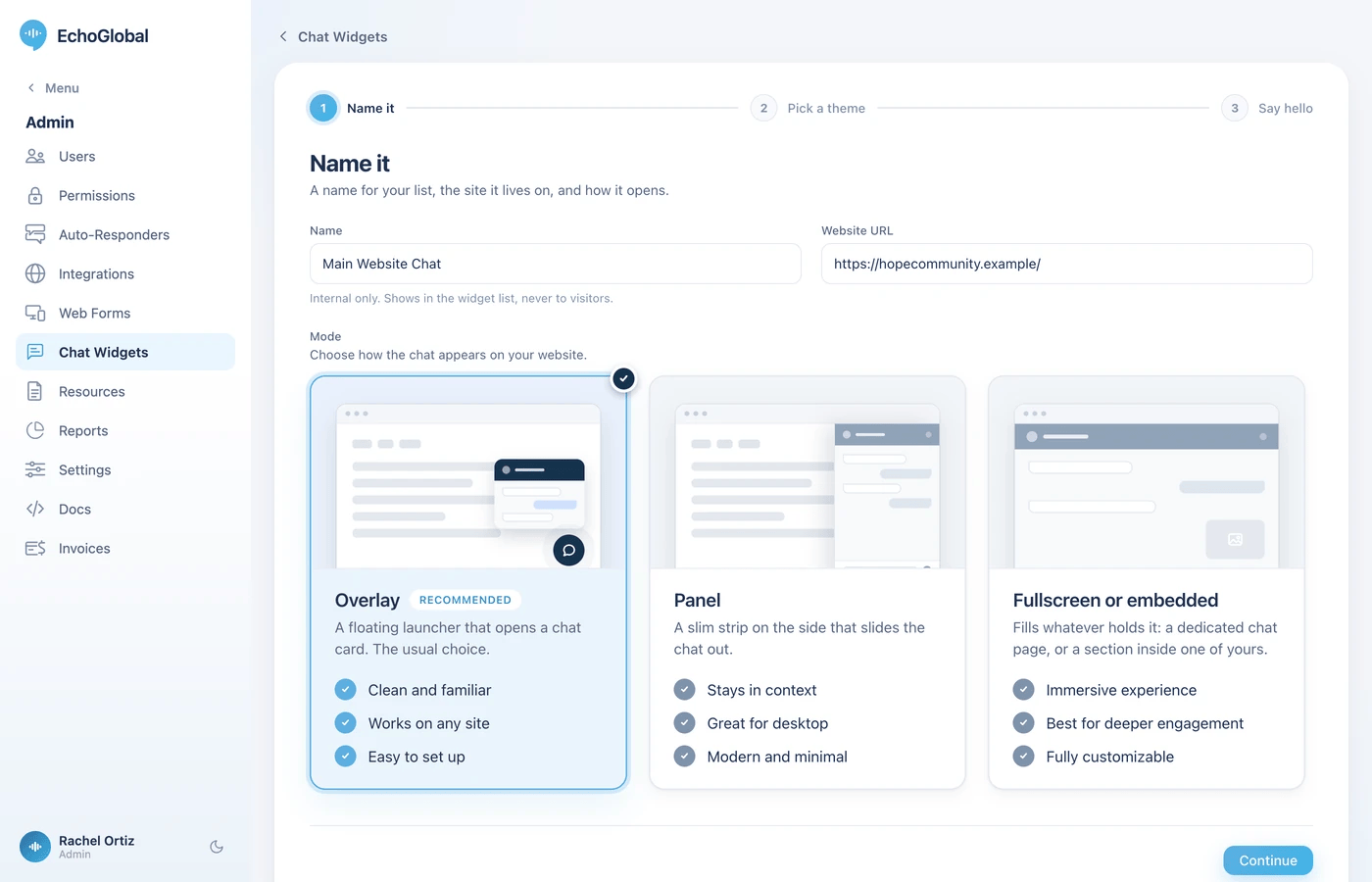
Every widget opens in one of three modes:
Mode | What the seeker sees |
|---|---|
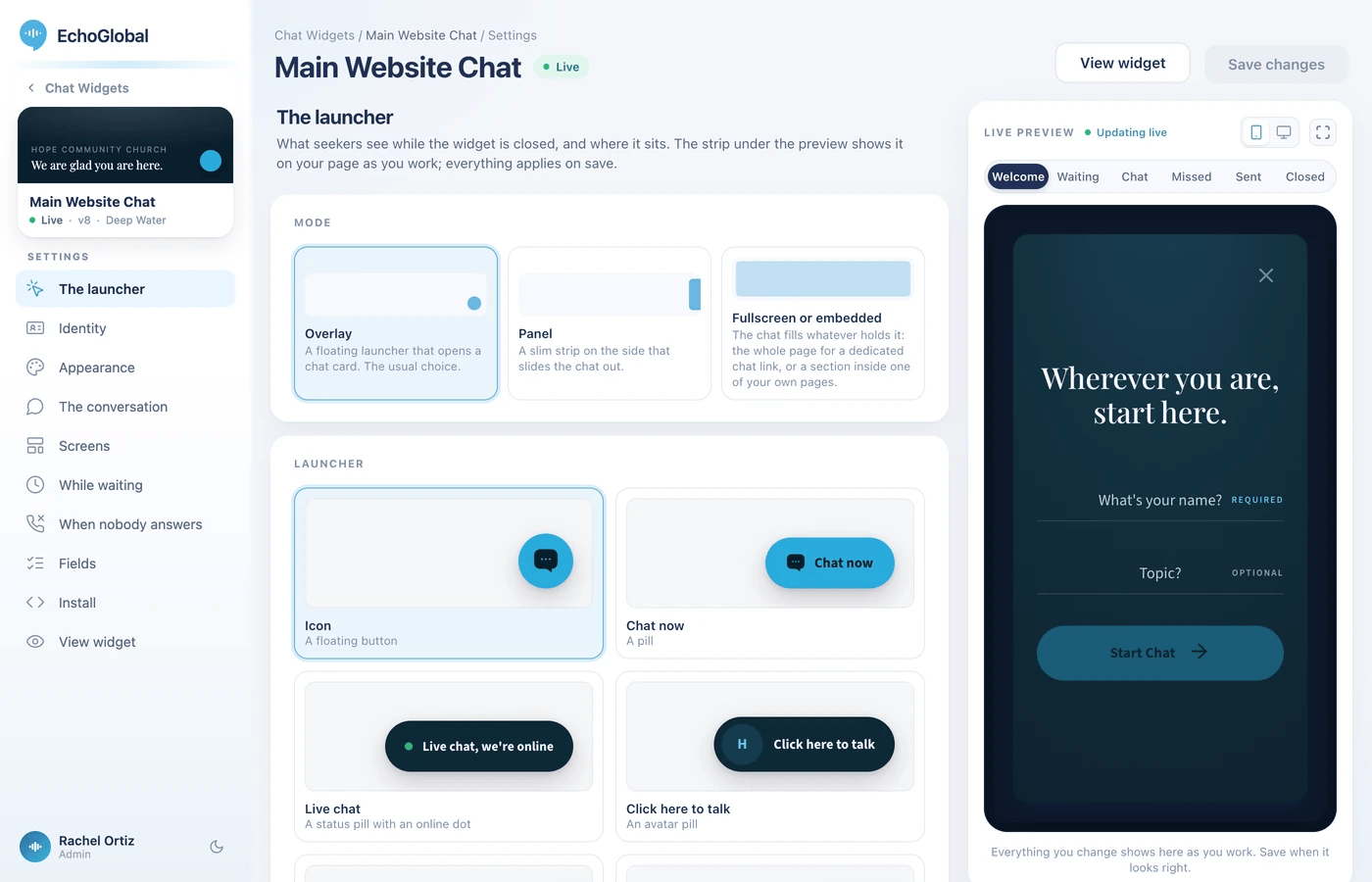
Overlay | A floating launcher that opens a chat card over your page. The usual choice. |
Panel | A slim strip on the side of the page that slides the chat out. |
Fullscreen or embedded | The chat fills whatever holds it: the whole page for a dedicated chat link, or a section inside one of your own pages. |
On a phone, an overlay or panel widget takes over the whole screen while it is open, so the chat is easy to read and type in. A fullscreen widget does not change size.
Create a chat widget
In Echo, open Chat Widgets in the Admin menu.
Click New Chat Widget.
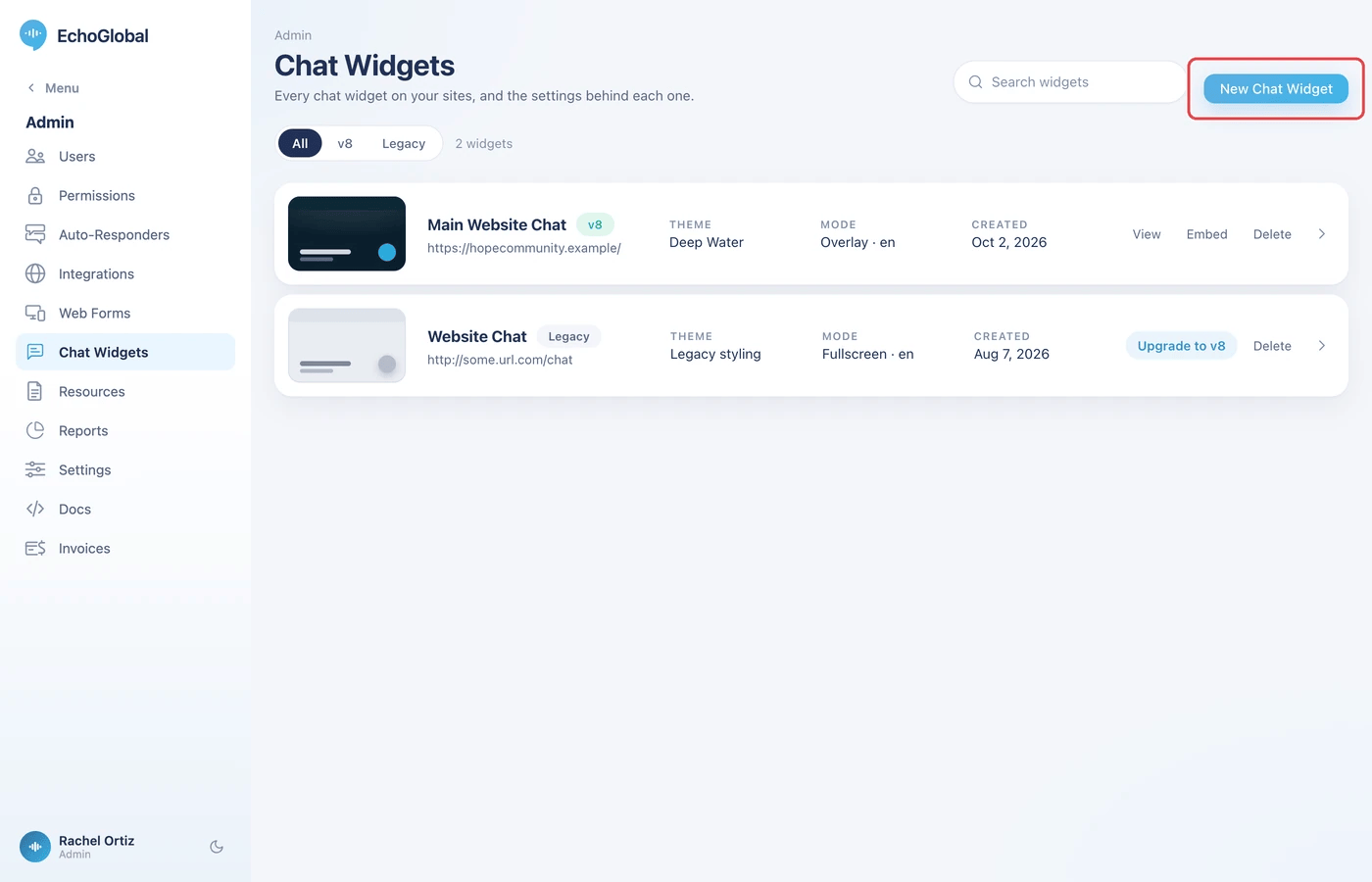
A three-step builder opens.
Name it and pick a mode. Type a Name that helps your team recognize the widget. It is internal only and is never shown to seekers. Type the Website URL where the widget will live, then choose Overlay, Panel or Fullscreen or embedded.
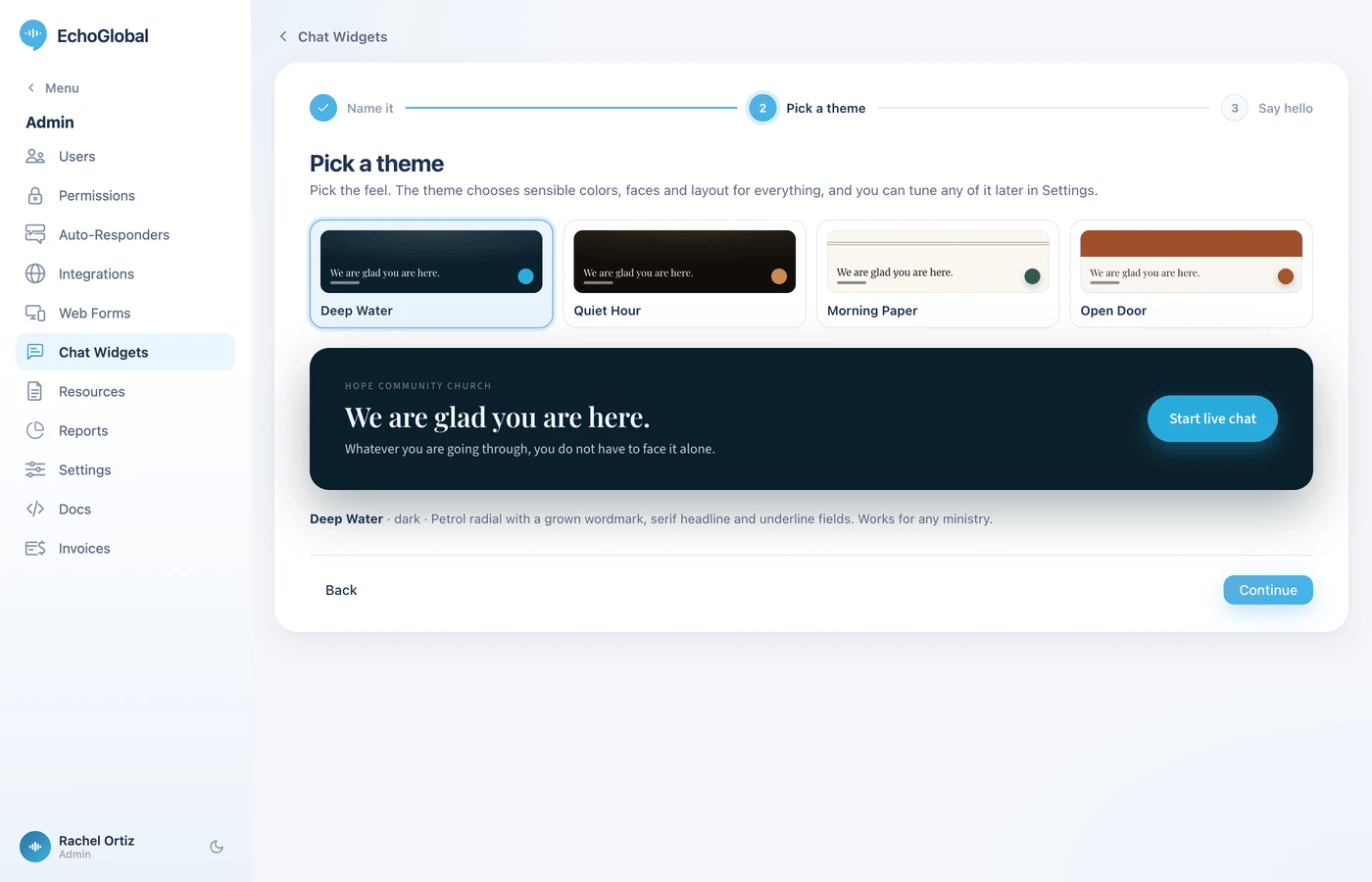
Pick a theme. Click Continue, then click one of the theme cards. A sample of the welcome screen below the cards shows how it will look. You can change the theme and every color later.
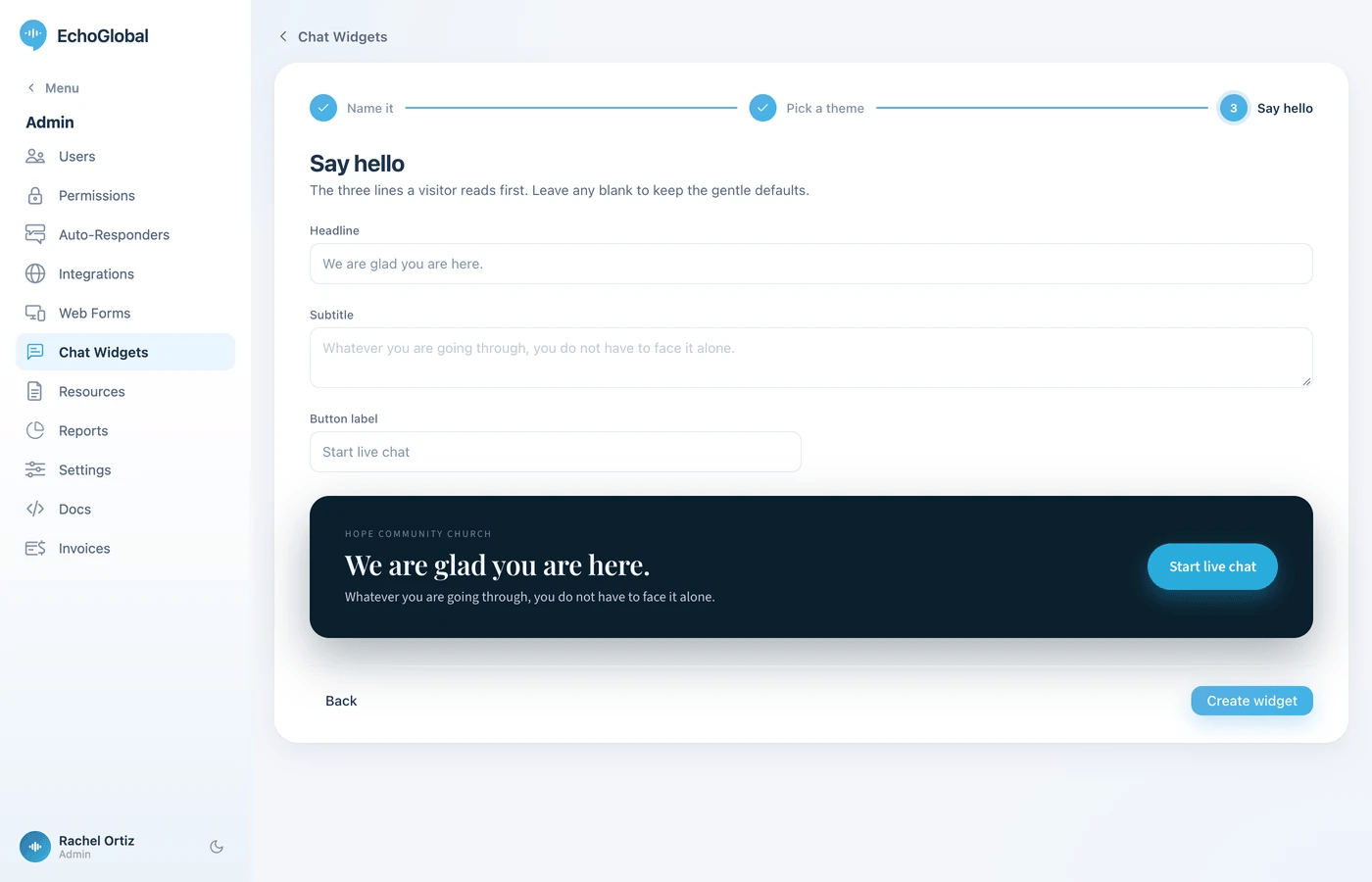
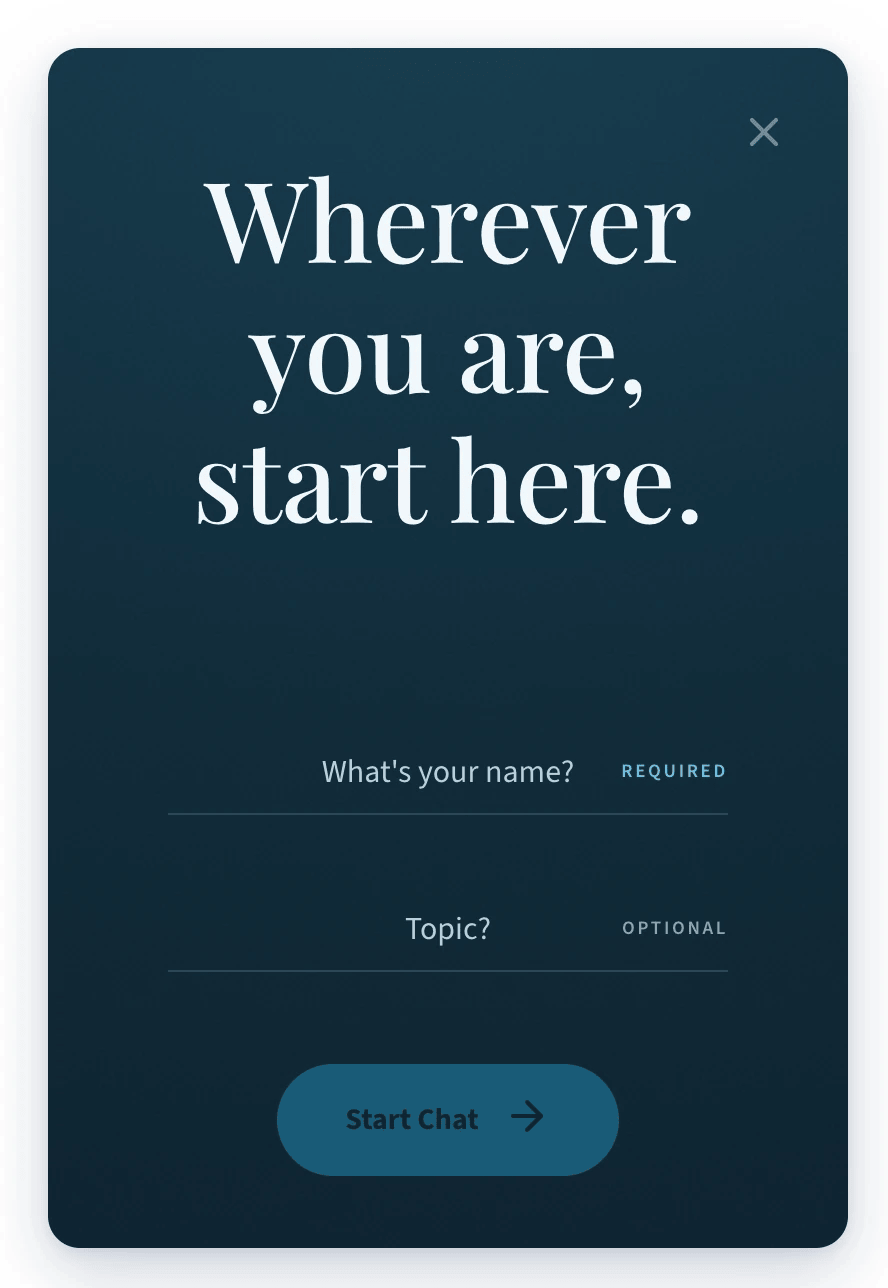
Say hello. Click Continue, then write the Headline, the Subtitle and the Button label for the welcome screen. If you leave them blank, the widget keeps its gentle default wording.
Click Create widget.
Echo creates the widget and opens its settings page on the Install section, where you can copy the code for your website.
Find your way around the settings page
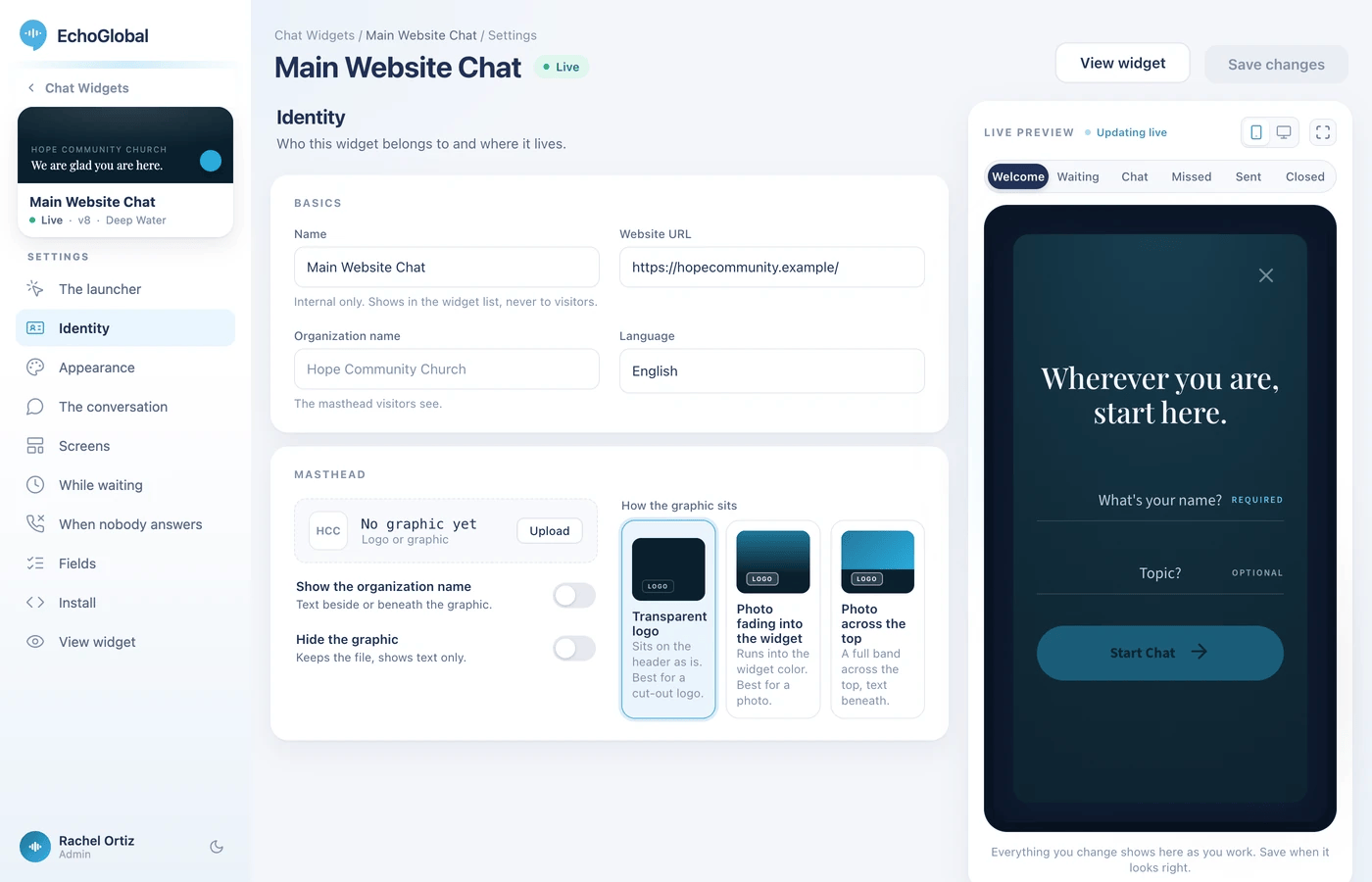
A widget's settings open as one page with the controls in the middle and the live preview on the right. In the left menu, under Settings, nine sections are listed. Click one to show it. The preview has tabs for Welcome, Waiting, Chat, Missed, Sent and Closed, so you can check every screen a seeker can reach, and it moves to the right one when you open a section that edits it.
Section | What you set there |
|---|---|
The launcher | The mode, and what seekers see while the widget is closed. |
Identity | The widget's name, your website address, the organization name and logo seekers see, and the language. |
Appearance | The theme, colors, mood and fonts. |
The conversation | How each side of the chat looks, and how tightly messages are stacked. |
Screens | The words on the welcome screen and on the two screens that end a chat, plus your terms and privacy links. |
While waiting | What a seeker sees while they wait for a responder. |
When nobody answers | How long a chat waits, and what happens if no one claims it. |
Fields | What the welcome form asks for. |
Install | The code for your website, a test page and a direct link. |
All nine sections are one form, so you can move between them freely and click Save changes once. A dot beside a section means it has changes you have not saved. Discard throws the unsaved changes away. Cmd+S (Mac) or Ctrl+S (Windows) saves too.
Set up the launcher
Open The launcher. Under Mode, pick Overlay, Panel or Fullscreen or embedded. An overlay or panel widget also has a launcher to design:
Launcher style | What it is |
|---|---|
Icon | A floating button. |
Chat now | A pill-shaped button with words. |
Live chat | A status pill with an online dot. |
Click here to talk | An avatar pill. |
Edge tab | A tab that hangs on the edge of the page. |
Teaser | A button plus a one-line message. The message appears once per visit, shortly after the page loads. |
Then adjust the details. Which of these appear depends on the style you picked.
Setting | What it does |
|---|---|
Label | The words on the pill styles and on the teaser's button. Leave it blank to keep the design's own words. |
Teaser line | The teaser's message. Leave it blank for the default. |
Button shape and Button size | How the launcher is drawn. |
Icon | The chat bubble, an icon from Echo's set (which includes faith icons), or your own image. Use Treat as to crop a photo round, like a face, or to show an icon whole. |
Color | Solid (follows the theme's accent color), custom, or a gradient. |
Opening | How the chat arrives: Fade, Pop, Slide, Wipe or None. |
Gap from the side, Gap from the top or bottom, Open width, Open height | Where an overlay launcher sits and how large the card opens. |
Panel side and Panel width | Which edge a panel slides from, and how wide it is. |
Hide when no one is available | Keeps the launcher off your page when no responders are available. A seeker who is already in a conversation can still get back in. |
The strip under the preview shows the closed launcher on a page like yours. Launcher changes take effect when you save.
"Available" means a responder is online and is in a permission set that includes this widget's source. Someone who is online but cannot see this widget's conversations does not count.
Say who the widget belongs to
Open Identity.
Setting | What it does |
|---|---|
Name | Internal only. Shows in your widget list, never to seekers. |
Website URL | The site the widget lives on. |
Organization name | The masthead seekers see. If you leave it blank, the widget shows your ministry's name. |
Language | The language the widget's own words appear in. |
Logo or graphic | Upload a graphic for the masthead, then choose how it sits: as a transparent logo, as a photo fading into the widget, or as a photo across the top. |
Show the organization name and Hide the graphic | Choose whether the masthead shows your name as text, your graphic, or both. Hiding the graphic keeps the file and shows text only. |
Choose how it looks
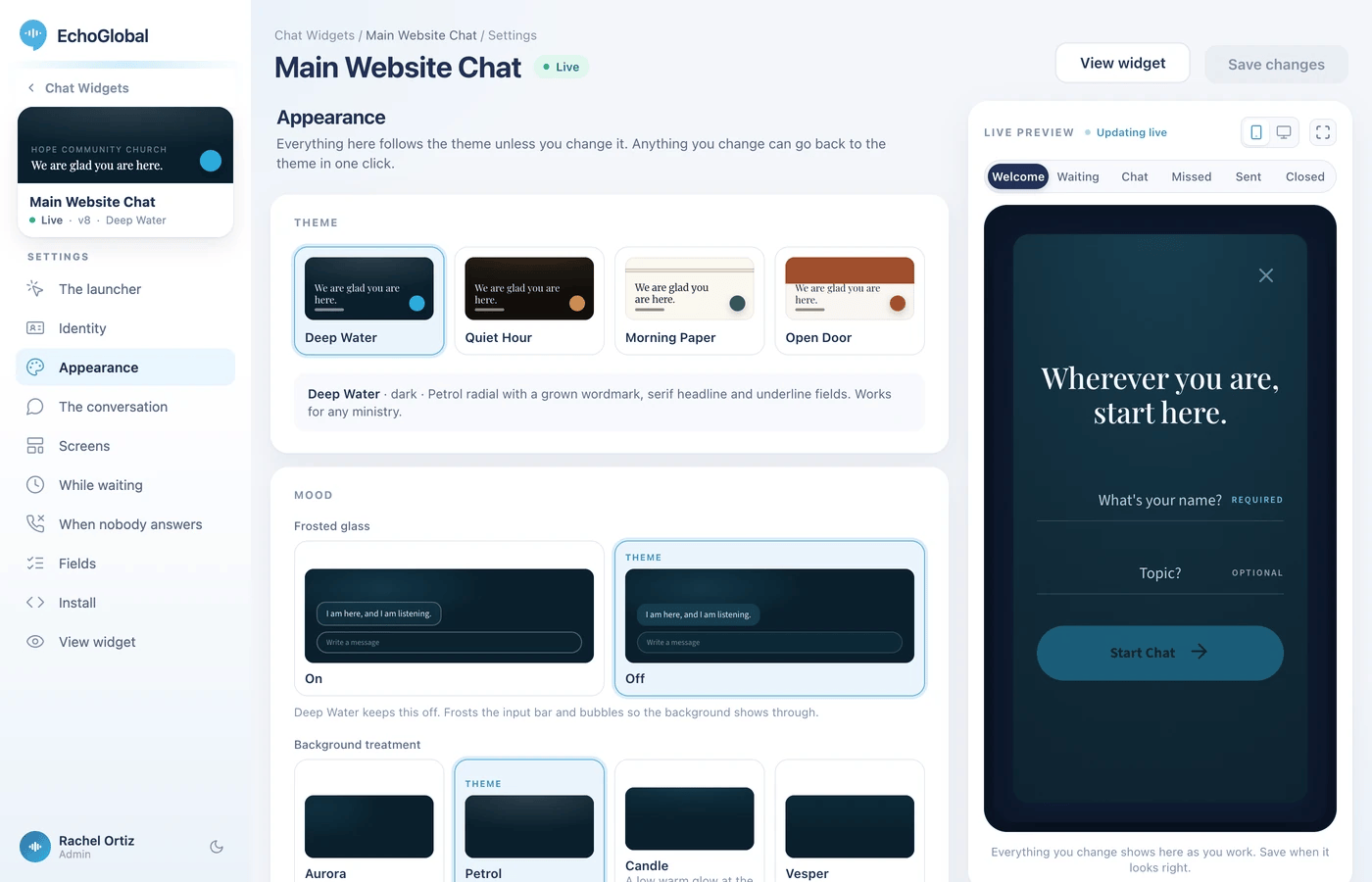
Open Appearance. Everything here follows the theme unless you change it, and anything you change can go back to the theme in one click.
Under Theme, click a card. The themes offered today are Deep Water, Quiet Hour, Morning Paper and Open Door. Hover a card and the preview shows it without saving.
Under Mood, choose whether the surfaces are frosted glass and pick a background treatment.
Adjust any of the colors. The Readability samples show real text in your colors and mark any pair that is Hard to read.
Under Type, change the headline and body fonts.
Shape the conversation
Open The conversation. Each side of the chat, the responder and the seeker, can speak in the body font or the headline font, and can sit in a bubble or directly on the panel.
Setting | What it does |
|---|---|
Responder and Seeker | The font, bubble and colors for each side of the chat. |
Grouping density | How tightly consecutive messages from the same person are stacked. |
Typing indicator | The animation shown while the other side is typing. |
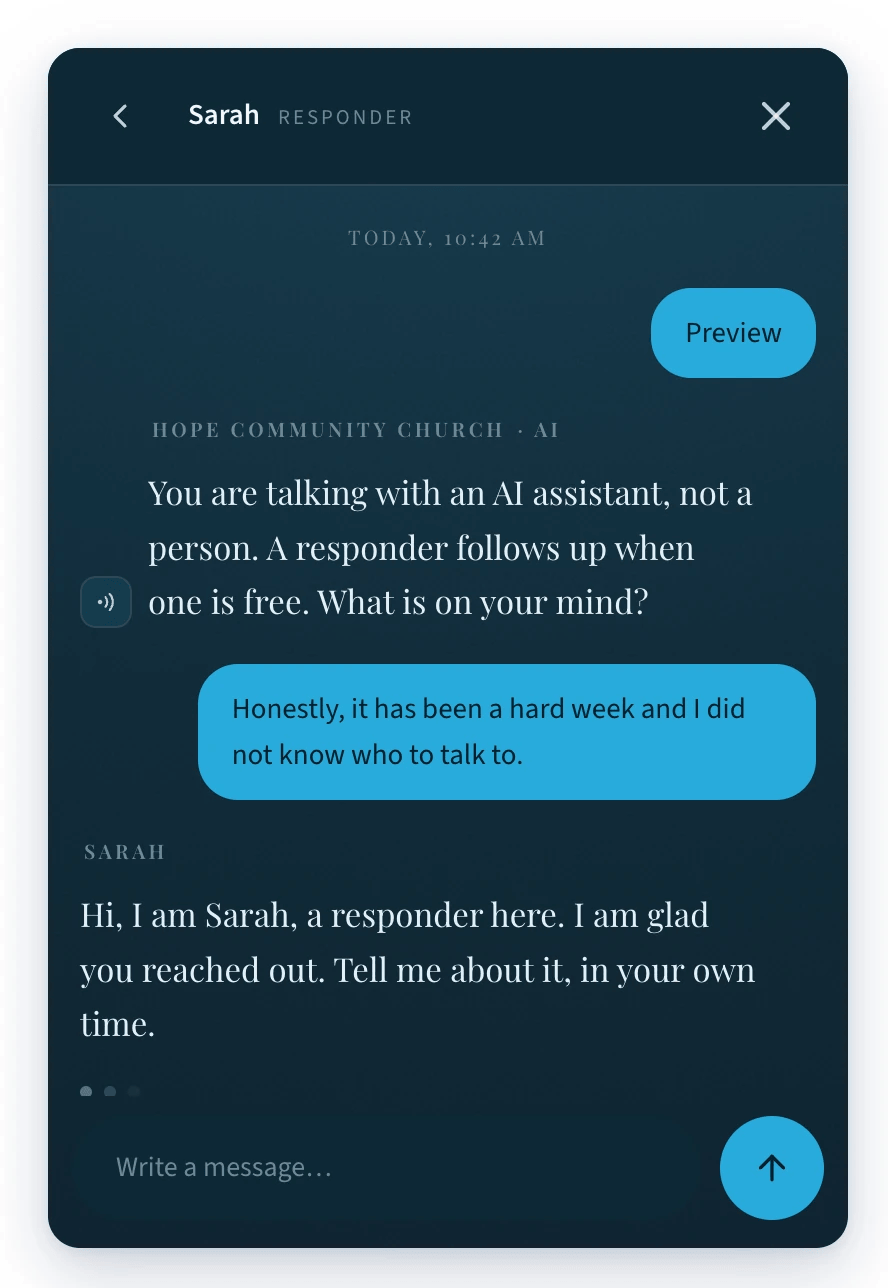
In the chat, a seeker's own messages are labeled You and a responder's messages carry the responder's alias first name.
Write the words on each screen
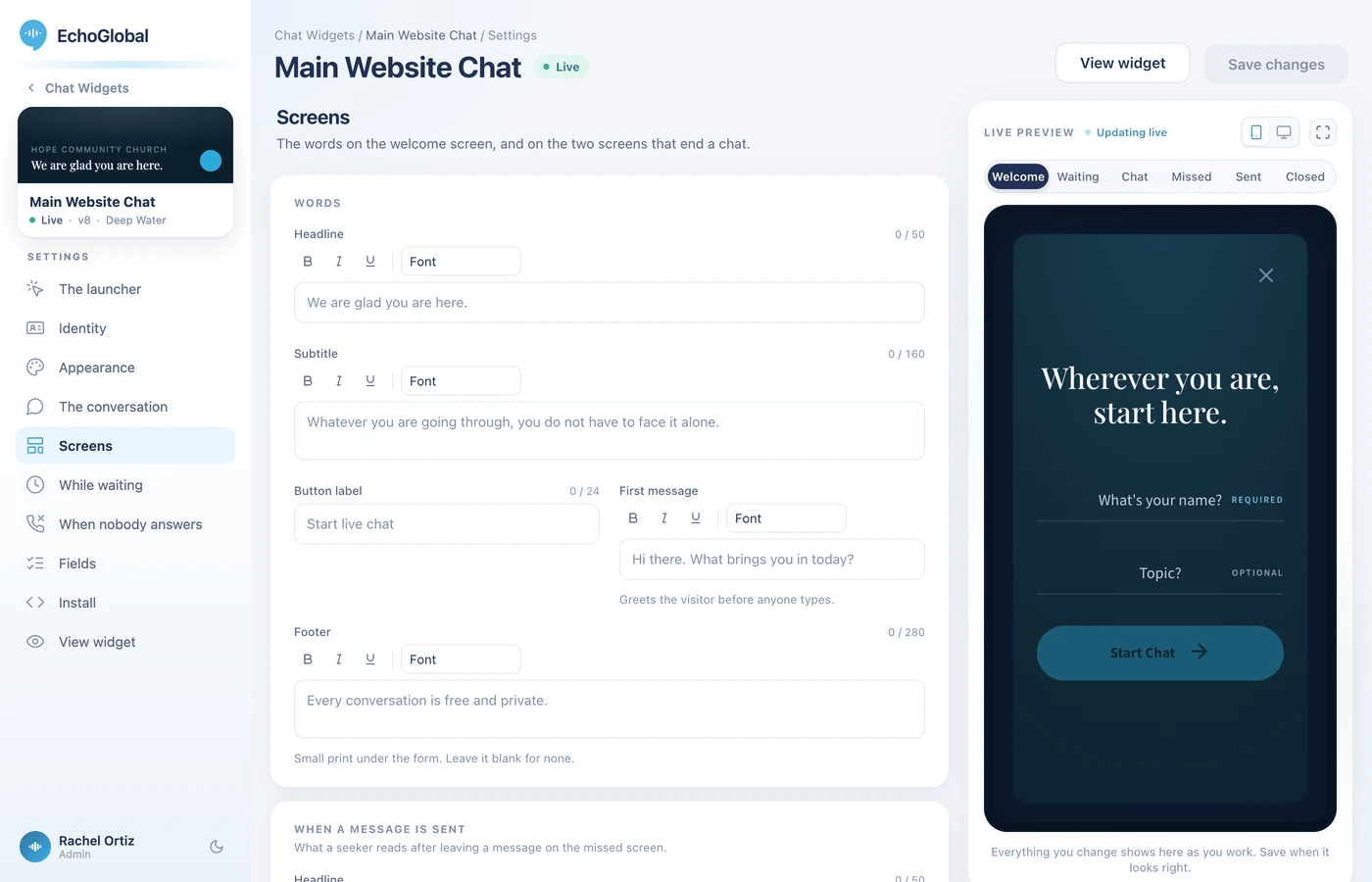
Open Screens. The wording is grouped by screen.
Screen | What you can edit |
|---|---|
Welcome | Headline, Subtitle, Button label (the default is "Start live chat"), First message (which greets the seeker before anyone types) and Footer (the small print under the form, blank for none). |
Message sent | A Headline and Message shown after a seeker leaves a message because no one answered. |
Closed | A Headline and Message shown after a conversation ends. |
Legal | The terms and privacy documents the widget's small legal links point to. |
The text boxes have a bar for bold, italic, underline and fonts. A character count and gentle notices help you keep the wording short, but they never stop you from saving. If you leave a screen's words blank, the widget uses its built-in wording in the widget's language.
A legal document is either a link to a page elsewhere or text that Echo hosts for you. Pick a document in each of the two pickers, or create a new one from there. You can only choose from your own ministry's documents.
Choose what a seeker sees while they wait
Open While waiting. After a seeker starts a chat, they wait on this screen until a responder claims the conversation.
Setting | What it does |
|---|---|
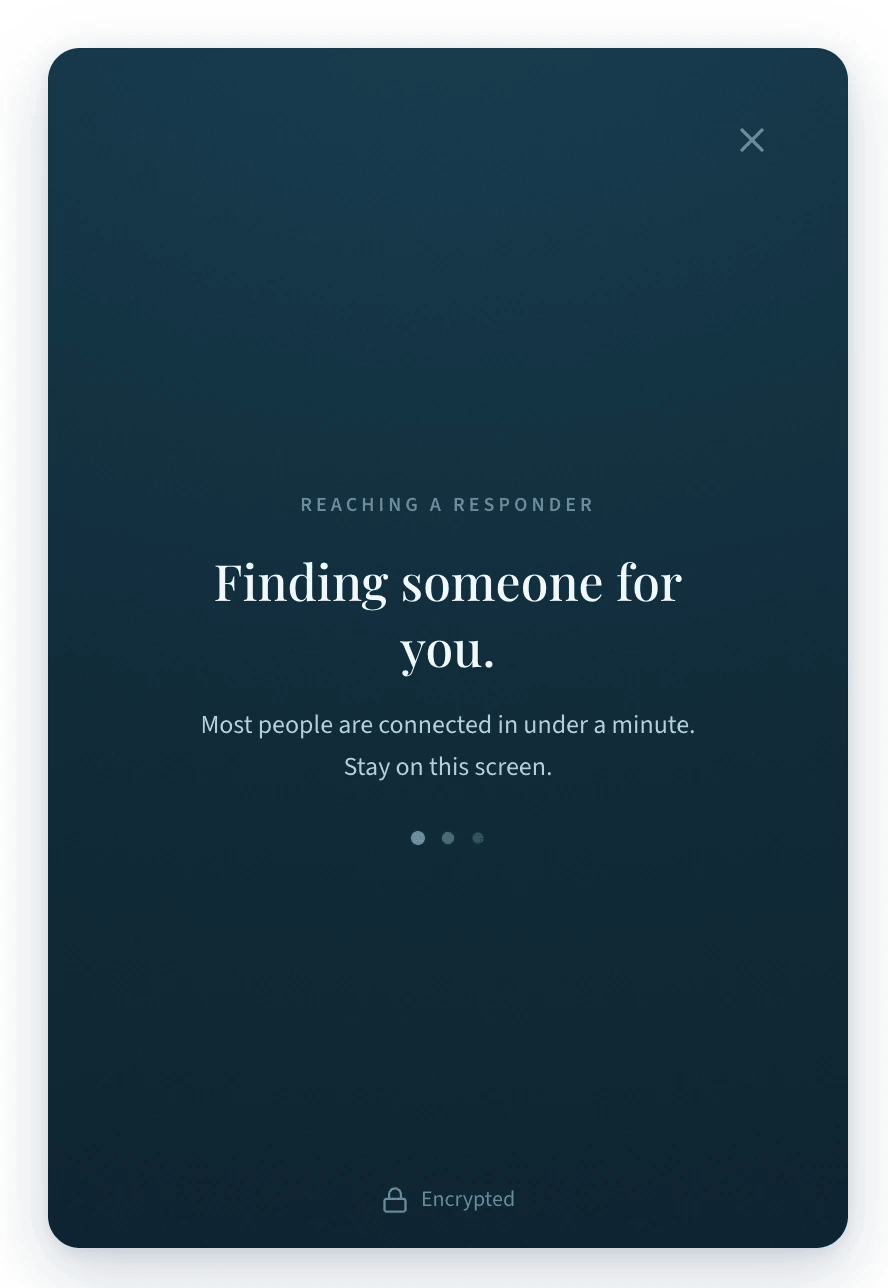
Status line | The line over the message while a seeker waits. The default is "Finding someone for you." |
Waiting message | The longer message under it. |
Verses and encouragements | Verses or short encouragements you write yourself, shown one at a time while the seeker waits. The list starts empty, and with nothing in it the seeker sees only the status line and waiting message. |
Decide what happens when nobody answers
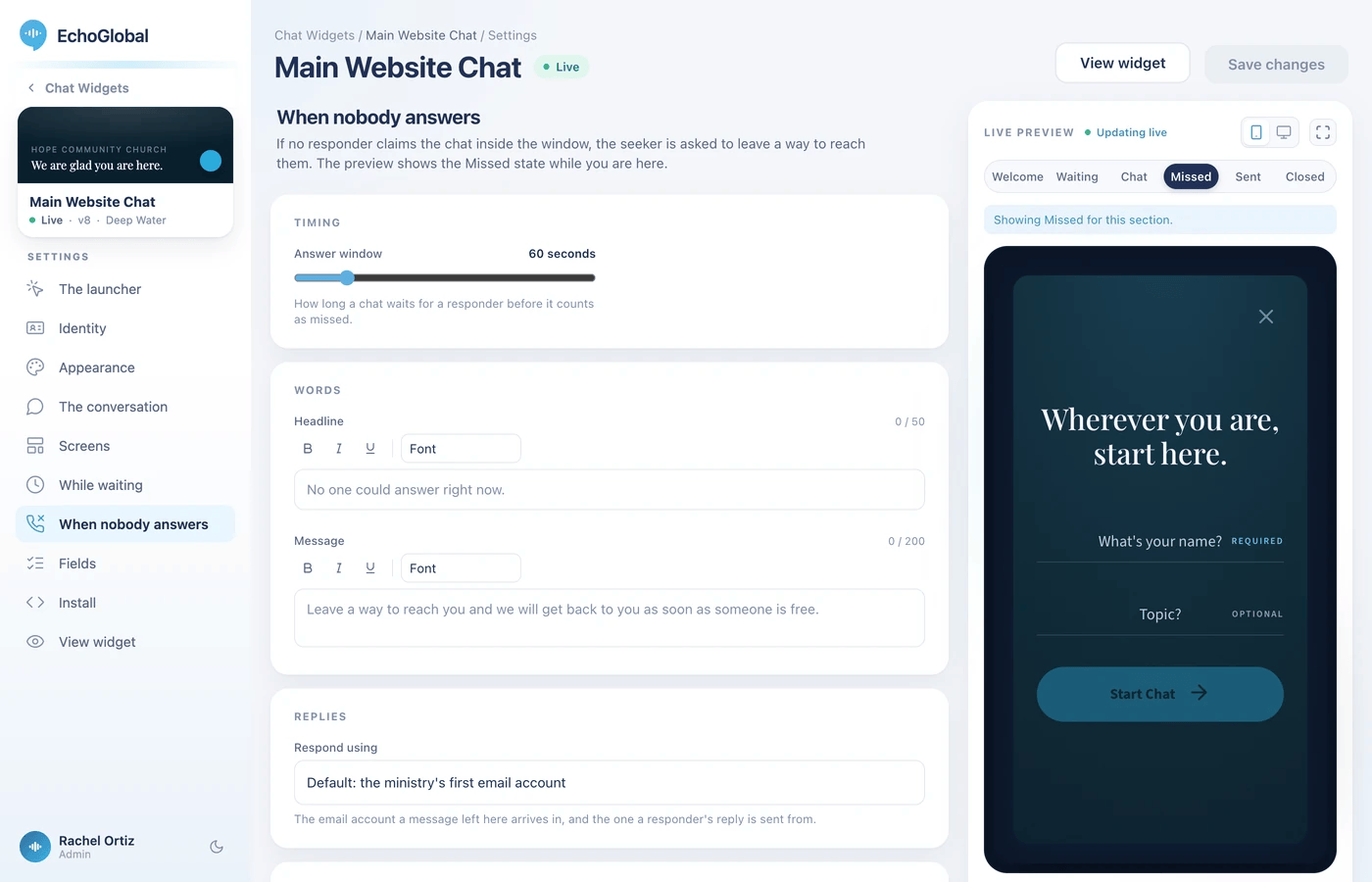
Open When nobody answers. If no responder claims the chat inside the answer window, the seeker is asked to leave a way to reach them instead.
Set the Answer window: how long a chat waits for a responder before it counts as missed. You can choose from 15 to 300 seconds, and a new widget starts at 60 seconds.
Write the Headline and Message the seeker sees on this screen.
Under Replies, pick the email account in Respond using. A message left on this screen arrives in that account, and a responder's reply is sent from it. If you leave it on the default, Echo uses your ministry's first email domain, then its first Gmail account.
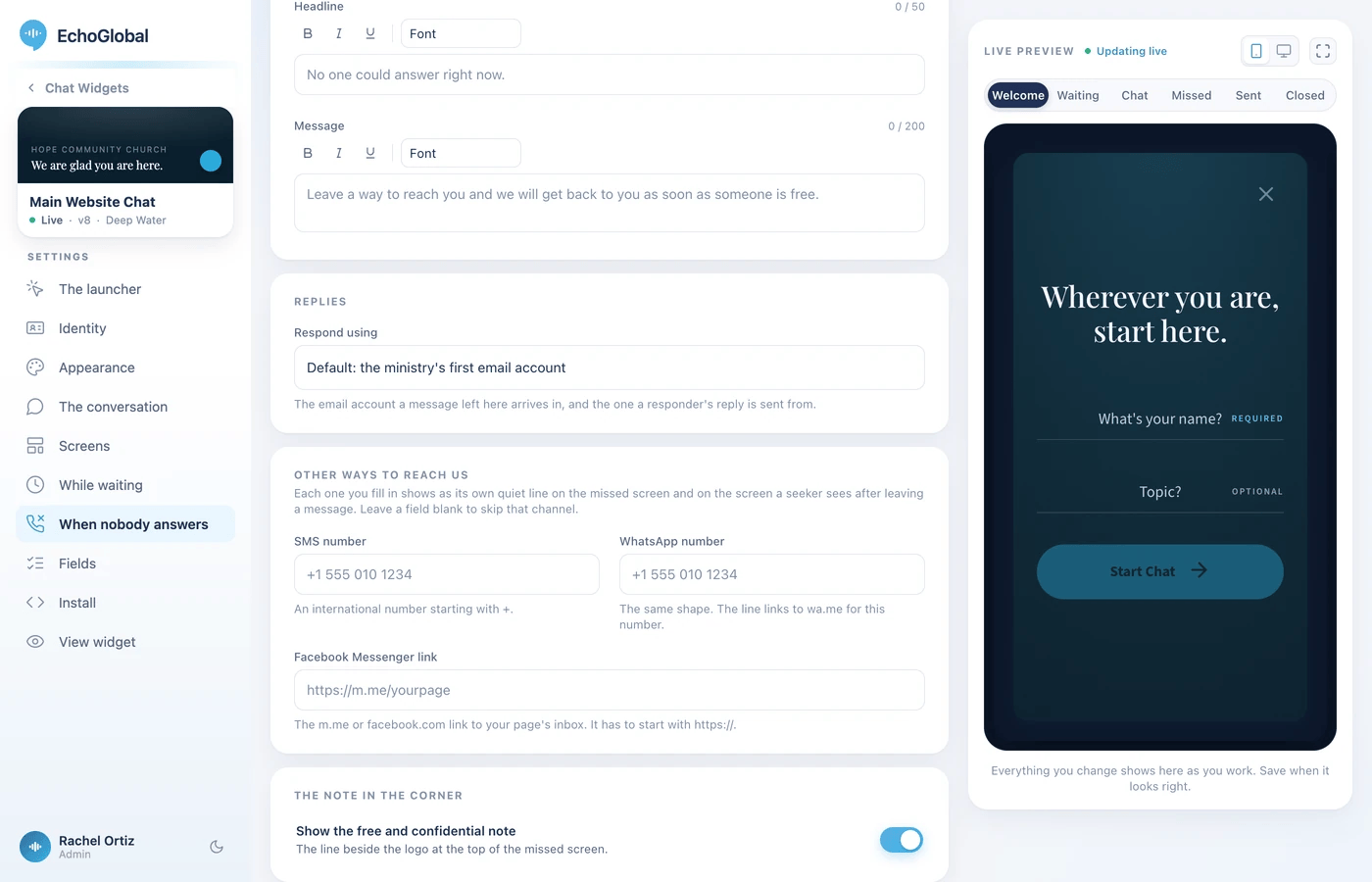
Under Other ways to reach us, optionally add an SMS number, a WhatsApp number or a Facebook Messenger link. Numbers start with
+, and the Messenger link must start withhttps://. Each one you fill in shows as its own quiet line on the missed screen and on the screen a seeker sees after leaving a message, and a blank field is skipped, and these lines show with the four themes offered in the theme list.Turn Show the free and confidential note on or off. It is the line beside the logo at the top of the missed screen.
Set up an email domain or a Gmail account in Echo before you rely on this screen. Without one, no email conversation is created from a message left here, so it never reaches your inbox, and the seeker still sees the Message sent screen as if it had. The Respond using menu lists only your ministry's email domains and Gmail accounts.
Choose what the welcome form asks for
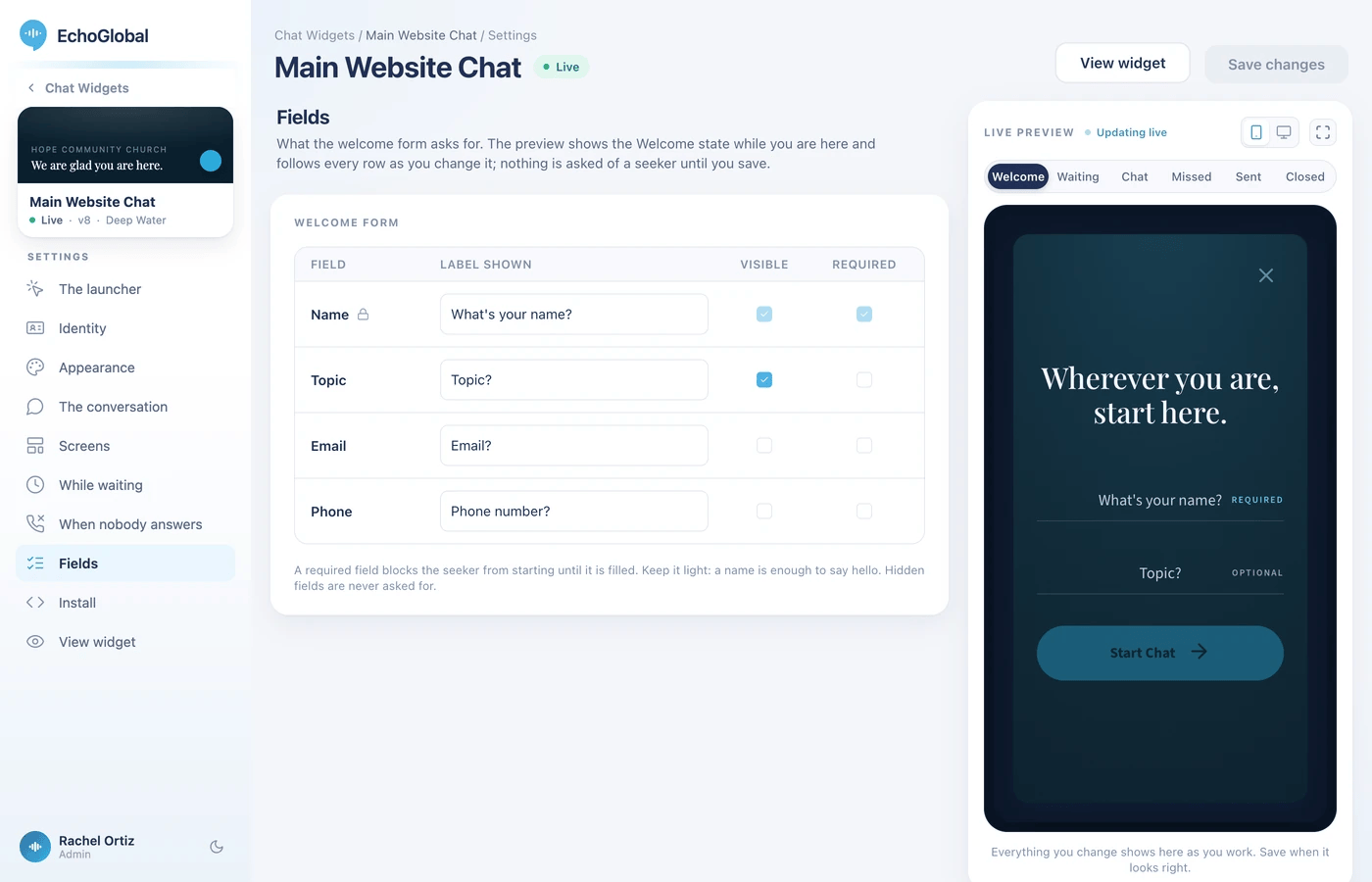
Open Fields. The table lists each question on the welcome form, with the label a seeker sees, and checkboxes for Visible and Required.
Name is always visible and required, and has a lock beside it. You can still change its label.
Email, topic and phone can each be shown or hidden, and each can be required or optional.
A required field stops a seeker from starting a chat until it is filled in. Keep it light: a name is enough to say hello.
A hidden field is never asked for.
If a seeker types a phone number into the welcome form, Echo saves it with that seeker but does not treat it as verified. It becomes a trusted number once a responder adds it, edits it, or saves the seeker's panel with it.
Put the widget on your website
Open Install.
Click the copy button on the Embed snippet card.
Paste it once, just before the closing
</body>tag, on every page that should carry the widget.
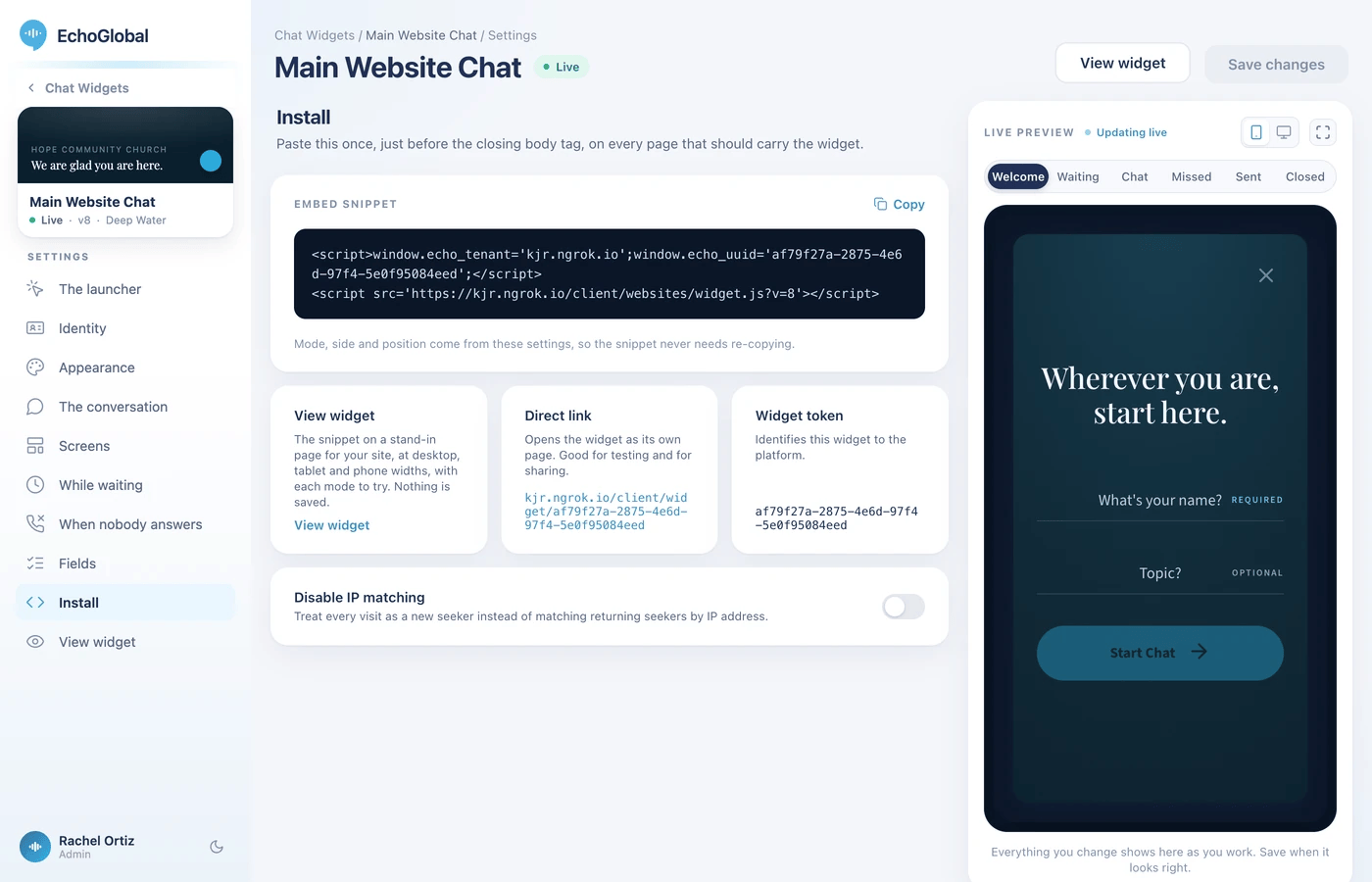
The snippet identifies your ministry and this widget and nothing else. The mode, side, position and look all come from your settings, so you never need to copy the snippet again after a change.
Card | What it is for |
|---|---|
View widget | Shows the snippet on a stand-in page for your site, at desktop, tablet and phone widths, with each mode to try. Nothing is saved. |
Direct link | Opens the widget as a page of its own. Good for testing and for sharing. |
Widget token | Identifies this widget to the platform. |
Below the cards is Disable IP matching. Turn it on to treat every visit as a new seeker instead of matching returning seekers by IP address.
Open the widget from your own button
Once the snippet is on a page, a button or link on that page can open and close the chat. Call window.EchoWidget.open(), window.EchoWidget.close() or window.EchoWidget.toggle(). A call made before the widget has finished loading is held and runs when it is ready.
What a seeker experiences
Welcome. The seeker sees your headline and subtitle, and the fields you chose, then clicks the button to start.
Waiting. The seeker sees your status line and your waiting message, and the verses you have added, one at a time. The chat is placed in your inbox for responders, and the seeker stays on this screen until a responder claims it or the answer window runs out.
Chatting. When a responder claims the conversation, the chat opens. Messages arrive as they are sent, both sides see when the other is typing, and the seeker's messages are marked read as the responder reads them.
Ending. Either side can close the conversation, and the seeker sees your closed screen.
If no one answers. When the answer window runs out, the seeker sees your When nobody answers screen and can leave their contact details. Then they see your Message sent screen.
If a seeker closes the page while waiting, Echo notices the missing signal and ends the wait on its own.
Upgrade a widget you already have
A widget built with the older form can move to the new one. On the Chat Widgets list, the filter lets you show All, v8 or Legacy widgets.
On the list, click Upgrade to v8 under the widget.
Read the page that opens. It shows the nearest theme to your current colors, any colors of yours it will keep, and a table of each older setting beside the new setting and the value it will get.
Click Upgrade to v8 and confirm.
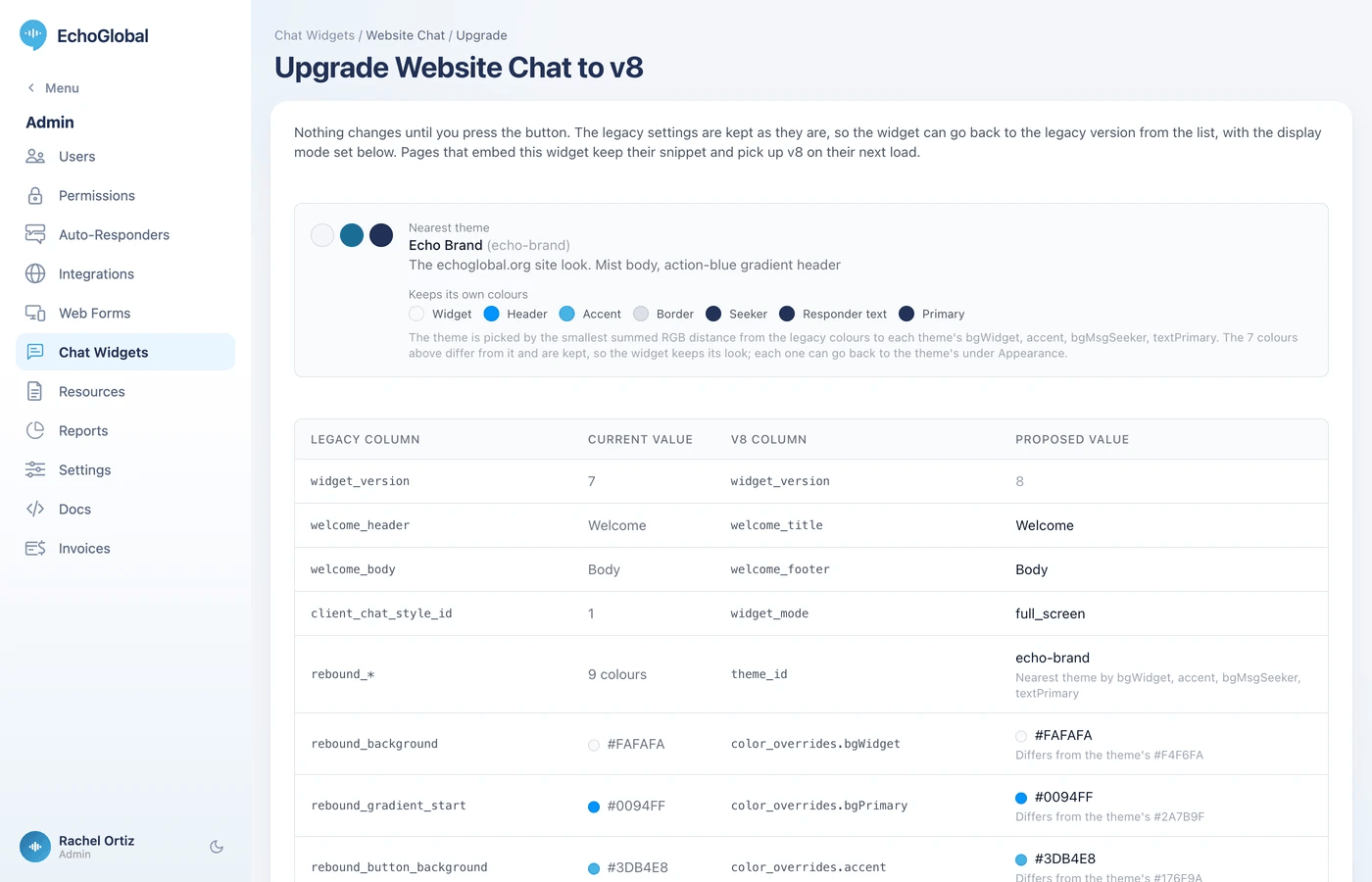
Nothing changes until you click that button. Your pages keep their existing snippet and pick up the new widget the next time they load. The older settings are kept, so a widget you upgrade can go back: click Back to legacy on the list. Its new settings are kept for next time.
What the terms mean
Term | What it means |
|---|---|
Widget | The chat window and launcher on your website, as set up in Echo. Each one is its own widget with its own settings. |
Launcher | The button or tab a seeker clicks to open the chat. It is what shows while the chat is closed. |
Mode | How the chat is laid out: overlay, panel, or fullscreen or embedded. |
Theme | A ready-made look: colors, fonts and mood together. Every setting you change on top of a theme is kept, and can go back to the theme. |
Treatment | The background effect behind the widget, chosen under Mood. |
Claim | A responder takes a waiting chat as theirs. A seeker moves from waiting to chatting at that moment. |
Answer window | How long a chat waits to be claimed before it counts as missed. |
Token | The identifier that connects the snippet on your site to this widget. |
Direct link | An address that opens the widget as a page of its own. |
v8 and Legacy | The new widget and the older one. v8 is the version number of the new widget. |
If something is not right
The widget does not appear on your page. Check the snippet is on that page, just before the closing body tag. If Hide when no one is available is on, the launcher stays off the page until a responder who can see this widget's conversations is online.
A launcher change is not showing. Click Save changes. Launcher changes apply on save.
Text looks hard to read. Check the Readability samples in Appearance; a pair marked Hard to read is worth changing.
You want to see the widget the way a seeker does. Use View widget or the Direct link on the Install section. Neither saves anything.