
About:
If you would like to communicate with clients via phone SMS, you can do so in Echo by setting up an SMS integration.
Setting up An SMS Integration:
Step 1:
Purchase a phone number through Echo by going to the Phone Numbers menu in the Admin area of Echo
Echo>Admin>Phone Numbers
Our recommendation would be to purchase a US local phone number unless it's necessary for you to have an international phone number. Numbers outside the US can be possible but are tricky and have hoops to jump through).
- If you want to use your existing (non-Echo) phone numbers and if they are able to be ported over into Echo, talk to us about the steps involved to do that.
- Local, Mobile, and Toll-free numbers are available for purchase within Echo’s admin interface (Admin>Phone Numbers) and allow you to interact via voice and/or SMS.
- Purchasing a local phone number for most countries outside the US is not available through Echo because of special circumstances within Twilio. Please contact us if you are wanting to purchase a non-US phone number and there isn’t one listed in Echo.
A US local phone number will cost $10.00 per month for the number, plus a per message (SMS) cost for SMS usage.
A Toll-Free number will cost $20.00 per month for the number, plus a per message (SMS) cost for SMS usage.
Step 2:
Once the phone number is purchased, fill out the Brand/Campaign information from the Branding tab along the top of the Phone Numbers page (you'll submit the brand information first and then once approved, add the campaign information):
Note: This is a requirement of the US national phone registry for all phone numbers purchased that want to be used for SMS. If we don't submit this information and have it approved by the carriers, SMS will not work for your phone number.
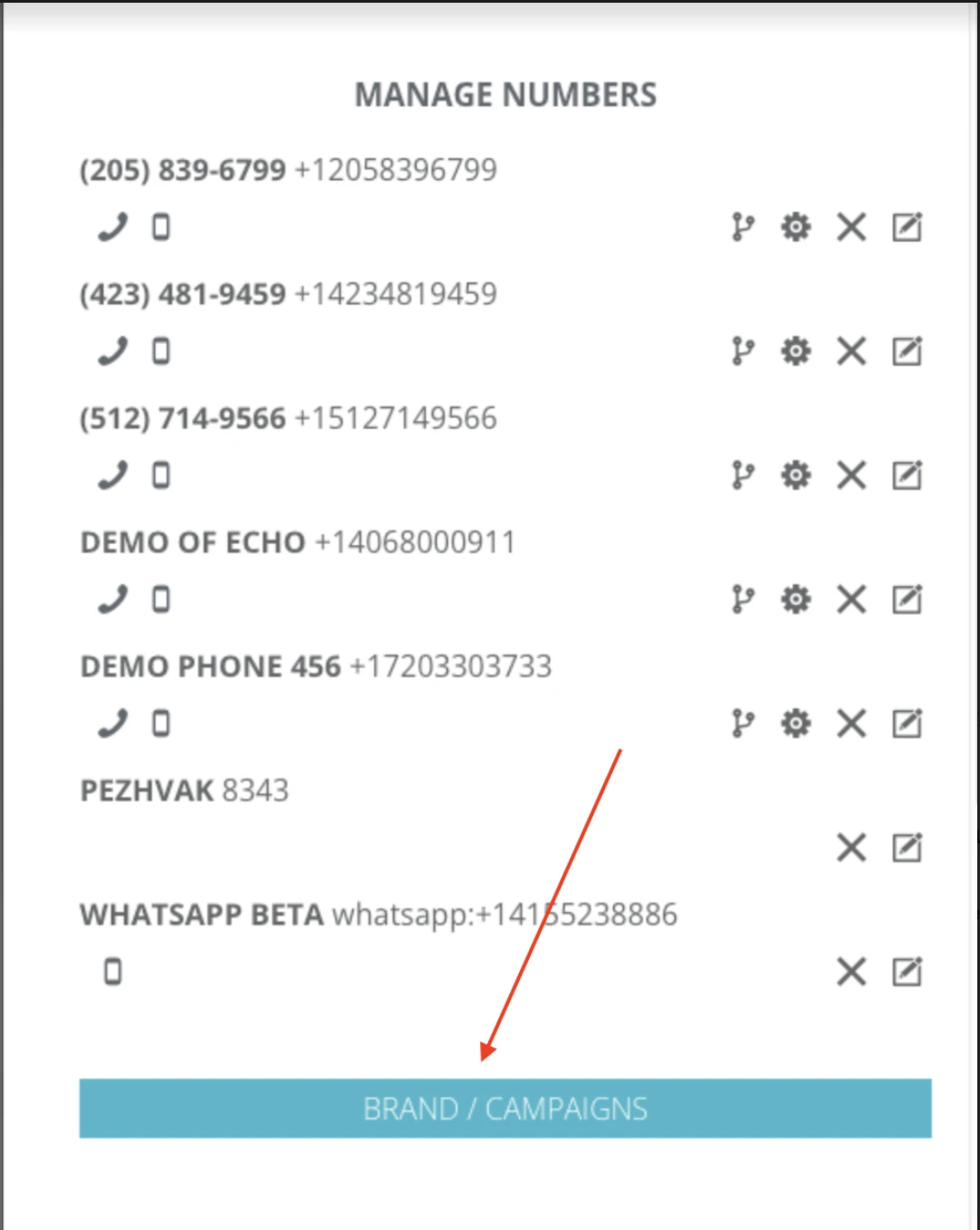
A toll-free number is the exception: it does not need a brand or campaign, but it does need a toll-free verification before it can send texts, filed from the Toll-Free tab on the same page.
If you run into any roadblocks or questions about the brand or campaign information, please email us and let us know. We'll help you through it.
Step 3:
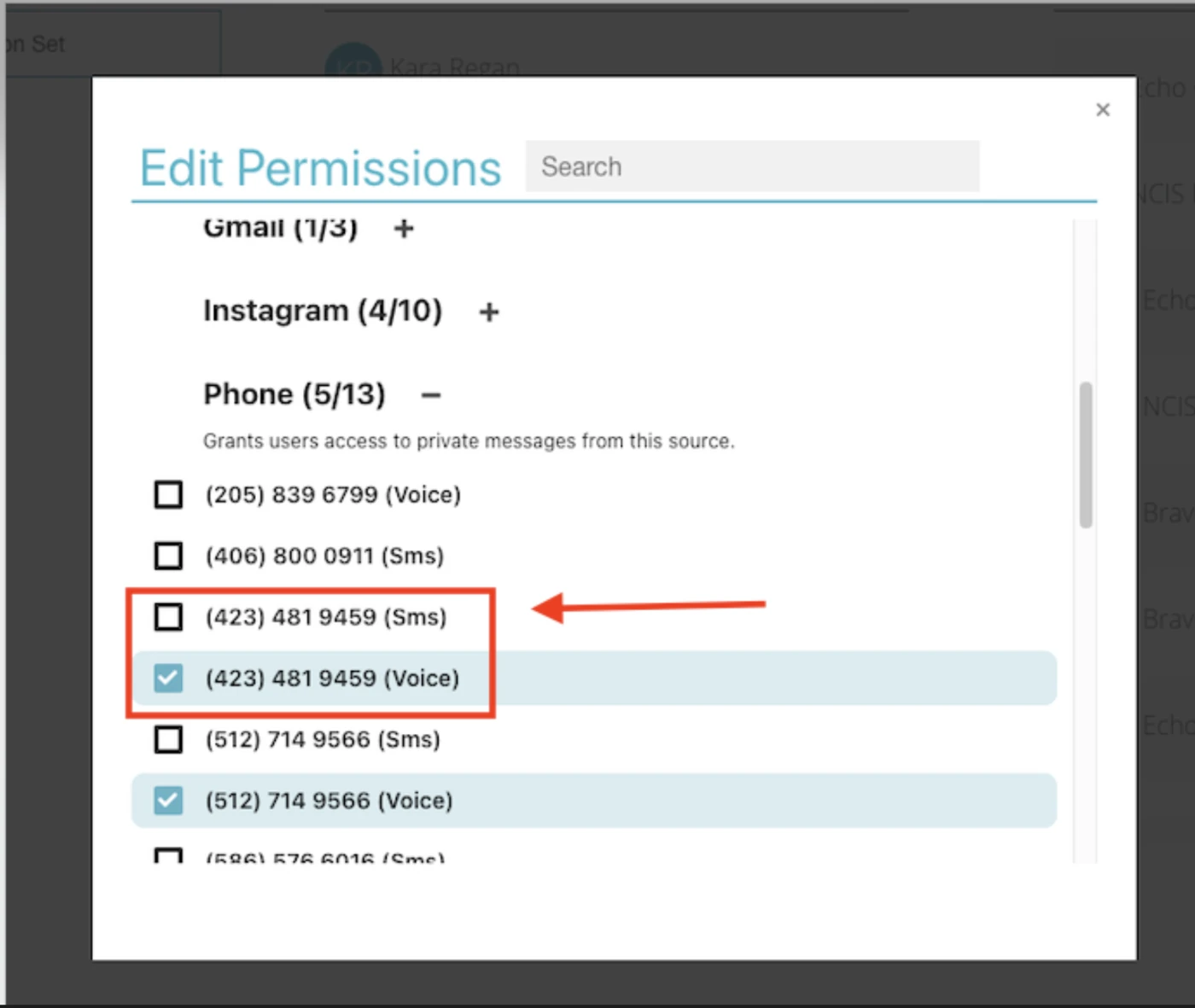
Add the phone number SMS source to a permission set. If the phone number you purchased has both voice call and SMS capabilities, both options will show under the available phone permissions. Select the SMS one for the phone number to highlight it. You can leave the voice one unchecked if you aren't going to take voice phone calls.
Step 4 (optional):
If you plan to do any SMS automated keyword campaigns, we have documentation for how to set those up: https://echoglobal.helpdocs.io/article/nsf3ekk6f0-sms-auto-responder-campaign-creation