This report shows which tags your team has put on social media comments. It answers the question “what are people talking about under our posts?” in your own vocabulary: prayer requests, questions about baptism, whatever your tag list holds.
It reads tags, not posts. For a row per post see The Social Media Posts report. To learn how to add a tag to a comment, see Social Media Comment Management.
You need to be an admin, or to have been given access to the Reporting module, to open Reports. These pages are in the classic Reports area. The newer Analytics area is a separate set of reports.
Where to find it
- Click Reports in Echo’s main menu.
- In the left menu, open the Social Media group and click Tags.
- Pick a date range and, if you need to, a time zone at the top of the page. Open Sources to choose which of your sources to include.
- Click Run Report on the card. The report runs in the background, so give it a moment on a long date range.
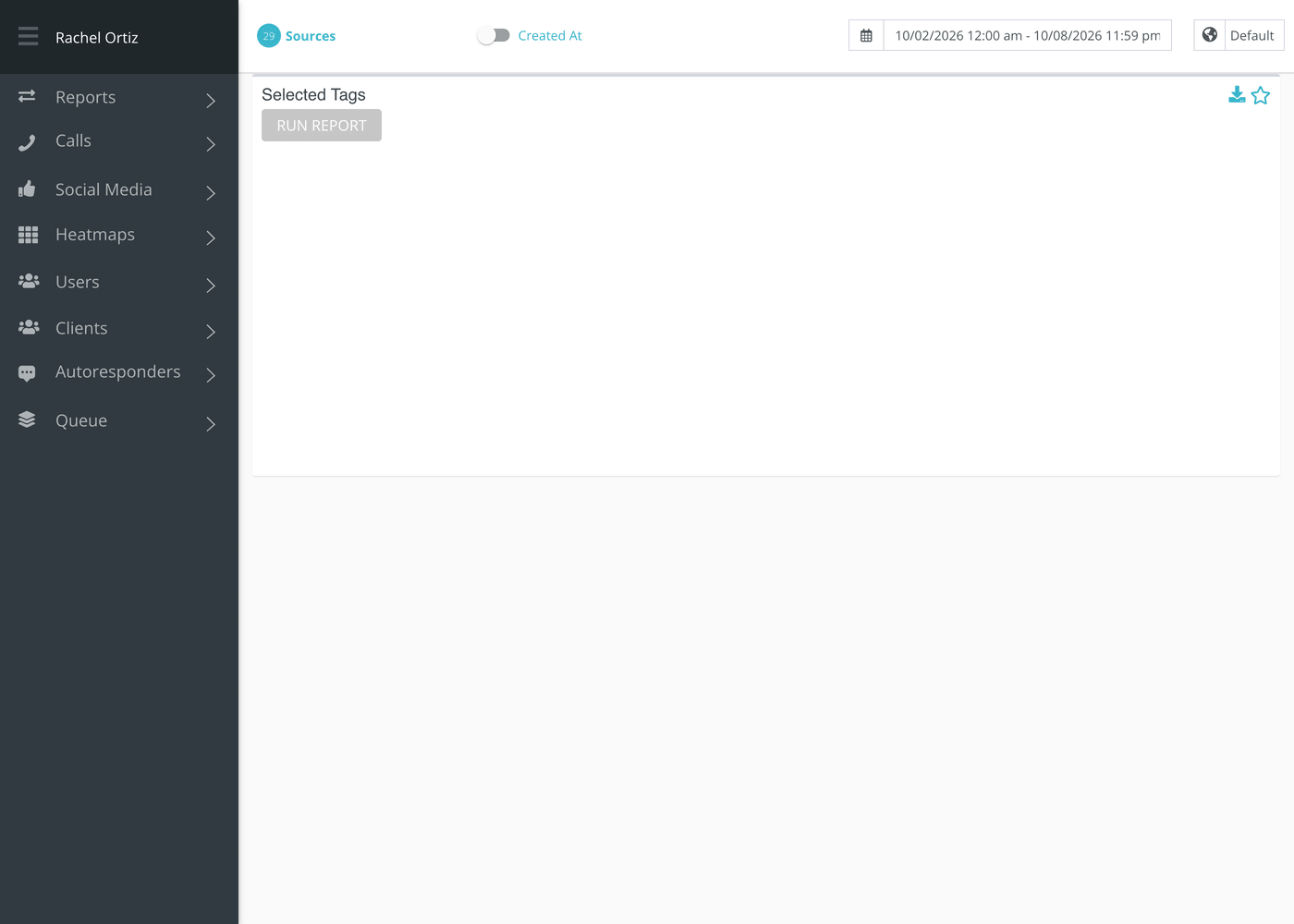
The card is titled Selected Tags. A pie chart sits on the left and a table of root tags on the right, biggest first. Each line in the table reads like Prayer / 40%: the root tag, then its share of all the tags used in the range.
Seeing what’s under a tag
- Click a root tag in the table, or a slice of the pie.
- A window opens with a pie chart and a list. The first line is the root tag itself. The lines under it are its synonyms, each with how many times it was used.
- Use the left and right arrows at the top of the window to step to the next root tag.
Each count in the window is followed by its percentage of that root tag’s total, not of everything in the report.
What the numbers count
- The report counts tags on comments that arrived in your date range, on posts from the sources you picked. It is not a count of when the tag was applied.
- A synonym counts toward its root tag. If baptized and water baptism are synonyms of baptism, all three appear as one line.
- A tag applied to several comments counts once for each comment.
What the measurements mean
| Term | What it means |
|---|---|
| Tag | A short label a responder puts on a comment to describe it. |
| Root tag | The tag the report counts under. One idea, one root tag. See Restricted Tags. |
| Synonym | Another way of saying a root tag. When a responder uses a synonym, the use counts toward the root. |
| Share (the percentage) | A root tag’s count divided by the count of all tag uses in the report, rounded to one decimal place. |
| Total | For a root tag: its own uses plus the uses of every synonym. |
If something looks wrong
- The card is empty. No comment from your selected sources was tagged in that range. Widen the range, or check that Sources includes a Facebook, Instagram, YouTube or TikTok source.
- The same idea appears twice. Two separate root tags probably mean the same thing. Ask an admin to tidy the tag list in Settings, Tags, where the list of root tags and synonyms is kept.
- This report does not show conversation tags. Tags put on private conversations are reported in the Conversations section.