About:
Some Social Media platforms allow for management of post comments in addition to direct messages. Echo has a different area to manage these comments than the private message Inbox. Currently, Social Media comments can be managed in Echo for Facebook, Instagram, YouTube, and TikTok.
How it works:
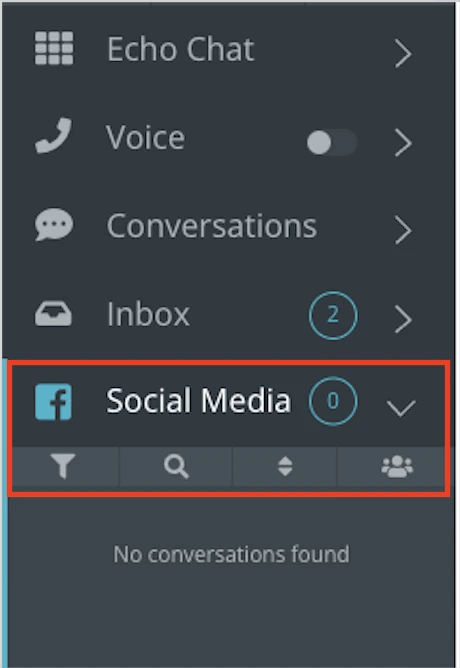
When you begin receiving comments on your Social Media posts, the will be found in the "Social Media" menu in the Talk area. Echo Users will only see this area if they have been given permission to see Social Media comments from posts in their permission set.
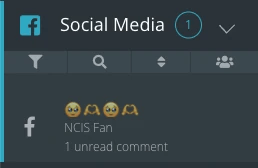
When new comments come in on your Social Media posts, the post will display in the Social Media list in Echo. Click on the post to open up the comments view.
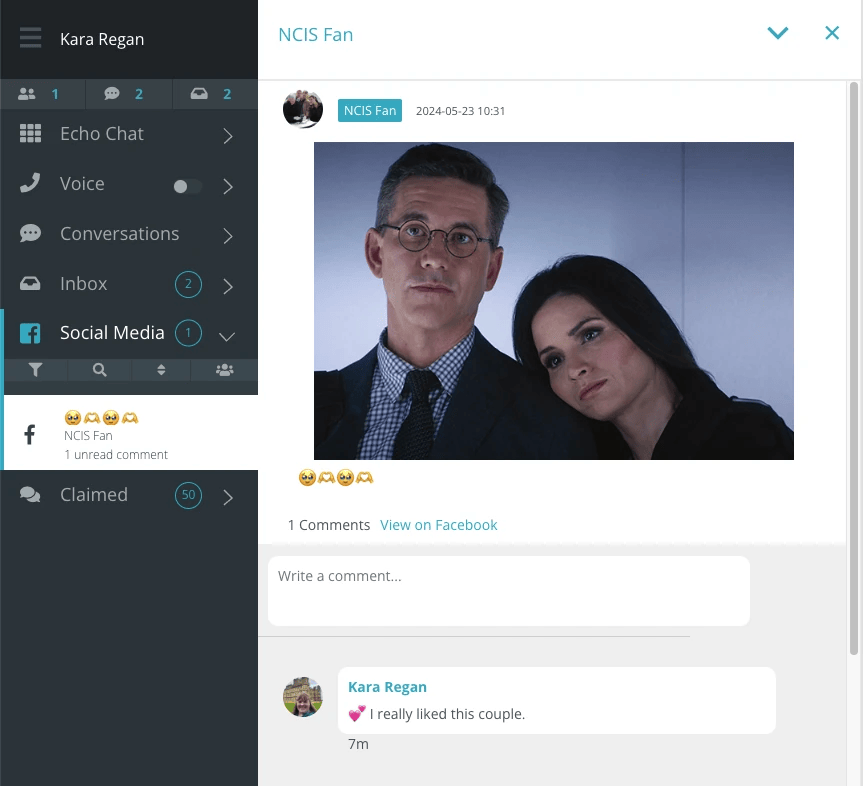
The post will display in your center panel and the comments will display underneath similarly to how it shows on your Social Media page.
New comments will show the client/commenter name in blue, where old comments will be grayed out.
To review, reply, or provide an action on a comment, click on the comment you want to work with.
To avoid multiple users working on the same comment, once you click on the comment, it is assigned to you and you will see your user circle next to the comment. To be unassigned from the comment, click the X under your user circle.
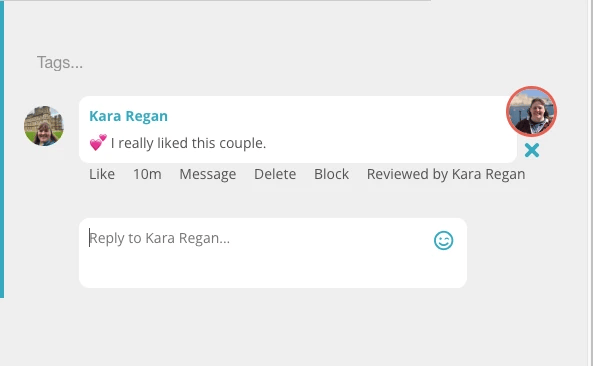
Not every platform allows every action: Message and Delete are available on Facebook and Instagram comments, and Block on Facebook comments only.
You can do the following things with Social Media comments:
- Add an Echo tag to the comment. (Use the Social Media Tags Report to see what tags have been used).
- Reply to the comment.
- Message - turn your reply into a private message to the client/commenter. The Message button only appears on comments from the last 7 days.
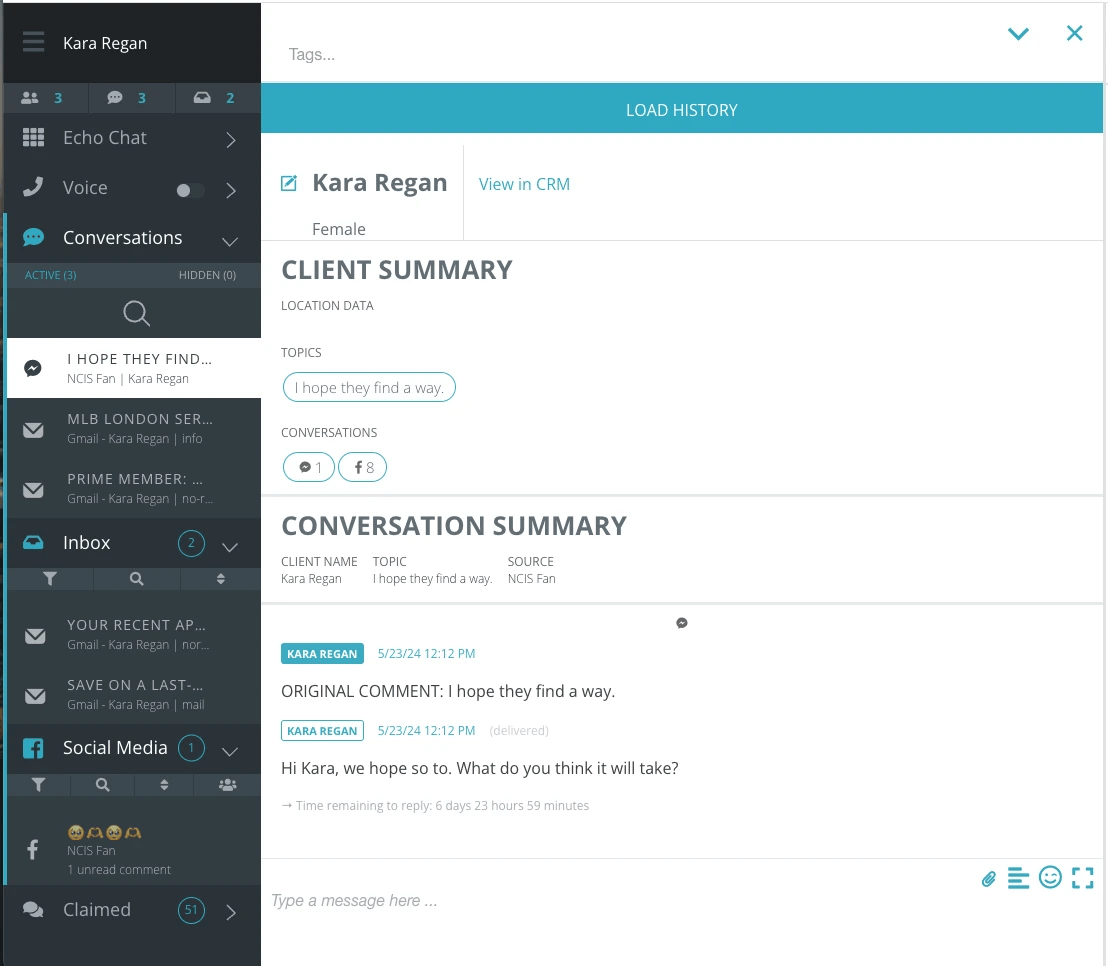
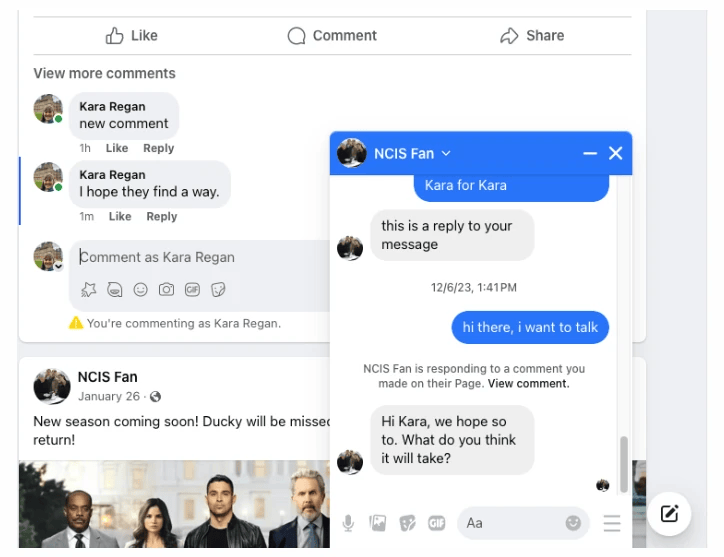
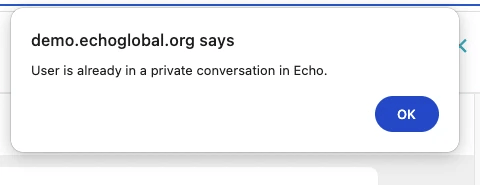
Note: If an active private conversation already exists with the client, you will not be able to start a new one from a comment.
- Delete - deletes the comment from the post on the Social Media page, and hides the comment in Echo. Echo will show deleted comments in Echo by making it gray and having an eye icon with a slash through it.
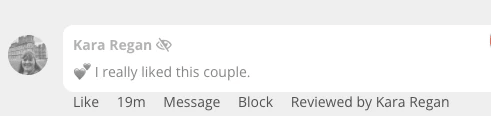
- Block - blocks the client/commenter in Echo (and will auto-hide future comments from the client), and hides the comment in Echo and on the Social Media page. Echo will show blocked/hidden comments in Echo by making it gray and having an eye icon with a slash through it.
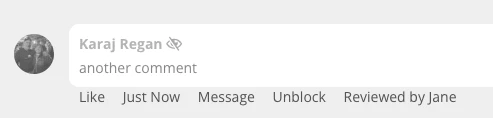
You have the option to unblock the client/commenter from the comment by clicking "unblock".
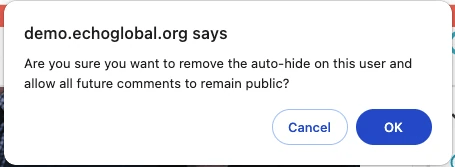
If you want to unblock the client in Echo, but leave their comment hidden, you can unblock the client from their client record under Clients, where the Blocked Clients switch narrows the list to blocked clients.
Reminder - If you want to permanently block someone from interacting with your Social Media page, you will need to do that from the Social Media page itself outside of Echo. The Social Media platform does not give third-party apps permission to do this step via the app.
On your Social Media page, the blocked client/comment will now be hidden.
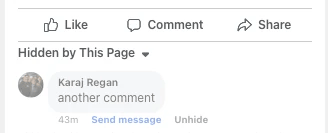
If a comment is blocked or deleted directly from the Social Media page, Echo will/should receive the update from the page and will update the comment status in Echo appropriately.
Once a comment has been deleted or blocked, you will no longer be able to reply to that comment through Echo because Echo won't be able to connect with it anymore through the Social Media API. Be sure you don't want to do any further interaction with the comment before deleting it or blocking/hiding it.
In order to block a commenting person, the system does create a client record to be blocked. Once you have blocked the comment, you will be able to manage the blocks the same as any other client. The default block length for comments is 4 weeks.
Once all Social Media comments for that post have been reviewed, the post will leave the Social Media menu area until new comments for that post come in.
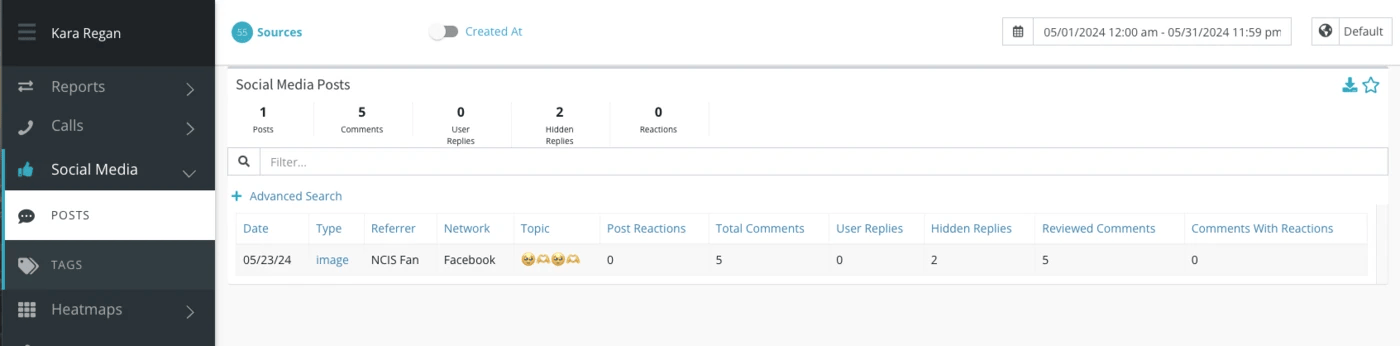
You will find old posts/comments history in the Echo Reports area under Social Media Reports.