This report lists the social media posts Echo has recorded for your ministry in a date range, one row per post. For each post it counts the reactions and comments it drew, how many of those comments your team replied to or hid, and how many have been reviewed. Use it to see which posts are drawing conversation and whether your team is keeping up with it.
It looks at posts. To work through the comments themselves, reply to them or tag them, see Social Media Comment Management.
You need to be an admin, or to have been given access to the Reporting module, to open Reports. These pages are in the classic Reports area. The newer Analytics area is a separate set of reports.
Where to find it
- Click Reports in Echo’s main menu.
- In the left menu, open the Social Media group and click Posts.
- Pick a date range and, if you need to, a time zone at the top of the page. Open Sources to choose which of your sources to include.
- Click Run Report on the card. The report runs in the background, so give it a moment on a long date range.
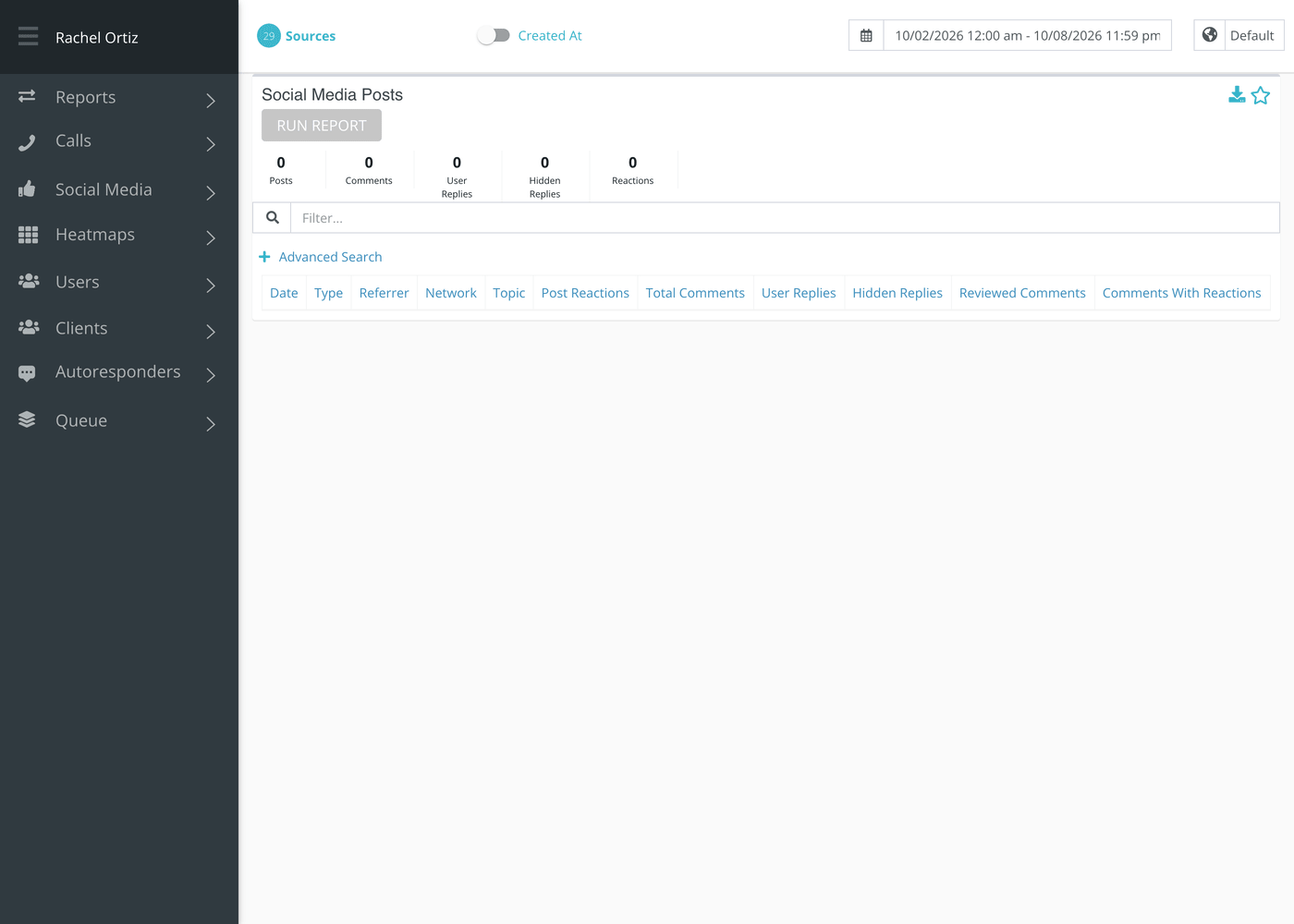
Only sources Echo can read comments from are included: Facebook, Instagram, YouTube and TikTok. If none of your selected sources is one of those, the report is empty. Texts, chat and email sources never appear here.
The totals along the top
Above the table, a strip of five numbers adds up every post in the list.
| Total | What it counts |
|---|---|
| Posts | The posts in the table below. |
| Comments | Every comment on those posts, including your team’s replies. |
| User Replies | The comments written by someone on your team from inside Echo. |
| Hidden Replies | The comments that have been hidden in Echo, by deleting the comment or blocking the commenter. |
| Reactions | The reactions on the posts themselves. Reactions on comments are not in this number. |
Reading the table
Each row is one post. Click any column heading to sort by it, and click it again to reverse the order.
| Column | What it means |
|---|---|
| Date | The day Echo recorded the post. |
| Type | The kind of post. Click it to open the post and its comments (see below). |
| Referrer | The name of the source the post belongs to, for example one of your Facebook pages. |
| Network | The platform: Facebook, Instagram, YouTube or TikTok. |
| Topic | The words of the post. |
| Post Reactions | Reactions on the post itself. |
| Total Comments | Every comment on the post, including your replies. |
| User Replies | Comments on the post written by your team from Echo. |
| Hidden Replies | Comments on the post that are hidden in Echo. |
| Reviewed Comments | Comments marked reviewed. Echo marks a comment reviewed when a responder likes it or hides it. |
| Comments With Reactions | Reactions on comments under the post. A comment with more than one reaction adds more than one to this number. |
The Filter box above the table narrows the rows to any that contain the words you type, in any column.
Narrowing the posts
Advanced Search looks inside the posts and their comments. Fill in one field or several, then click Apply. A post stays in the list only if it matches every field you filled in.
- Click Advanced Search, just above the table.
- Fill in any of the fields in the table below.
- Click Apply. Each Clear button empties its own field.

| Field | What it keeps |
|---|---|
| Post Body/Topic | Posts whose words contain what you typed. |
| Comment Body | Posts that have at least one comment containing what you typed. |
| Client Name | Posts that have a comment from someone whose name contains what you typed. |
| User Name | Posts that have a comment from a member of your team whose name contains what you typed. |
| Tag | Posts that have at least one comment carrying one of the chosen tags. Choosing a root tag also matches its synonyms. |
Opening a post
- Click the post’s Type in the table.
- A window opens over the report with the post and its comments. Use the link at the top of the window to open the same view on its own page.
- Click the close icon at the top right of the window to come back to the report.
Downloading the list
Click the download icon in the card’s header to get the report as a file. The file type follows your download preference in Echo.
What the measurements mean
| Term | What it means |
|---|---|
| Post | A single post on one of your connected pages or channels. Echo records a post when it first sees it, which is the date shown. |
| Comment | Anything written under a post, whether by a seeker or by your team. |
| User Reply | A comment written by one of your responders from inside Echo. A comment a seeker writes is never a user reply. |
| Hidden Reply | A comment that is hidden in Echo, either because it was deleted or because its author was blocked. The comment may still exist on the platform. |
| Post Reaction | A reaction recorded on the post itself. |
| Reviewed comment | A comment someone on your team has dealt with, so it no longer counts as waiting. |
| Source / Referrer | The connected account or page the post belongs to. Echo’s report screens call it a referrer in some columns. |
If something looks wrong
- The report is empty. Check that Sources includes a Facebook, Instagram, YouTube or TikTok source, and that the date range covers days when the post was recorded.
- Comments outside the date range are counted. The date range chooses the posts. Once a post is in the list, every comment on it is counted, whenever it was written.
- A number looks low for a platform. Echo can only count what the platform sends it. See the Help Center article for that platform’s integration.