The Daily Outcomes report is the Monthly Outcomes report with a column for every day. Use it when a month is too coarse: after a campaign, a holiday or a change to your rota, you want to see which days the outcomes moved.
Running the report
- Open Reports from the main menu. In the left-hand menu, under Reports, click Daily Outcomes.
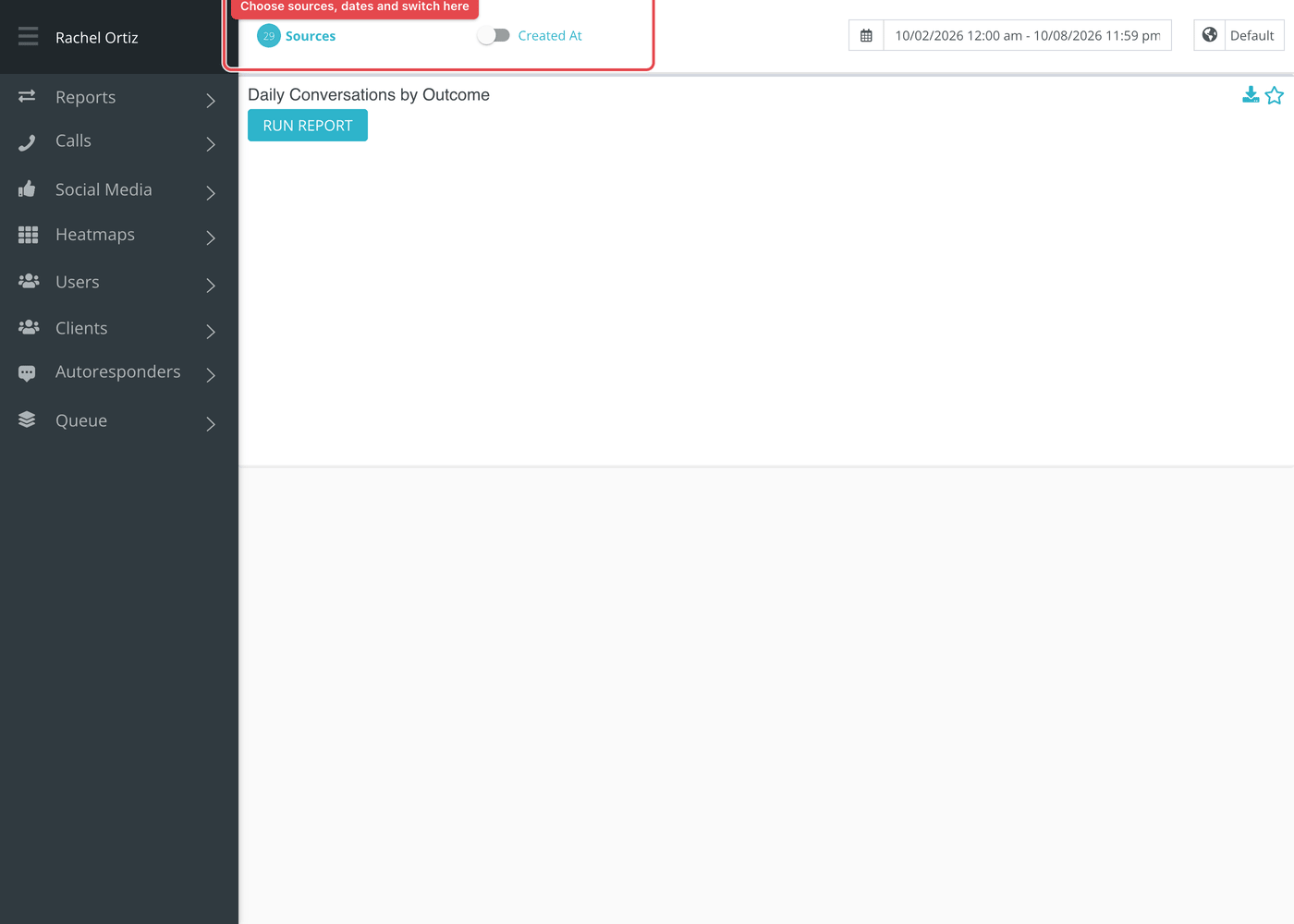
- Click the date range at the top of the page and choose your dates. The globe menu beside it sets the time zone, which starts on your ministry's own.
- Click Sources and choose the conversation sources to include. The number beside it shows how many are chosen.
- Use the switch to choose Created At or Closed At. Created At places a conversation on the day it started. Closed At places it on the day it closed, so conversations that are still open are not counted.
- Click Run Report on each card you want to see. A card does not load until you do, and the button stays gray until you change a filter.
Larger date ranges can take a little while. Reports that are still being built are listed under Queue at the bottom of the left-hand menu, which reads "All Reports Finished Loading" when none are waiting.
Daily Conversations by Outcome
A line chart and a table. There is one row for each outcome your ministry currently uses and one column for each calendar day in your range, labeled with the date. Each cell is the number of conversations that ended with that outcome on that day.
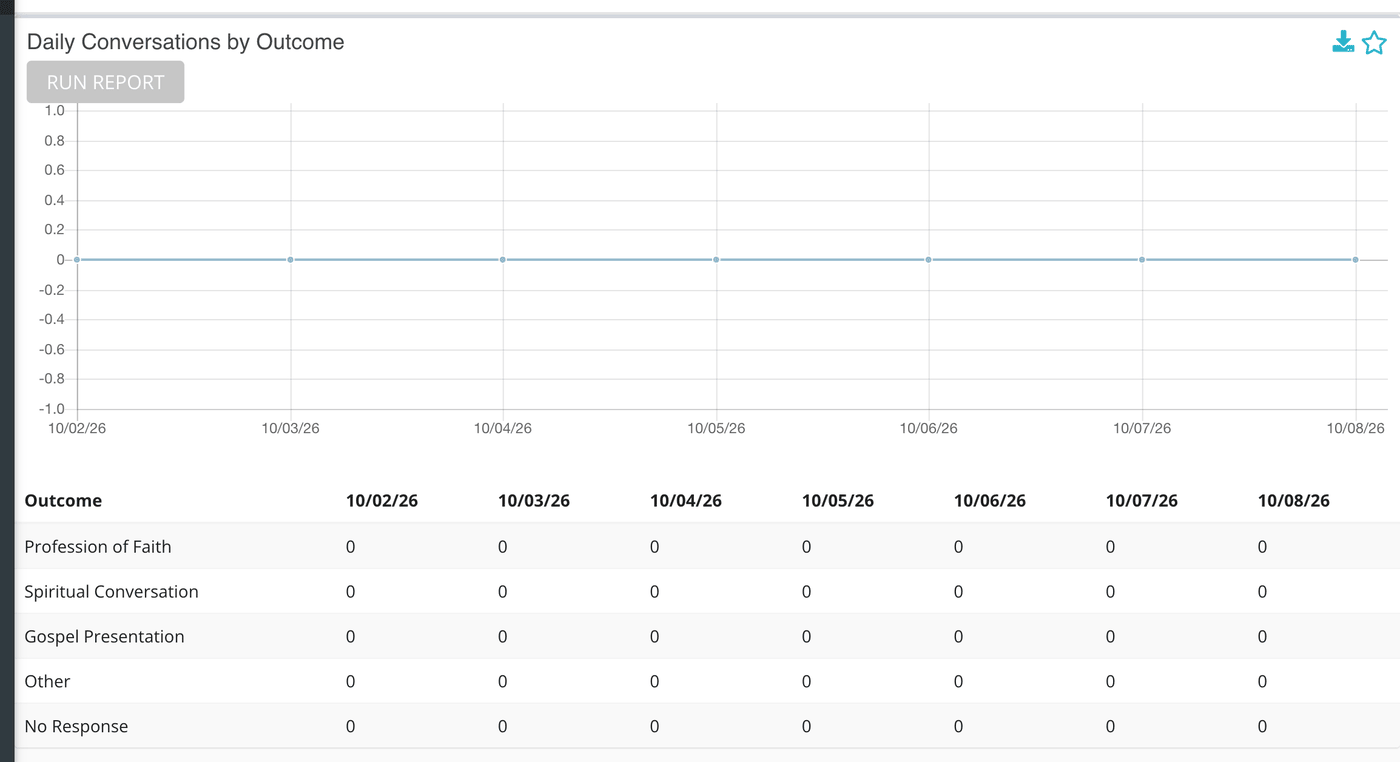
Only conversations with an outcome are counted, as in the monthly version.
What the measurements mean
| Term | What it means |
|---|---|
| Outcome | The result a responder chooses when they close a conversation. |
| Day | A calendar day from midnight to midnight in the time zone you picked. |
Things to know
- Keep the range short. A range of a year gives a column for each of 365 days.
- The Permission Sets button does not appear on this report.
- Use Closed At to see the day each outcome was recorded. With Created At, a conversation counts on the day it started.
- For a month-by-month version, see Monthly Outcomes.
Most cards also carry two small icons beside the title. The star pins the card to your Dashboard. The download icon saves the card as a CSV file, or as XLSX if your download preference is set to XLSX.