
Echo can send a summary by email on a schedule — yesterday's calls, yesterday's chats, a daily total for a manager. The Report Manager is where you say who gets which one.
Its most useful property: a recipient is just an email address. Your board chair, your safeguarding lead and your denominational office can all receive a report without ever having an Echo login. The exceptions are the Daily Manager Summary and Expiration Notices, which are only sent to an address that belongs to an Echo user in your ministry.
Where to find it
In the admin menu, click Reports. The Report Manager is the screen it opens to.
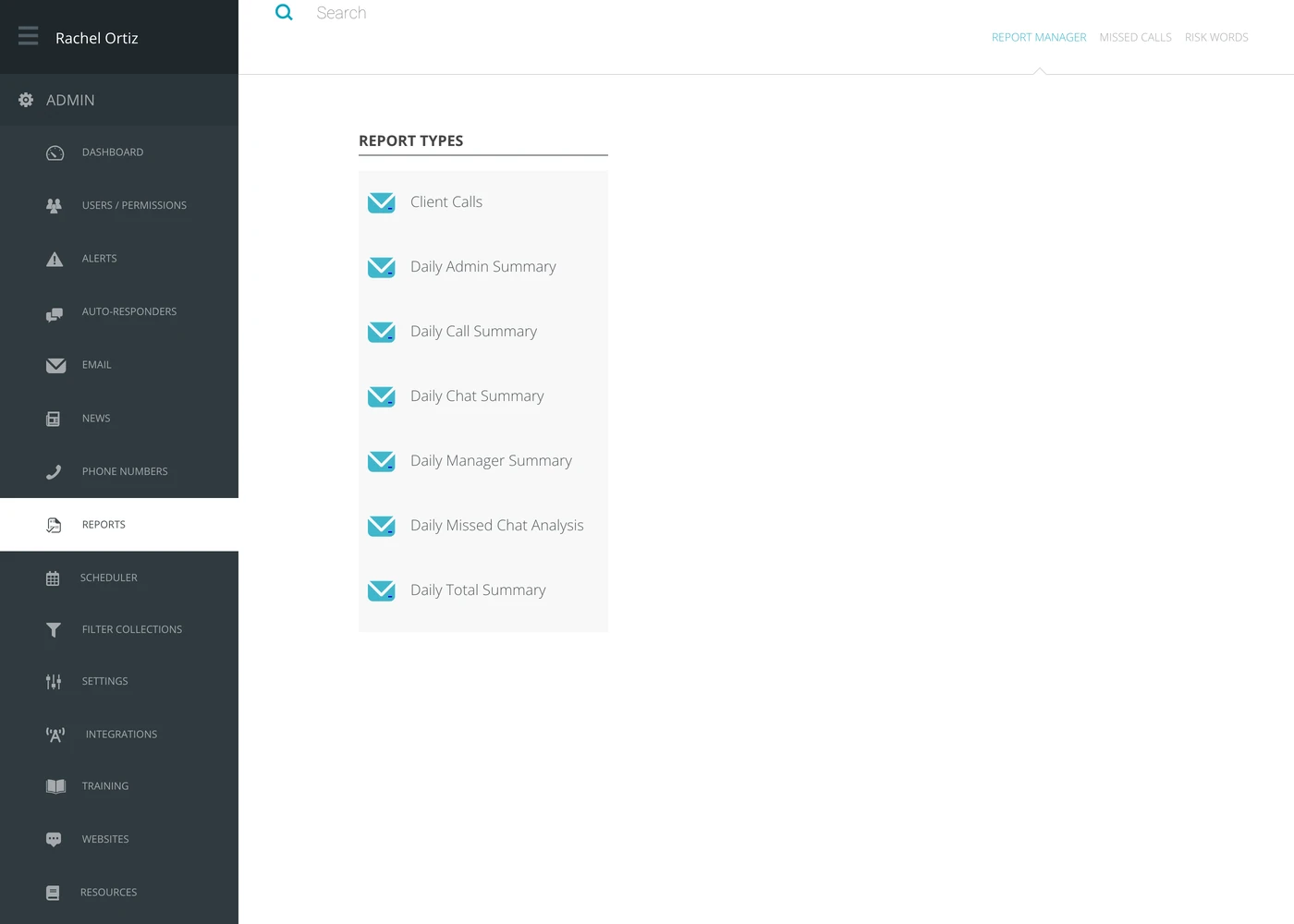
Adding a recipient
- Click the report type you want somebody to receive.
- Echo lists everyone currently subscribed to that report.
- Click New Report Recipient, enter the email address, and click Submit.
Each report type is managed on its own, so somebody can receive the daily call summary without receiving anything else.
Removing a recipient
Open the report type and unsubscribe them from it. Removing somebody from one report does not remove them from the others they are on.
Recipients with an Echo login can also take themselves off. Most scheduled reports carry an Unsubscribe link that, once they sign in to Echo, lets them manage their own subscriptions, which is why an address can disappear from this list without an admin doing anything.
What the terms mean
| Term | What it means |
|---|---|
| Report type | One of Echo's scheduled summaries — Client Calls, Daily Admin Summary, Daily Call Summary, Daily Chat Summary, Daily Manager Summary, Daily Missed Chat Analysis, Daily Total Summary, Expiration Notices, Monthly Call Summary, Old Summary, Weekly Keyword Report. |
| Recipient | An email address subscribed to at least one report type. Not the same as an Echo user. |
| Subscription | One recipient plus one report type. A person on three reports has three. |
Who should be on what
Resist adding everybody to everything. A daily email nobody reads trains people to ignore Echo's email altogether, and the one that matters arrives looking like the ones that do not.