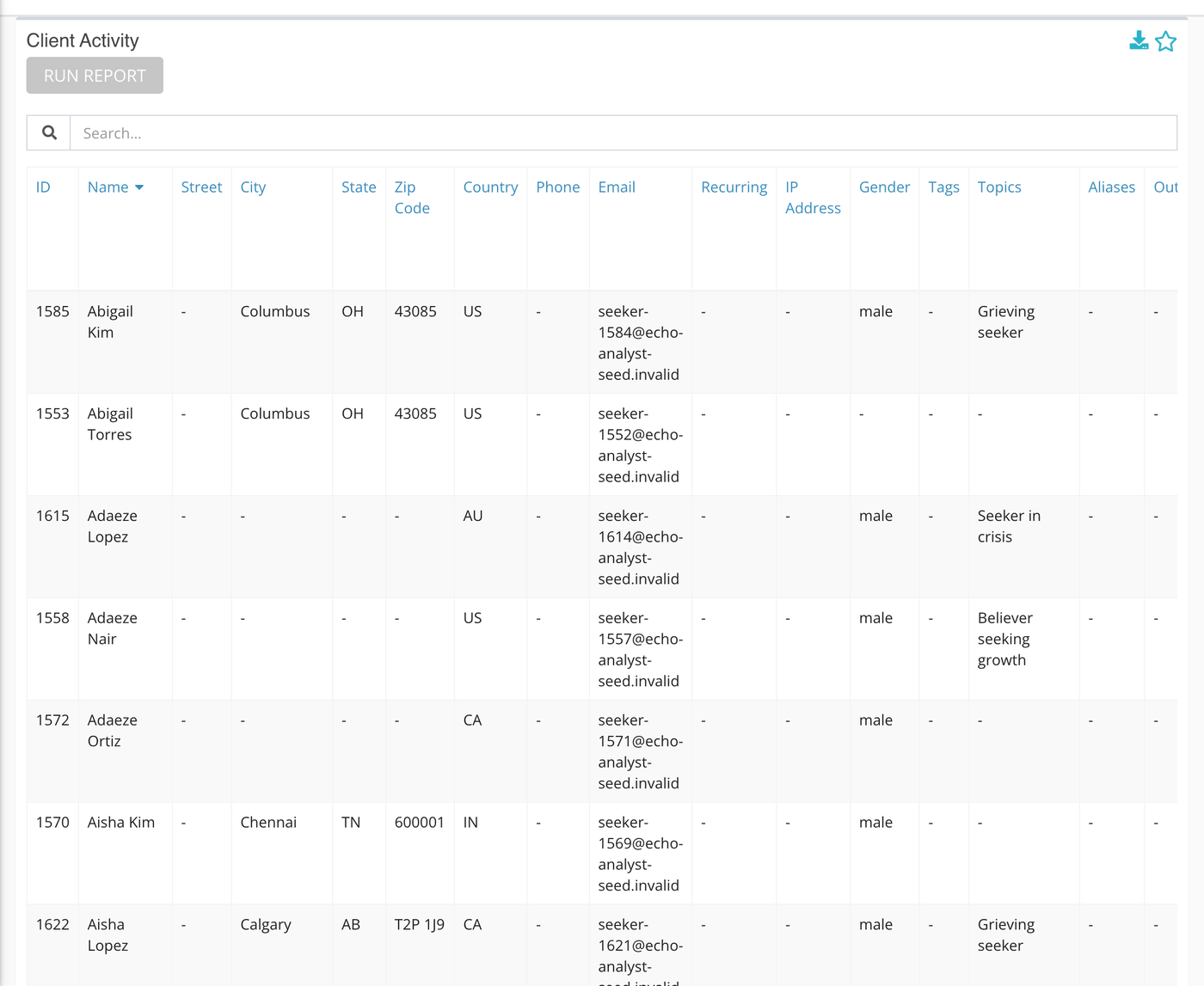
This report lists the seekers behind your conversations. For everyone who reached out in the period you choose, it gathers what Echo knows about them into one row: where they are, how to reach them, what they talked about and how it ended.
This table holds seekers' personal details, such as names, addresses, phone numbers, email addresses and IP addresses. Download it only when you need to, store it somewhere secure, and share it only with people who should see it.
Where to find it
Click Reports, open the Clients group in the left sidebar and click Activity. The card is titled Client Activity.

Set up and run the report
- Click Sources and choose the channels to include. A seeker is listed only if they had a conversation on one of the sources you chose.
- Set the Created At / Closed At switch and the date range.
- Click Run Report.

Reading the table
There is one row per seeker. Type in the Search box to find a name, number or topic, and click a heading to sort.
| Column | What it means |
|---|---|
| ID | Echo's number for this seeker. |
| Name, Street, City, State, Zip Code, Country | What is saved on the seeker's record. A dash means nothing is saved. |
| Phone, Email | Contact details saved on the seeker's record. A dash means nothing is saved. |
| Recurring | The recurring flag on the seeker's record. |
| IP Address, Gender | Saved on the record when known. |
| Topics | The topic of each conversation in range. A topic used more than once shows as, for example, a topic name followed by "x 2". |
| Aliases | The different names the seeker gave in their conversations in range. |
| Outcomes | The outcomes recorded on those conversations, with a count when an outcome was used more than once. |
| Total Blocks | How many times your ministry has blocked this seeker. |
What the measurements mean
| Term | What it means |
|---|---|
| Client | Echo's word for a seeker's record. The same seeker reaching out on several channels can be one record. |
| Recurring | A flag stored on the seeker's record. |
| Block | A ministry blocking a seeker so their messages are no longer accepted. See the Blocked Clients Report. |
| Alias | A name the seeker gave on a conversation, which can differ from the name on their record. |
What to keep in mind
- Seekers who only phoned are not listed: the list is built from conversations on your chosen sources.
- To see how many seekers came back more than once, use the Clients Repeat Report.