
About
Echo keeps a record every time someone is blocked from contacting your ministry. This article shows you where to find that record: who is blocked right now, how to reach them by phone number or IP address, when each block lifts, when the block was made and by whom, and how to be told the moment a new one happens.
There is no single "blocked callers" report. The information lives in four places, and which one you want depends on the question you are asking:
Your question | Where to look |
|---|---|
Who is blocked right now, with their phone number and IP address? | The Clients report, with the Blocked Clients switch on |
When does this person's block lift, and how many blocks have they had? | The client record, under Actions, Manage Block |
When was the block made, and who made it? | The Conversations report, filtered to the Blocked status |
Who has Echo blocked automatically, and for what period? | Admin, Settings, Chat Quotas |
You need to be an admin, or hold the Admin: CRM permission, to open the Clients report and client records.
What the terms mean
Echo uses several of these words in its own particular way, and two of them are easy to read as something they are not.
Term | What it means |
|---|---|
Blocked client | A person your ministry has blocked. While the block lasts, they cannot reach you on any channel: chat, text, phone, email or social. |
Block duration | How long the block will last, chosen when it is made. The choices are 24 hours, 48 hours, 72 hours, 1 week, 2 weeks, 3 months, 6 months and 1 year. |
Blocked until | The date and time the block lifts. Nothing has to be undone. When that moment passes the person can reach you again. |
Total previous blocks | How many separate blocks this person has had with your ministry. Extending a block that is still running does not add to this number. A second entry means they were blocked, the block ran out, and they were blocked again. |
Blocked (Clients report column) | Yes or No, for right now. It does not say when the block was made or how long it has left. |
Blocked (conversation status) | A conversation that a responder ended by blocking the person. The conversation's date is the date of the block. |
Duration (Conversations report column) | How long the conversation lasted. This is not the length of the block. It is the column people most often mistake for one. |
IP address | The internet address the person's web chat came from. Blocks follow it: anyone else arriving from that same address is treated as blocked by your ministry too. |
Blocked Clients (filter) | Three settings. Include Blocked shows everyone, Exclude Blocked leaves blocked people out, and Only Blocked returns nothing but blocked people. |
Quota | A limit on how often one person may contact you. Pass it and Echo blocks them by itself, without anyone on your team doing anything. |
Who is blocked right now
This is the list to start from. It gives you the name, the email address, the phone number and the IP address for everyone your ministry currently has blocked.
Open Clients under Analytics.
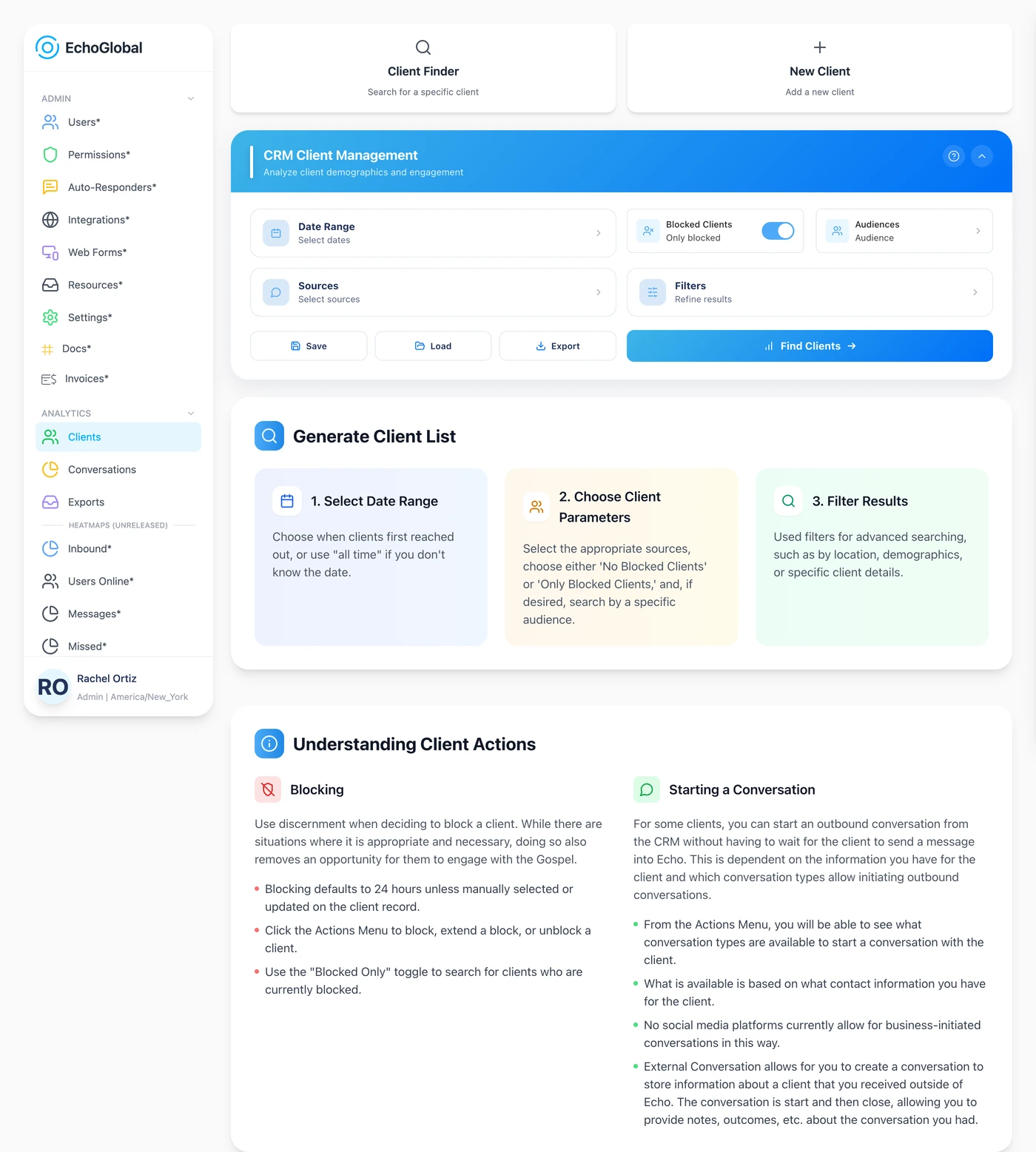
Click Date Range and choose the period you want to look at. This field is required.
Click Sources and select the channels to include. This field is required too. If you want the whole picture, select them all.
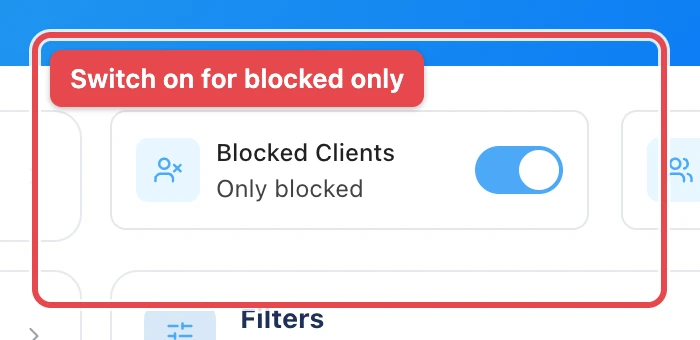
Turn the Blocked Clients switch on. The line underneath it changes from All clients to Only blocked.
Click Find Clients.
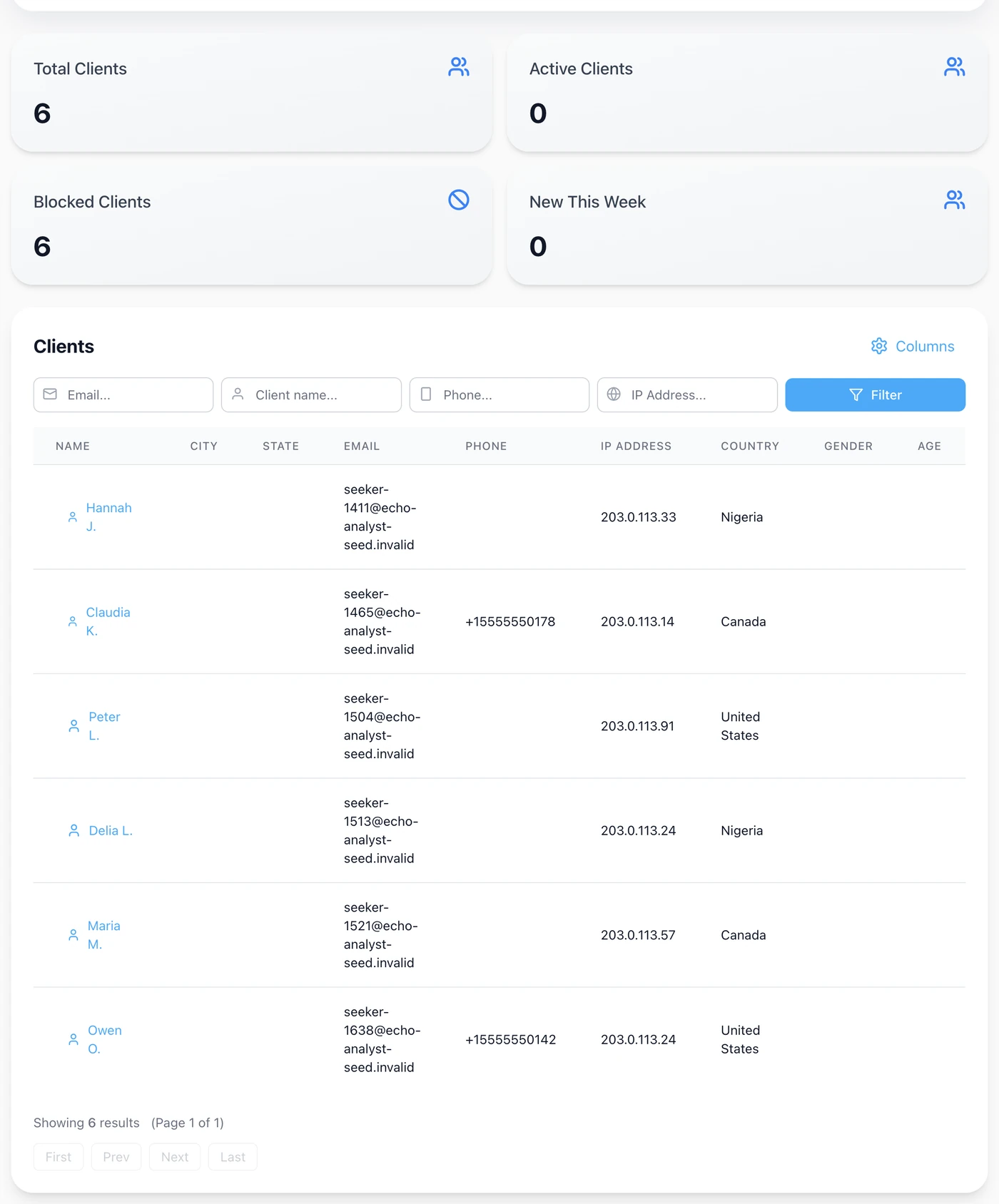
What each column tells you
Column | What it means |
|---|---|
Name | The seeker's name. Click it to open their record. |
Their email address, if Echo has one. | |
Phone | Their phone number, if they have ever reached you by phone or text. |
IP Address | The address their web chat came from. Blank for people who only ever called or texted. |
Country, City, State, Zip Code | Where Echo places them. |
Blocked | Yes or No. |
Created At, Updated At | When the person's record was made and when it last changed. Neither of these is the date of the block. |
Click Columns above the table to show, hide or reorder any of them. Your choices are remembered for next time.
Two people with the same IP address in this list is worth a second look. It usually means one person came back on a new device or a new browser, and Echo's IP blocking caught them.
Exporting the list
Use Export rather than copying the table by hand. You can export without running the report first.
Click Export in the report builder.
Choose xlsx or CSV.
Choose Direct Download for a small list, or Email Delivery for a large one.
Click Export Report.
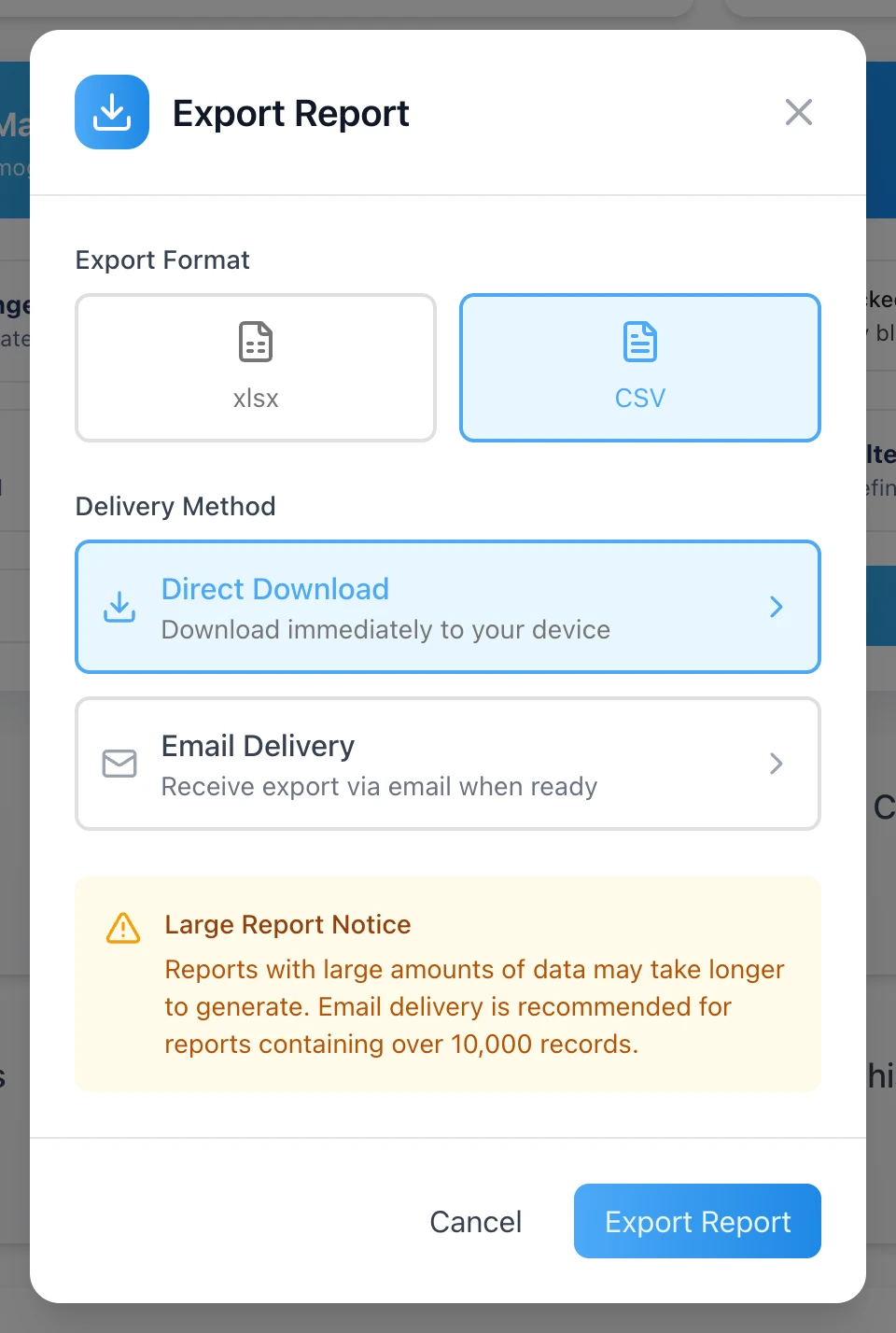
The export contains the same columns as the table, so it carries the name, phone number and IP address of everyone in the list.
When a block lifts, and how many blocks someone has had
The report tells you that a person is blocked. Their record tells you until when.
Click the person's name in the report to open their record.
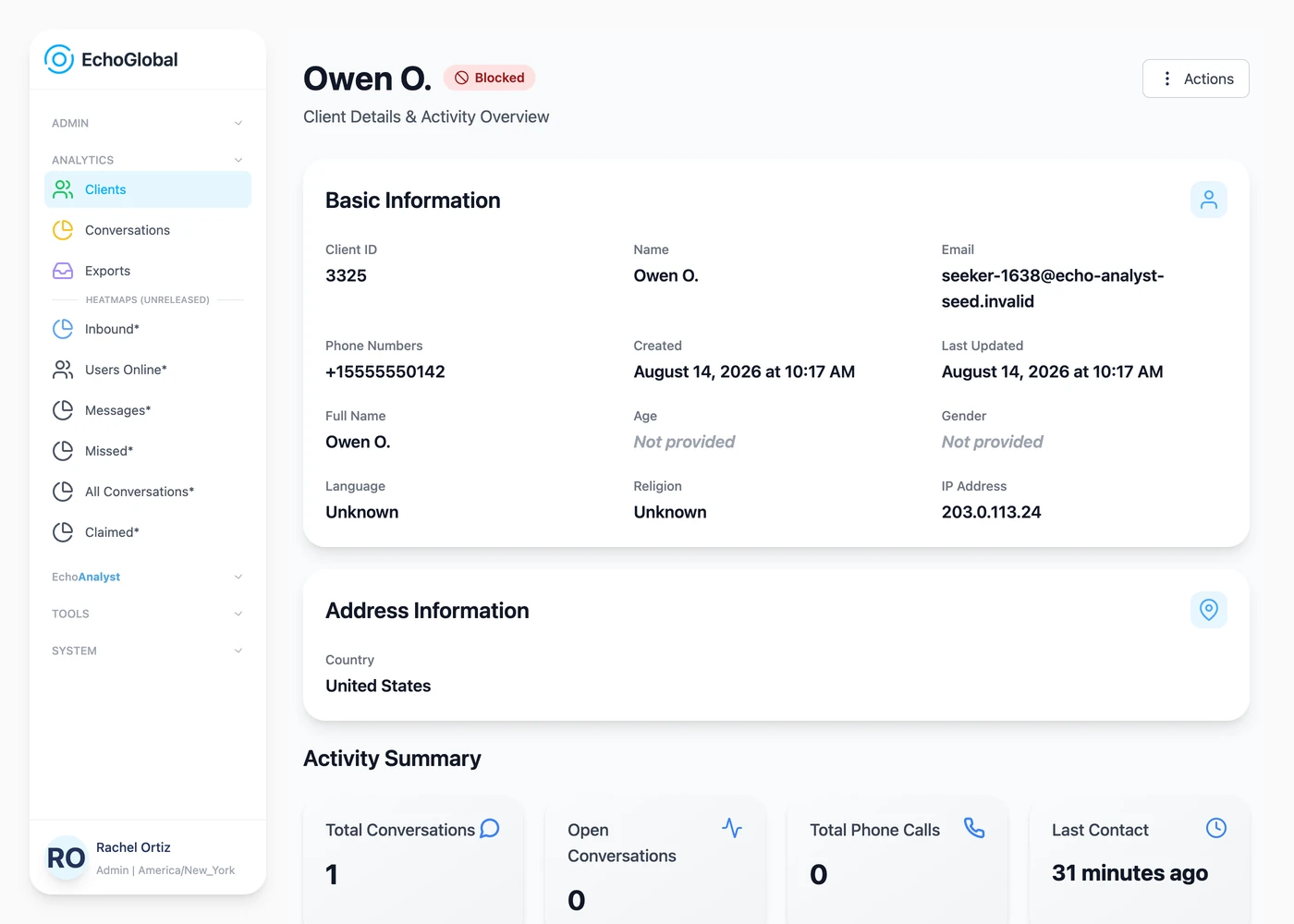
Click Actions, then Manage Block.
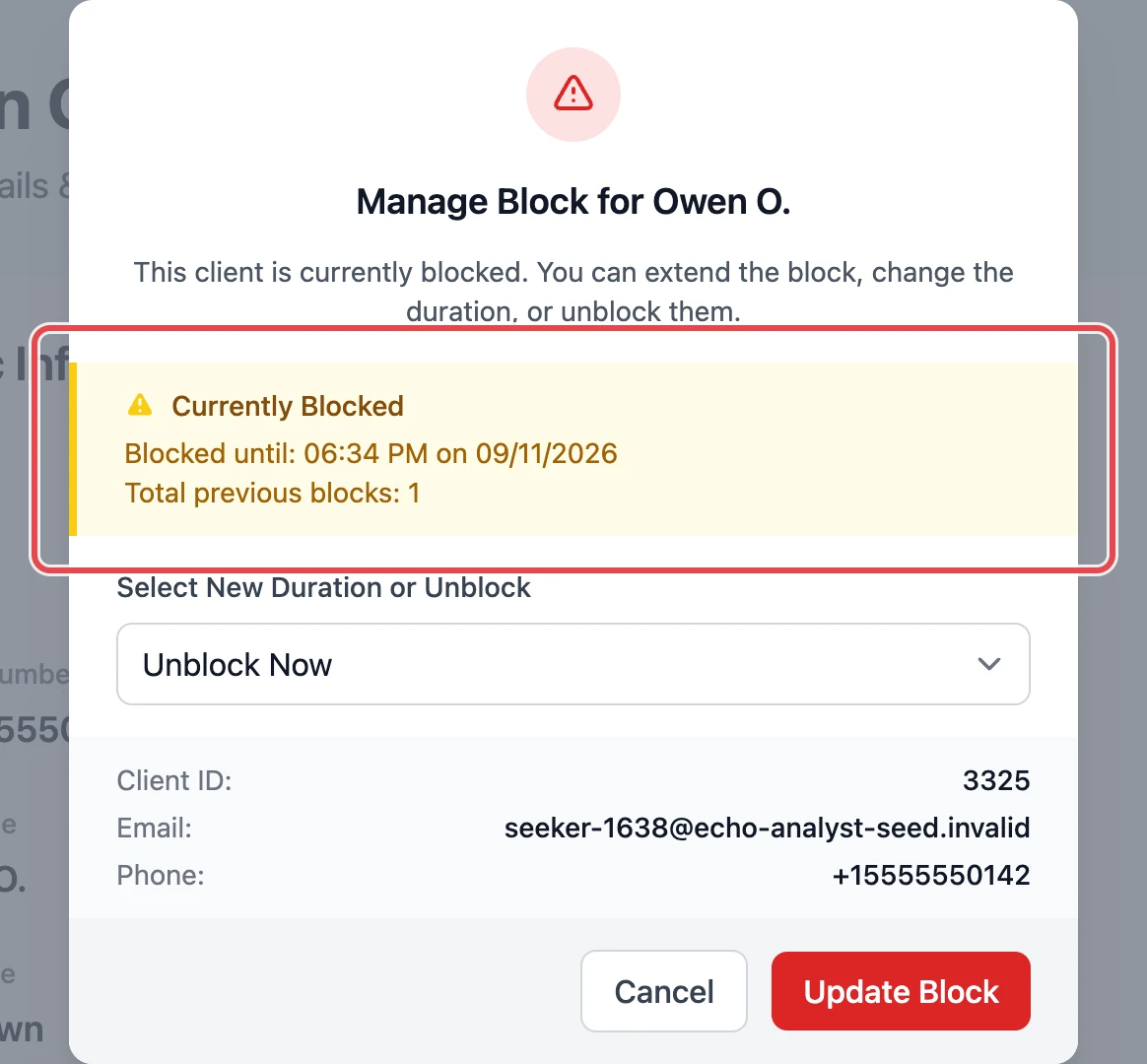
From this panel you can also change the length of the block, extend it, or choose Unblock Now to end it immediately.
The panel also tells you why someone is blocked when the block is not their own. It will say Blocked via IP Address or Blocked via Related Client, and name the person whose block is being applied.
A block that has expired leaves no row anywhere. Total previous blocks is the only place Echo counts blocks that are over.
When a block was made, and who made it
When a responder blocks someone from a conversation, that conversation is closed and its status becomes Blocked. Finding those conversations gives you the date of each block and the name of the responder who made it.
Open Conversations under Analytics.
Set your Date Range and Sources.
Click Filters to open the Advanced Search drawer.
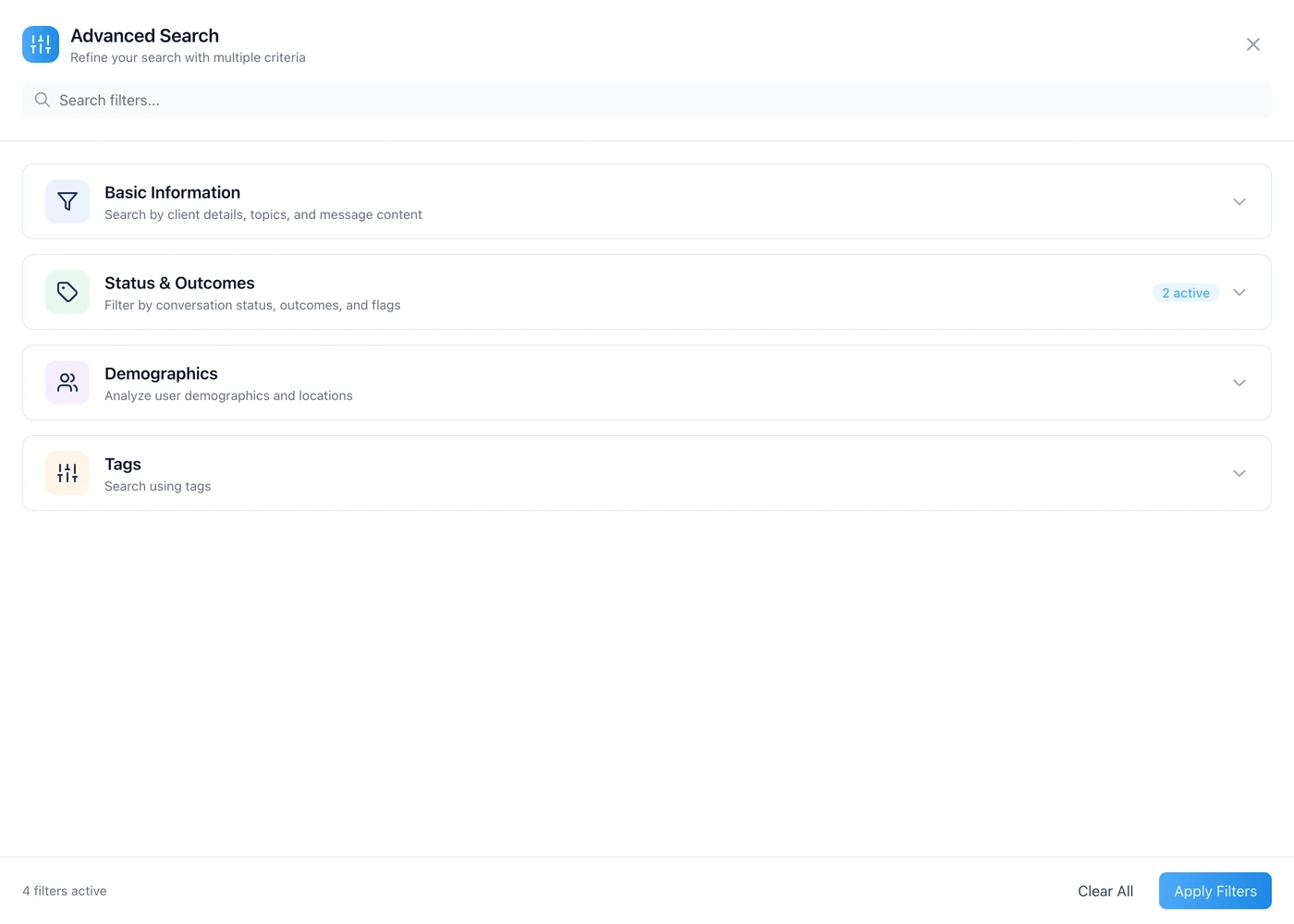
Open Status & Outcomes.
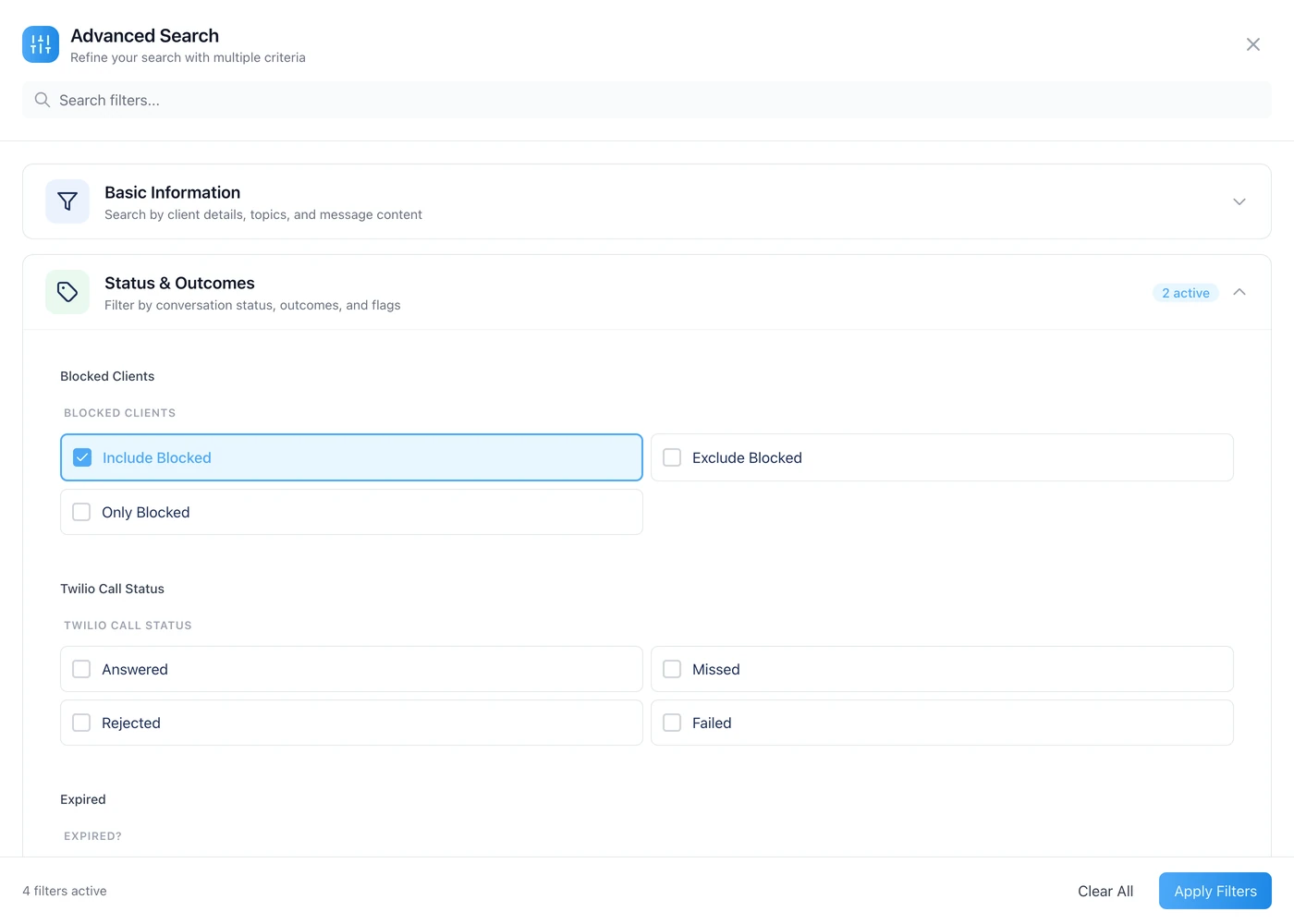
Scroll down to Statuses and tick Blocked. This finds the conversations that ended in a block.
Click Apply Filters, then Run Report.
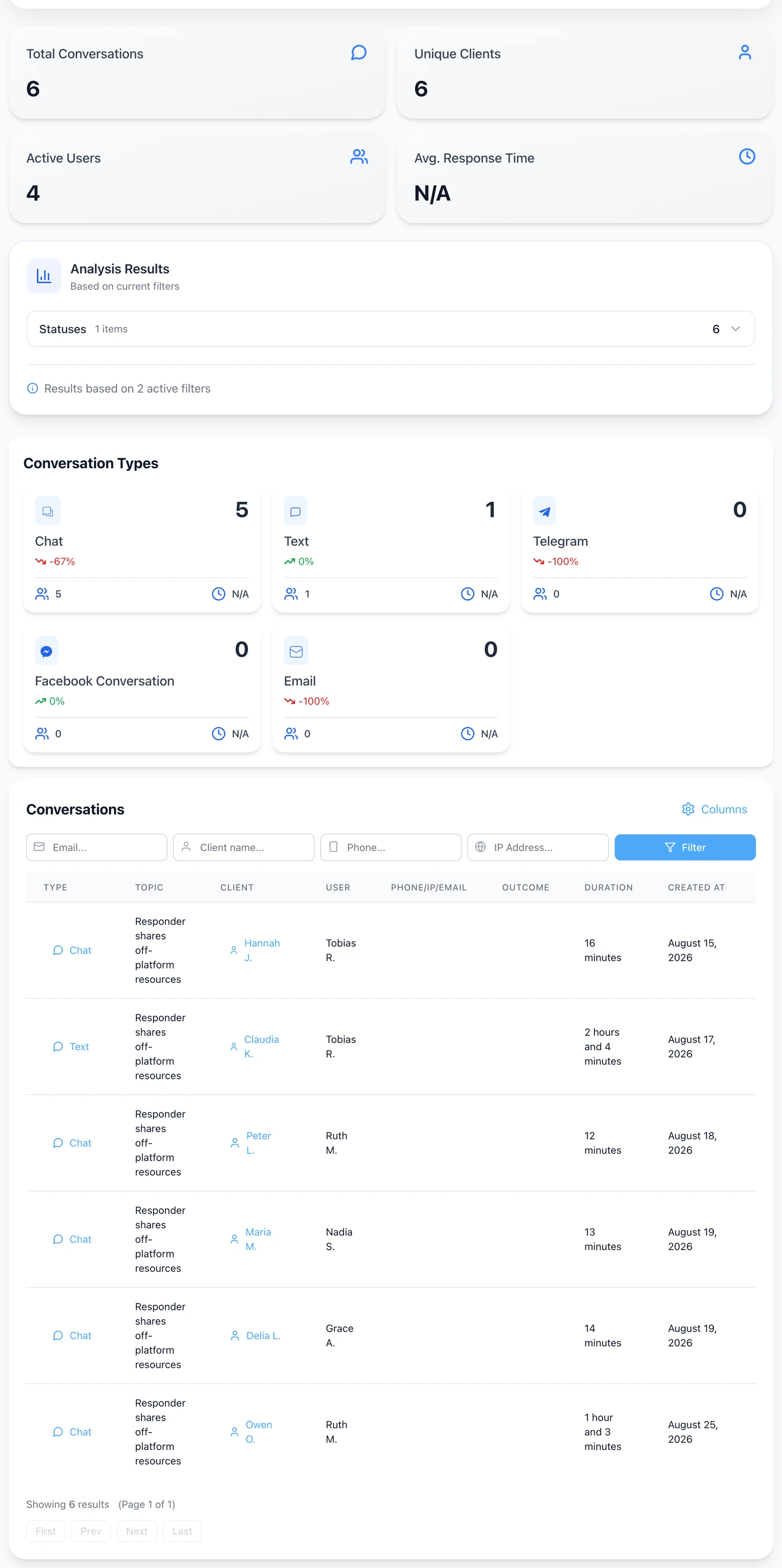
Remember that the Duration column here is how long the conversation ran, not how long the block lasts.
Set Blocked Clients to Only Blocked instead, and leave Conversation Status alone, to see every conversation these people have ever had with you. That is the fuller history behind a repeat offender.
Blocks Echo makes on its own
Not every block is made by a person. Echo has two quotas that block someone automatically when they contact you too often. Both create an ordinary block, so the people they catch appear in the Clients report alongside everyone else.
The chat quota, and its own report
Go to Admin, Settings, Chat Quotas, then click Chat Quota to set it, or open the report to see who it has caught.
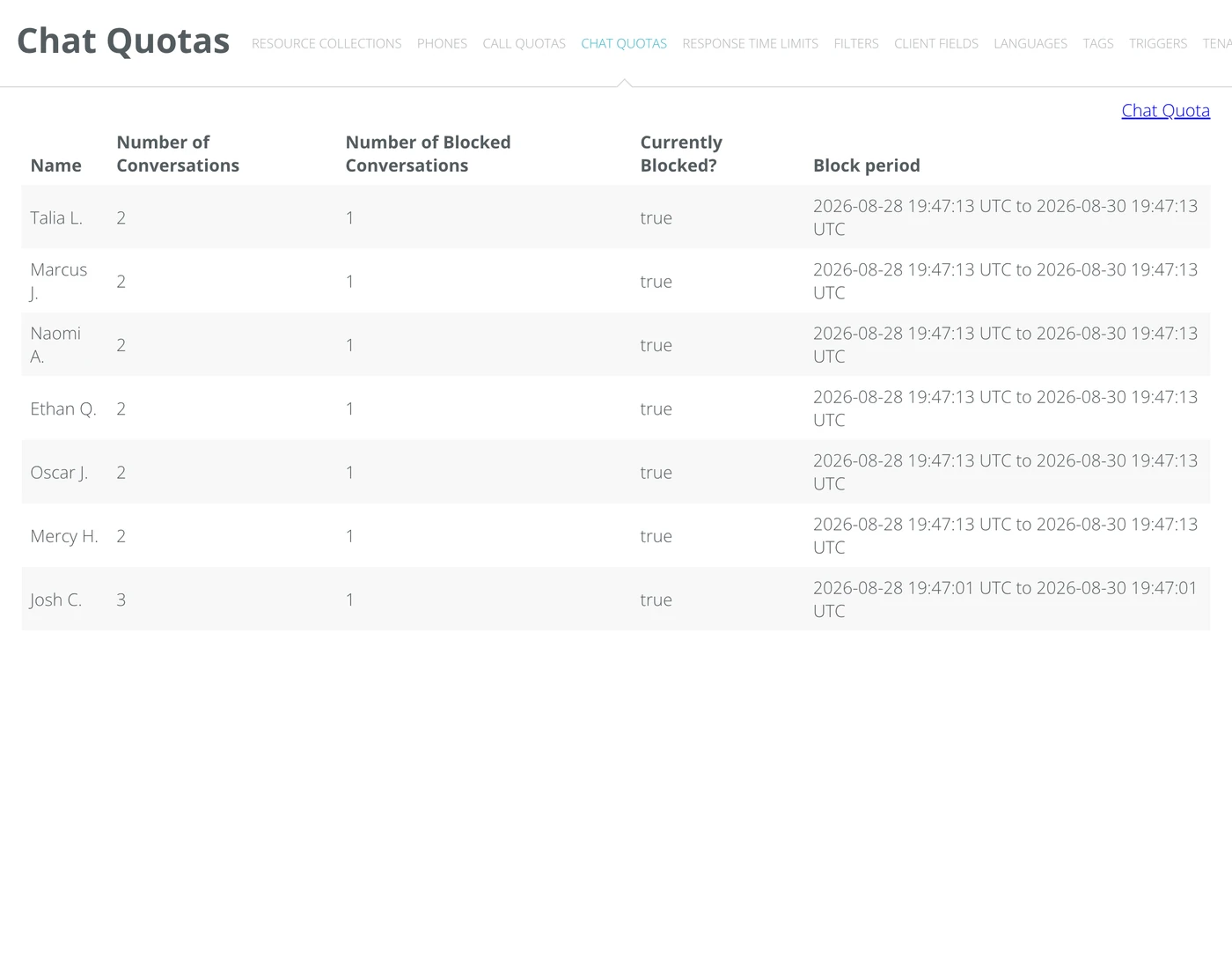
Column | What it means |
|---|---|
Number of Conversations | Every conversation this person has had with you. |
Number of Blocked Conversations | How many times the chat quota has blocked them. |
Currently Blocked? | true or false. |
Block period | When the current block started and when it ends. |
The times on this screen are shown in UTC, not your ministry's time zone. Everywhere else in Echo the times are local, so check the label before you compare a block period against anything else.
This report only lists people the chat quota has blocked. Someone a responder blocked by hand will not appear here.
The call quota
Go to Admin, Settings, Call Quotas. When a caller passes the limit, Echo plays them a recording, optionally takes a voicemail, and blocks them for the period you set.
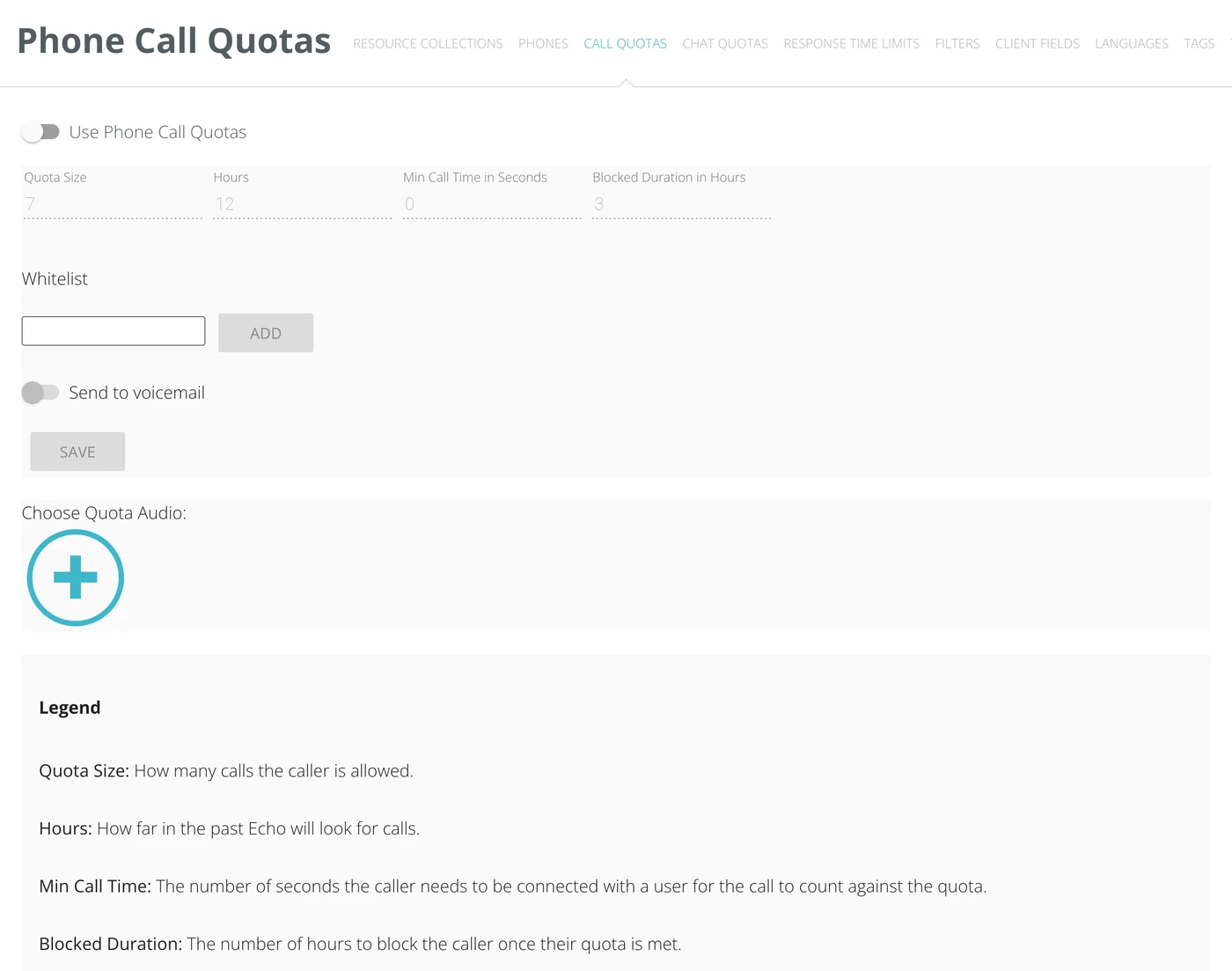
Field | What it means |
|---|---|
Quota Size | How many calls the caller is allowed. |
Hours | How far back Echo looks when counting those calls. |
Min Call Time in Seconds | How long a call must connect for before it counts. Set to 0 and every call counts. |
Blocked Duration in Hours | How long the caller is blocked once they pass the limit. |
Whitelist | Numbers the quota never applies to. |
The Calls overview in your reports carries a card called Calls Blocked by Quota, which counts the calls turned away this way.
Being told the moment someone is blocked
If your reason for reading a blocked list is to catch a problem before it grows, do not wait for the report. Echo can message you every time a block is made.
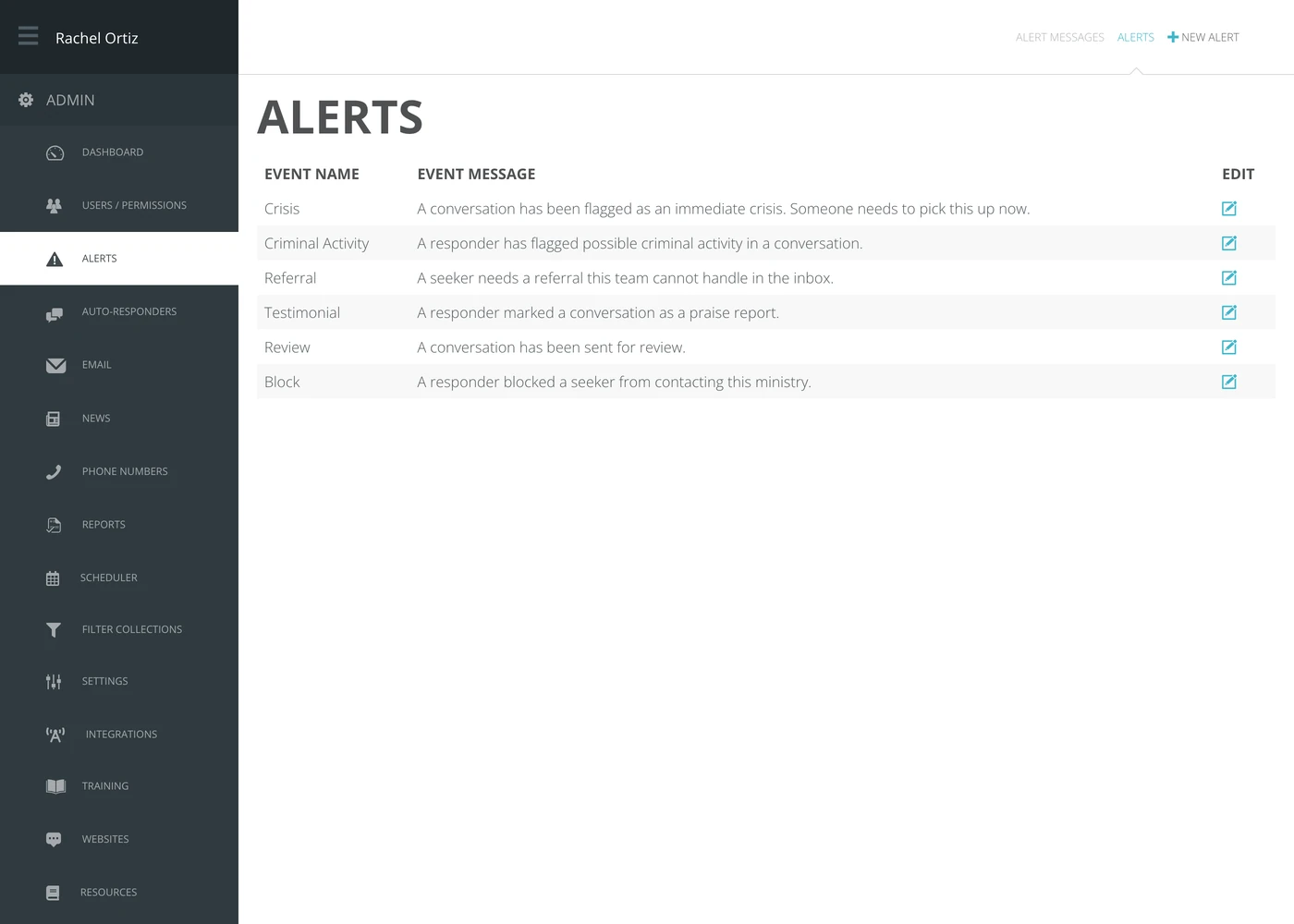
Go to Admin, then Alerts.
Click New Alert and choose the Block event.
Write the message people should receive.
Choose how it is delivered: email, text message, or a banner inside Echo.
Add the people who should get it.
What these reports do not show
Worth knowing before you go looking for something that is not there.
No column for the date a block was made. The Clients report shows who is blocked, not when it happened. The nearest thing is the date of the blocked conversation in the Conversations report, or the block period on the Chat Quotas report.
No column for the length of a block. The client's Manage Block panel shows when it lifts, and you can work the length back from there.
Expired blocks are not listed. Every screen in this article shows blocks that are still in force. Once one lifts, the only trace is the count in Total previous blocks.
Calls from a blocked number are not reported. When a blocked person calls, Echo rejects the call before it reaches anybody. Nothing in the reports shows you those attempts.
If you need a permanent written history of blocks, export the blocked list on a schedule, or set up the Block alert and keep the emails. Echo will not reconstruct it for you afterward.
If the report comes back empty
What you see | What to check |
|---|---|
"Please complete required fields" | Date Range and Sources are both required. Set them, then run the report again. |
No rows, but you know people are blocked | Your Sources selection is the usual cause. A blocked person only appears if they reached you through a channel you selected. Select all sources and try again. |
Everyone appears, not just blocked people | The Blocked Clients switch is off. The line under it should read Only blocked. |
Someone you blocked is missing | Their block may have expired. Open their record and check Total previous blocks. |
You cannot find the Clients report at all | You need to be an admin or hold the Admin: CRM permission. |