A seeker who comes back is a seeker who found something worth coming back to, or who still has not been helped. This report counts them. It does not list names. It tells you how many seekers had two conversations, how many had three, and so on.
Where to find it
Click Reports, open the Clients group in the left sidebar and click Repeat. The card is titled Client Repeats.

Set up and run the report
- Click Sources and choose the channels to include.
- Set the Created At / Closed At switch and choose the date range.
- Click Run Report.

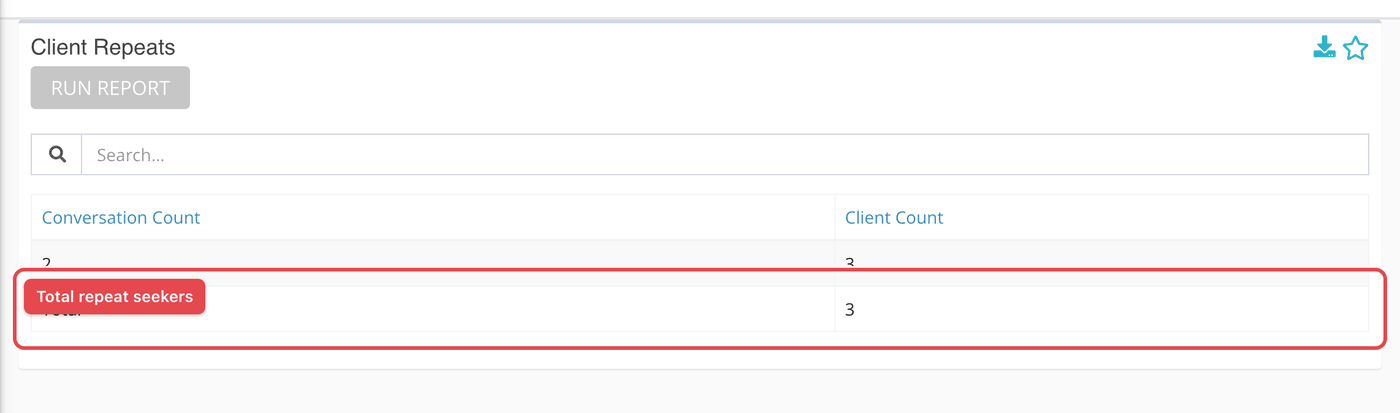
Reading the table
| Column | What it means |
|---|---|
| Conversation Count | A number of conversations, starting at 2. |
| Client Count | How many seekers had exactly that many conversations in your range. |
The last row, Total, is the number of seekers who came back at least once. Seekers with a single conversation are not counted anywhere on this card.
What the measurements mean
| Term | What it means |
|---|---|
| Repeat client | A seeker record with more than one conversation in your date range, across all the sources you chose together. The conversations can be on different channels. |
| Conversation | Messages from the sources you chose. Phone calls are not counted here. |
What to do with it
- Choose a longer date range to find seekers who return after weeks or months. A short range will understate it.
- Use the Clients Activity Report to see the topics and outcomes for the same period.
- Run it for one source at a time to compare channels.