
Almost everything a responder does happens on one screen. This article is a tour of it — what each part is for, and what the numbers mean.
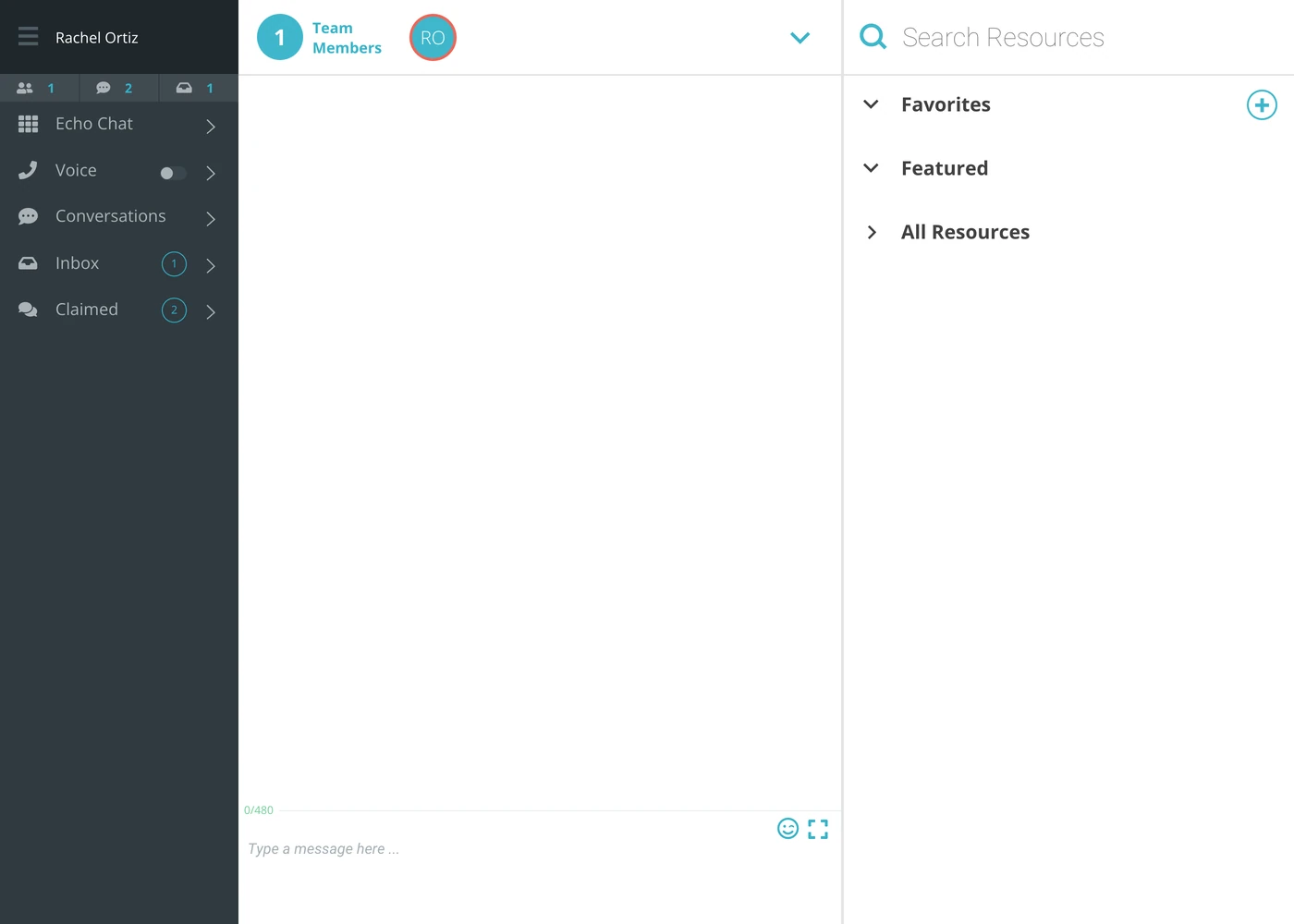
The three parts
Part | What it is for |
|---|---|
The menu, on the left | Everything waiting for you, grouped. Nothing is read here; things are picked up here. |
The middle | The conversation you have open, with the box you type into at the bottom. |
Resources, on the right | The links and answers your ministry has prepared, ready to send without leaving the conversation. |
What is in the menu
Section | What it holds |
|---|---|
Echo Chat | Talking to your own team, not to seekers. |
Voice | Phone calls, with a toggle that says whether you are available to take one. |
Conversations | Conversations, the ones you have selected, active and ready for you to respond. |
Inbox | Waiting for somebody. Nobody has picked these up yet. |
Claimed | Picked up. Yours, and your team's. Only shown if your role or permissions let you see other responders' conversations. |
Inbox and Claimed carry a count, and clicking a section's name opens it.
The voice toggle
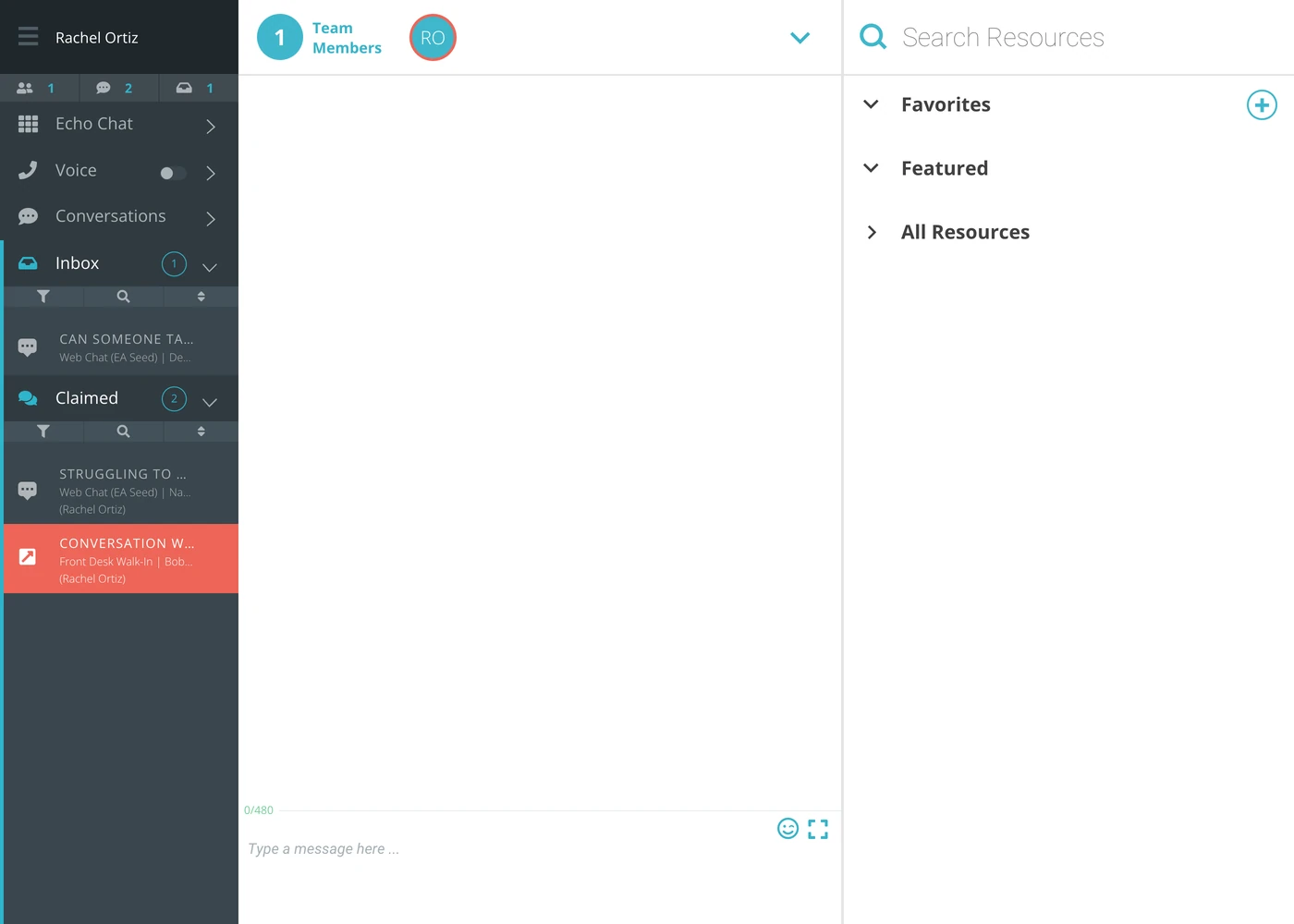
The switch beside Voice is how Echo knows whether to ring you. Off means calls go to somebody else.
This is the single most common cause of a missed call: a responder who is at their desk with the toggle off. Check it at the start of a shift, and check it again if calls have gone quiet.
If your ministry uses the scheduler with Auto-Available Call Scheduler switched on, the toggle moves by itself at the start and end of your shift and you do not need to touch it.
Inbox versus Claimed
This is the distinction the whole screen is built on.
Inbox is unclaimed. Anyone who can see it can take it.
Claiming a conversation makes it yours. It leaves the Inbox so two responders never answer the same seeker at once.
Claimed is what has been picked up.
If your ministry has set a response time limit, a claimed conversation left unanswered for too long goes back to the Inbox by itself, so somebody else can take it. That is the system working, not somebody taking your conversation.
Filtering and sorting a list
An open section has three controls across the top: a funnel to filter, a magnifier to search, and arrows to sort. On a busy night they are how you find the one conversation you are looking for.
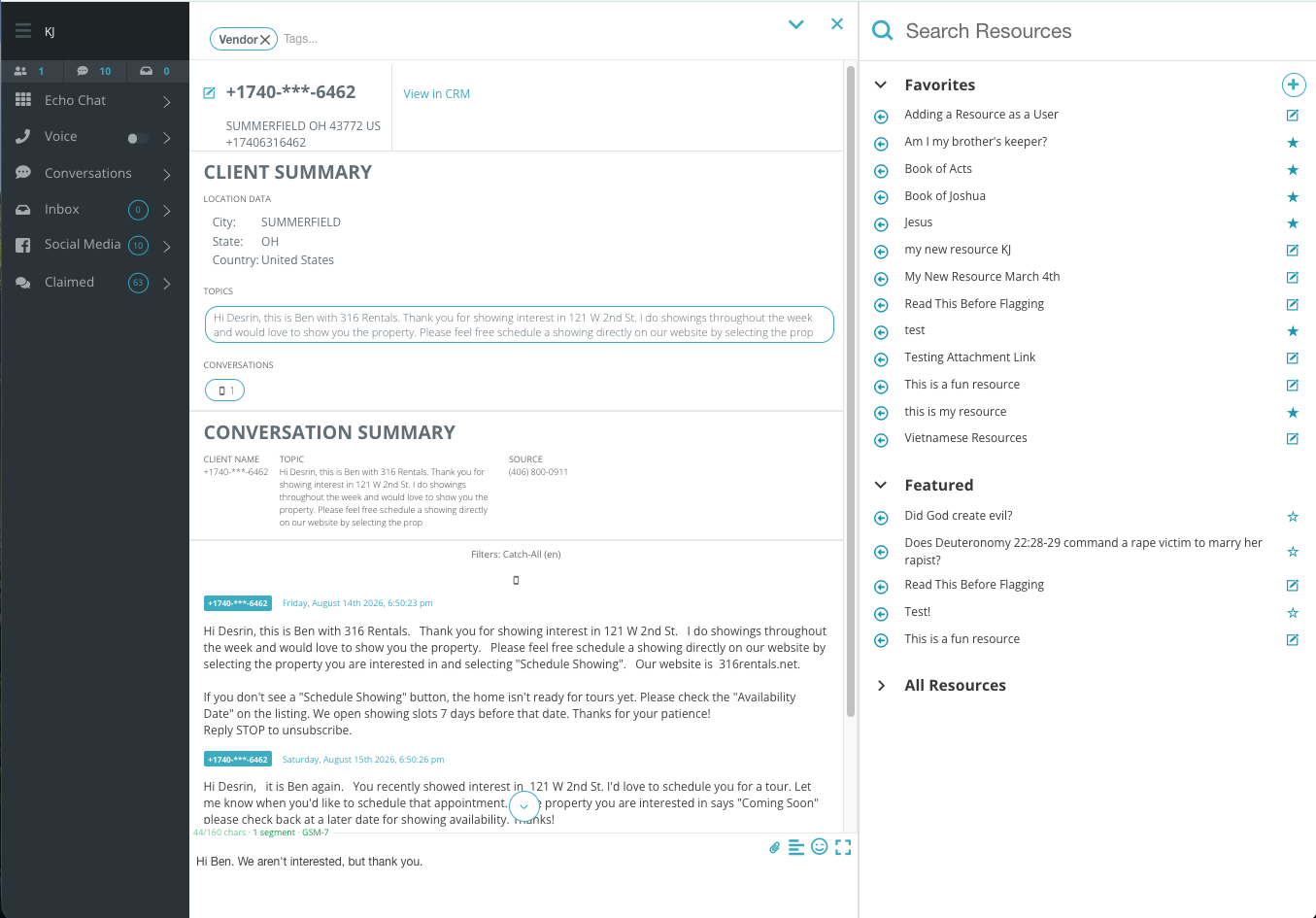
The resources panel
On the right, in three groups:
Group | What is in it |
|---|---|
Favorites | The ones you reach for most. |
Featured | The ones your admin has pushed to the top for everybody. |
All Resources | Everything the ministry has. |
The search box at the top is faster than opening the groups, and the star beside Favorites adds the one you are looking at to your own list.
Typing a reply
The box at the bottom of the middle column is where you write. Above it, a counter shows how long your message is. On a text (SMS) conversation it also shows how many segments the message will be sent in; on other channels it shows your ministry's character warning, if one is set, and the channel's own limit once you get close to it.
What the terms mean
Term | What it means |
|---|---|
Seeker | The person who reached out. |
Responder | You — the person answering. |
Conversation | Ongoing exchange with one seeker on one channel; may be one message or more. |
Claim | To take a conversation, so it is yours and nobody else answers it. |
Inbox | Conversations nobody has claimed. |
Resource | A prepared link or answer you can send without leaving the conversation. |
Outcome | What you record when you close a conversation. It is what reporting counts. |
If the screen looks empty
Every section is empty. Most often your permission set does not include any sources yet. Ask an admin.
The inbox is empty but you are told there is work. If your ministry uses restricted scheduling, the inbox is empty outside your shift and shows a timer until it starts.
Calls are not reaching you. Check the Voice toggle first.