About
There may be a variety of situations where you want someone to be notified if that situation arises. Echo offers the ability to set up user alerts for any conversation that is flagged using the Echo flagging system (from the Review Conversation Report upon closing a conversation), as well as the Emergency Alert feature, and when a user get promoted or demoted from Admin status.
Available alerts at this time are: Emergency Alert, Feedback Flag, Other Flag, Testimonial Flag, Review Flag, Referral Flag, Crisis Flag, Criminal Activity Flag, Block (get an alert when a client is blocked), Change in User Admin Status (get an alert when the Admin checkmark on a user account is checked or unchecked), Scheduled User Missing Calls (get an alert when a responder misses several calls in a row without answering one), Non Emergency Admin (a responder alerts admins about something of interest, with notes), Church Connection Alert (a responder alerts admins about a church connection, with notes), and Echo Analyst Critical (for ministries using EchoAnalyst, get an alert when EchoAnalyst flags a conversation as critical).
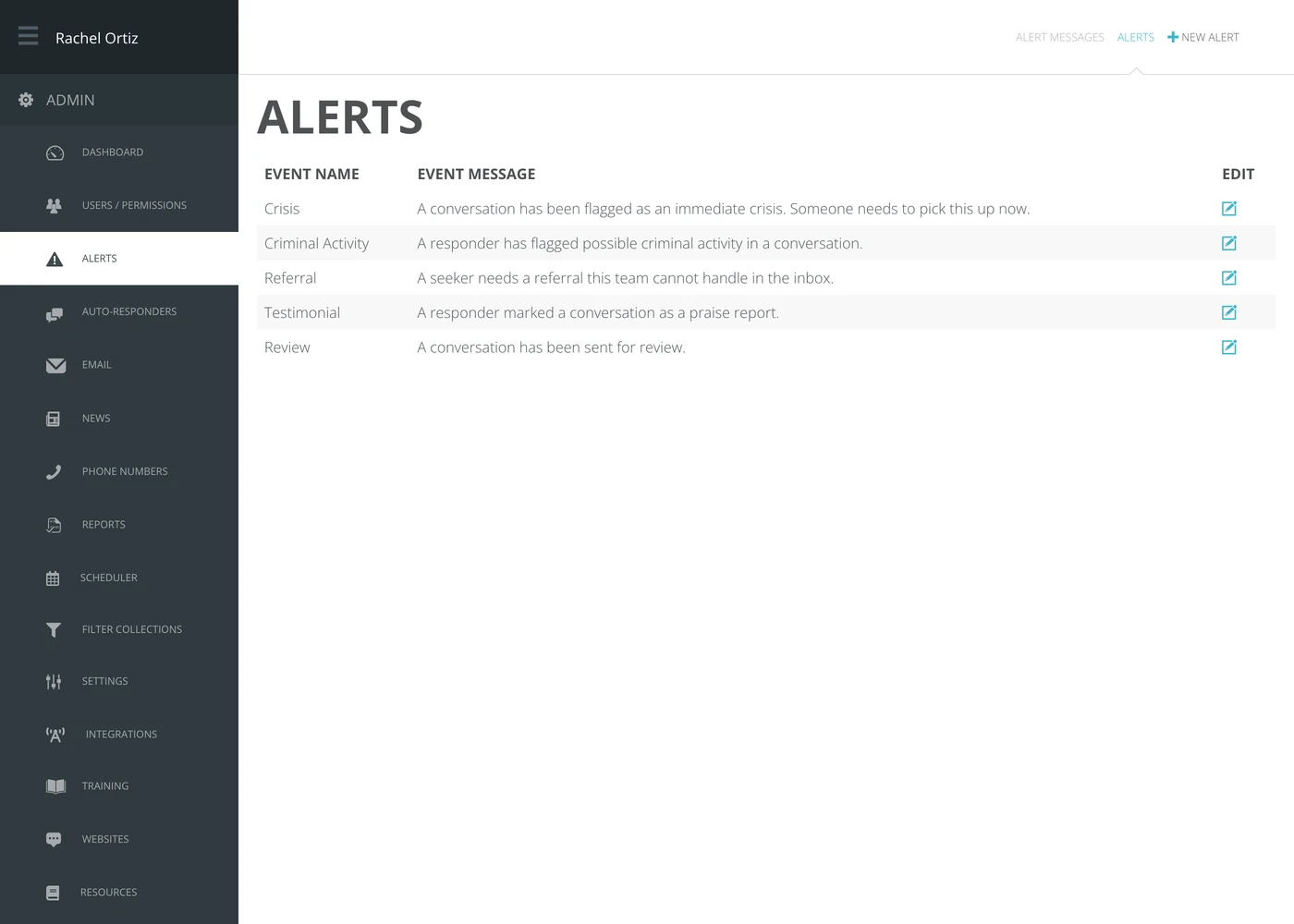
Adding New Alert
Go to Echo-Admin-Alerts
Click on + New Alert
Select from the list of available alerts and click "create alert"
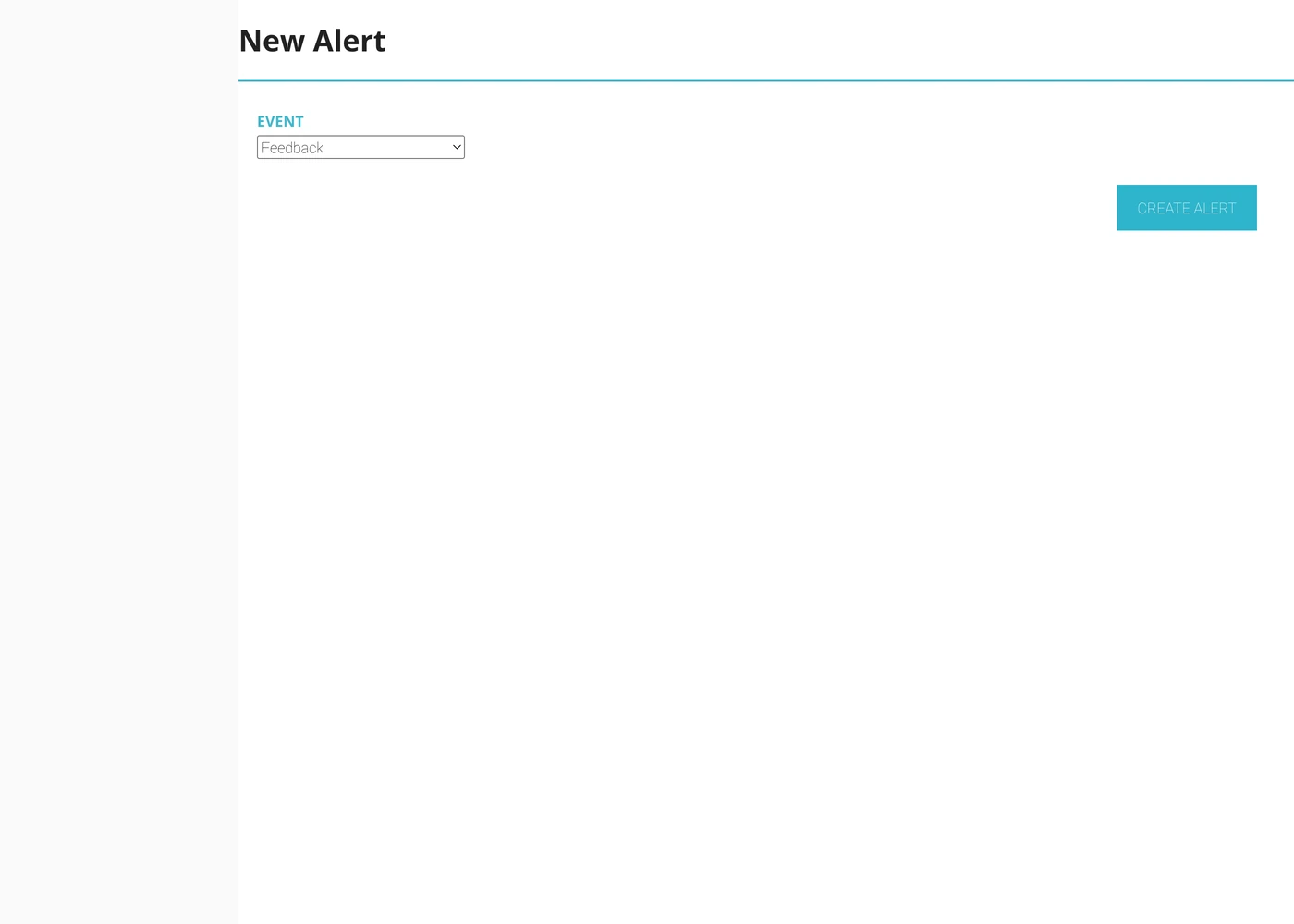
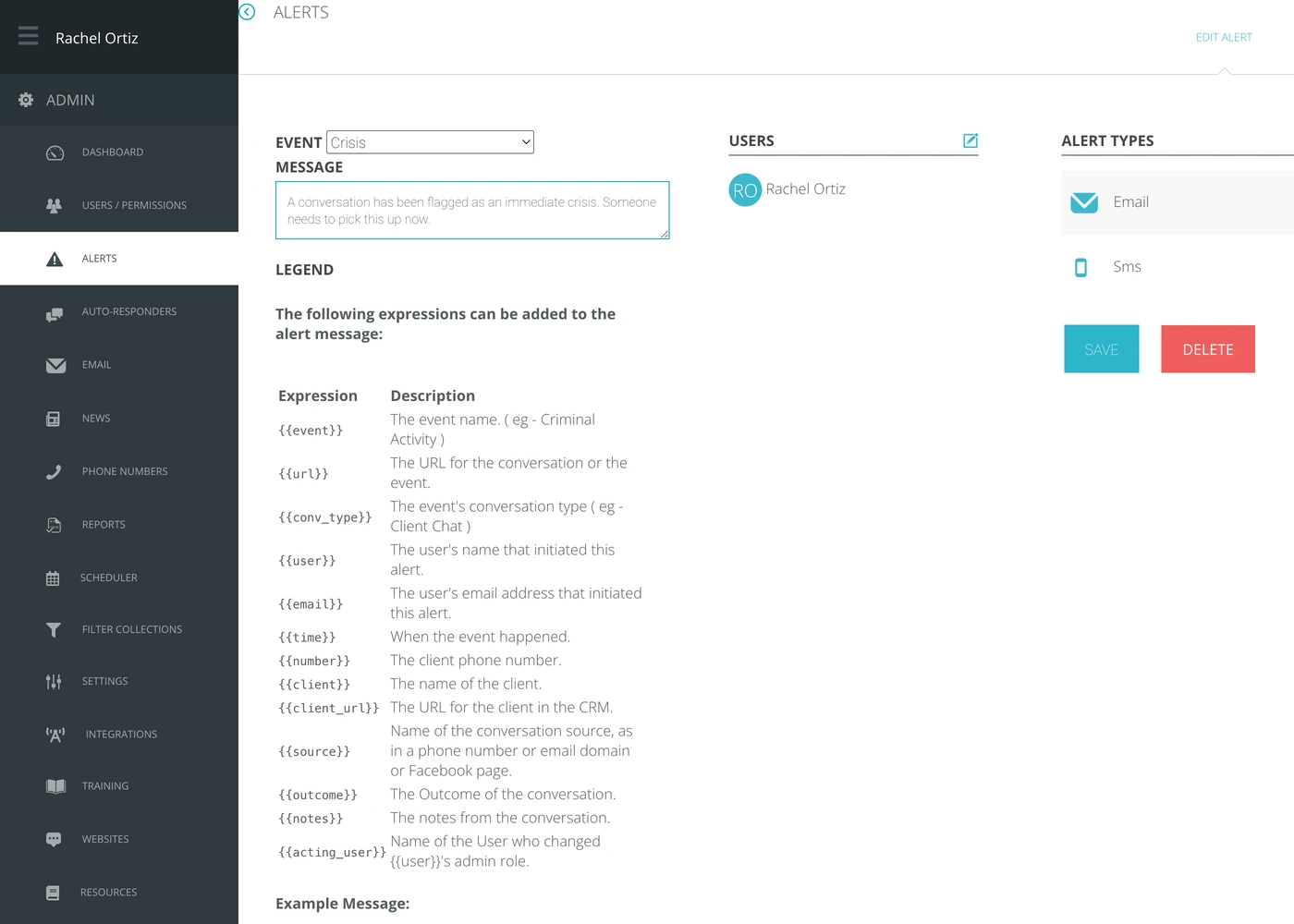
You've now added that alert type to you list of alerts and now you can customize the alert message for the information you want to receive, the users you want to receive the report, and how you want him/her to receive it.
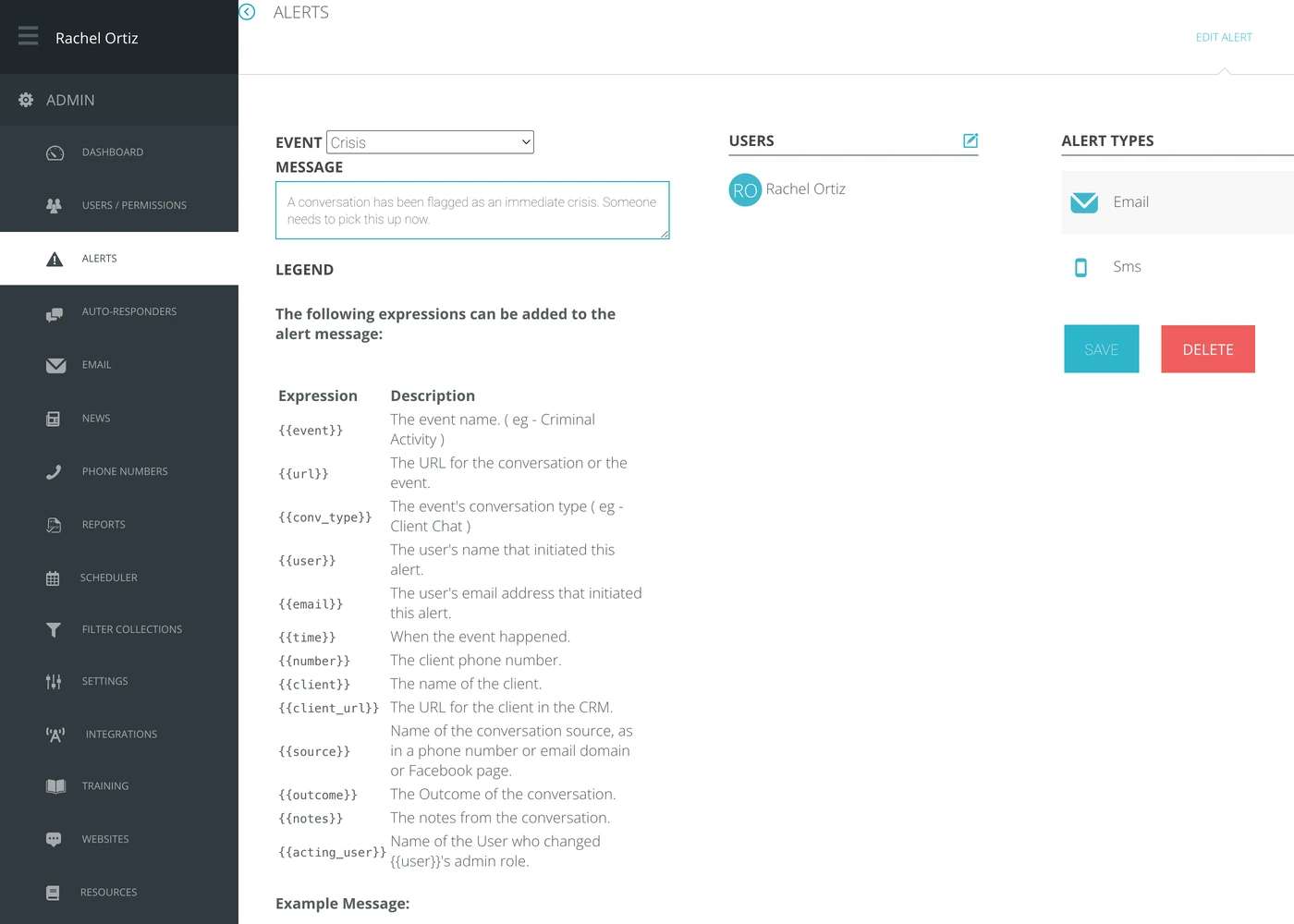
Message:
You can write you message however best helps you to relay pertinent information. Use the "expressions" in the list below the message box to fill in information from the conversation being sent by alert. Then you can fill in with phrases or sentences to supplement that those expressions.
Example:
{{conv_type}}, {{event}}, that happened at {{time}} by {{user}} {{email}} in conversation with seeker named {{client}} {{client_url}}. This is from this page: {{source}}. The outcome of this conversation is: {{outcome}}
Here are the notes from the conversation: {{notes}}
------
This example when sent by alert will read something like: "Client Chat, Review, that happened at 01-25-24 05:00:00 by John Doe john@doe.org in conversation with seeker named Jane https://demo.echoglobal.org/crm/clients/9802181. This is from this page: NCIS Facebook Page. The outcome of this conversation is: Spiritual Conversation.
Here are the notes from the conversation: This was a particularly difficult conversation with Jane and I wanted someone to review it to make sure I handled it appropriately."
Users:
The person or persons you wish to receive the alert must be a user inside Echo.
Click the edit icon next to the Users area. You can search for and select the users from the list of available users in your system.
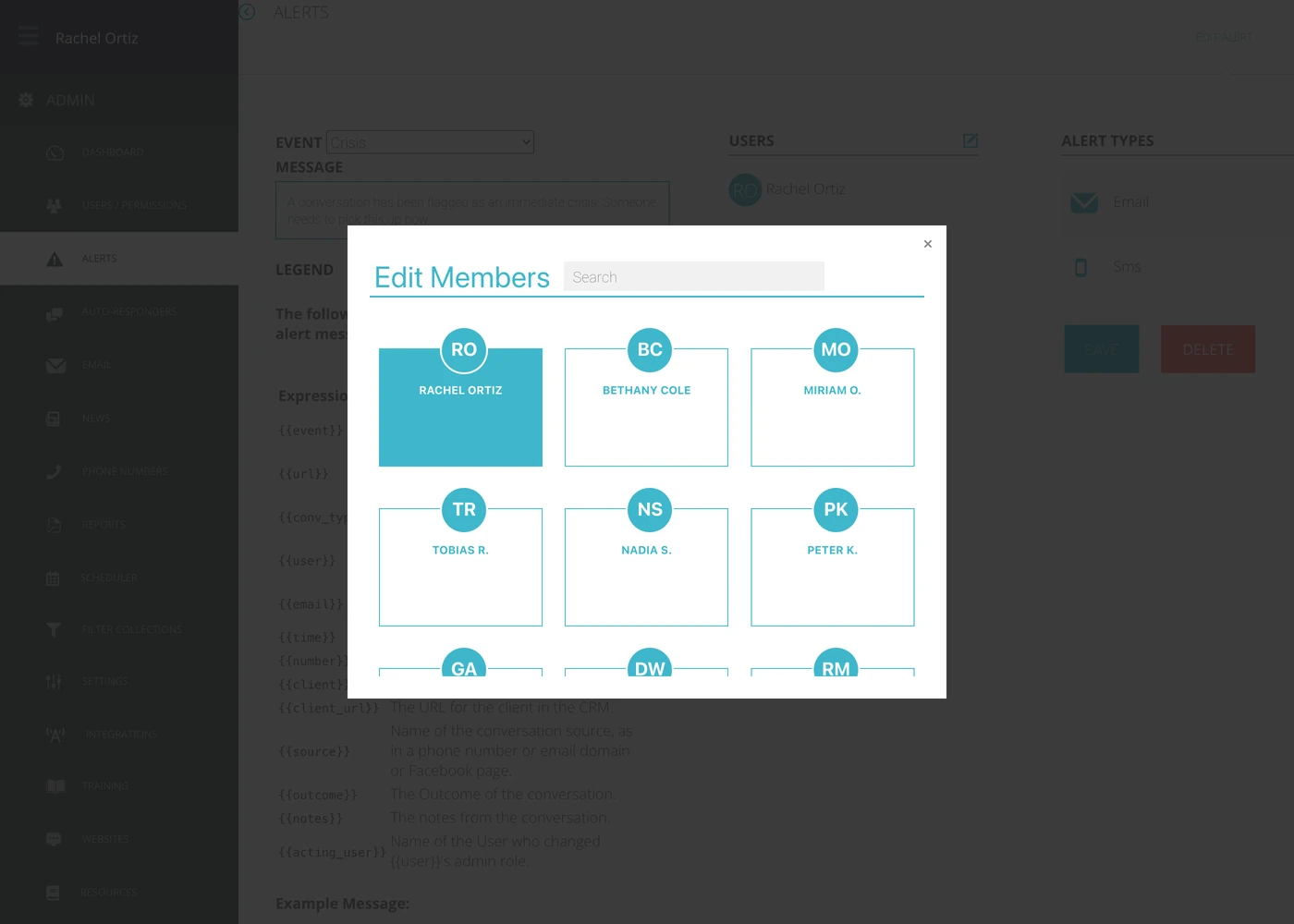
Once you've selected/highlighted the person or persons you want to receive the alert, click the x in the right corner.
Alert Type:
The most standard way for your selected users to receive an alert is by email. There is an option to use SMS, but this will only work if you have a phone number set up in your system.
Click the edit icon next to Alert Type, and then select/highlight the way you want the alert to be received.
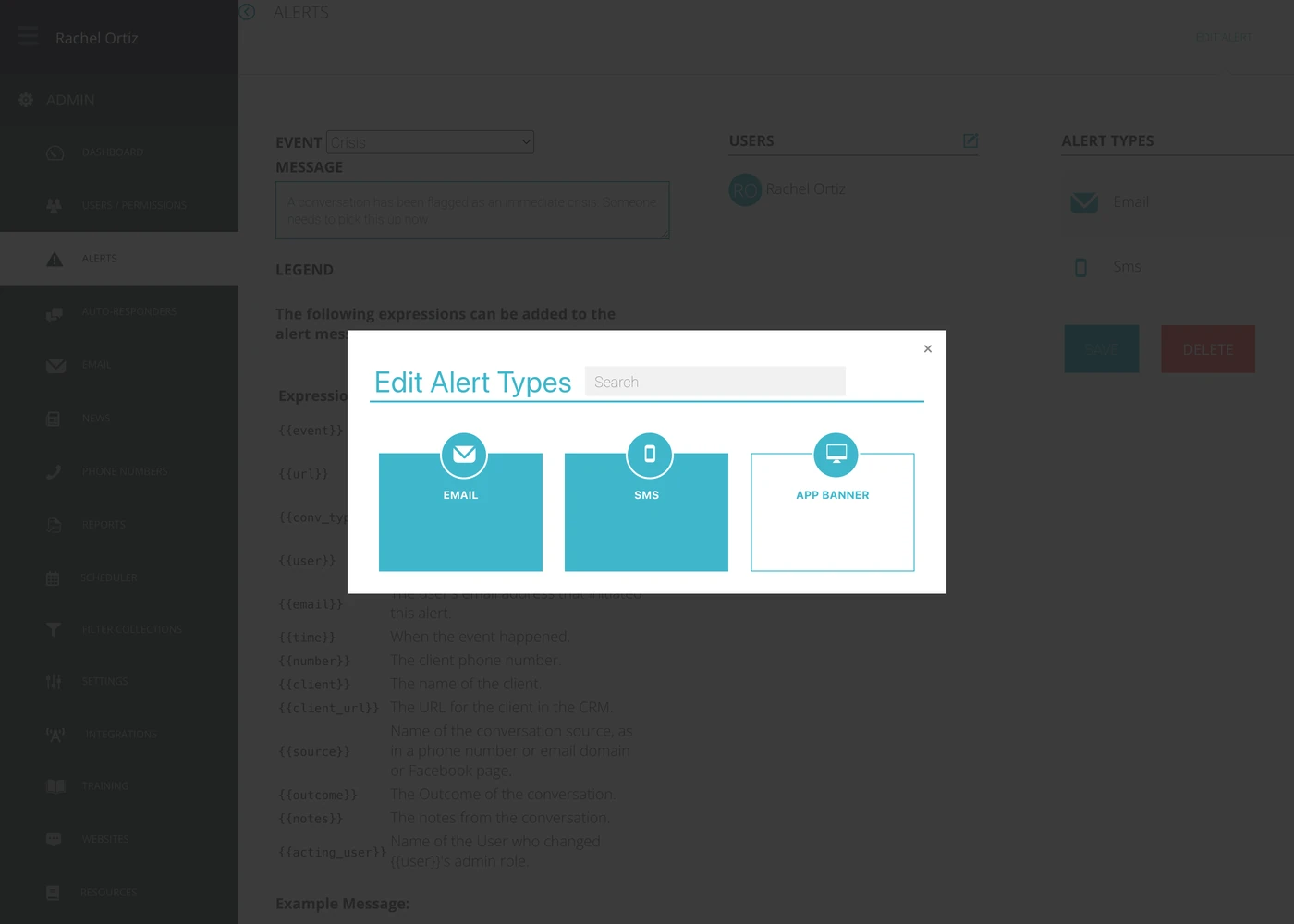
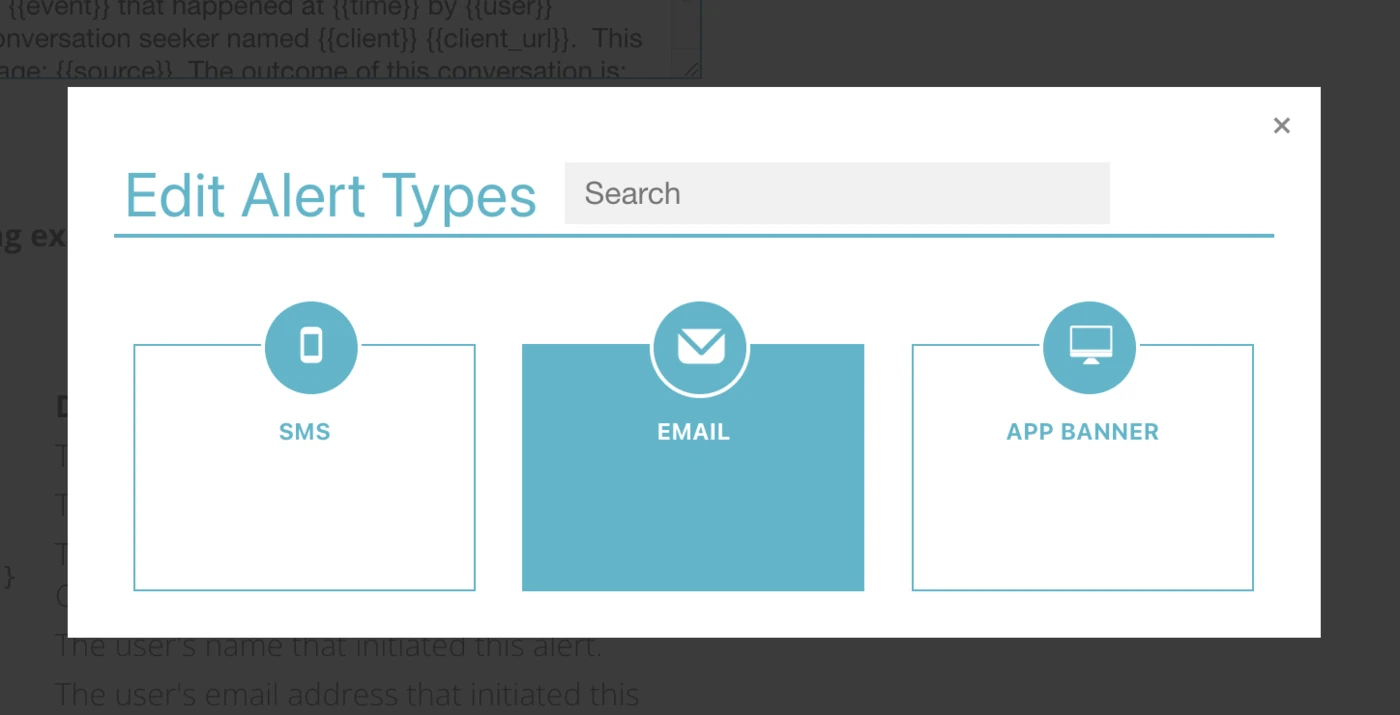
Once you've selected/highlighted the alert type, click the x in the right corner.
Once you've finished updating all of the setting for the alert, click on the SAVE button.