A responder types a reply. What the seeker receives should look like it came from your ministry, not from a system. An email template is what makes that happen: a header above the reply and a footer below it, applied automatically.
Where to find it
In the admin menu, click Email, then Templates along the top.
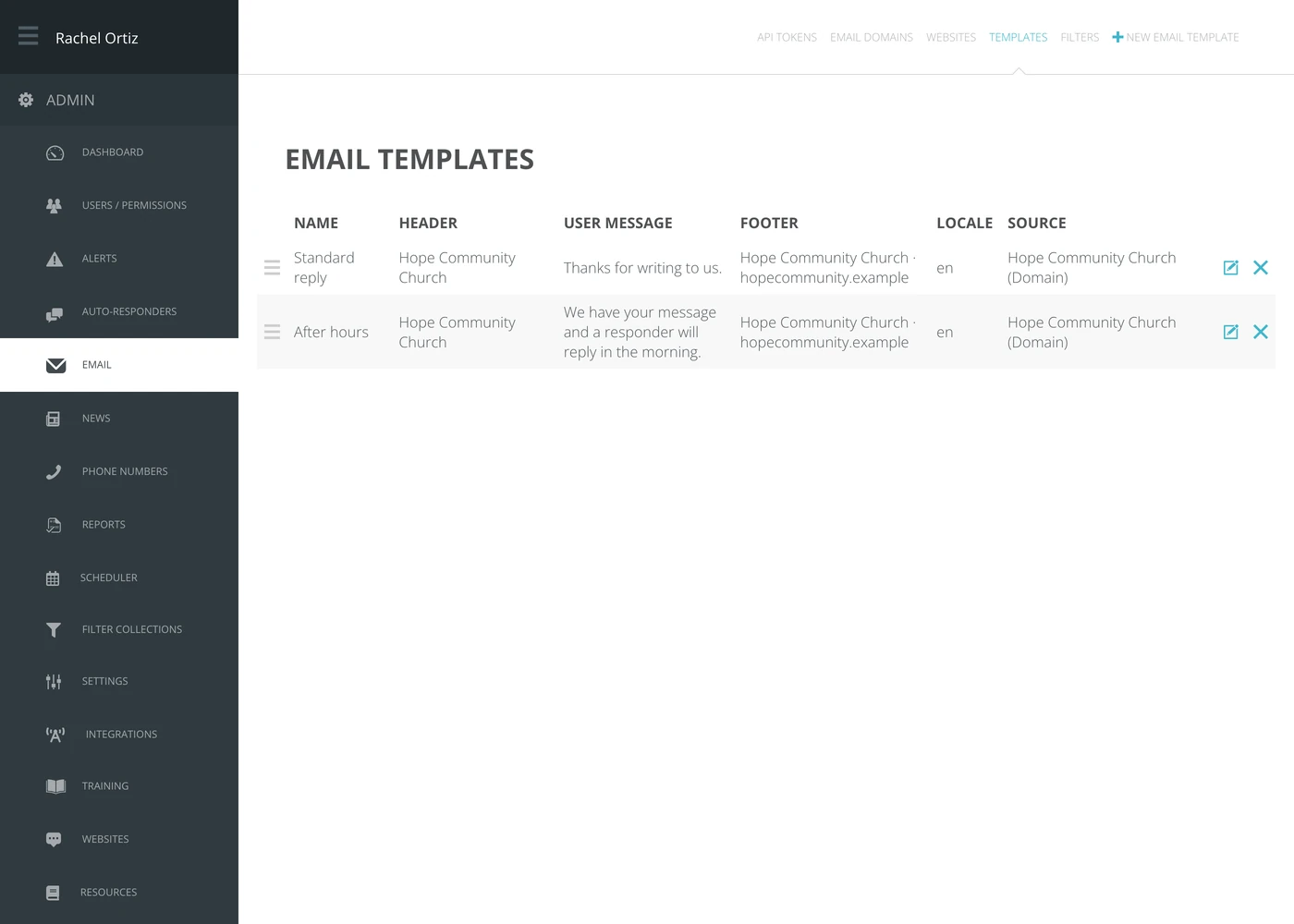
The three parts
| Part | What it is for |
|---|---|
| Header | What sits above the reply — usually your ministry's name. |
| User Message | Standing wording that goes out with the reply. |
| Footer | What sits underneath — contact details, a website, anything you are required to include. |
Two more columns say where a template applies:
| Column | What it means |
|---|---|
| Locale | The language this template is for. A ministry answering in several languages needs one per language. |
| Source | Which email domain or web form it belongs to. |
Creating one
- Click New Email Template.
- Give it a Name — for you, not for the seeker.
- Write the header, user message and footer.
- Choose the Locale and the Source.
- Save it.
Edit and delete are the two icons at the end of each row.
Keep the footer short. Everything you add to it is added to every email your ministry sends, and a footer longer than the reply makes a personal message read as a mailing.
A template is not an auto-responder. It does not send anything on its own — it wraps what a responder writes. If you want Echo to reply by itself, that is an auto-responder campaign.
What the terms mean
| Term | What it means |
|---|---|
| Email template | The header and footer wrapped around an outgoing email. |
| Locale | The language the template is written in. |
| Source | The email domain or web form the template applies to. |