About Conversation Routing
Meta lets only one app at a time reply to a Facebook or Instagram conversation. Conversation Routing is the Meta setting that decides which app that is. It also lets a bot, such as ManyChat, answer first and hand the conversation to Echo when a person needs to step in.
Conversation Routing replaces Meta's older Handover Protocol, which used a Primary Receiver and a Secondary Receiver. Meta stopped supporting the Handover Protocol for Instagram on October 23, 2025, and moved every business to Conversation Routing. Depending on when your page was set up, you may still see the older wording on some screens, and many bot tools still use it.
Many ministries use bot apps alongside Echo with great results. Most of the cases where it did not behave as expected came down to the routing setting on the Facebook page, or the bot's own settings. This article covers both.
Not sure whether this is your problem? If messages from a page do not arrive in Echo, or replies from Echo are refused with The action is invalid since it's not the thread owner, another app may be in charge of the conversation. Read this article, then see Troubleshooting Facebook and Instagram in Echo.
Where the setting is
You can open Conversation routing from two places. Both need an Admin of the Facebook page, and each shows part of the picture, so it helps to know both.
From Meta Business Suite
- Open Meta Business Suite on a desktop computer.
- Click Settings in the left-hand menu.
- Click Integrations.
- Select Conversation routing.
- Click the page or account you want to configure. For Instagram, choose the Instagram account.
- Go to the Routing tab.
What the Routing tab shows depends on whether routing has ever been set up for that page or account. If it has never been set up, you see a short explanation and a Set up button, with no paths listed. If routing has been set up, the tab lists each routing path (Campaign, Link and Social) and an Edit button. The Partner apps tab lists the apps connected to the page or Instagram account.
From Facebook
- Log in to Facebook as an Admin of the page.
- Open Settings & privacy.
- Click Page setup.
- Click Messenger conversation routing. For an Instagram account, click Instagram conversation routing, which is next to it.
The Messenger conversation routing page in Facebook has four sections:
| Section | What it does |
|---|---|
| Default routing app | Sends conversations to this app when no other routing app is selected for them. |
| Link routing | Sends conversations that start from messaging links to specific apps. |
| Social routing | Sends conversations that start from messaging entry points on Meta, such as your Facebook page, to specific apps. |
| Campaign routing | Sends conversations from messaging campaigns to specific apps. It is set up in Ads Manager. |
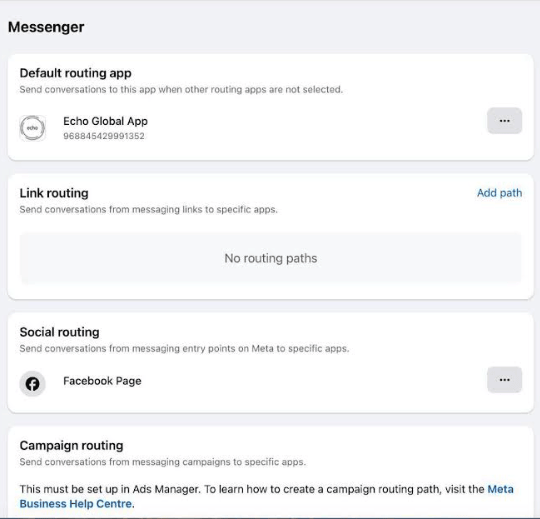
Because the default app only applies when no other routing app is selected, a path in Link routing, Social routing or Campaign routing that names another app takes those conversations away from the default app. If Echo is the default routing app but some conversations still do not reach Echo, check these three sections first.
Which setup do you want?
| If you want | Set the default routing app to |
|---|---|
| Echo to receive and answer every conversation, with no bot in front | Echo Global App, and make sure no path in Link, Social or Campaign routing sends conversations to another app |
| A bot such as ManyChat or ChatFuel to answer first, then hand people to Echo | The bot app. Echo stays connected and takes over when the bot hands the conversation over. |
Setting Echo as the default routing app
Do this if you want Echo in control of your conversations.
- Log in to Facebook with an account that is an Admin of the Facebook page. For Instagram, use the Admin of the Facebook page that the Instagram account is linked to.
- Open Messenger conversation routing in Facebook (or Instagram conversation routing for an Instagram account), using the steps above. Under Default routing app, use the menu (the three dots) to choose Echo Global App.
- Check for routing paths that send conversations to another app. In Meta Business Suite, open Conversation routing using the steps above, click the page or account, and go to the Routing tab.
- If routing has never been set up, the tab shows an explanation and a Set up button, with no paths listed. That means nothing is sending conversations to another app, and you do not need to click Set up.
- If routing has been set up, the tab lists each path (Campaign, Link or Social) and an Edit button. Change or remove any path that sends conversations to a different app, unless you want that app to handle them.
- If you used other messaging apps with this page in the past and no longer use them, remove them from these settings, so that they do not hold control of conversations. The Partner apps tab in Meta Business Suite lists the apps connected to the page or Instagram account.
- For Instagram, check the Instagram account's routing too.
When Echo Global is not the default routing app, Echo cannot take over conversations by itself. It then depends on the other app to hand each conversation to Echo at the right time. Other messaging tools report that switching an Instagram account to Conversation Routing cannot be undone, so check your setup before you change it.
Putting a bot in front of Echo
Do this if a bot should answer first.
- In your Facebook page's Conversation routing settings, set the bot app as the default routing app. Echo Global stays on the page as a connected app.
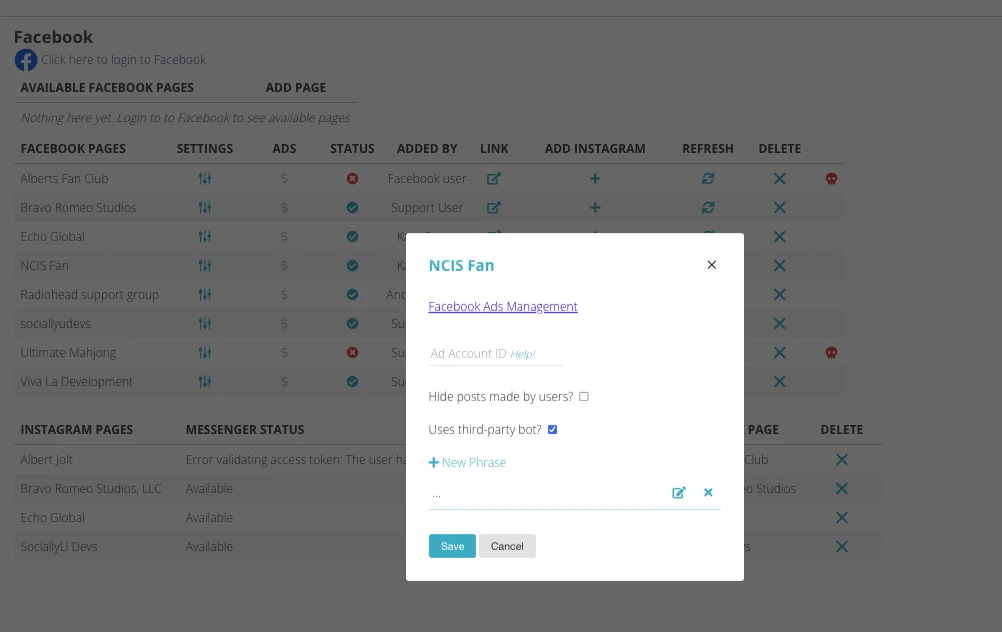
- In Echo, go to Admin > Integrations > Facebook Services, find your Facebook page under Facebook Pages, and turn on Uses third-party bot?. Do not add a phrase, just make sure the box is checked.
- Set up the handoff in the bot app, so that it passes the conversation to Echo when a person is needed. Every bot app has its own steps, so contact the bot app's company if you need help.
What Echo does with a conversation from a bot
- Echo does not show a conversation to responders until the bot hands it over. Echo's own warning when you turn the setting on says the same.
- When the bot hands a conversation over, Echo adds a note to the conversation that the page received a Facebook handover, and moves it to pending so responders can see it.
- Echo asks Meta to keep control of the conversation for 7 days and renews that request about every hour while the conversation is open.
- When you close the conversation in Echo and the page uses a bot, Echo gives control back to the bot.
If you use ManyChat
Because ManyChat is popular with ministries, here is a checklist for it. ManyChat changes its screens often and these steps may not be current, so contact ManyChat support if something does not match.
- Check the routing in ManyChat. In your ManyChat account, go to Settings > Messenger and see which role ManyChat has for the page. It was shown as Current ManyChat Role under the older Handover Protocol, and your screen may now show Conversation Routing wording instead.
- Confirm the Facebook page settings. On your Facebook page, check that ManyChat is the default routing app, if the bot should answer first, and look at Social routing for the page.
- Review the bot flow. Buttons, quick replies and keywords can trigger a handoff early. If your flow has any of these, check how they behave in the first few steps.
- Refresh permissions. After you change any setting, use Help > Refresh Permissions in ManyChat so that Facebook picks up the change.
If you have checked all of the above and still have problems, contact ManyChat support. They can check how the bot handles control of conversations on their side.
What the terms mean
| Term | What it means |
|---|---|
| Conversation Routing | Meta's setting for which app is in charge of a conversation. It replaced the Handover Protocol. |
| Default routing app | The app Meta sends conversations to when no other routing app is selected for them. |
| Social routing | A section of Conversation routing that sends conversations from messaging entry points on Meta, such as your Facebook page, to specific apps. |
| Connected app | Any other app on your page. It receives notifications, but can only reply after it has been given control of a conversation. |
| Thread owner | The app that is in charge of one conversation right now. Only the thread owner can reply. |
| Handoff (or handover) | The bot app passing control of a conversation to another app, such as Echo. |
| Primary and secondary receiver | The older words for the default app and a connected app, from the Handover Protocol. |