The UTM Tracking report shows which of your ads, emails and links are bringing seekers to you, and what happened to those conversations. It only has numbers if your links carry UTM tags.
Before you start
A UTM tag is a label added to the end of a web address, for example utm_source=newsletter. It tells Echo where a visitor came from. Echo records the tags when a seeker starts a website chat, or sends a web contact form, from a page whose address carried them. Conversations that arrive without tags are not in this report.
Running the report
- Open Reports from the main menu. In the left-hand menu, under Reports, click UTM Tracking.
- Click the date range at the top of the page and choose your dates. The globe menu beside it sets the time zone, which starts on your ministry's own.
- Click Sources and choose the conversation sources to include. The number beside it shows how many are chosen.
- Optional: click Permission Sets to count only conversations that someone in those sets claimed. Leave it empty to include everyone.
- Use the switch to choose Created At or Closed At. Created At places a conversation on the day it started. Closed At places it on the day it closed, so conversations that are still open are not counted.
- Click Run Report on each card you want to see. A card does not load until you do, and the button stays gray until you change a filter.
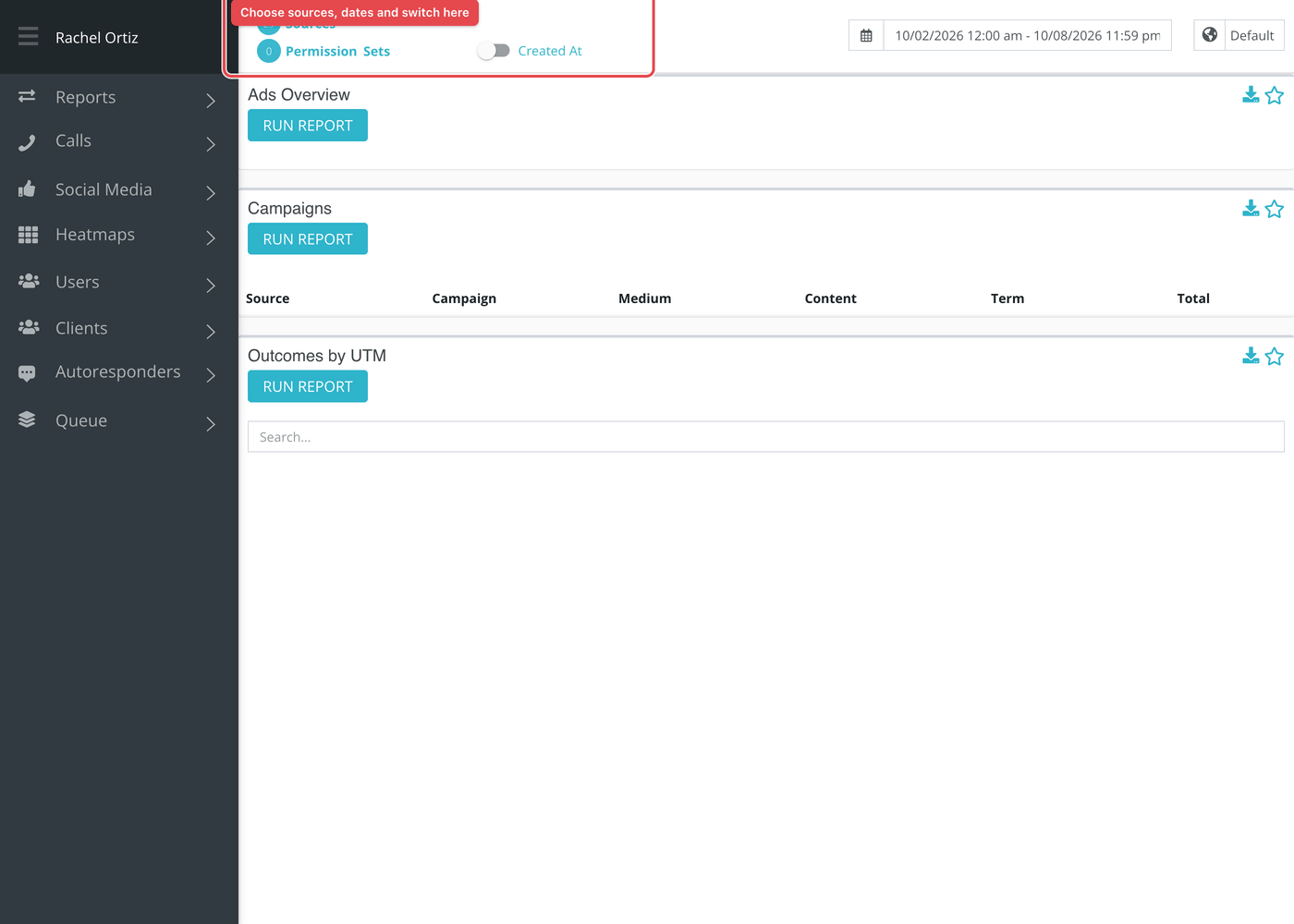
Larger date ranges can take a little while. Reports that are still being built are listed under Queue at the bottom of the left-hand menu, which reads "All Reports Finished Loading" when none are waiting.
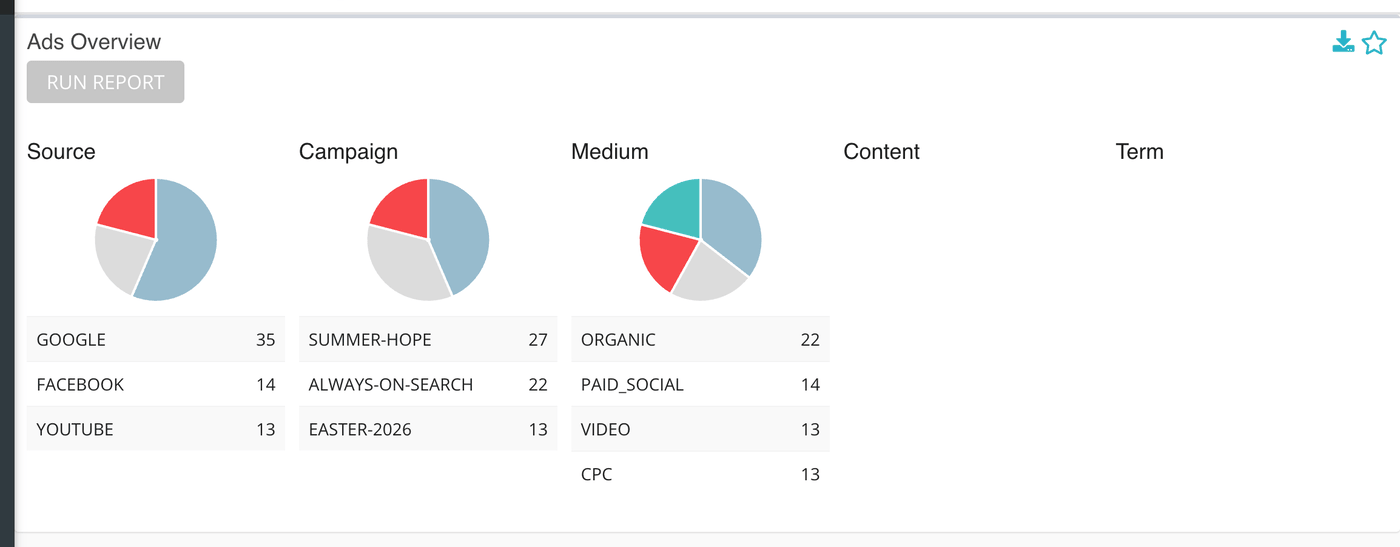
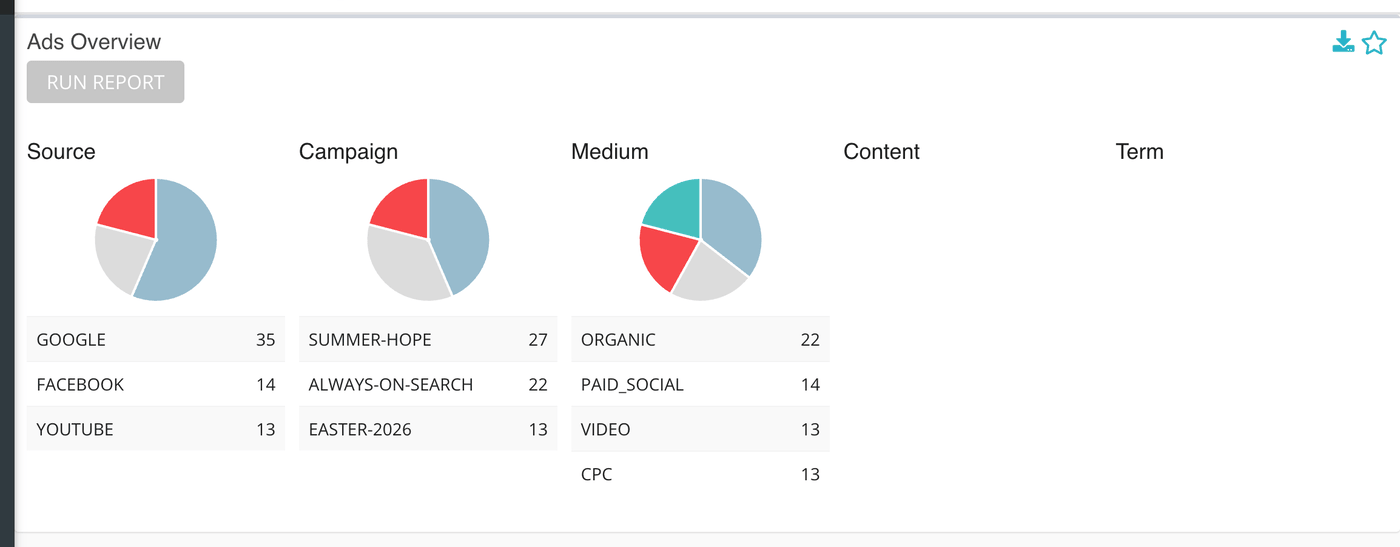
Ads Overview
Five small pie charts side by side: Source, Campaign, Medium, Content and Term. Under each is a list of the values seen and how many conversations carried each. Values are shown in capitals, so Newsletter and newsletter count together, and conversations with that tag left blank are left out of that chart.
Campaigns
A table with one row for each different combination of source, campaign, medium, content and term, and the Total number of conversations that arrived through it. Only conversations that have a campaign tag appear here.
Outcomes by UTM
The same links, with how their conversations ended. Each row starts with Campaign, Source, Medium, Content, Outreach and Term. After those comes one column for each outcome your ministry uses, and a last column, Not Dispositioned. Use the search box to find a campaign.
What the measurements mean
| Term | What it means |
|---|---|
| Source | Where the link was placed, such as a newsletter or a social network. This is the UTM source tag, not an Echo conversation source. |
| Medium | The kind of link, such as email or a paid ad. |
| Campaign | The name you gave the effort the link belongs to. |
| Content | A tag that tells apart two links in the same campaign, such as two versions of one ad. |
| Term | The keyword attached to a paid search ad. |
| Outreach | A tag some ministries add to name one outreach effort. It appears in the Outcomes by UTM table only. |
| Not Dispositioned | The conversation has a disposition record but no outcome has been chosen for it. |
Things to know
- Outcomes by UTM counts only conversations that have a disposition, so it can show fewer conversations than the Campaigns table.
- Two links that differ only in capital letters are the same row in Campaigns. Keep your tags consistent anyway:
news-letterandnewsletterare different. - The Created At and Closed At switch decides which date puts a conversation in the period.
Most cards also carry two small icons beside the title. The star pins the card to your Dashboard. The download icon saves the card as a CSV file, or as XLSX if your download preference is set to XLSX.