The Totals report answers the first questions a board or a leader asks: how many seekers wrote or called, how many messages went each way, how many conversations were finished, and how they ended. It also shows how many conversations each channel brought in, for the dates you choose and for your ministry's whole history.
Running the report
- Open Reports from the main menu. In the left-hand menu, under Reports, click Totals.
- Click the date range at the top of the page and choose your dates. The globe menu beside it sets the time zone, which starts on your ministry's own.
- Click Sources and choose the conversation sources to include. The number beside it shows how many are chosen.
- Optional: click Permission Sets to count only conversations that someone in those sets claimed. Leave it empty to include everyone.
- Use the switch to choose Created At or Closed At. Created At places a conversation on the day it started. Closed At places it on the day it closed, so conversations that are still open are not counted.
- Click Run Report on each card you want to see. A card does not load until you do, and the button stays gray until you change a filter.
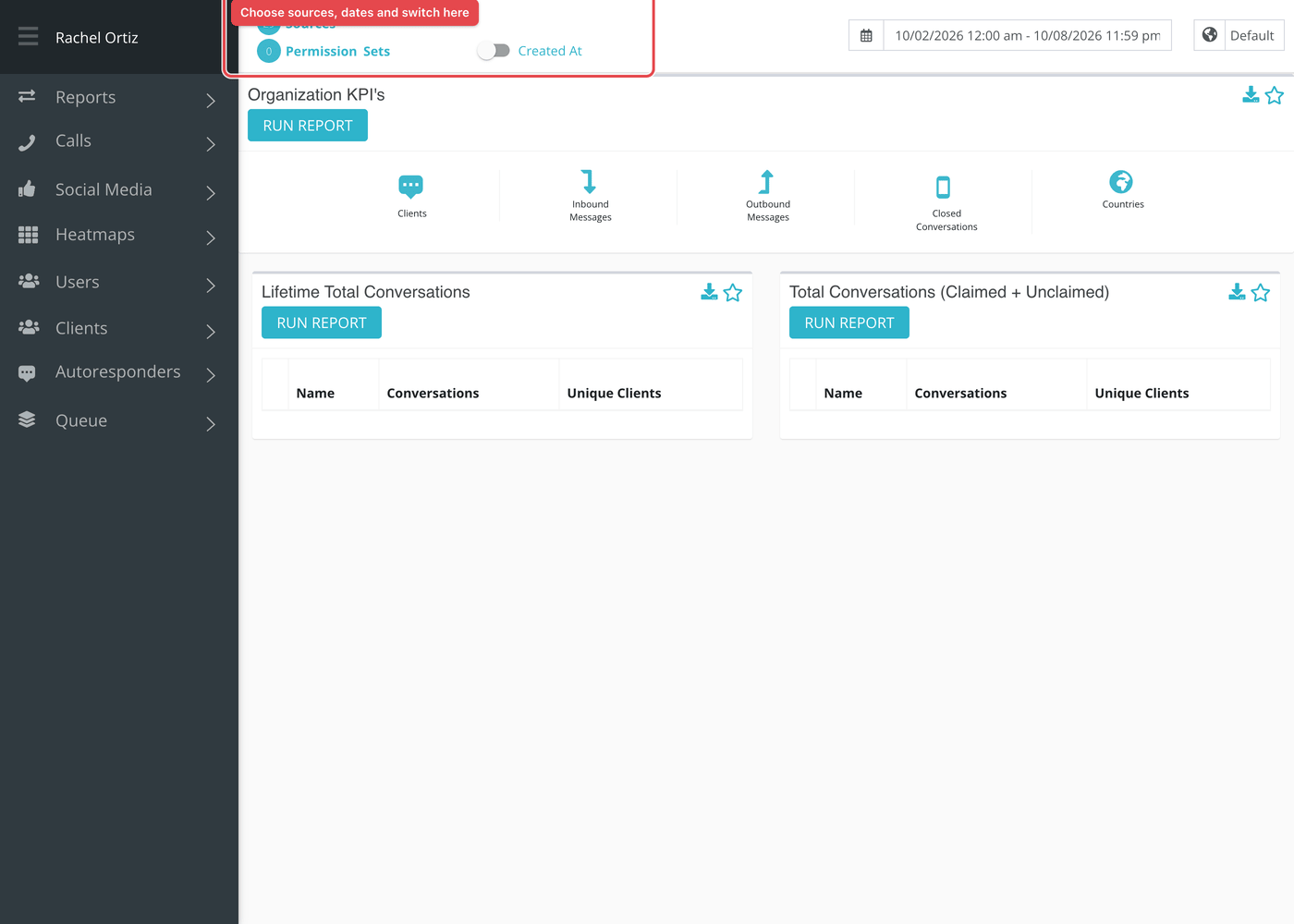
Larger date ranges can take a little while. Reports that are still being built are listed under Queue at the bottom of the left-hand menu, which reads "All Reports Finished Loading" when none are waiting.
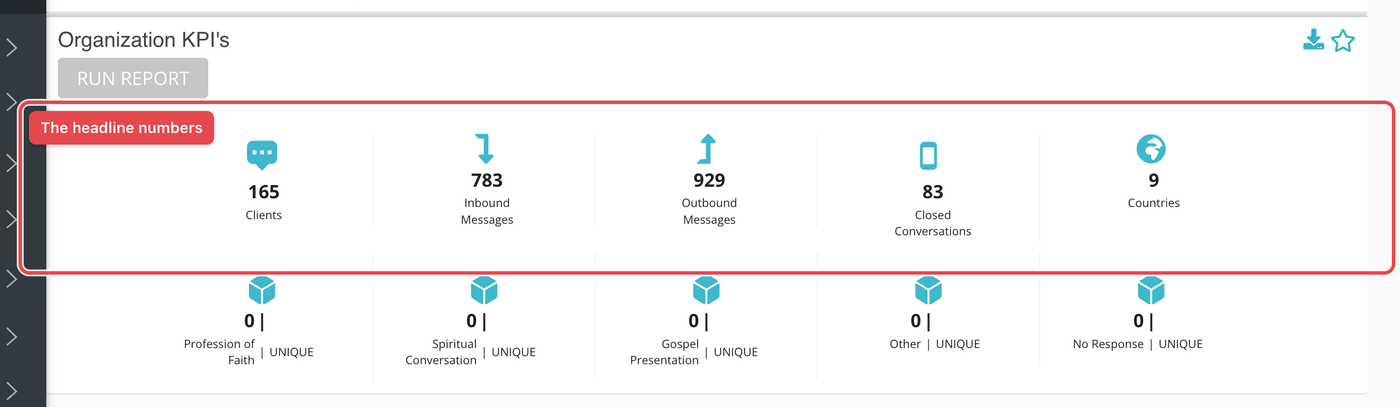
Organization KPI's
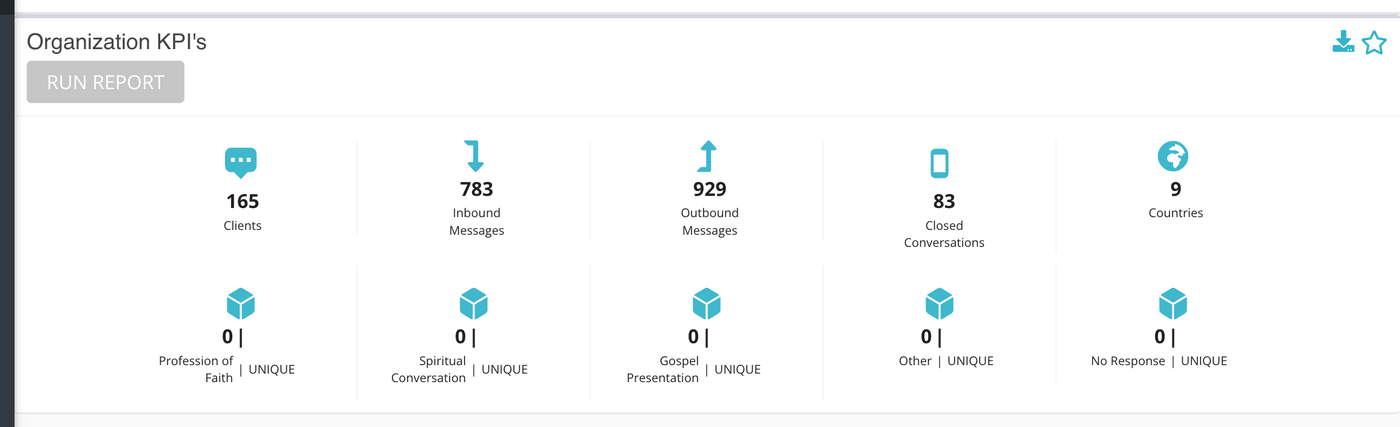
One strip of numbers for the dates and sources you chose, with one block of outcome counts underneath.
| Number | What it counts |
|---|---|
| Clients | Different seekers who had a conversation or a call in the period. A seeker who wrote five times counts once. |
| Inbound Messages | Every message seekers sent, in the conversations that fall in the period. |
| Outbound Messages | Every message your team sent back, in the same conversations. |
| Closed Conversations | Conversations that were closed, plus phone calls that were completed. |
| Countries | How many different countries your seekers' conversations and calls came from. |
Under the strip there is one tile per outcome, five to a row. Each tile shows two numbers: the left is how many conversations ended with that outcome, and the right (labeled Unique) is how many different seekers those conversations belonged to.
Total Conversations (Claimed + Unclaimed)
A table with one bold row per channel type, and under each, the individual sources of that type. Rows are sorted from the most conversations to the fewest.
| Column | What it counts |
|---|---|
| Conversations | Conversations from that channel or source in the period, whether or not a responder ever claimed them. |
| Unique Clients | Different seekers behind those conversations. |
Phone gets one row for the channel as a whole, counting calls. The individual phone numbers are not listed beneath it.
Lifetime Total Conversations
The same table, but it ignores the dates you picked. It counts from the day your ministry's Echo account was created until now, for the sources you selected. Use it for "how many seekers has Echo reached in total?" This card loads straight away rather than waiting in the queue.
With the switch on Closed At, the Lifetime card counts only conversations that have closed, because the others have no closing date yet.
What the measurements mean
| Term | What it means |
|---|---|
| Client | The seeker, as Echo records them. Echo's reports say "client" where this Help Center says seeker. |
| Unique | Each seeker counted once, however many conversations they had. |
| Claimed and unclaimed | A conversation is claimed when a responder takes it from the inbox. This table counts both kinds, so a conversation that timed out unseen is still in the total. |
| Outcome | The result a responder chose when they closed the conversation. Your ministry decides which outcomes exist. |
| Source | One of your connected ways of being reached, for example a Facebook page, a website chat or a phone number. A channel type groups sources of the same kind. |
Things to know
- Inbound and outbound message counts add up every message in each conversation counted, including messages sent before or after the dates you picked. They are not "messages sent during the period".
- Phone calls are always placed by the day the call started, whatever the switch says, and permission sets do not narrow them.
- In the strip at the top, the phone-call part of Clients, Closed Conversations and Countries is not narrowed by the sources or permission sets you pick. Calls from every phone number are included.
- If you choose a permission set, conversations nobody has claimed are left out of every number it affects.
Most cards also carry two small icons beside the title. The star pins the card to your Dashboard. The download icon saves the card as a CSV file, or as XLSX if your download preference is set to XLSX.