The Spam report lists the conversations Echo or your team marked as spam, so you can check nothing real was caught, and shows who is currently blocked from reaching you.
Spam is also where wrongly caught conversations are rescued. A conversation marked as spam is closed and kept out of the inbox, so a seeker who was caught by mistake is never answered unless someone finds them here.
Running the report
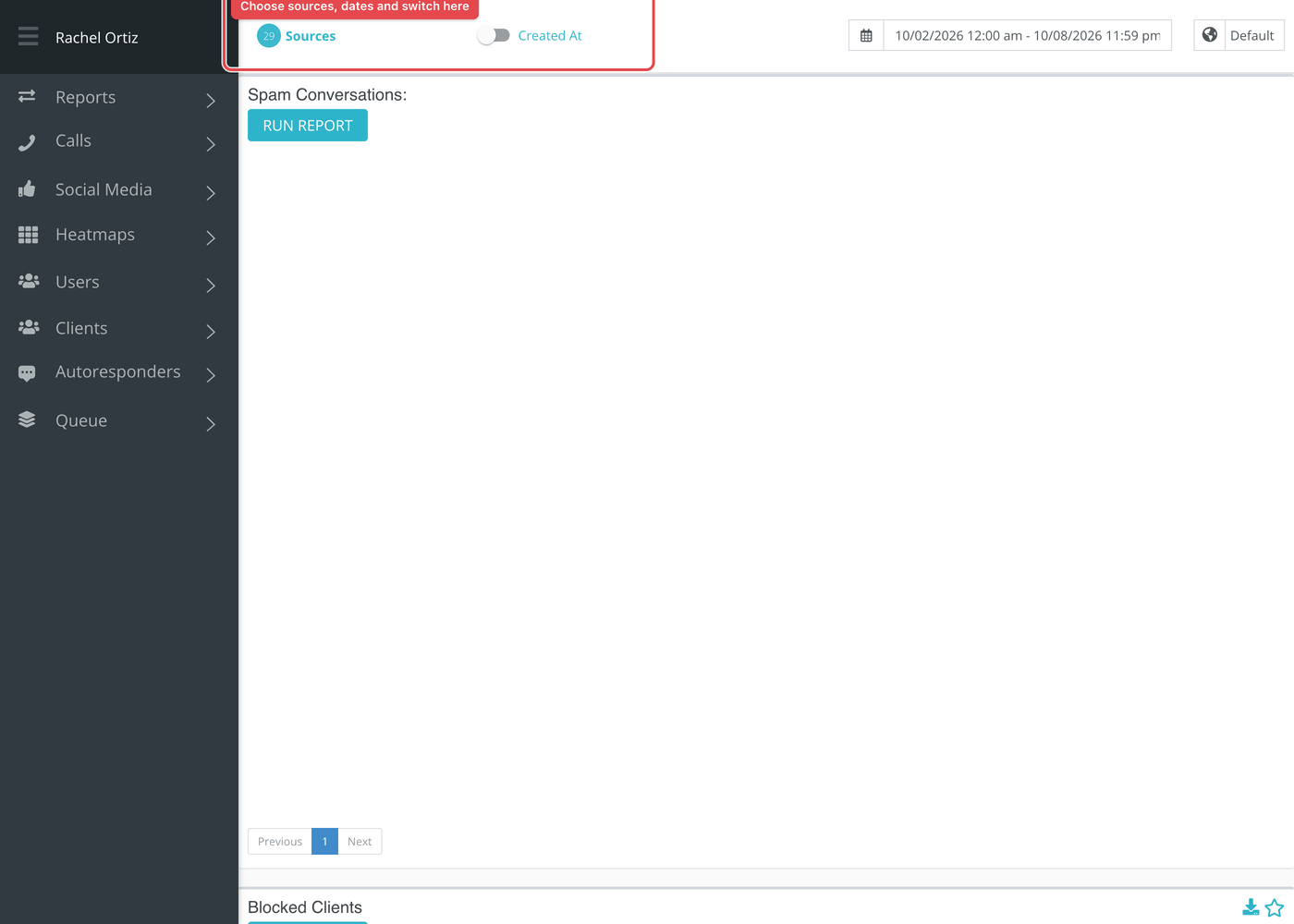
- Open Reports from the main menu. In the left-hand menu, under Reports, click Spam.
- Click the date range at the top of the page and choose your dates. The globe menu beside it sets the time zone, which starts on your ministry's own.
- Click Sources and choose the conversation sources to include. The number beside it shows how many are chosen.
- Use the switch to choose Created At or Closed At. Created At places a conversation on the day it started. Closed At places it on the day it closed, so conversations that are still open are not counted.
- Click Run Report on each card you want to see. A card does not load until you do, and the button stays gray until you change a filter.
Permission sets do not apply to this report, and the Permission Sets button is not shown.
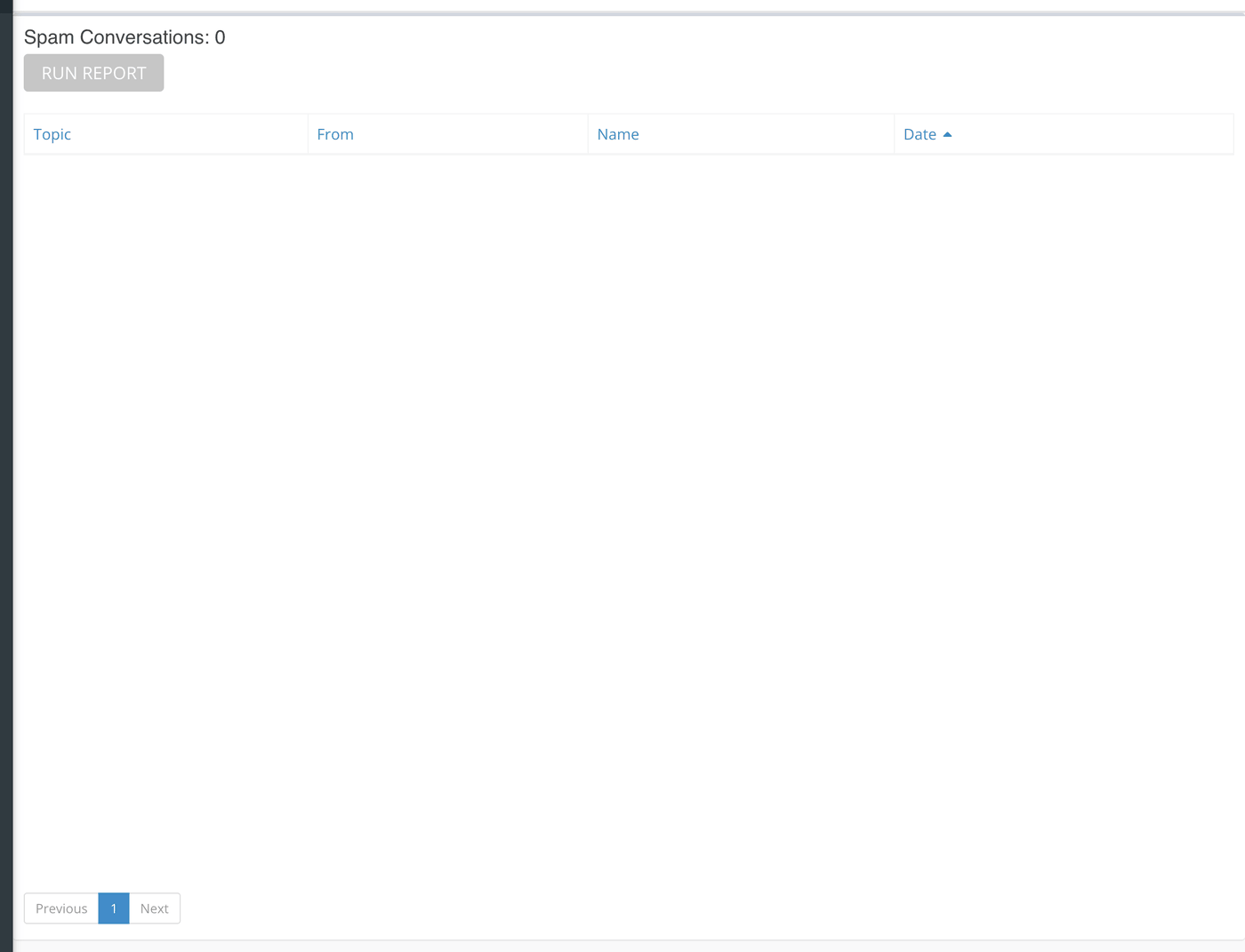
Spam Conversations
The card title ends with the number of spam conversations in your dates and sources. The table has four columns, newest first, with pages at the bottom if there are many.
| Column | What it shows |
|---|---|
| Topic | The topic of the conversation. Click it to open the conversation. |
| From | Where it came from, such as an email address or phone number. |
| Name | The name the sender gave, if any. |
| Date | When the conversation was created. |
Checking one and putting it back
- Click the Topic of a conversation. A window opens with the messages and a Direct Link to open the conversation on its own page.
- If it is real, click Not spam? at the top of the window.
Echo takes the conversation out of the spam list and puts it back in the inbox as pending. The outcome it was given when it was closed is cleared and no responder is assigned, so the next available responder can claim it.
Blocked Clients
A second card on the same page lists everyone who is blocked from contacting your ministry right now.
| Column | What it shows |
|---|---|
| Expiration | When the block ends. After that moment the person can reach you again. |
| Times Denied | How many times this block has been put in place. It starts at 1 and goes up by one each time someone blocks the same person again while the block is still running and the new block would last longer. |
| IP Address | The internet address they used. |
| Name | Their name, if known. |
| Their email address, if known. |
This card ignores your dates, sources and permission sets. It always shows every block still running for your whole ministry, soonest to expire first. To find who blocked someone, or to end a block early, see Blocked Clients report.
What the measurements mean
| Term | What it means |
|---|---|
| Spam | A conversation that Echo's filters scored as spam, that matched a filter set to treat matches as spam, or that a responder marked as spam. Echo closes it straight away. |
| Spam outcome | The outcome a spam conversation is closed with. Your ministry picks it as Spam Outcome in tenant settings. If none is chosen, Echo looks for an outcome named No Response, then one named Other. Spam conversations therefore show up in your outcome reports under that outcome. |
| Not spam? | The link that returns a conversation to the inbox. |
| Blocked | A person your ministry has blocked. While the block lasts they cannot reach you. |