This report shows the conversations your team never answered: chats and messages that timed out or that the seeker abandoned. It tells you how many seekers you lost, how long they waited before leaving, and how often you managed to follow up afterwards.
It is separate from the Missed Calls report, which covers phone calls. This one covers conversations in the inbox.
Running the report
- Open Reports from the main menu. In the left-hand menu, under Reports, click Missed.
- Click the date range at the top of the page and choose your dates. The globe menu beside it sets the time zone, which starts on your ministry's own.
- Click Sources and choose the conversation sources to include. The number beside it shows how many are chosen.
- Use the switch to choose Created At or Closed At. Created At places a conversation on the day it started. Closed At places it on the day it ended.
- Click Run Report on each card you want to see. A card does not load until you do, and the button stays gray until you change a filter.
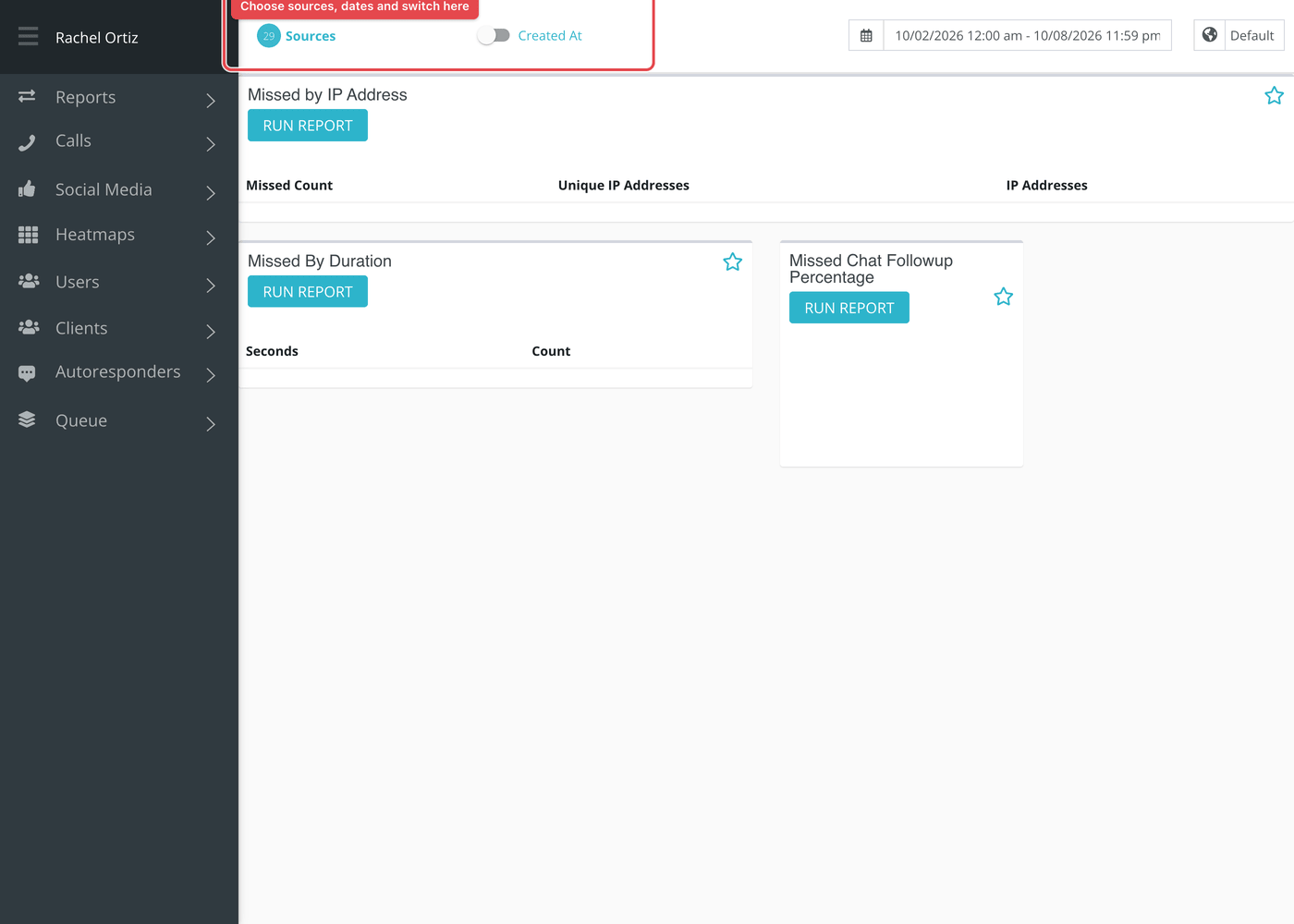
Larger date ranges can take a little while. Reports that are still being built are listed under Queue at the bottom of the left-hand menu, which reads "All Reports Finished Loading" when none are waiting.
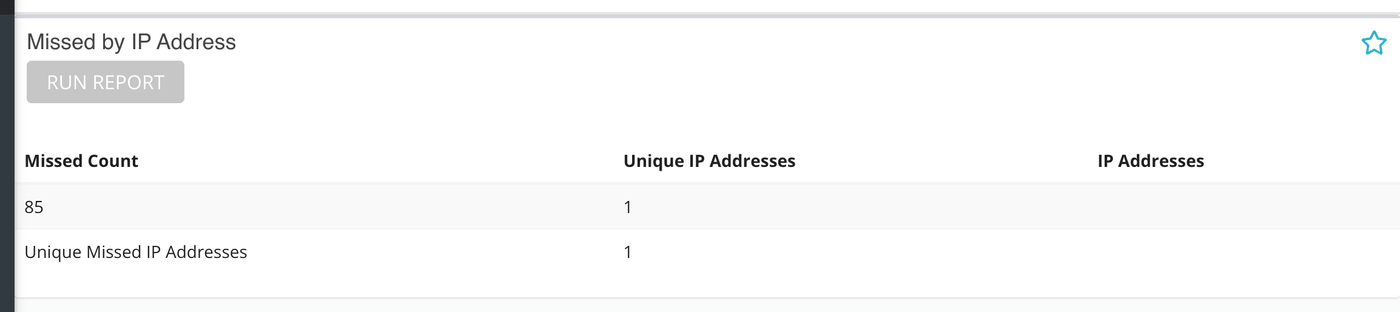
Missed by IP Address
A table that groups internet addresses by how many conversations each one missed. The columns are:
| Column | What it shows |
|---|---|
| Missed Count | A number of missed conversations, such as 1, 2 or 5. |
| Unique IP Addresses | How many different internet addresses missed exactly that many conversations. |
| IP Addresses | Those addresses. |
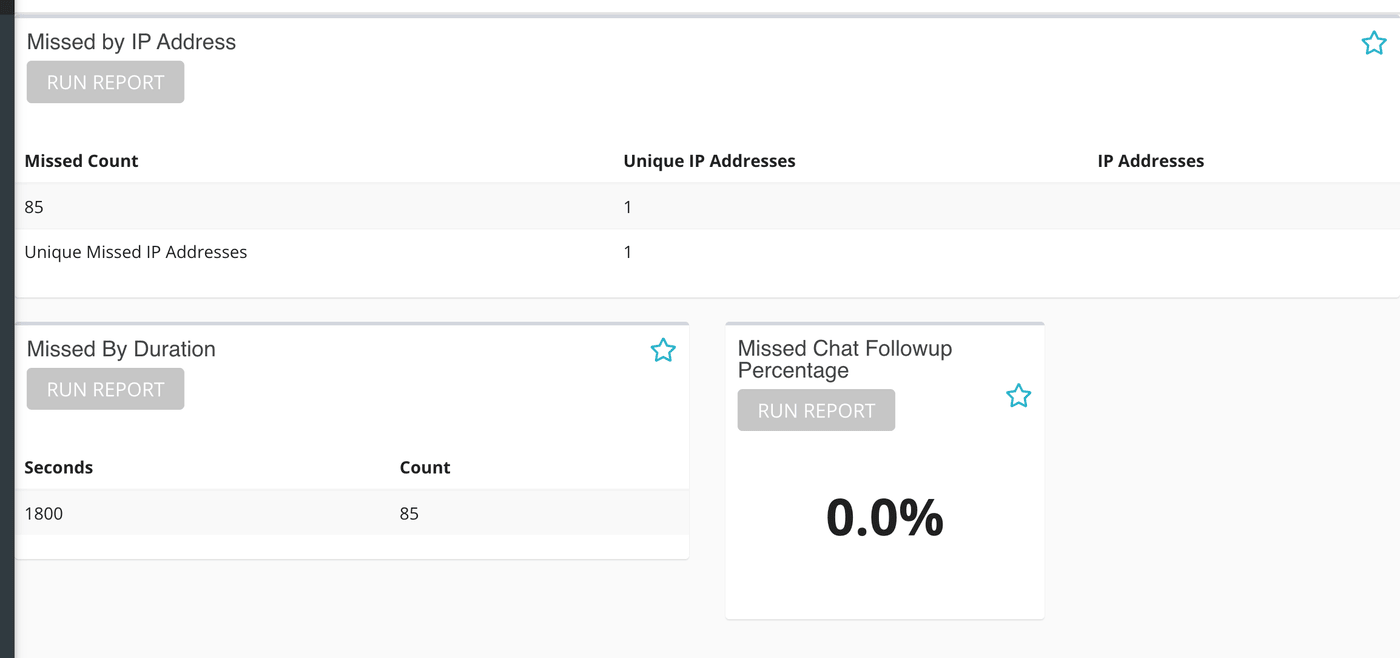
The last row, Unique Missed IP Addresses, is the total number of different addresses. If one address appears with a high missed count, one person may have tried several times to reach you.
Missed By Duration
A table of Seconds and Count. Each row says how many timed-out or abandoned conversations lasted that many seconds. The time runs from when the conversation started to the last sign that the seeker was still there, or, if Echo has none, to the last time the conversation changed. A cluster of short times means people give up quickly. A cluster of long times means they waited and still got nobody.
Missed Chat Followup Percentage
One percentage. Of the missed website chats in your period, it is the share where the seeker left contact details and your team then started a follow-up conversation with them. It counts website chat sources only, and no other channel.
What the measurements mean
| Term | What it means |
|---|---|
| Missed | A conversation that ended as timeout or abandoned. |
| Timeout | The time available for a response ran out before anyone responded. |
| Abandoned | The seeker left before a responder could pick up. This is mostly a live chat status. |
| IP address | The internet address a seeker connected from. Several people can share one, for example on a church network. |
| Follow-up | A new conversation your team started with a seeker who left contact details after a missed chat. |
Things to know
- The Missed By Duration card counts only timed-out and abandoned conversations. Missed by IP Address and the follow-up percentage use the same two statuses.
- There is no Permission Sets button on this page.
Most cards also carry two small icons beside the title. The star pins the card to your Dashboard. The download icon saves the card as a CSV file, or as XLSX if your download preference is set to XLSX.