The Messages report is a page of message counts: how many messages went in and out on each source, how many different seekers wrote, how many wrote more than once, and how your email is being delivered. Despite the web address ending in email, it covers every source.
Running the report
- Open Reports from the main menu. In the left-hand menu, under Reports, click Messages.
- Click the date range at the top of the page and choose your dates. The globe menu beside it sets the time zone, which starts on your ministry's own.
- Click Sources and choose the conversation sources to include. The number beside it shows how many are chosen.
- Optional: click Permission Sets to count only conversations that someone in those sets claimed. Leave it empty to include everyone. It does not change every card; see the notes at the end.
- Use the switch to choose Created At or Closed At. Created At places a conversation on the day it started. Closed At places it on the day it closed, so conversations that are still open are not counted.
- Click Run Report on each card you want to see. A card does not load until you do, and the button stays gray until you change a filter.
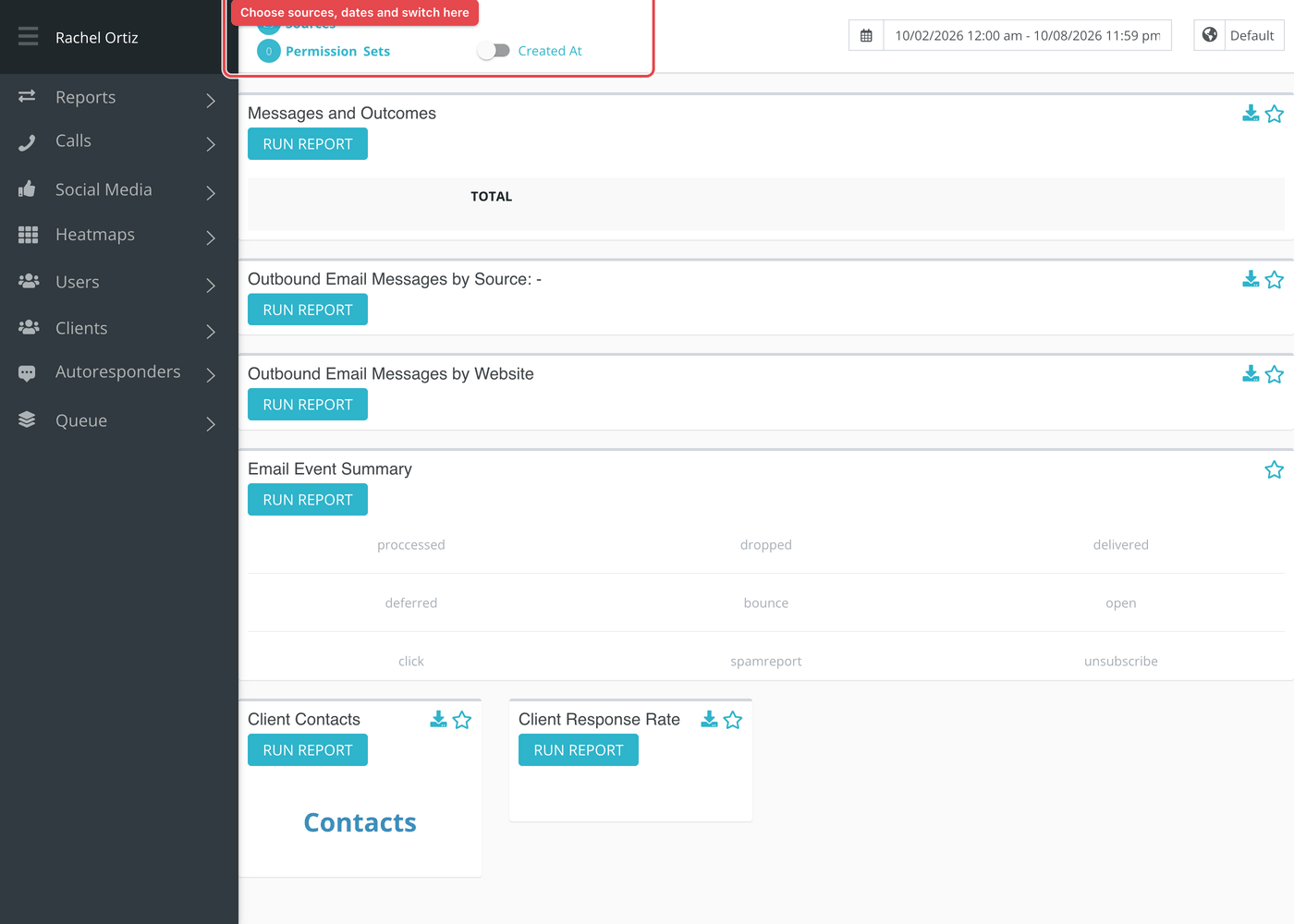
Larger date ranges can take a little while. Reports that are still being built are listed under Queue at the bottom of the left-hand menu, which reads "All Reports Finished Loading" when none are waiting.
Messages and Outcomes
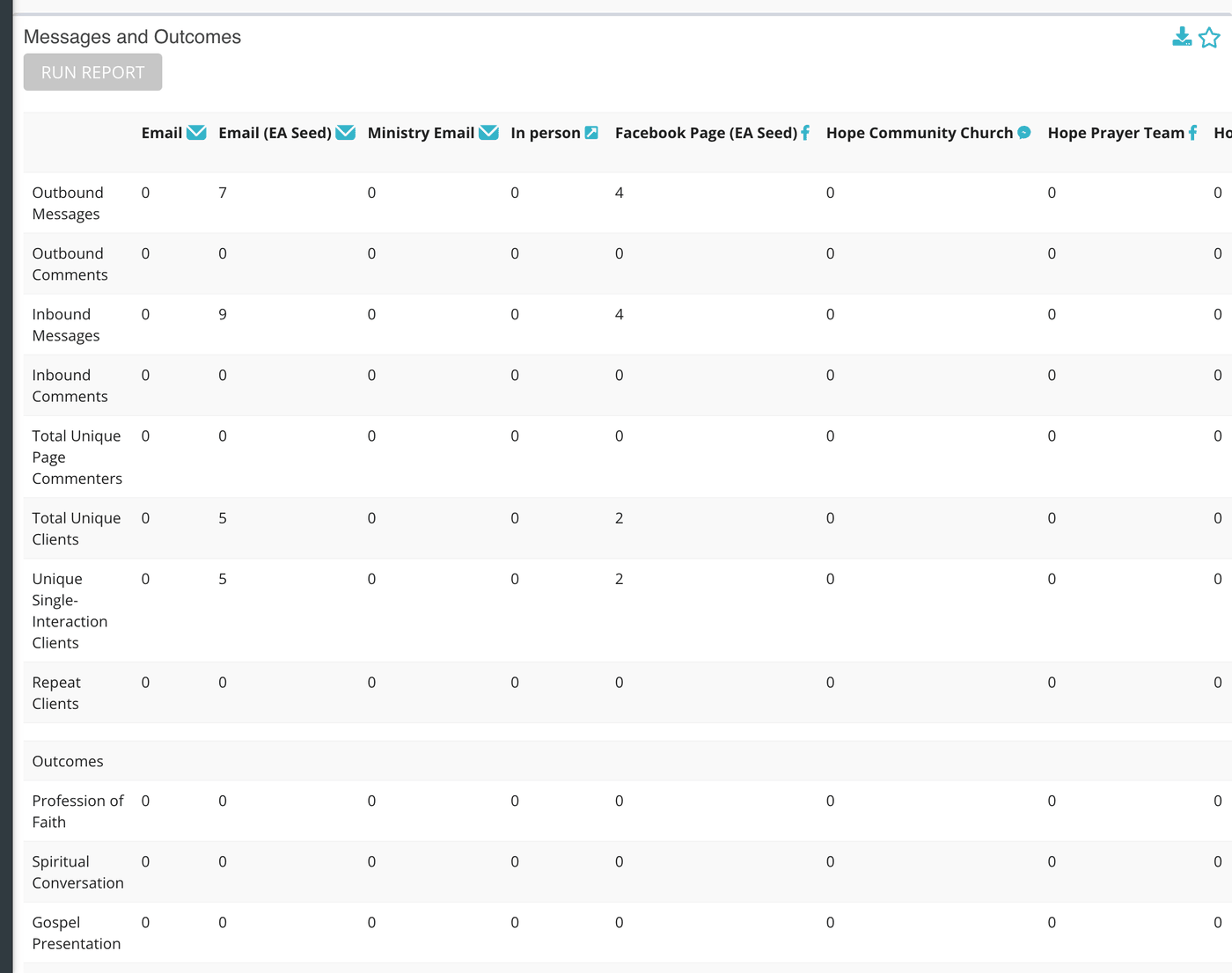
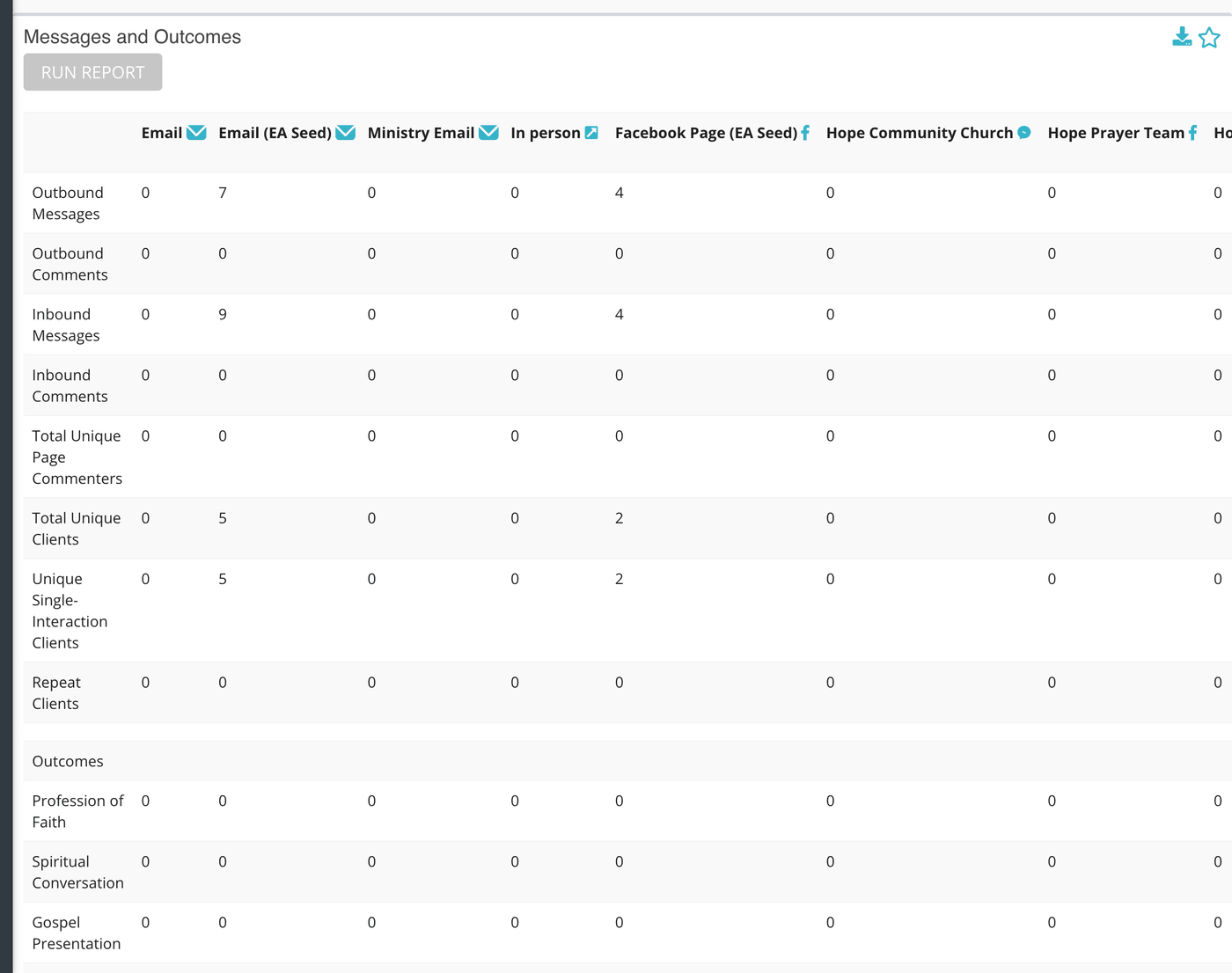
A table with one column for each source you selected and a final TOTAL column. The rows are:
| Row | What it counts |
|---|---|
| Outbound Messages | Messages your team sent in the conversations in the period. |
| Outbound Comments | Your replies to comments on a social media post on social media sources. |
| Inbound Messages | Messages seekers sent in those conversations. |
| Inbound Comments | Comments people left on your posts. |
| Total Unique Page Commenters | Different people who commented on the source's posts. |
| Total Unique Clients | Different seekers who had a conversation on that source. |
| Unique Single-Interaction Clients | Seekers who had exactly one conversation on that source in the period. |
| Repeat Clients | Seekers who had more than one conversation. |
| One row per outcome | How many conversations ended with each outcome, after a heading row named Outcomes. |
Outbound Email Messages by Source
One row for each source you selected, one column for each language Echo recorded on the messages, a column for messages with no language, and a Total. The title names the date range it covers. The counts are your outbound messages for the source, whatever the channel.
Outbound Email Messages by Website
The same language breakdown, with one row for each website that sends email through one of your email domain sources.
Email Event Summary
Nine counts of what happened to messages after they were sent: processed, dropped, delivered, deferred, bounce, open, click, spamreport and unsubscribe.
| Event | What it means |
|---|---|
| processed | The email service accepted the message for sending. |
| dropped | The email service chose not to send it, for example because the address had bounced, unsubscribed or reported spam before. |
| delivered | The recipient's mail server accepted it. |
| deferred | The recipient's server could not take it yet and the email service will try again. |
| bounce | The recipient's server rejected it. |
| open | The recipient opened it. |
| click | The recipient clicked a link in it. |
| spamreport | The recipient marked it as spam. |
| unsubscribe | The recipient unsubscribed. |
Client Response Rate
Client Response Rate is the share of conversations in the period in which, after a responder replied, the seeker wrote again. It is shown as a percentage to three decimal places.
What the measurements mean
| Term | What it means |
|---|---|
| Inbound / outbound | Inbound is sent by the seeker; outbound is anything the seeker did not send. |
| Unique client | One seeker, counted once, however many times they wrote. |
| Repeat client | A seeker with more than one conversation on the same source in the period. |
| Comment | A reply under a social media post, as opposed to a private message. |
Things to know
- The message counts in the first table are the totals stored on each conversation, so they include every message in each conversation counted, not only those sent during the period.
- Outbound Email Messages by Source and by Website and the Email Event Summary use the dates but not the Created At and Closed At switch, and the two outbound tables do not use permission sets.
Most cards also carry two small icons beside the title. The star pins the card to your Dashboard. The download icon saves the card as a CSV file, or as XLSX if your download preference is set to XLSX.