UTM Tracking shows which of your links, ads and campaigns bring seekers to your ministry, and how their conversations ended. It only has numbers if the conversations arrive with a campaign tag, and Echo cannot add one itself. This guide covers how to tag each kind of link, including Messenger and Meta ads, and then how to read the report. If the report is empty, start with If it did not work.
Echo can only record tags that are on the link. It does not look up how a seeker found you. A conversation that arrives without tags is not counted in the report. Tags apply to conversations that start after you add them; earlier conversations do not fill in afterward.
Connecting an Ad Account ID in Echo does not fill this report. It gives Echo access to the comments people leave on your ads, so leave it in place for that. The report fills from the tags described below.
Which channels record tags
Channel | Records tags? | Where the tags come from |
|---|---|---|
Website chat | Yes | The address of the page the seeker is on when the chat starts |
Web contact forms (Web Contacts API, Wufoo, Gravity Forms, Google Forms) | Yes | Values your form sends with the submission |
Facebook Messenger | Yes | The |
Outreach only, on SendGrid email domains | The part of the address before the @ sign | |
Instagram, WhatsApp, text messaging, phone | No | Not recorded |
Tag your website links
Pick the web page where the seeker will start a chat or fill in a form. It must have your Echo chat widget or form on it. See Chat Website Integration if it does not yet.
Add a question mark to the end of that page's address, then your tags, joined with
&. Use the tags in the table below.Use that full address in your ad, email or social post.
Open the link yourself and check that the tags are still in the address bar when the page loads.
https://yourministry.org/talk?utm_campaign=easter-outreach&utm_source=newsletter&utm_medium=emailTag | What to put in it |
|---|---|
| The name of the effort, such as |
| Where you placed the link, such as |
| The kind of link, such as |
| Which version of a link or ad, when you test more than one |
| The keyword, for paid search ads |
| An outreach code of your own. Echo also accepts |
Type the tag names exactly as shown, in lowercase, starting with utm_. Echo's chat widget matches them letter for letter, so UTM_Source is not read.
The chat widget reads the tags from the address of the page the seeker is on when they start the chat. If they click through to a page whose address has no tags before they start chatting, the tags are lost. Link straight to the page where the chat will start.
Tag a web form
Forms that send contacts into Echo record the same tags, but they do not read them from the address. Your form has to send them. Add a field for each tag you want to keep, name it exactly as in the table above, and fill it with the value from the link.
Web Contacts API: include
utm_campaign,utm_source,utm_medium,utm_content,utm_termandutm_outreachin your request. It also acceptsoutreach_code, which Echo records as the outreach tag when noutm_outreachis sent. See Echo Web Contacts Integration.Wufoo: add a field to the form whose title starts with
utm_, such asutm_source, and make sure it is filled with the value from the link. See Echo Wufoo Integration.Gravity Forms and Google Forms: send the tag names above with the form, as set out in Gravity Forms Integration and Google Forms Integration.
Tag Facebook Messenger
Messenger has no page address for Echo to read, so the tags travel in a ref: a short piece of text that Facebook passes to Echo when someone opens Messenger from your link or ad. Echo needs your Facebook Page connected first. See Facebook Integration.
There are two places to put a ref, and they are written differently.
Where | How to write the ref |
|---|---|
A Messenger link: a post, your Page's Message button, a QR code on printed material |
|
A Messenger ad |
|
Meta only allows letters, numbers, dashes, underscores and equals signs in an ad's ref, which is why the ad format has no colon or vertical bar. Echo tells the two formats apart by the colon: a ref with a colon in it is read as the first format, and one without is read as the second. Do not mix them in one ref. Use two underscores between tags, not one, because some values contain a single underscore.
Echo recognizes campaign, source, medium, content, term and outreach. A tag written any other way is skipped.
Add a ref to a Messenger link
Start with your Page's Messenger link,
https://m.me/followed by your Page's username or ID.Add
?ref=and then your tags in the first format.Give each campaign its own
campaignvalue, and changesourceormediumwhere it helps you tell links apart, such aspostorprint.
https://m.me/yourpagename?ref=campaign:hopeforyou|source:facebook|medium:postThis works for a person starting a new conversation, or continuing one.
Add a ref to a Messenger ad
For an ad that opens a Messenger chat, the ref is part of the ad, not of a link. The steps below follow Meta's Ads Manager as we know it, and Meta changes its screens, so look for the ad's message template, the greeting and questions people see when the chat opens.
In Ads Manager, open the ad and edit its message template.
Set the
refparameter in the second format, for examplecampaign=hopeandfaith__source=facebook__medium=ad. Use a differentcampaignvalue for each campaign you want to tell apart.Publish the change. The ref only travels with conversations that start after you publish.
A new conversation that starts from a Messenger ad now brings the ad's campaign into Echo. An ad with no ref sends nothing a campaign can be read from. Meta also does not always send an ad's details with every conversation the ad starts, so some will still arrive as a plain first message.
Add a place to the same ref
The same ref can also carry city, state (or region), country and zip. Echo writes these onto the seeker's record. On the conversation it saves city, region and country. Echo also keeps the ref exactly as it arrived.
What Messenger does not record yet
Instagram conversations do not carry campaign tags, including ones that start from an Instagram ad.
A repeat seeker, someone whose earlier conversation already has tags and who starts a new one, is not tagged by the new ref yet.
Tag email conversations
Email conversations do not carry campaign tags. The one thing Echo records is the outreach tag, and only for email that arrives on a SendGrid email domain. There, Echo saves the part of the address the email was sent to, before the @ sign. If you send different campaigns to different addresses, such as easter@ and prayer@, the conversations are grouped by address. Email on other providers records no tag. See Email Domains for which provider your domain uses.
What the tags mean
Term | What it means |
|---|---|
UTM tag | A label added to the end of a web address that says where a visitor came from |
Ref | The text Facebook passes to Echo when someone opens Messenger from your link or ad. Echo reads your tags out of it. |
Outreach | Echo's own grouping tag. It comes from |
Untagged | A conversation that arrived with no tags. It is not counted in this report. |
How Echo keeps the tags
Each conversation keeps one set of tags. For web contacts and email, a tag that is already saved is not replaced by a later one, and a blank tag does not erase one.
For Messenger, Echo attaches the tags to the seeker's most recent conversation on that Page if it has none yet. If the ref arrives before the conversation exists, Echo holds it and attaches it when the seeker's first message arrives.
Where else the tags show
The conversation filters can narrow by campaign, source, medium, outreach and term. See Echo Filters.
The GraphQL API returns the tags on each conversation.
If it did not work
What you see | What to check |
|---|---|
The report is empty | Widen the date range, and choose the right source in the Sources filter, such as your Messenger Page. The report only counts conversations that carry tags, so check each link or ad below. |
A website chat has no tags | Open your link and confirm the tags are still in the address when the chat starts. Some pages drop them when they redirect. |
A web form has no tags | Confirm the form sends the tag names exactly as spelled above, including the |
A Messenger link has no tags | Confirm the link carries |
A Messenger ad has no tags | Confirm the ref is on the ad's message template, written with equals signs and double underscores and no colon, and that the ad was published after you added it. Conversations from before then do not fill in. |
An Instagram conversation has no tags | Instagram does not record tags yet. |
A tag shows the wrong value | The first value saved for a conversation is kept. Check the first link the seeker used. |
Reading the report
Running the report
Open Reports from the main menu. In the left-hand menu, under Reports, click UTM Tracking.
Click the date range at the top of the page and choose your dates. The globe menu beside it sets the time zone, which starts on your ministry's own.
Click Sources and choose the conversation sources to include. The number beside it shows how many are chosen.
Optional: click Permission Sets to count only conversations that someone in those sets claimed. Leave it empty to include everyone.
Use the switch to choose Created At or Closed At. Created At places a conversation on the day it started. Closed At places it on the day it closed, so conversations that are still open are not counted.
Click Run Report on each card you want to see. A card does not load until you do, and the button stays gray until you change a filter.
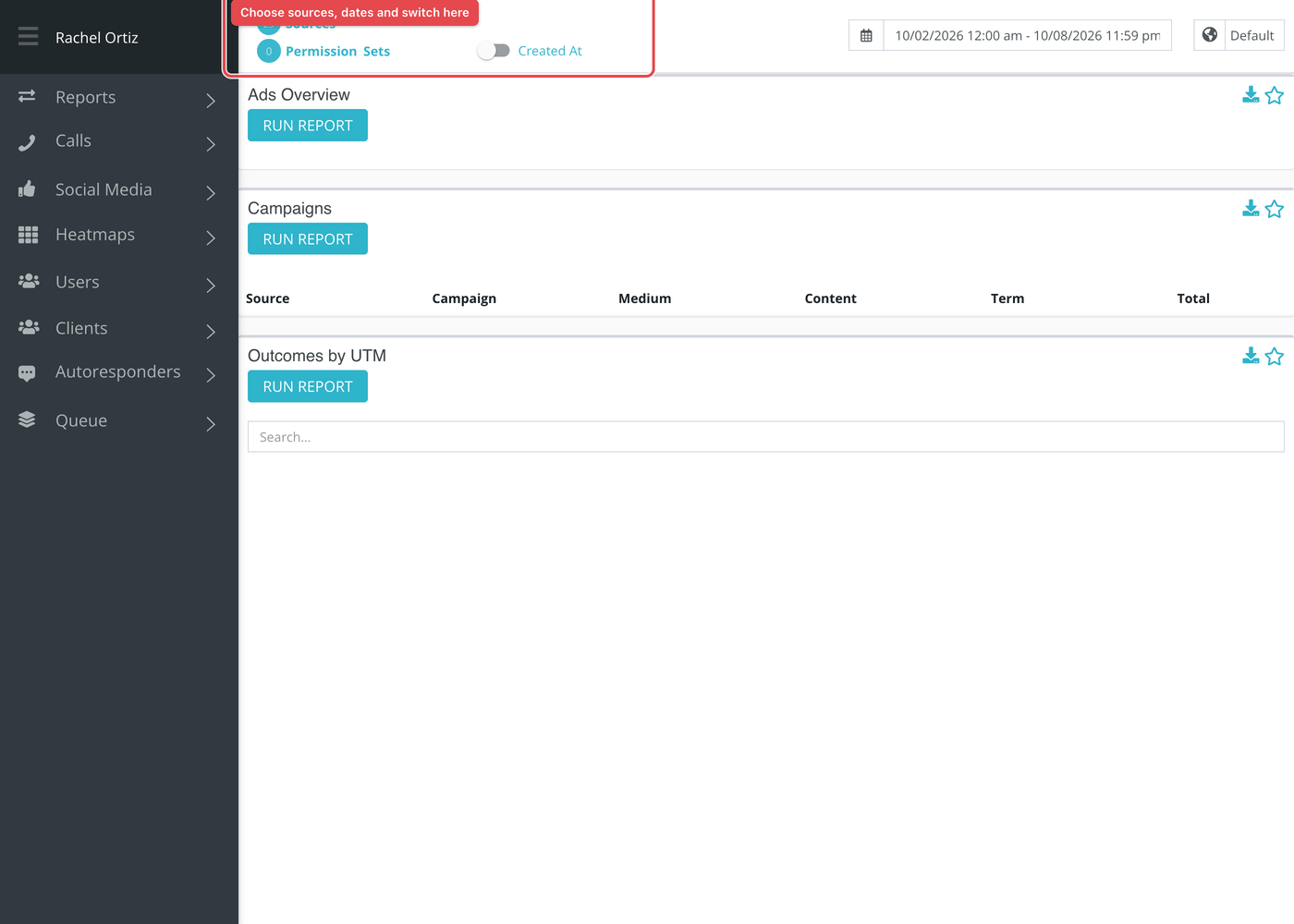
Larger date ranges can take a little while. Reports that are still being built are listed under Queue at the bottom of the left-hand menu, which reads "All Reports Finished Loading" when none are waiting.
Ads Overview
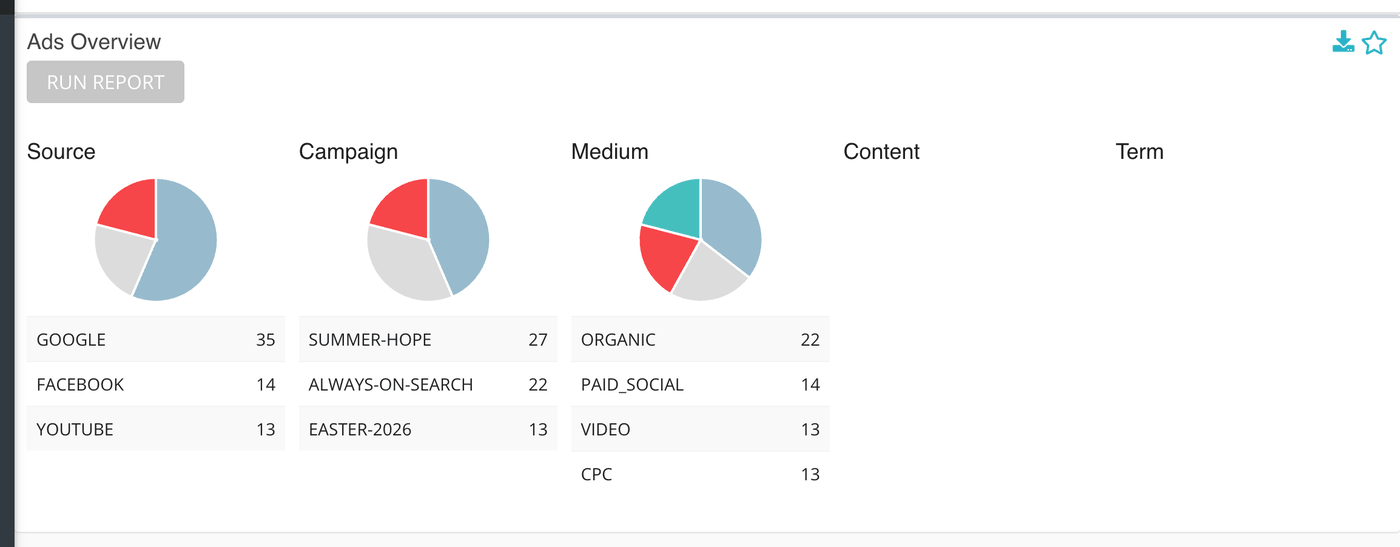
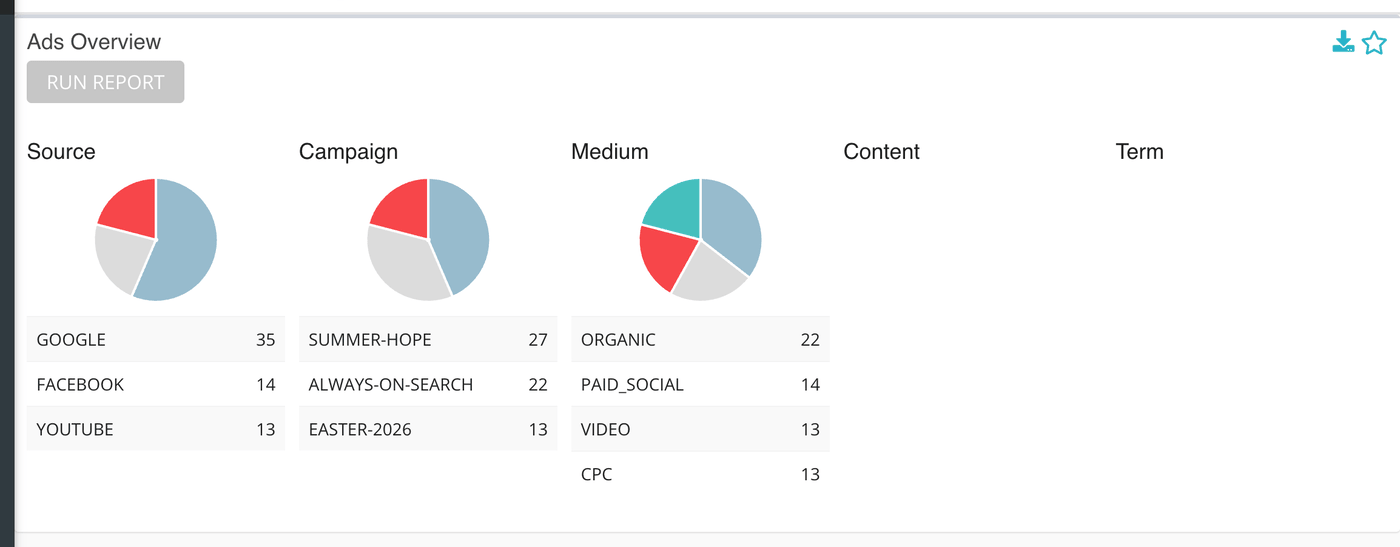
Five small pie charts side by side: Source, Campaign, Medium, Content and Term. Under each is a list of the values seen and how many conversations carried each. Values are shown in capitals, so Newsletter and newsletter count together, and conversations with that tag left blank are left out of that chart.
Campaigns
A table with one row for each different combination of source, campaign, medium, content and term, and the Total number of conversations that arrived through it. Only conversations that have a campaign tag appear here.
Outcomes by UTM
The same links, with how their conversations ended. Each row starts with Campaign, Source, Medium, Content, Outreach and Term. After those comes one column for each outcome your ministry uses, and a last column, Not Dispositioned. Use the search box to find a campaign.
What the measurements mean
Term | What it means |
|---|---|
Source | Where the link was placed, such as a newsletter or a social network. This is the UTM source tag, not an Echo conversation source. |
Medium | The kind of link, such as email or a paid ad. |
Campaign | The name you gave the effort the link belongs to. |
Content | A tag that tells apart two links in the same campaign, such as two versions of one ad. |
Term | The keyword attached to a paid search ad. |
Outreach | A tag some ministries add to name one outreach effort. It appears in the Outcomes by UTM table only. |
Not Dispositioned | The conversation has a disposition record but no outcome has been chosen for it. |
Things to know
Outcomes by UTM counts only conversations that have a disposition, so it can show fewer conversations than the Campaigns table.
Two links that differ only in capital letters are the same row in Campaigns. Keep your tags consistent anyway:
news-letterandnewsletterare different.The Created At and Closed At switch decides which date puts a conversation in the period.
Most cards also carry two small icons beside the title. The star pins the card to your Dashboard. The download icon saves the card as a CSV file, or as XLSX if your download preference is set to XLSX.