Overview
Filter labels can assist you in providing information to your users about the contents of a message before they select it from the Inbox.
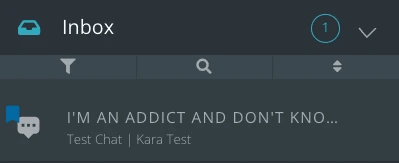
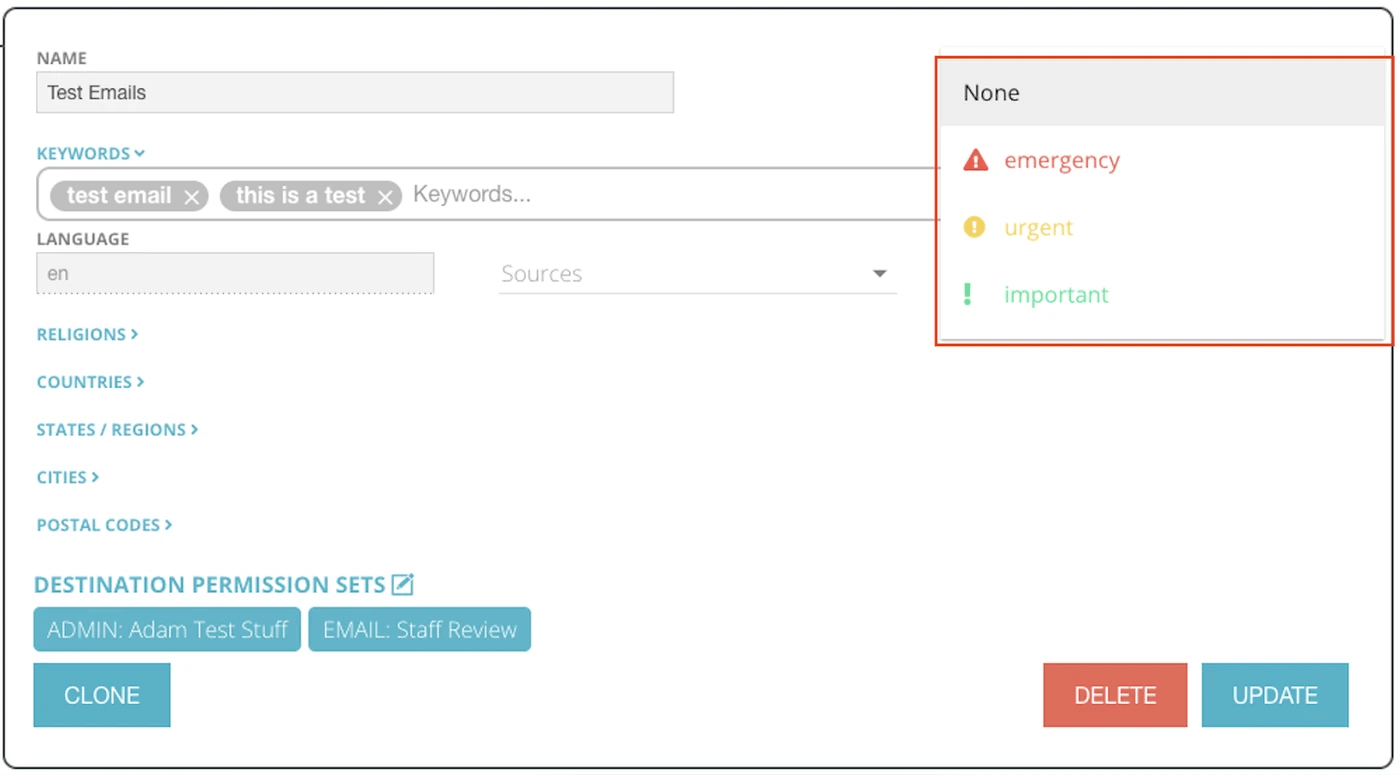
Echo comes with three default filter labels (Emergency, Urgent, Important). When selected in the filter setup, these labels will show on the filtered message as a color and symbol in the Echo inbox to bring awareness to the Echo user.
The Filter Label Creator will expand your ability to provide specific information to your users.
See our Filters Article to learn more about general filter setup.
You can find the Filter Label creation option in your Echo System by going to admin>filter_collections.
Creating A Filter Label
Click on +Create Filter Label
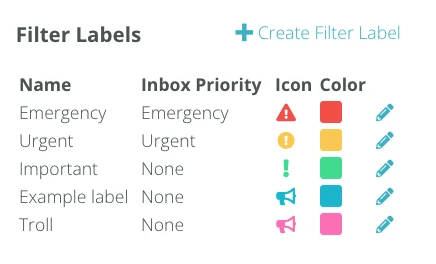
Give your Filter Label a name, select the color you want this label to appear in, select the icon you want to represent this label, and determine the priority of messages containing this label will have in the Echo Inbox. Then click Save.
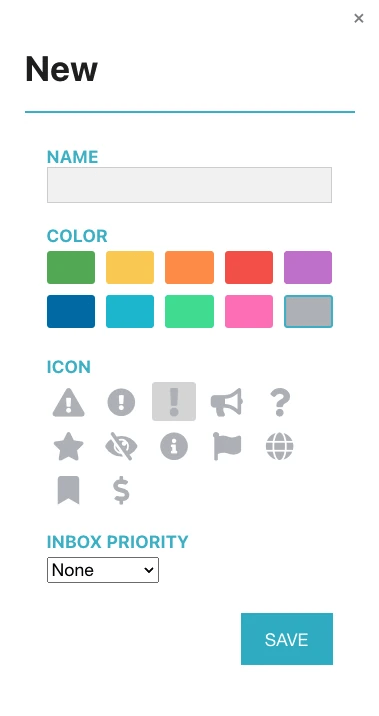
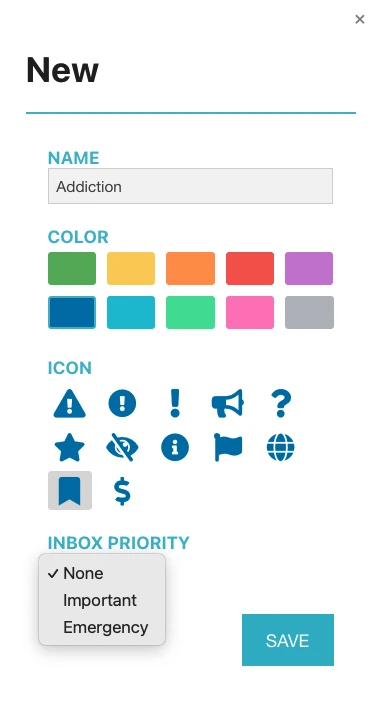
Now, your new label is ready to use and will be in the Label drop down menu when you are creating your filter.
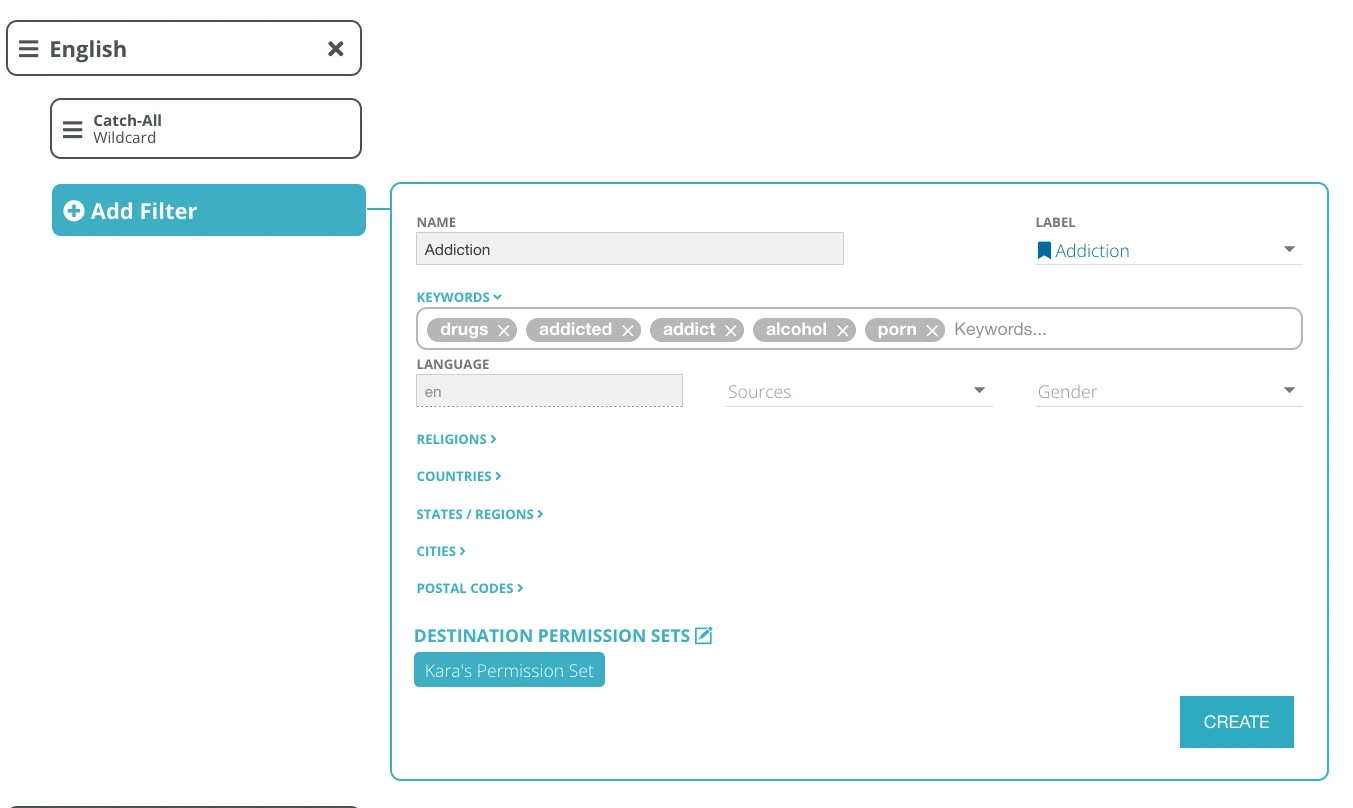
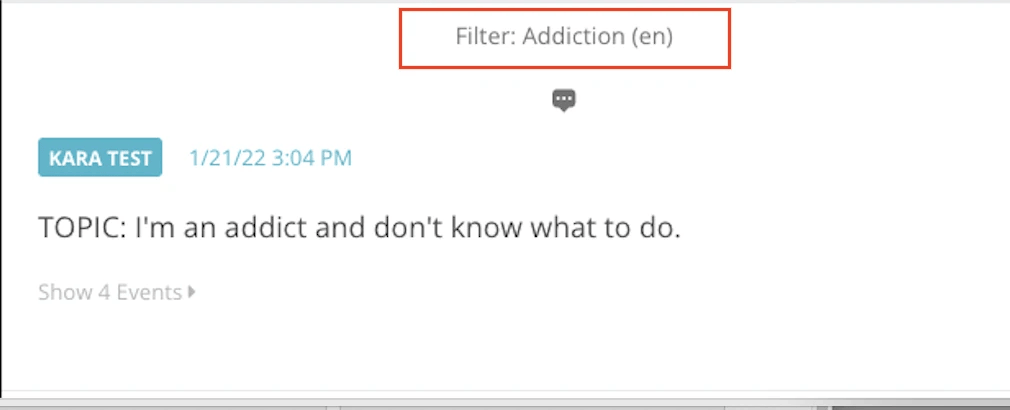
Example: I am going to create a filter for keywords that are common with conversations related to Addiction. I plan to have a group of users that have training in this topic to be the primary responders to these messages.
I am giving my filter label the name of “addiction” and using a navy blue color with unique symbol.
Under Inbox Priority, I already have labels that I’ve marked as emergency and important, since these messages will not match that priority for my team, I am going to mark the priority as “none” and they will come into the inbox in the normal sort order, but will have my blue symbol next to them.
Now, I am going to set up my filter. I’m choosing to give it a similar name, I can add my label in, and my addiction related keywords. My destination permission set for messages that filter here will be my special permission set for users who are trained in responding to these items.
Here is what this will look like when it comes into the Inbox