
The Users screen is the most-used screen in the admin area. It is where a responder is added, activated, given a role, and — when they move on — taken off the account.
Adding somebody here creates their login. It does not decide what they can see; that is a permission set.
Where to find it
In the admin menu, click Users / Permissions.
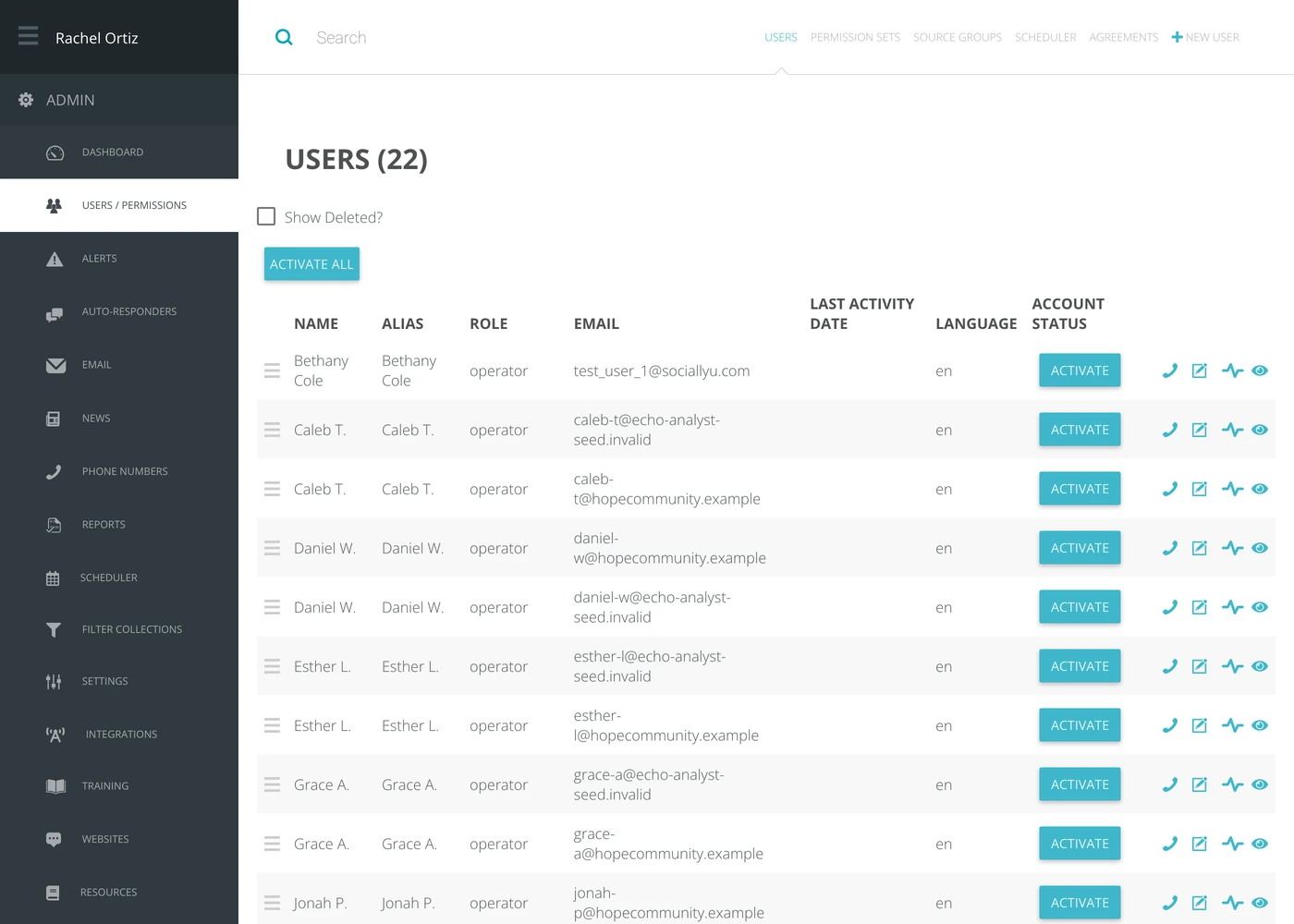
The links across the top right are the five screens that make up people management.

Adding a responder
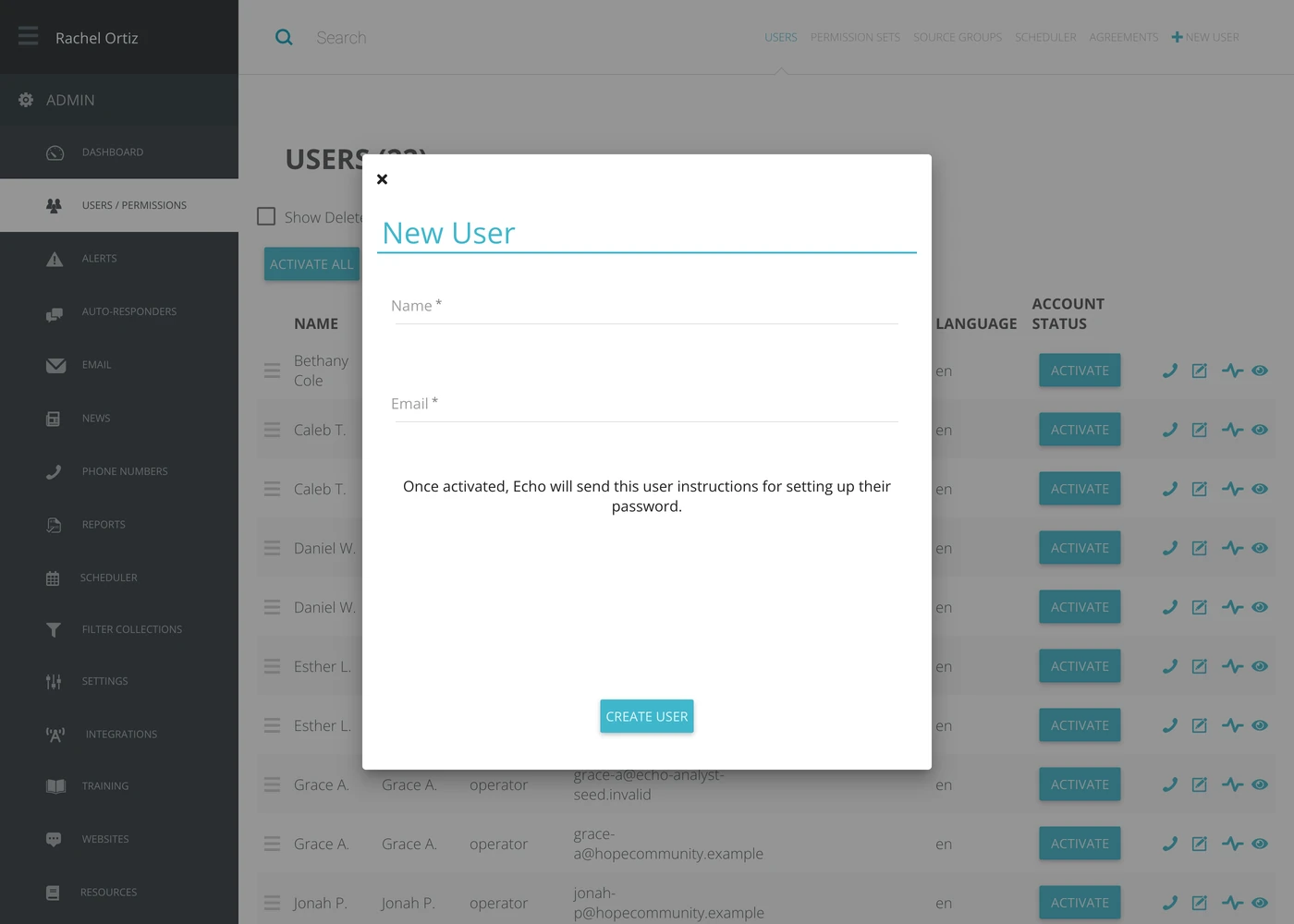
- Click New User.
- Type their Name.
- Type their Email. This is what they sign in with, so it has to be one they can actually read.
- Click Create User.
There is no password to set here. Once the account is activated, Echo emails the responder instructions for setting up their password.
A brand new responder can sign in but will see very little until they are put into a permission set. Add them to one before telling them to log in, or their first experience of Echo is an empty inbox.
Activating an account
The Account Status column shows where each person is up to. A responder who has not been activated has an Activate button in that column instead of a status.
- Click Activate on their row.
- Choose the language their account should use.
- Click Send. Echo emails them the instructions for setting up their password.
When several people are waiting, an Activate All button appears above the table.
What each column tells you
| Column | What it means |
|---|---|
| Name | The responder's full name, for you. |
| Alias | The name a seeker sees. Many ministries use a first name and last initial here. |
| Role | Operator, manager or API. (Admin) appears beside the role when the account is also an admin. |
| What they sign in with. | |
| Last Activity Date | When Echo last saw them. A blank here on a long-standing account usually means somebody who never finished signing in. |
| Language | The language their own screens are shown in. |
| Account Status | Activated, waiting to be activated, or waiting on the responder. |
The icons at the end of a row
| Icon | What it does |
|---|---|
| Phone | Opens the phones attached to this responder, so Echo knows where to ring them. |
| Edit | Opens their account — name, alias, role, password. |
| Activity | Opens their audit trail: what this account has done. |
Finding and restoring people
The search box at the top filters the list as you type. Click any column heading to sort by it.
Tick Show Deleted? to see accounts that have been removed, with the date each was removed. A restore icon appears on those rows.
What the terms mean
| Term | What it means |
|---|---|
| Operator | The ordinary responder role. Answers conversations. |
| Manager | A responder who can also have team members reporting to them. |
| API | An account used by another system rather than a person. |
| Admin | Not a role but a flag on top of one. An admin reaches the admin area. |
| Alias | The name shown to seekers, as opposed to the responder's real name. |
| Activation | The step between the account existing and the responder being able to use it. |
When somebody leaves
Remove the account rather than leaving it in place with the password changed. Their conversations, tags and outcomes all stay in reporting — removing the account takes away the access, not the history.