About:
2-Factor Authentication (2FA) is a simple yet powerful tool that adds an extra layer of protection to your accounts, beyond just a password. In general, 2FA can strengthen your security, protect against identity theft, and provide peace of mind.
Enabling 2-Factor Authentication in Echo:
At the Organization Level:
If you want to require 2FA for all of the users in your Echo system, you can do so from the Admin Module at Admin-Setting and look under Tenant Configuration.
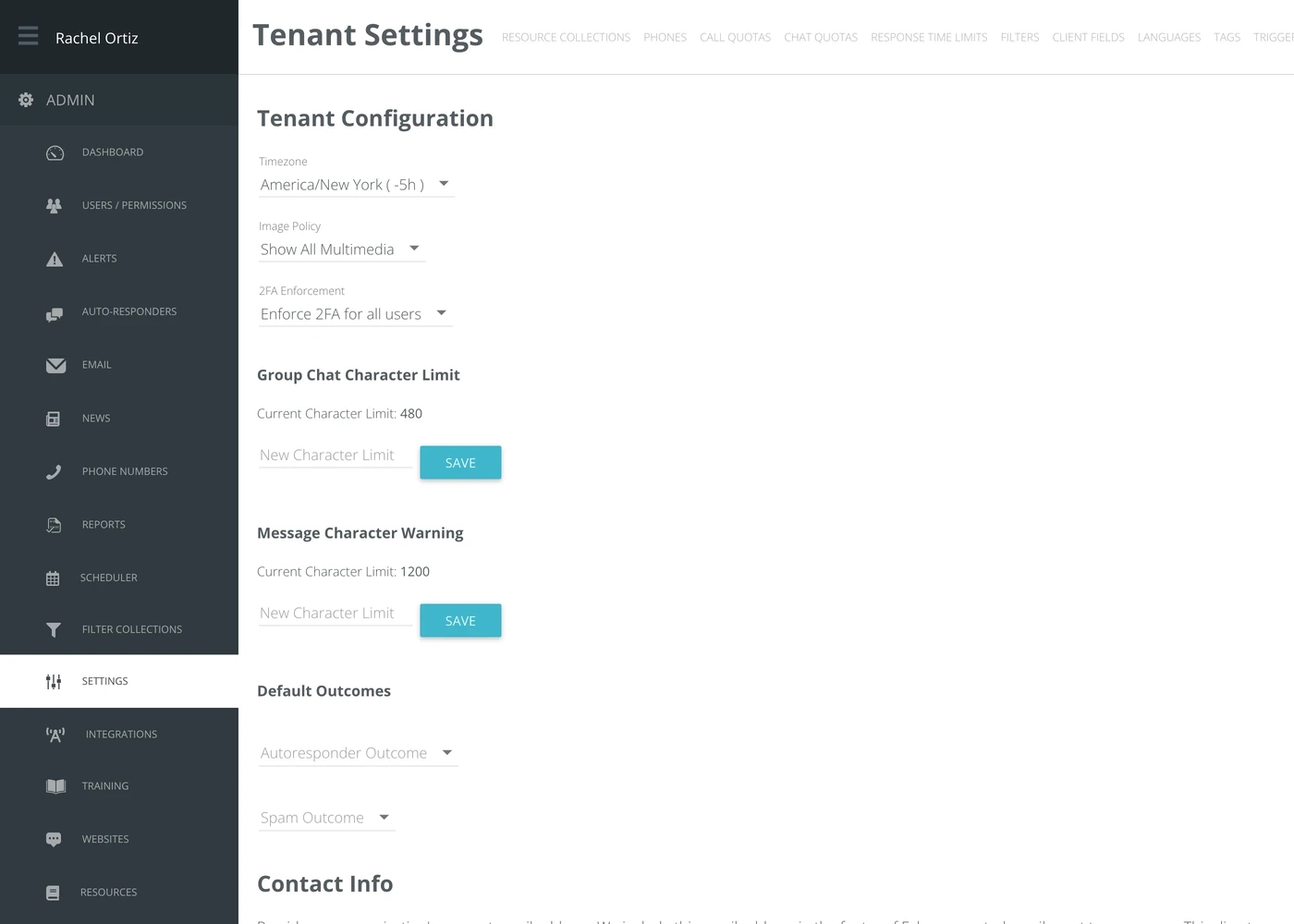
This setting will be defaulted to "Don't enforce 2FA for all users". From the drop down, you can change the setting to "Enforce 2FA for all users". Once you've changed this setting, the next time your users log in, they will be take through the 2FA process for their account.
At the User Level:
If your organization chooses not to enforce 2FA for all users, each individual user has the option to enable 2FA for their own account.
The user can access this option from the User Account Settings by clicking Activate 2-factor authentication.
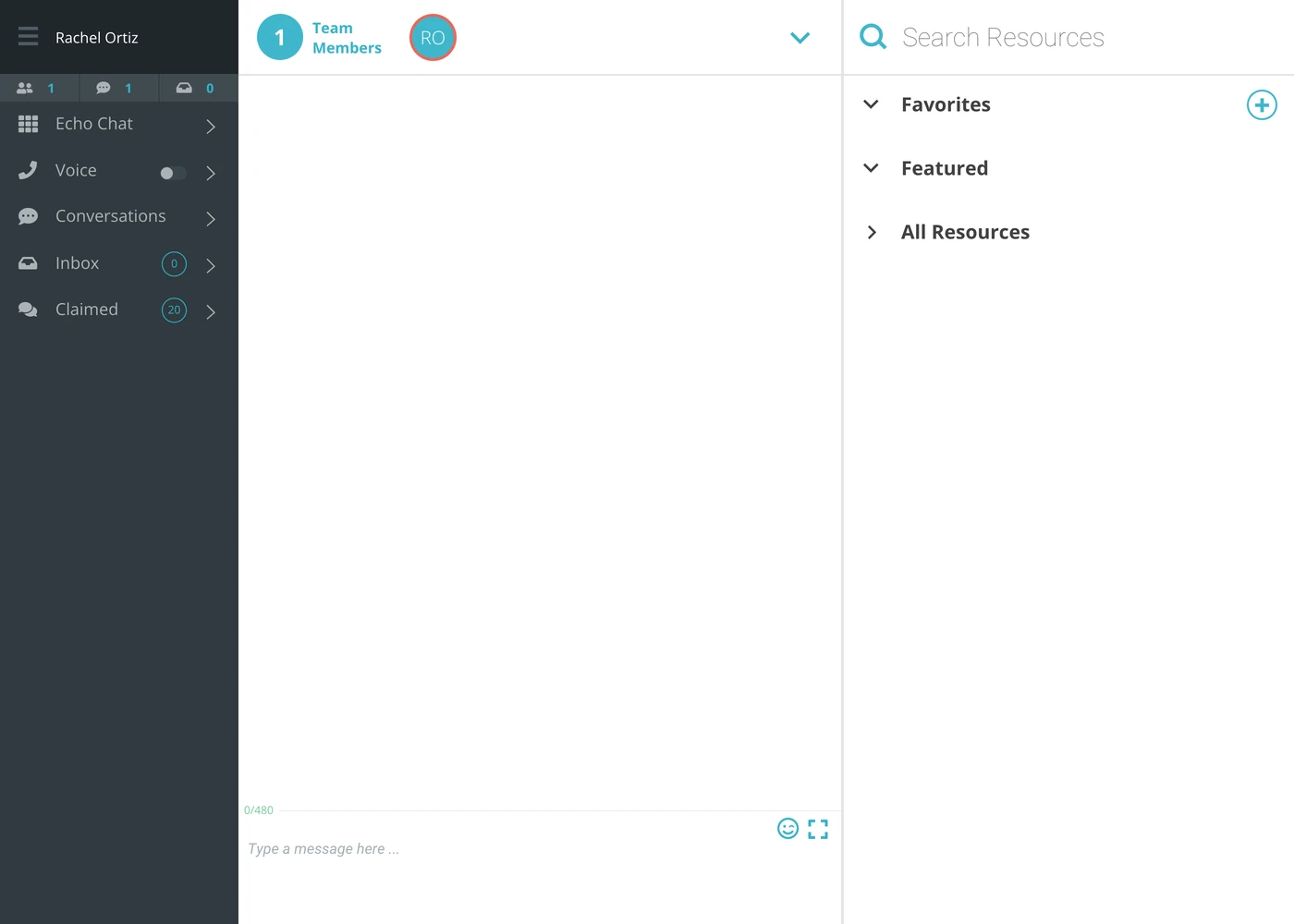
How it Works:
Each user has 2 options for setting 2-Factor Authentication in Echo, chosen from the Verification Method drop down in their User Account Settings: Email, which sends the user a one-time passcode and a login link when they attempt to log in, or Authenticator App if the user has one.
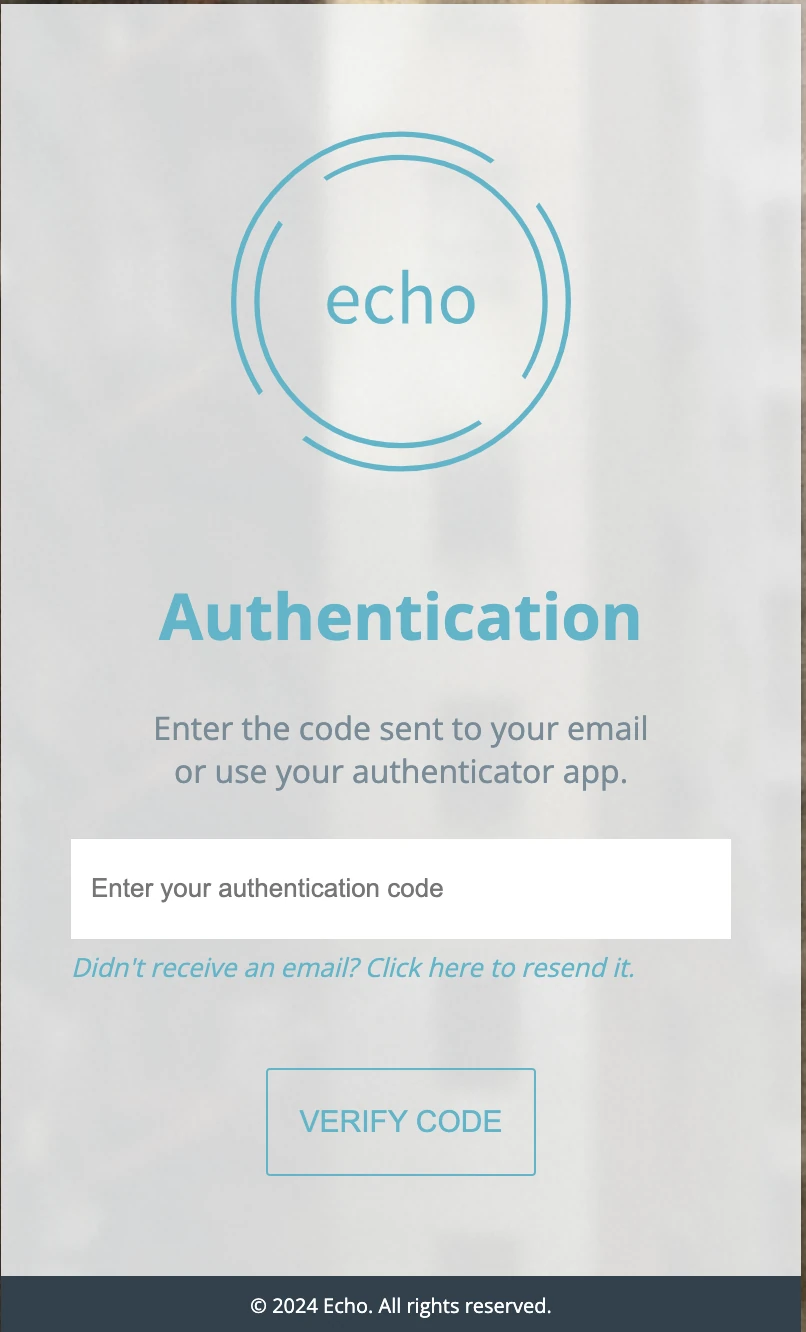
By Code:
When you are asked for 2FA when you sign in, Echo will send an email to the email address associated with your Echo account. In that email, you will find a one-time passcode that you will enter into the Echo screen when prompted. Once entered, you will be logged into Echo. (Please check your spam folder if you don't see it in your email inbox).
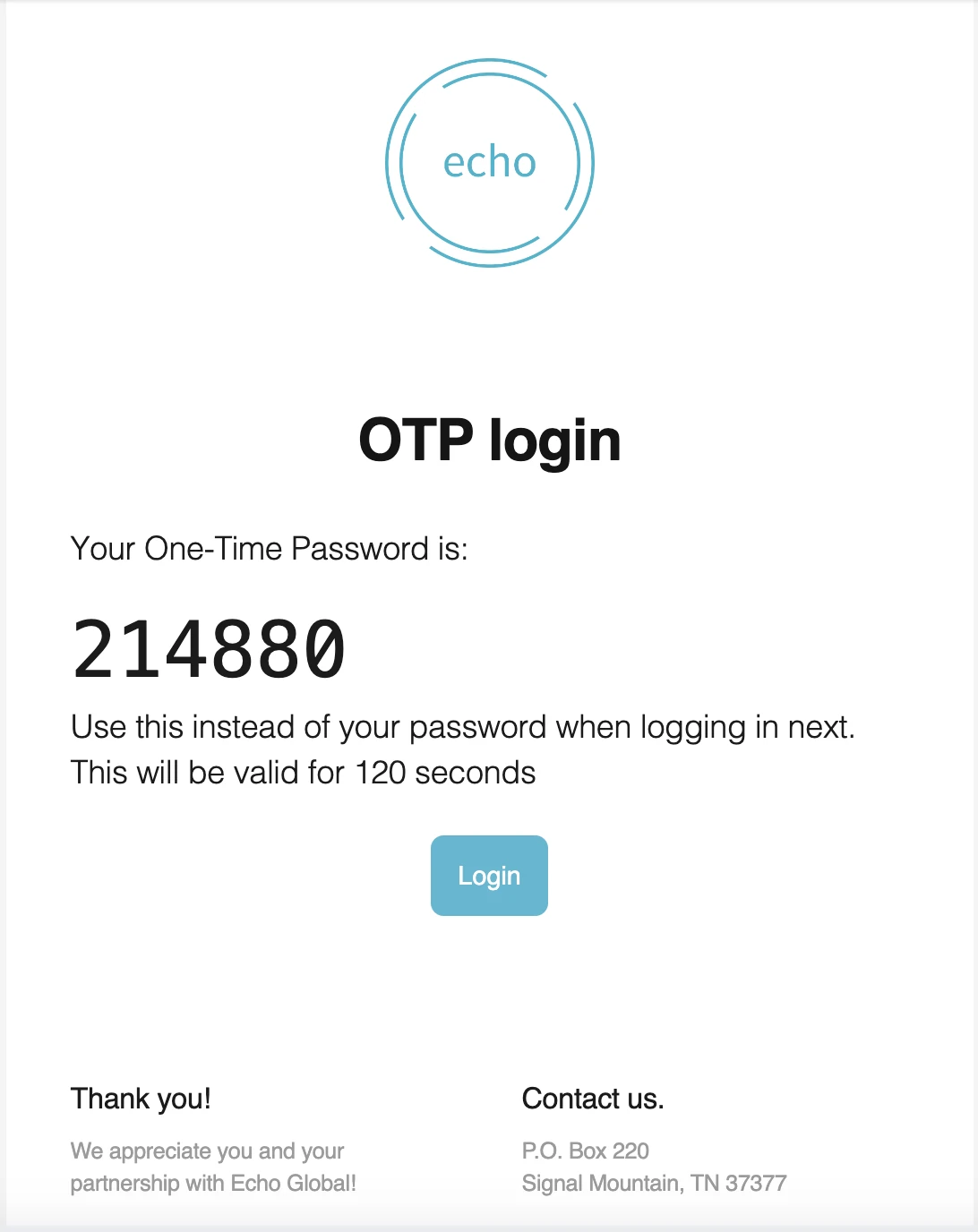
By Link in Email:
When you are asked for 2FA when you sign in, Echo will send an email to the email address associated with your Echo account. In that email, in addition to the one-time passcode, you will also see a button that says "Login". When you click that button, it will enact the 2-factor authorization and log you in to Echo. (Please check your spam folder if you don't see it in your email inbox).
Authenticator App:
If you have an authenticator app on your device, you can go to your account settings in Echo, choose Authenticator App under Verification Method, and connect Echo to your Auth App by using the "Get TOTP QR code". Once connected, you can use your Auth App to receive a code when you are prompted for 2-Factor Authentication in Echo.
Additionally, In your Echo User Account settings, you will see an option for "Get TOTP URL". This link can also be used to connect Echo to your Authenticator App.
*At this time we do not offer receiving code via SMS due to international restrictions in sending SMS.