A seeker who writes in and waits is the person this report is about. It shows how quickly your responders answer once a conversation is theirs, and, responder by responder, how long they take to claim a conversation, work it, and close it.
Where to find it
Click Reports in the Echo menu, open the Users group in the left sidebar and click Response Time. The page holds two cards: Response Time Stats for the whole team and User Performance Stats for each responder.

Set up and run the report
- Click Sources and choose the channels to include. Phone calls are not part of this report.
- Click Permission Sets if you only want the responders in certain sets. With none chosen, all responders are included.
- Set the Created At / Closed At switch and choose the date range.
- Click Run Report on each card. The two cards run separately.
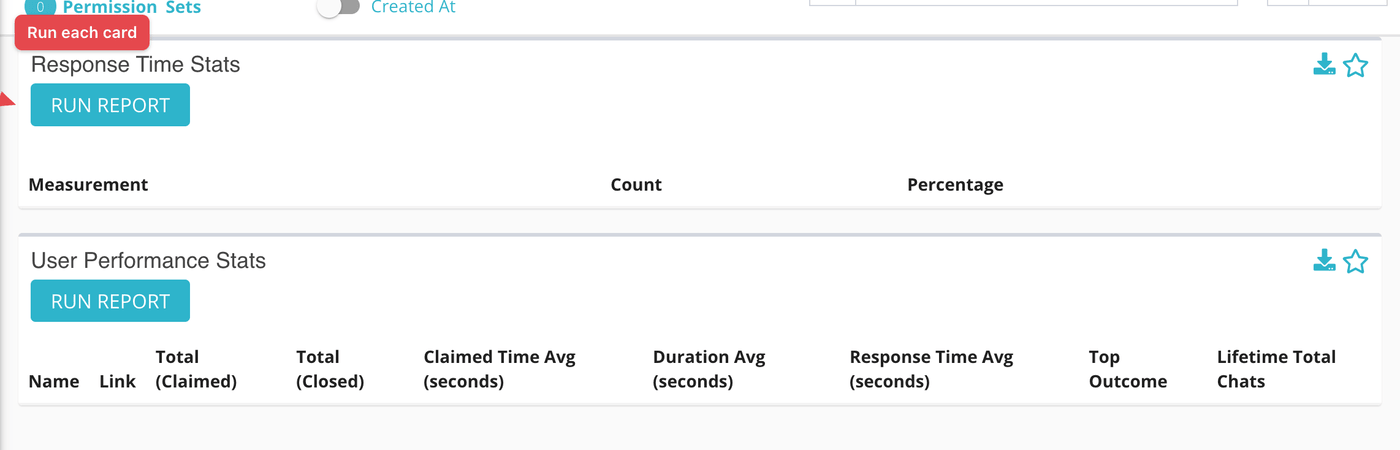
Response Time Stats
This card splits every reply your responders sent into two groups by how long the seeker waited.
| Column | What it means |
|---|---|
| Measurement | < 24 Hours or > 24 Hours. |
| Count | How many replies fell in that group. |
| Percentage | That group's share of all replies, as a whole number. |
User Performance Stats
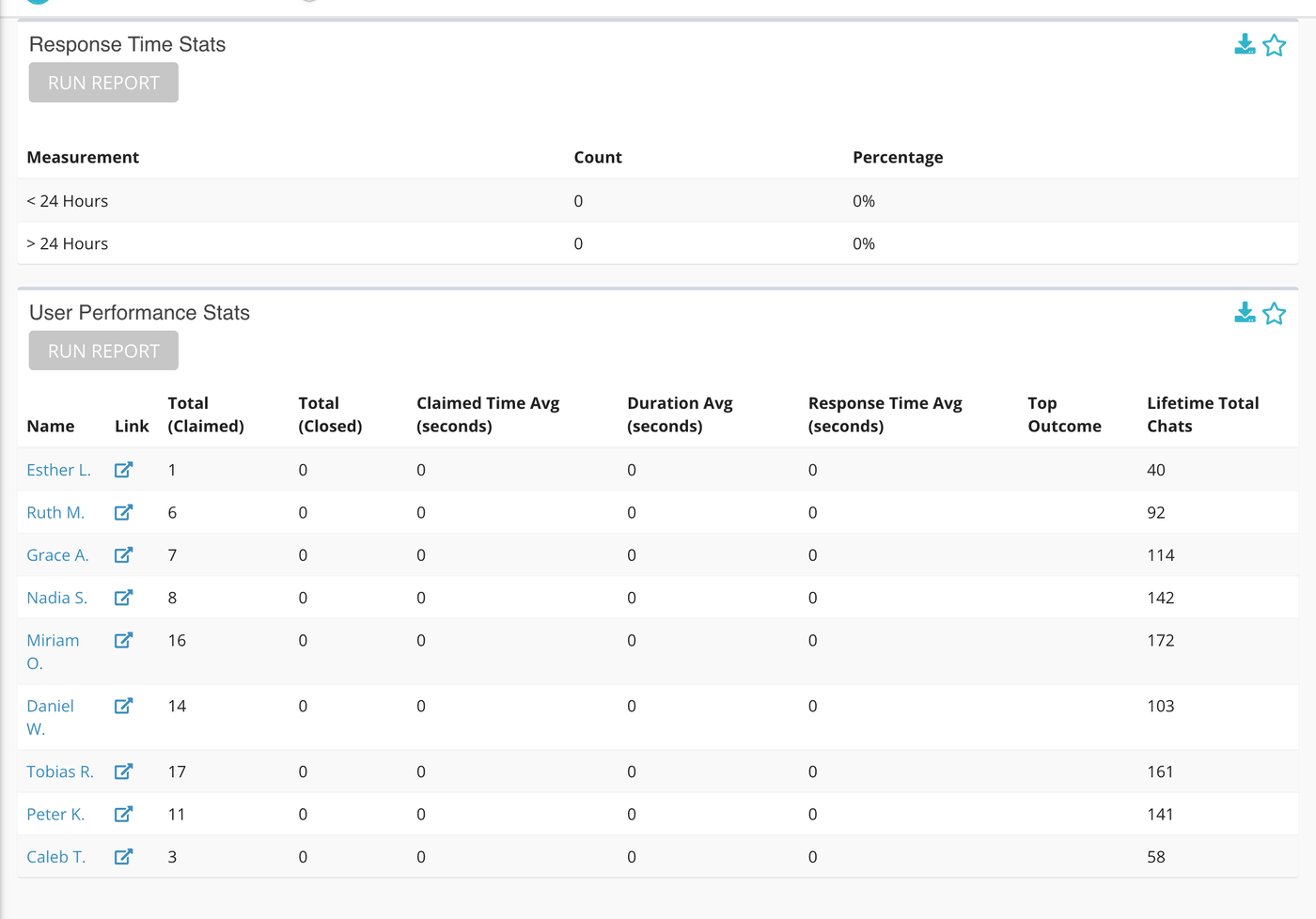
One row per responder who claimed at least one conversation in your date range.
| Column | What it means |
|---|---|
| Name | Click to open a panel with that responder's detail for the same dates. |
| Link | Opens the same detail page in a new tab. |
| Total (Claimed) | Conversations the responder claimed in range. |
| Total (Closed) | Of those, how many have been closed. |
| Claimed Time Avg (seconds) | The average time from a conversation starting to the responder claiming it. |
| Duration Avg (seconds) | The average time from claiming to closing. Conversations that ran over 24 hours are left out of this average. |
| Response Time Avg (seconds) | The average wait between a seeker's message and a reply in this responder's conversations. |
| Top Outcome | The outcome this responder chose most often, with the count in brackets. Outcome names appear in lowercase with underscores between words. |
| Lifetime Total Chats | Every conversation ever assigned to this responder, whatever the date range. |
What the measurements mean
| Term | What it means |
|---|---|
| Response time | The seconds between a seeker's message and the responder's next message in that conversation. It is recorded for each reply that directly follows a seeker message, not only the first one. |
| Claimed | A responder took the conversation from the inbox and it became theirs. |
| Replies are recorded afterward | A reply appears in this report about a minute after it is sent, so a reply from the last moments before you run the report may be missing. |
What to keep in mind
- Only conversations that have a responder are counted. Conversations nobody has claimed do not appear on either card.
- The numbers are in seconds. Divide by 60 for minutes.
- For calls, use the Missed Calls Report, which measures how long callers waited.