This report puts every responder on one row and shows what they handled and how it ended. Use it when you want to know who carried the work, how much of it is still open, and which outcomes your responders are choosing.
Where to find it
Click Reports in the Echo menu. In the left sidebar, open the Users group and click Convs & Outcomes. The report card is titled User Conversations and Outcomes.

Set up and run the report
- Click Sources at the top of the page and choose the channels and phone numbers you want counted. Every kind of source you pick gets its own columns in the table.
- To list only some responders, click Permission Sets and choose one or more sets. If you choose none, every active responder is listed.
- Set the switch beside them to Created At or Closed At. Created At counts conversations by when they started; Closed At counts them by when they were closed.
- Pick the date range and, if you need to, the time zone.
- Click Run Report on the report card. The numbers do not load until you do.

Reading the table
The columns you see depend on the sources you chose and on the outcomes your ministry has switched on.
| Column | What it means |
|---|---|
| Name | The responder. Click the name to open that responder's detail page in a new tab. |
| Email Address | The responder's login email. |
| Calls | Inbound calls this responder accepted, on the phone numbers you chose. This column appears only when you chose at least one phone number. |
| Open Calls | The accepted calls above whose status is not yet complete. |
| One column per kind of source, such as Chats, Texts or Email | Conversations assigned to this responder from that kind of source, within your date range. |
| Open plus a source kind | How many of those conversations are still open. |
| One column per outcome | How many times this responder's conversations and calls were given that outcome. |
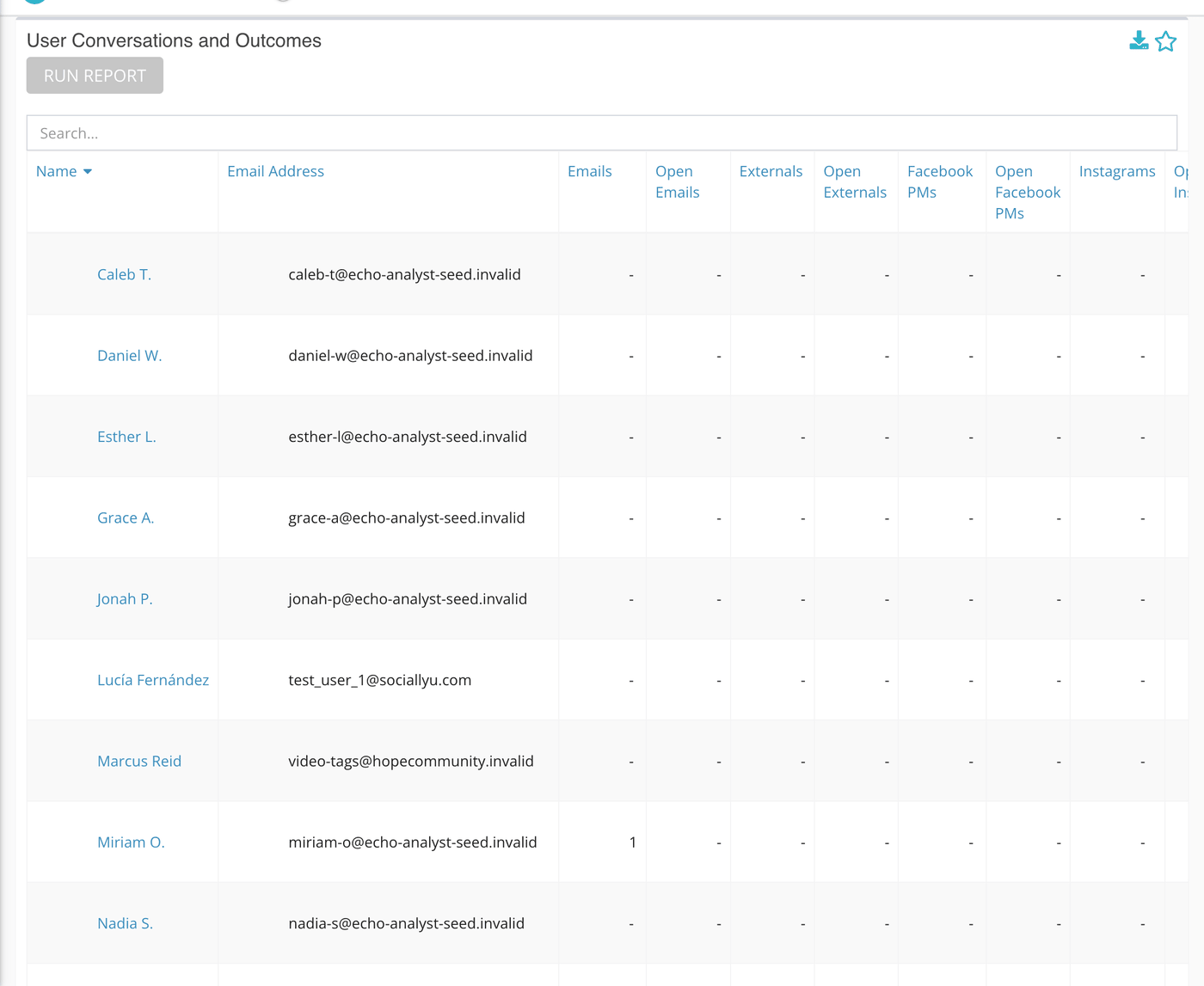
Type in the Search box to narrow the rows, and click a column heading to sort by it. The download icon on the card saves the table in the format set in your user preferences. The star pins the card to the Reports dashboard.
What the measurements mean
| Term | What it means |
|---|---|
| Assigned to a responder | The responder who holds the conversation now. A conversation is counted once, for that responder. |
| Open | A conversation the responder has claimed that has not been completed. Conversations that belong to an autoresponder are not counted. |
| Outcome | The result a responder records when they finish a conversation or call. Only outcomes that are currently switched on appear as columns, and a conversation counts only if an outcome was recorded on it. |
| Kind of source | Sources of the same type are added together. If you chose three chat websites, they share one Chats column. |
| Created At / Closed At | Which date your date range is applied to for conversations. See Status and Outcome reports for how outcomes are set up. |
What to keep in mind
- Only inbound calls the responder accepted are counted. Outbound calls and calls that were offered but not accepted are not in this table.
- A responder with nothing in range still gets a row of zeros, because the row list comes from your permission sets (or from all active responders), not from activity.
- This report counts. For time online, replies and seeker responses, use the User Performance Report.