This heatmap shows how many responders were online in each hour. It is your coverage map: the hours with the deepest shading are the hours you have the most people available. Put it next to the conversation heatmaps and you can see whether your people are online when seekers are reaching out.
Where to find it
In Reports, open Heatmaps in the left menu and click Users Online. The page title reads User Coverage (Users Online per Hour), with the note Count of users online for at least X minutes in a given hour.
Running it
- Click Reports in the main menu.
- In the left menu, open Heatmaps and click Users Online.
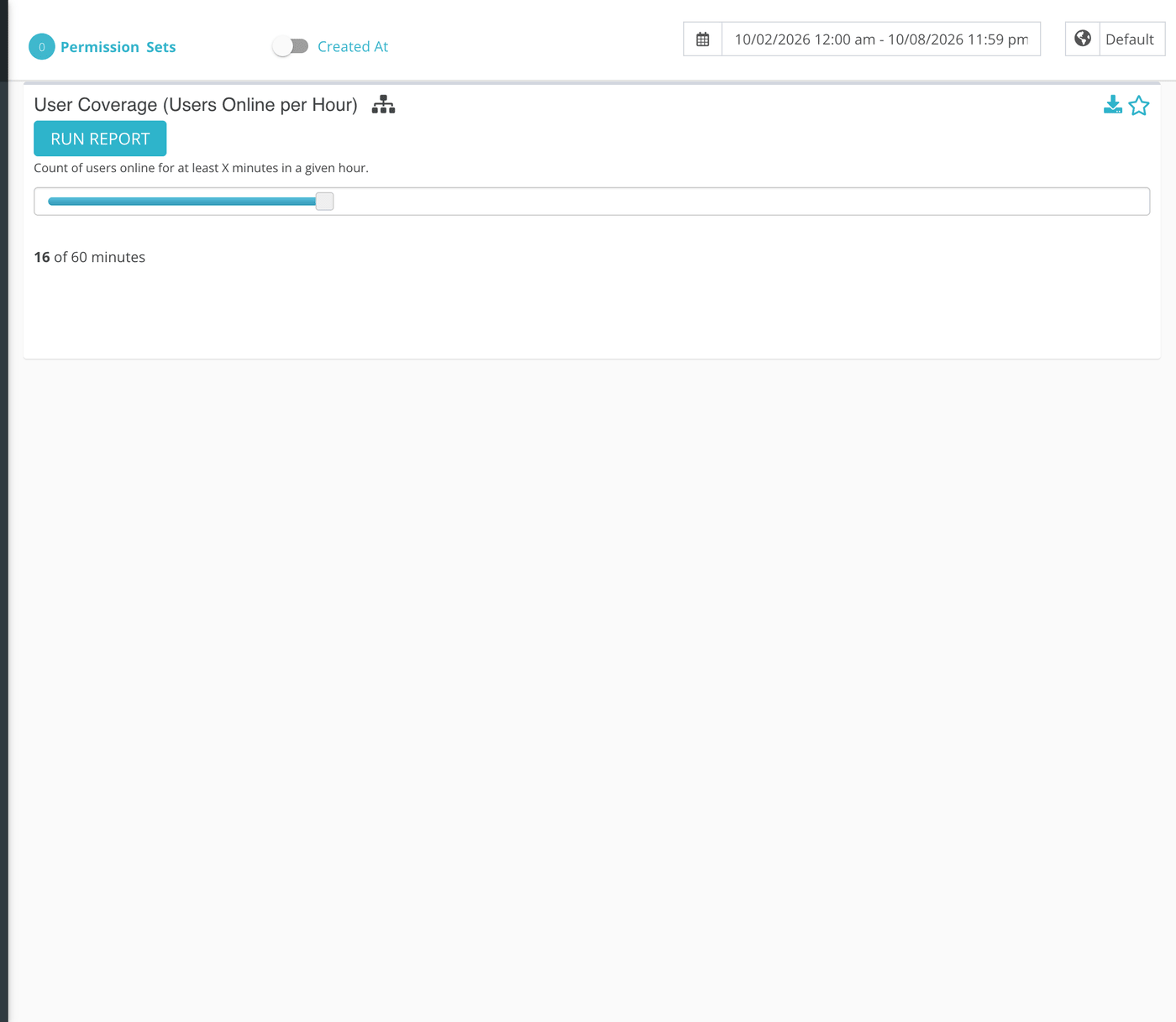
- Pick a date range at the top of the page.
- To count only some of your people, click Permission Sets and choose the sets whose members you want. Leave it alone to count everyone. This report has no Sources picker, because it counts people, not conversations.
- Drag the slider to set how long someone must be online in an hour to be counted. The label beside it reads, for example, 16 of 60 minutes.
- Click Run Report.
What each cell counts
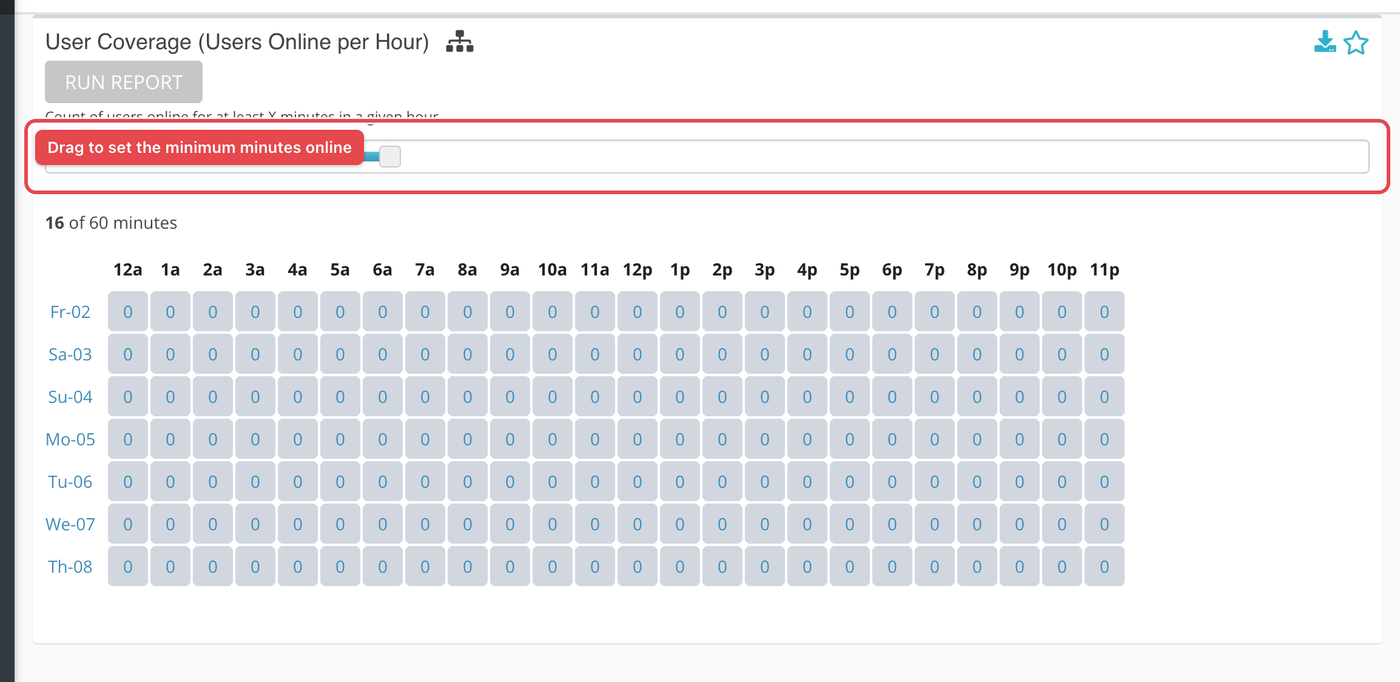
Each cell is a number of people: the responders who were online for more than the slider's minutes in that hour. The slider starts at 15, so by default a responder counts in an hour if they were online for 16 minutes or more of it. Drag it to 0 to count anyone who was online at all in the hour, or toward 59 to count only people who were there for nearly the whole hour.
A responder counts once per hour, however many times they went on and offline in it. The same person appears in every hour they meet the threshold.
Online time comes from the record of when each responder went online and offline in Echo. Gaps shorter than five minutes between going offline and coming back are treated as continuous, so a brief reconnect does not break someone's hour. Echo totals each person's online minutes per hour in the background shortly after the hour ends, so the most recent hour or two may not show up yet.
Reading the grid
The report is one table. Each row is one day in your date range, labeled with the first two letters of the weekday and the day of the month, such as Mo-05. Each column is one hour of the day, from 12a to 11p. Hours are counted in the time zone chosen next to the date range, which starts as your ministry's time zone.
Each cell is a count. Cells are shaded from pale to deep blue-green in steps, and the shading is relative: the busiest cell on the screen gets the deepest color, and an hour with a count of zero is left unshaded. Two reports side by side will not use the same scale, so read the numbers, not just the color.
| Control | What it does |
|---|---|
| Run Report | Builds the grid for the date range, time zone and sources currently selected. After you run it the button stays grayed out until you change one of them. |
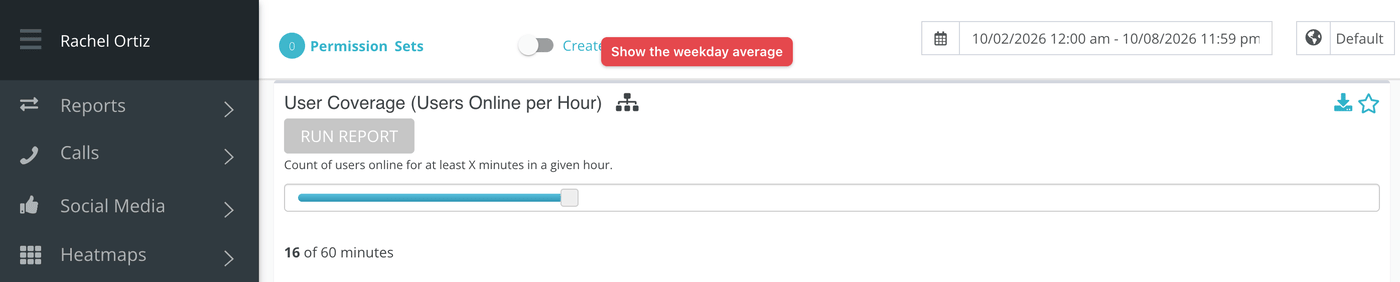
| Average (the small network icon, with the tooltip Average) | Collapses the grid to one row per weekday. Each cell becomes the average for that weekday and hour across the days in your range, rounded down to a whole number. Click it, then run the report again. |
| Download (the arrow icon) | Downloads the same data as a file, in your account's download format. |
| Star | Pins this report as a card you can come back to quickly. |
What the measurements mean
| Term | What it means |
|---|---|
| Online | Signed in to Echo and set to receive conversations. Echo reads this from each person's online and offline events. |
| Threshold (slider) | The minimum number of minutes in an hour a responder has to be online to be counted. The report counts those with strictly more than the slider value, so the label shows the slider plus one. |
| Permission set | A group of responders who share the same access. Choosing permission sets narrows the count to the people in them. |
| Coverage | How many of your people were online in an hour. It says nothing about whether they answered; compare it with the Claimed heatmap for that. |
What to do with it
Lay it over the Inbound Conversations Heatmap for the same dates. Hours that are dark in Inbound and pale here are your gaps, and they are the hours to recruit for or to adjust the scheduler around. Hours where many people are online but few conversations arrive are hours you may be over-covered.