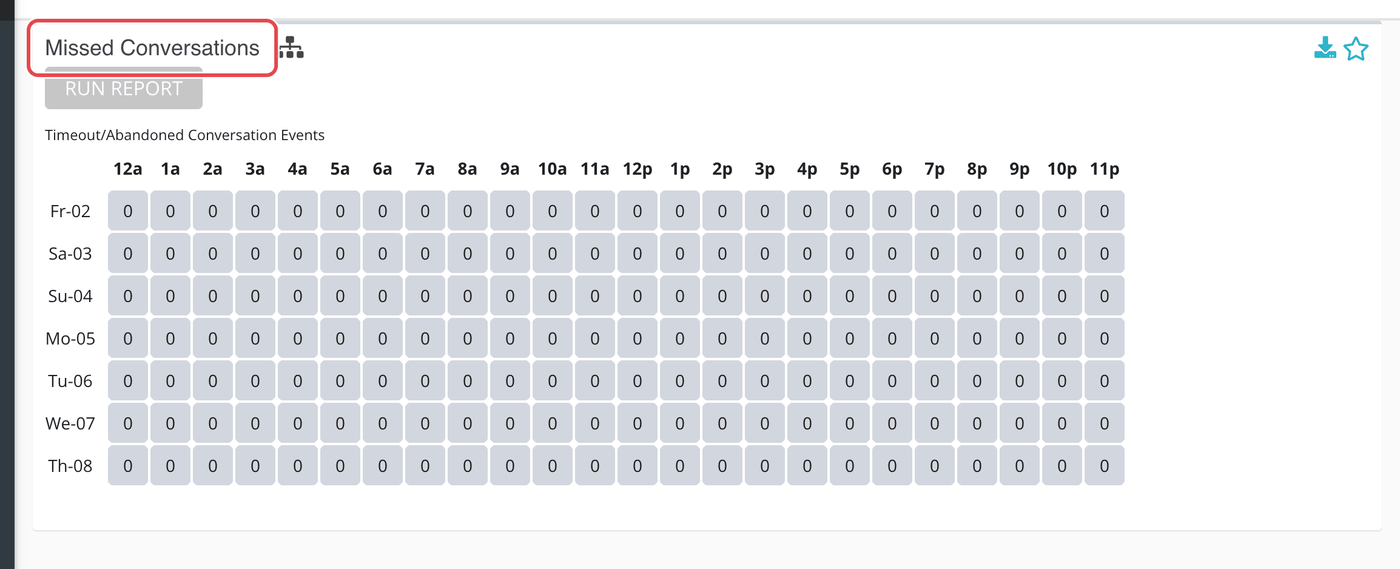
This heatmap shows when seekers were left waiting. It counts the moments a conversation timed out or was abandoned before anyone claimed it, and the moments a phone call went unanswered or the caller hung up. The tall hours are the hours your coverage has holes.
Where to find it
In Reports, open Heatmaps in the left menu and click Missed. The page title reads Missed Conversations, with the note Timeout/Abandoned Conversation Events.
Running it
- Click Reports in the main menu.
- In the left menu, open Heatmaps and click Missed.
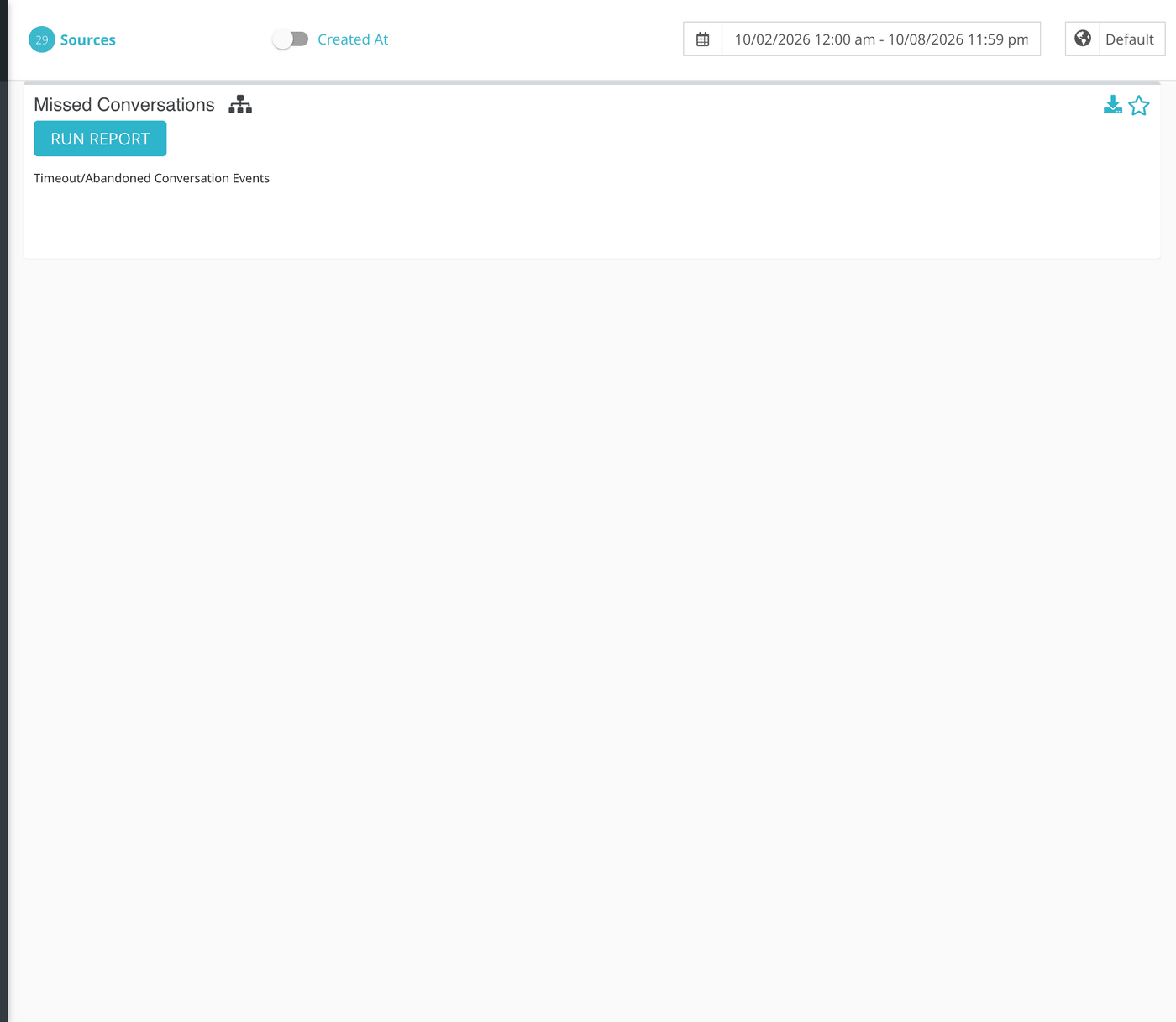
- Pick a date range at the top of the page. Seven days gives a clear weekly pattern; a few weeks gives a steadier one.
- Click Sources and tick the conversation sources and phone numbers you want included. Phone numbers appear in the same list as your other sources.
- Click Run Report.
What each cell counts
Like the Claimed heatmap, this report counts events: log entries Echo writes when a status changes. It adds up events with one of these statuses, in the hour each was recorded:
| Status | Applies to | What it means |
|---|---|---|
| Timeout | Conversations | The conversation was still waiting, with nobody having claimed it, when it timed out. For a website chat, the visitor was still on the page when the chat timeout passed. Other waiting conversations can also expire. |
| Abandoned | Conversations | The conversation was still waiting when the seeker went away. For a website chat, the visitor left before the chat timeout passed. The default chat timeout is 75 seconds unless the website is set to something else. |
| Unanswered | Phone calls | Responders were rung and none of them accepted the call. |
| Hangup | Phone calls | For an incoming call, the caller hung up before any responder was rung. |
A conversation that is later answered by hand still counts here if it first timed out or was abandoned, because the report counts the event, not the final outcome.
The Created At / Closed At switch in the header does not change this report.
Reading the grid
The report is one table. Each row is one day in your date range, labeled with the first two letters of the weekday and the day of the month, such as Mo-05. Each column is one hour of the day, from 12a to 11p. Hours are counted in the time zone chosen next to the date range, which starts as your ministry's time zone.
Each cell is a count. Cells are shaded from pale to deep blue-green in steps, and the shading is relative: the busiest cell on the screen gets the deepest color, and an hour with a count of zero is left unshaded. Two reports side by side will not use the same scale, so read the numbers, not just the color.
| Control | What it does |
|---|---|
| Run Report | Builds the grid for the date range, time zone and sources currently selected. After you run it the button stays grayed out until you change one of them. |
| Average (the small network icon, with the tooltip Average) | Collapses the grid to one row per weekday. Each cell becomes the average for that weekday and hour across the days in your range, rounded down to a whole number. Click it, then run the report again. |
| Download (the arrow icon) | Downloads the same data as a file, in your account's download format. |
| Star | Pins this report as a card you can come back to quickly. |

What the measurements mean
| Term | What it means |
|---|---|
| Missed | In this report, any of the four statuses above: Timeout, Abandoned, Unanswered or Hangup. |
| Event | A log entry written when a conversation or call changes status. One conversation or call usually produces one missed event. |
| Source | A channel your ministry connected, or a phone number. Only events on the ones you select are counted. |
What to do with it
Read this beside the Inbound Conversations Heatmap. A tall hour here that is also tall there is an hour you were busy and still lost people; a tall hour here with a pale arrival hour means a few people waited and nobody came. If the gap repeats at the same hour each week, adjust your schedule in the scheduler. For the call detail, see the Missed Calls Report.