When you export a report from Echo, the file is built in the background and listed on the Exports page. This is where you find a file again, download it, or see why one did not arrive. The page's heading reads GraphQL Exports.
This page is not the GraphQL API. It lists the files made by the Export button on the Conversations and Clients reports. To pull data into your own system with an API token, see GraphQL API.
It is available to admins and to responders whose permission set lets them view reports.
Making an export
- Open the Conversations or Clients report in the Analytics section of the menu and set your filters.
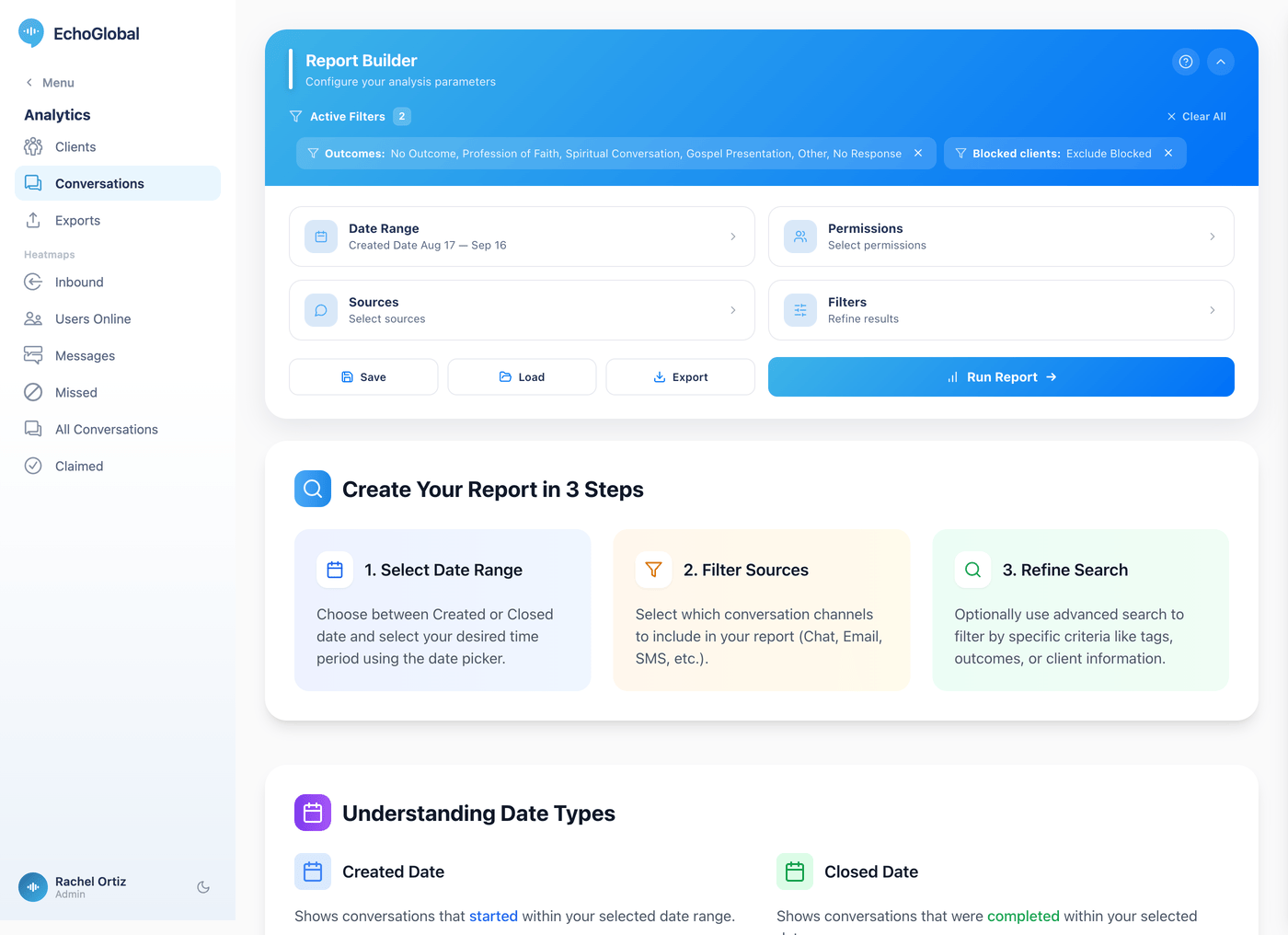
- Click Export, next to Save and Load.
- Under Export Format, choose xlsx or CSV.
- Under Delivery Method, choose Direct Download or Email Delivery.
- Click Export Report.
With Direct Download, a message appears with a link to follow when the file is ready. With Email Delivery, Echo emails the address on your account when the file is done. The email is titled Your Export is Ready, followed by the export's name, and has a Download Export link. Echo recommends email delivery for reports with over 10,000 records.
Finding your exports
In the Analytics section of the menu, click Exports. The list shows every export for your ministry, newest first. It is shared: you see exports made by anyone at your ministry, not only your own.
| Column | What it shows |
|---|---|
| ID | The export's number, such as #42. |
| Name | Where it came from and when it was made. Names look like conversations_export_20260901_142530 or clients_export_…, with the date and time of the request. An export that found nothing has (No Data) added. |
| File Type | CSV or XLSX, whichever you chose. |
| Status | One of Pending, Processing, Completed, Failed or No Data. See the table below. |
| Created At | The date the export was requested. |
| Actions | Parameters when the filters were recorded, and Download when the file is ready or View when it is not. |
What the statuses mean
| Status | What it means | What to do |
|---|---|---|
| Pending | Waiting for Echo to start building the file. | Wait a moment. Click View to watch it. |
| Processing | The file is being built. | Click View. The page shows rows processed so far and refreshes by itself every few seconds. |
| Completed | The file is ready. | Click Download. |
| Failed | Something went wrong. Hover over the badge to see the reason. | Try the export again. An export stuck without progress for over an hour is marked Failed automatically. |
| No Data | Your filters matched nothing. | Widen the date range or sources and export again. |
Downloading a file
- On the Exports page, click Download on a Completed row.
- The file saves under the export's name, ending in
.csvor.xlsx.
Files are kept for 7 days after they finish. After that the row stays in the list but the file is removed, and the page shows Download Expired. Make a new export if you need it again. The file can contain seekers' names and contact details, so store it with the same care as your inbox.
Seeing what was exported
Click Parameters on a row to see the settings the export was made with: the start and end dates, the sources (shown by name), any phone numbers, the date field used, and each filter that was applied. It is the quickest way to tell two similar exports apart.
What is in the files
A conversations export has one row per conversation or call, with these columns: ID, Type, Topic, Name, User, Referrer, Phone/IP/Email, Gender, Age, Outcome Title, Duration (minutes), Date, Closed At, City, Region, Country, Status, Flag, Tags, Notes, Expiration Date and PDF.
A clients export has one column per client detail Echo returns for your ministry, so its columns can differ from one ministry to the next.
CSV files begin with a marker that lets Excel read accented and non-Latin characters correctly, so they should open cleanly without the import wizard.
What the terms mean
| Term | What it means |
|---|---|
| Export | A file of report data that Echo builds on request, in the background, so a long report does not hold up your screen. |
| Direct Download | You get a link on screen and fetch the file yourself when it is ready. |
| Email Delivery | Echo emails you a link to the file when it is ready. |
| Parameters | The filters and dates the export was made with. |
| Expired | The file has been removed after 7 days. The record of the export stays. |