The Geolocation report shows where in the world your conversations come from: a map of seekers, and a table of conversations by country with how each one ended. Use it to see which countries your ministry reaches and whether seekers there are getting an answer.
Running the report
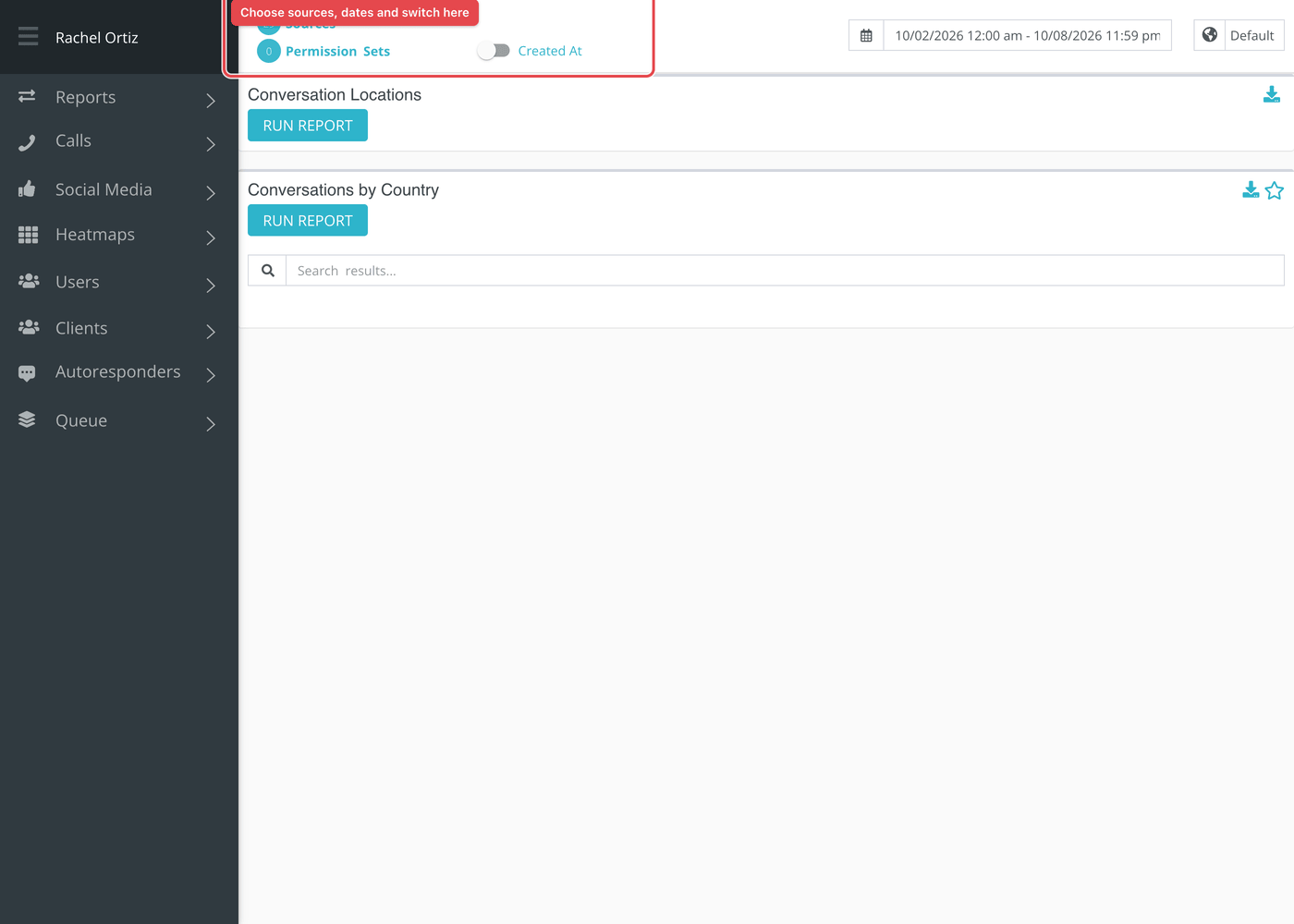
- Open Reports from the main menu. In the left-hand menu, under Reports, click Geolocation.
- Click the date range at the top of the page and choose your dates. The globe menu beside it sets the time zone, which starts on your ministry's own.
- Click Sources and choose the conversation sources to include. The number beside it shows how many are chosen.
- Optional: click Permission Sets to count only conversations that someone in those sets claimed. Leave it empty to include everyone.
- Use the switch to choose Created At or Closed At. Created At places a conversation on the day it started. Closed At places it on the day it closed, so conversations that are still open are not counted.
- Click Run Report on each card you want to see. A card does not load until you do, and the button stays gray until you change a filter.
Larger date ranges can take a little while. Reports that are still being built are listed under Queue at the bottom of the left-hand menu, which reads "All Reports Finished Loading" when none are waiting.
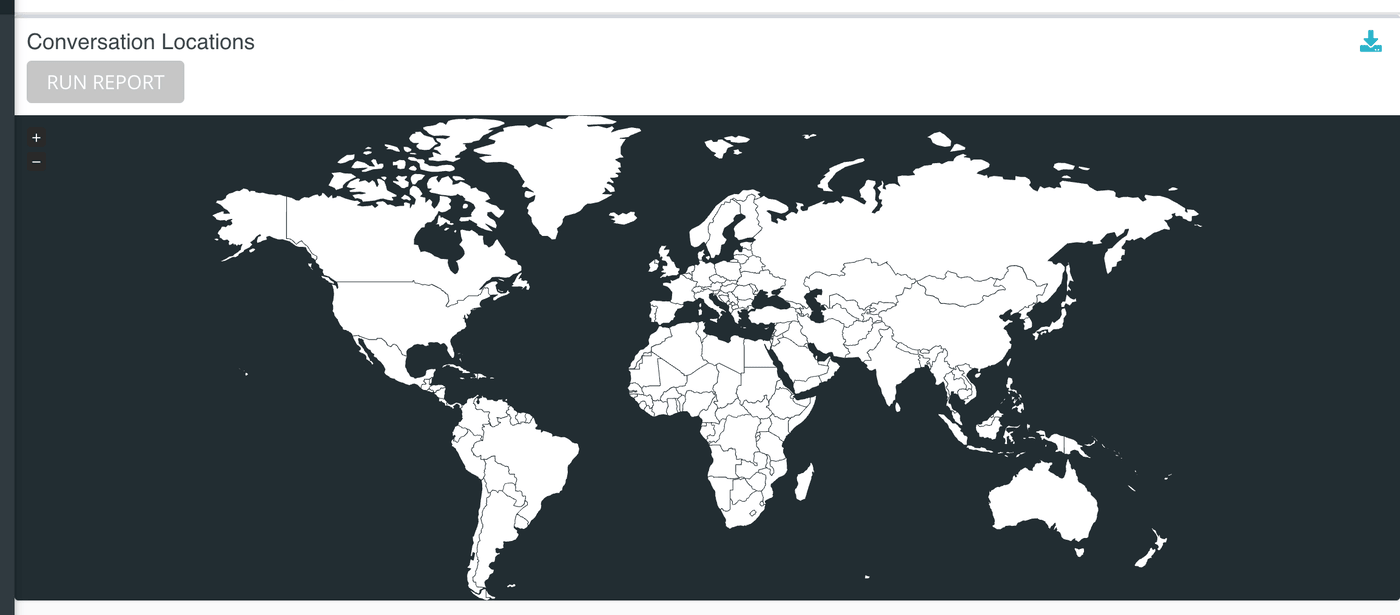
Conversation Locations
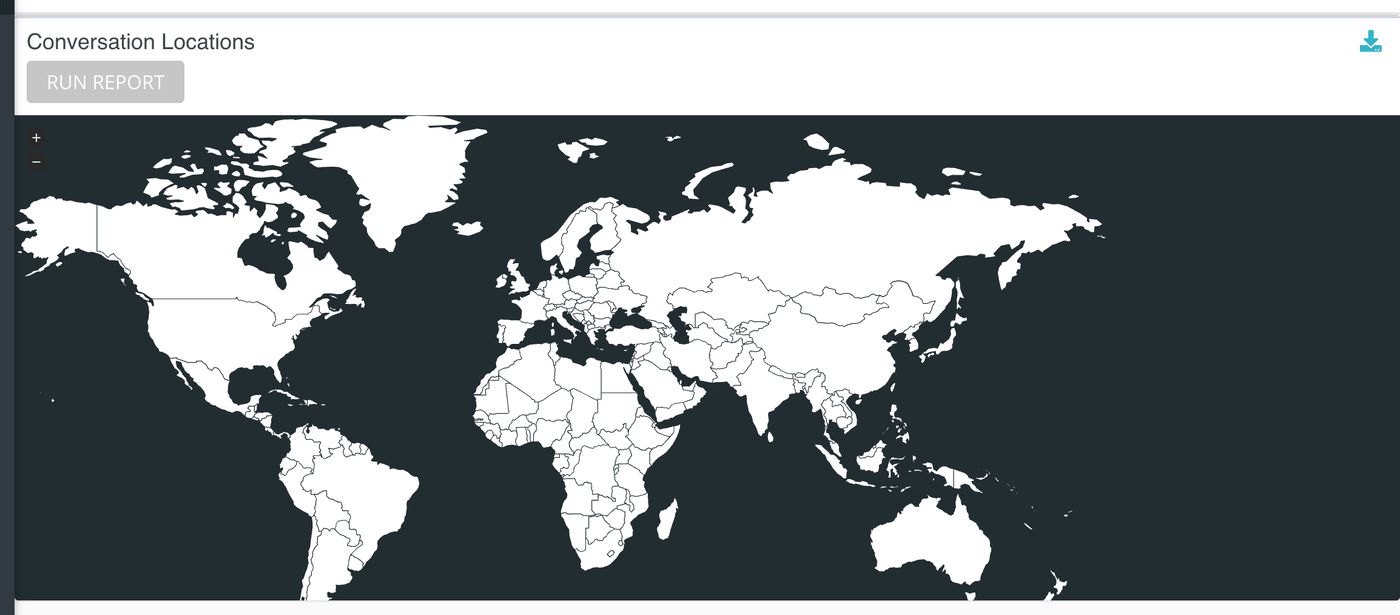
A dark world map with a cyan dot for each seeker whose location Echo could work out. Echo takes it from the seeker's IP address or zip code, so it is approximate: a dot marks the area, not a street. The map draws at most 500 conversations, so on a busy period it is a sample of the whole.
Seekers whose location could not be worked out are left off the map. Their conversations are still counted in the table below.
Conversations by Country
One row per country, sorted by country name. Type in the search box to find one, or click a column heading to sort by it.
| Column | What it counts |
|---|---|
| Country | The seeker's country. Conversations with no country on record are grouped as Unknown. |
| Active | Conversations that a responder has claimed and that are still open. |
| Closed | Conversations that were ended and given an outcome. |
| Timeout | Conversations that ran out of time before anyone responded. |
| Abandoned | Conversations where the seeker left before a responder picked up. |
| Blocked | Conversations a responder ended by blocking the seeker. |
| Total | Every conversation from that country in the period, whatever its status. |
| One column per outcome | How many of the country's conversations ended with that outcome. Only your current outcomes get a column. |
What the measurements mean
| Term | What it means |
|---|---|
| Location | Where Echo believes the seeker is, looked up from their IP address or zip code. It can be wrong for seekers on a VPN or a mobile network. |
| Status | Where a conversation is in its life. The five statuses shown here are the ones that describe how a conversation ended or is going. The full list is explained in Status and Outcome reports. |
| Outcome | The result a responder chose when closing the conversation. |
Things to know
- The status columns do not have to add up to Total. Conversations that are still waiting in the inbox, or hidden, count toward Total only.
- This report covers messaging and chat conversations. Phone calls have their own map under Calls, then Geolocation, in the left-hand menu.
- The Created At and Closed At switch decides which date puts a conversation in the period.