Most ministries have one or two people who call far more often than anyone else. A quota is how Echo limits that without anyone having to block a number by hand: after so many calls in so many hours, the caller is turned away for a while, and then allowed back.
There are two, set up separately and identically: one for phone calls and one for web chat.
Both are off until you switch them on, and every field is grayed out until you do. Turning the switch on is the first step, not the last.
Phone call quotas
In the admin menu, click Settings, then Call Quotas.
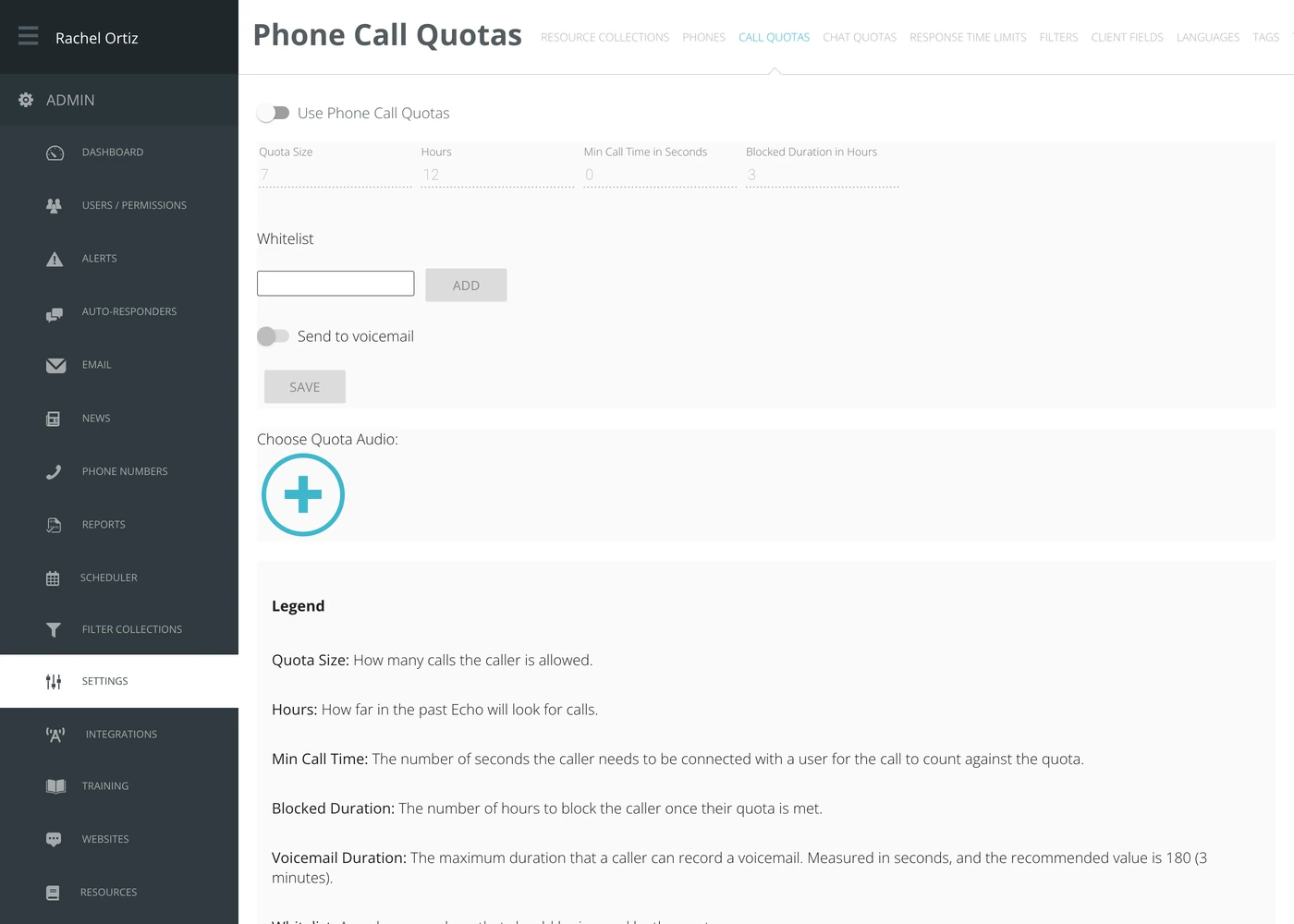
- Turn on Use Phone Call Quotas.
- Set Quota Size — how many calls are allowed.
- Set Hours — the window those calls are counted over.
- Set Min Call Time in Seconds — how long a call has to last before it counts.
- Set Blocked Duration in Hours — how long the caller is turned away once the quota is met.
- Click Save.
The whitelist
Any number in the Whitelist is ignored by the quota entirely. Type the number and click Add. Use it for your own staff, partner ministries and anyone you never want turned away.
Voicemail instead of nothing
Turn on Send to voicemail and a caller who has met their quota can leave a message rather than simply being cut off. Voicemail Duration Limit caps the recording in seconds; the screen's own guidance recommends 180.
Choose Quota Audio lets you upload the recording the caller hears when the quota has been met. If you upload nothing, they hear Echo's default handling.
Chat quotas
Click Chat Quotas along the top. It is the same idea, with a list of trusted addresses in place of the call quota’s list of phone numbers.
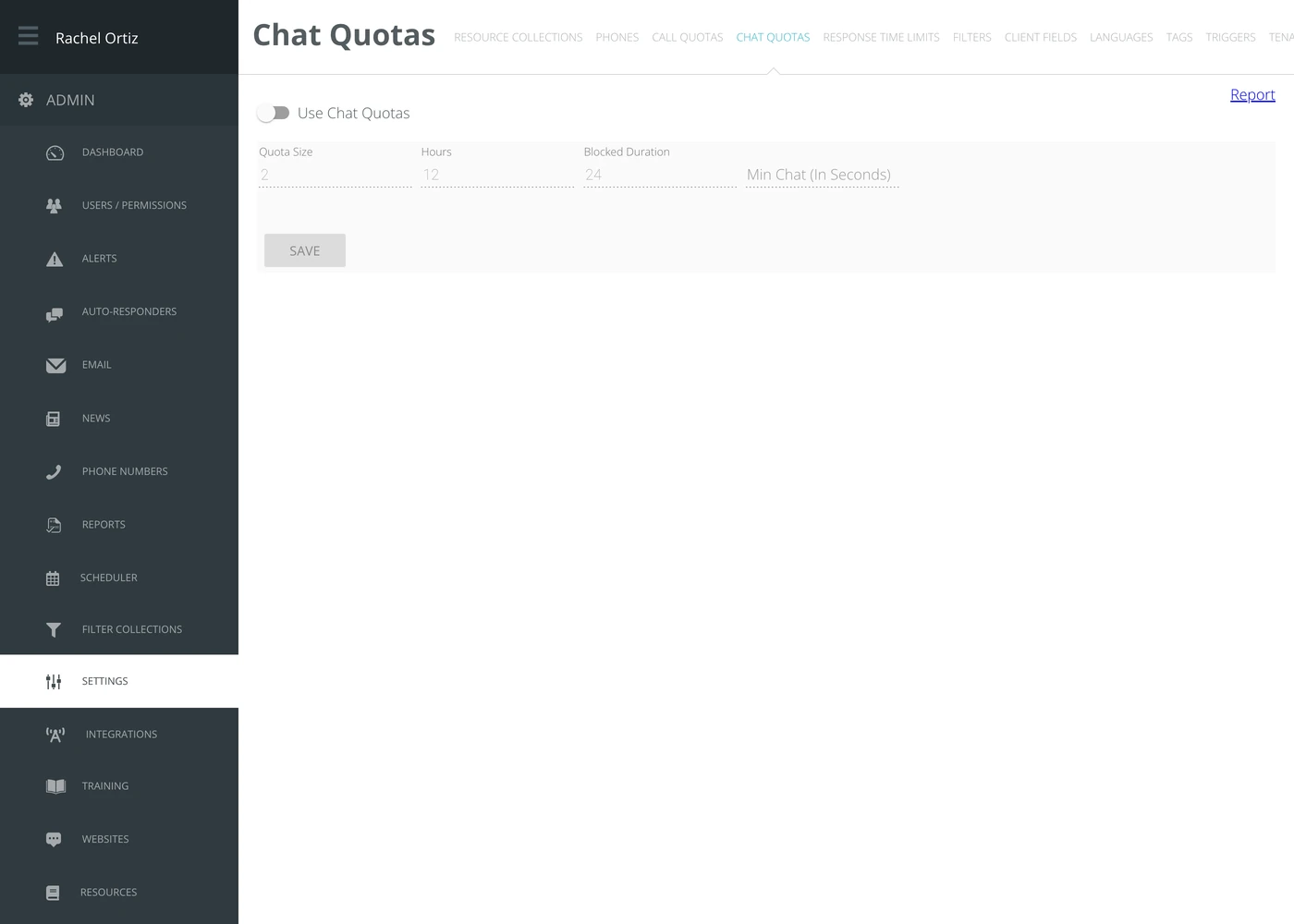
- Turn on Use Chat Quotas.
- Set Quota Size, Hours, Blocked Duration and Min Chat (In Seconds).
- If there are networks you never want turned away, such as your own office, a partner ministry or a campus, list them under Whitelisted IP Addresses, one per line, as a single address or a range. Chats from those addresses never count against the quota, anyone already blocked from one of them is unblocked when you save, and an entry Echo cannot read is dropped.
- Click Save.
The Report link in the corner shows who has been hitting the chat quota.
What the settings mean
Echo prints its own legend at the bottom of the call quota screen. These are its words:
| Setting | What it means |
|---|---|
| Quota Size | How many calls the caller is allowed. |
| Hours | How far in the past Echo will look for calls. |
| Min Call Time | The number of seconds the caller needs to be connected with a user for the call to count against the quota. |
| Blocked Duration | The number of hours to block the caller once their quota is met. |
| Voicemail Duration | The maximum duration that a caller can record a voicemail. Measured in seconds, and the recommended value is 180 (3 minutes). |
| Whitelist | Any phone numbers that should be ignored by the quota. |
Min Call Time is the setting most people set wrong. Leave it at 0 and every attempt counts, including the ones that rang out. Raise it and only calls a responder actually took are counted.
Deciding the numbers
A quota is a pastoral decision, not just a technical one. Set it wide enough that somebody in genuine crisis is not turned away on a bad night, and pair it with voicemail so that no caller ever reaches silence.