Not every conversation a ministry has starts in Echo. Somebody fills in a card at an event, a partner sends a spreadsheet, an older system holds a year of history. Imports is how that gets in, so it counts in reporting alongside everything else.
Where to find it
In the admin menu, click Imports.
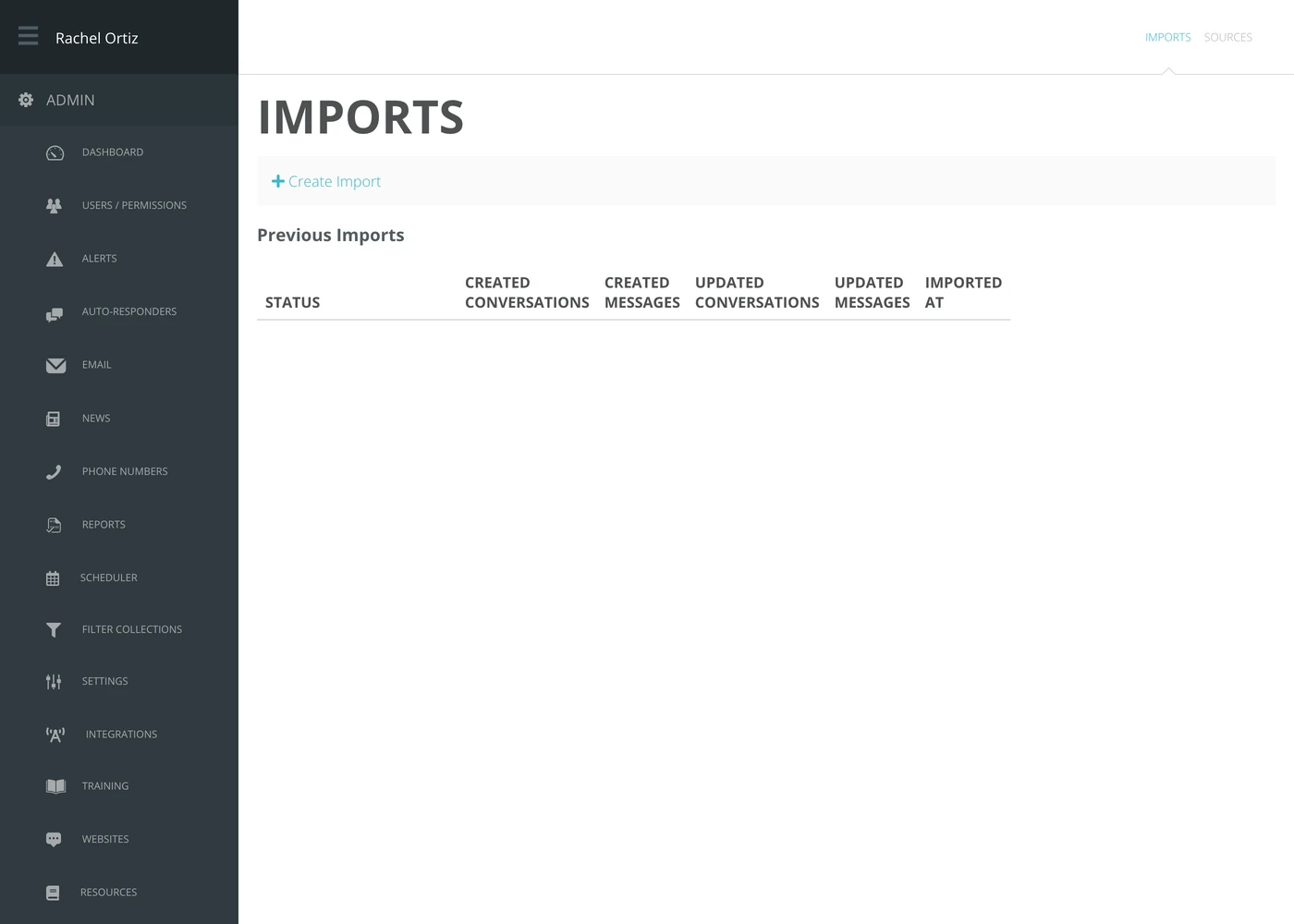
Running an import
- Click Create Import.
- Choose the External Referrer — the source these conversations should be filed under.
- Choose the Outcome to record against them.
- Click Choose File and pick your CSV. The limit is 50MB.
- Click Submit to start the import.
The External Referrer list only contains sources of the External kind. If yours is not there, create it as an external source first — see the External Integrations article.
Reading the results
Every run is listed under Previous Imports with five numbers.
| Column | What it counts |
|---|---|
| Status | Where the run got to. |
| Created Conversations | Conversations that did not exist before. |
| Created Messages | Messages added inside them. |
| Updated Conversations | Conversations Echo matched to something already there. |
| Updated Messages | Messages changed rather than added. |
| Imported At | When the run happened. |
The created and updated split is the number to read. A file you expected to be all new arriving mostly as updated means Echo matched rows to people already on the account — which is usually right, and occasionally means your file has the wrong identifier column in it.
Import a handful of rows first and read the counts before importing the whole file. An import writes conversations into your reporting, and unpicking a bad one is far more work than running a small one twice.
What the terms mean
| Term | What it means |
|---|---|
| External referrer | A source representing something that happened outside Echo — a form, an event, another system. |
| Outcome | The result recorded against every conversation in this file. |
| Import record | One run, and the counts it produced. |