An audience is a saved list of people. Once it exists you can reach the whole group rather than pasting numbers in every time, and the list stays put between campaigns.
Where to find it
In the admin menu, click Auto-Responders, then Audiences along the top.
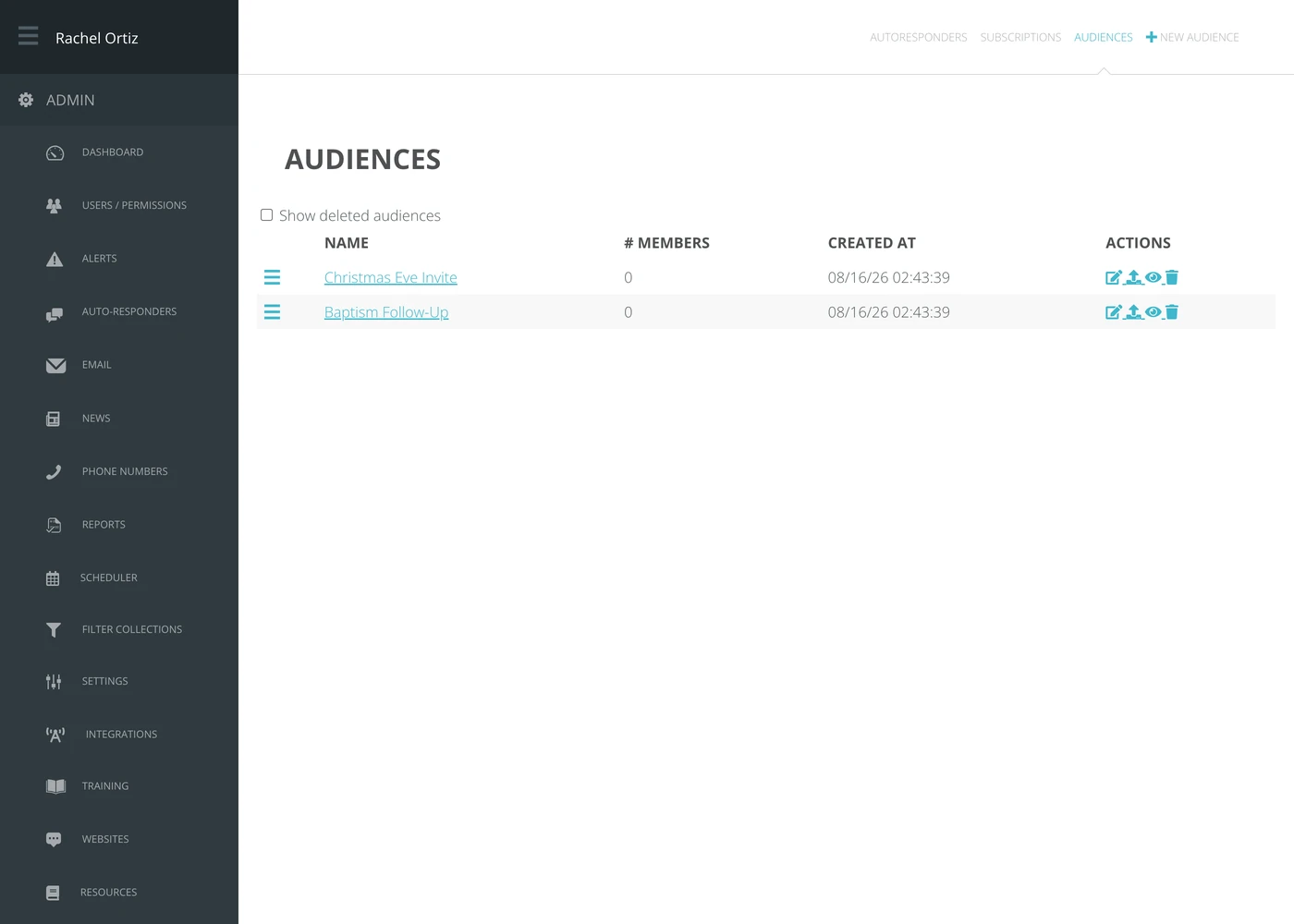
Creating an audience
- Click New Audience.
- Type a Name. Name it after the group, not the campaign — the list outlives any one send.
- Save it.
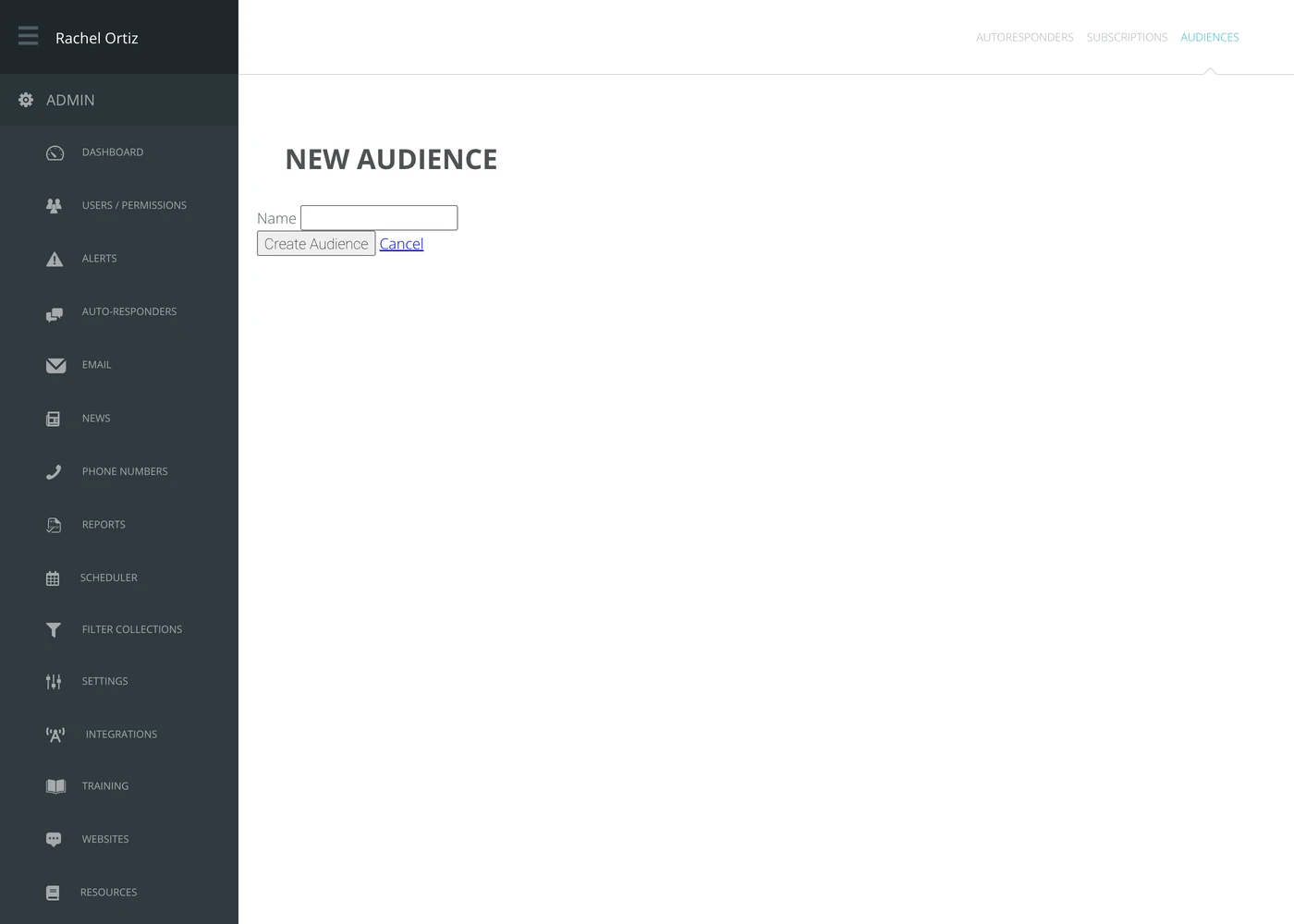
A new audience is empty. Adding people is the next step.
Adding people
People are added by uploading a file. Open the audience and use the upload option; Echo shows you a preview of what it read before anything is imported, so you can catch a wrong column before it becomes 400 wrong records.
Import a handful of rows first and check them, then import the rest. It is much easier than unpicking a bad import.
Looking inside an audience
Click the audience name to see who is in it. There is a search box — it matches on both name and phone number, which is the quickest way to answer “is this person on the list?”
Deleted audiences
Tick Show deleted audiences to see audiences that have been removed. Deleting an audience removes the list, not the people — their records and conversation history are untouched.
What the terms mean
| Term | What it means |
|---|---|
| Audience | A saved list of people you can reach as a group. |
| Member | One person on the list. |
| Subscription | A different thing — somebody who texted a keyword and opted in to a campaign. An audience is a list you built; a subscription is a list they joined. |
Whose numbers you may put in an audience is a legal question as well as a pastoral one. Carriers and regulators in most countries expect people to have agreed to hear from you. Import lists you can account for.